Explore department profiles, agencies and industry spending
Part of these button learning paths: Agency Profiles/Forecasting
Video sections for this page
- 0:00 — Open Agency Profiles and Forecasting
- 0:05 — Choose a department or separate resource
- 0:30 — Read the VA department report
- 1:04 — Use department links to choose a report path
- 1:36 — Read the VA industry report
- 2:15 — Follow agency and office report levels
- 2:44 — Read the contracting-office list
- 3:11 — Follow an office name to the address directory
- 3:43 — Open the incumbent company list
- 4:12 — Check the company profile and award history
- 4:40 — Read a company award row
- 5:19 — Distinguish the award action amount
- 5:49 — Read the separate forecast link list
- 6:20 — Read the DoD subcontracting workbook
- 6:50 — Read the Federal subcontracting workbook
From Main Menu → Research, choose Agency Profiles/Forecasting. On the department page, select a department and Show Department Profile to open its report. From the profile, follow Agencies, an expenditure/NAICS link, or a conditional agency/office link to continue into a narrower report. Use browser Back to return to the prior report; use Main Menu when shown to choose a different research family. The forecast and subcontracting workbook links are separate resources, not steps in the report drilldown.
Start at the department page
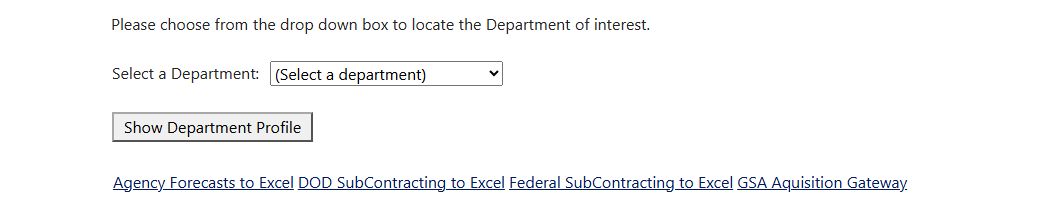
Open the department selector image at full size.
| Field or link | Meaning and action |
|---|---|
| Select a Department | Choose the named federal department. The first placeholder choice does not open a profile. |
| Show Department Profile | Opens the selected department's spending report. |
| Agency Forecasts to Excel | Opens a separate workbook of agency forecast links. Find the agency, open its Link, and check Updated; then note the forecast's own date and period before using its figures. |
| DOD SubContracting to Excel | Opens a separate DoD subcontracting workbook; check its stated scope and date. |
| Federal SubContracting to Excel | Opens a separate federal subcontracting workbook; check its stated scope and date. |
| GSA Aquisition Gateway | Opens an outside forecasting resource. Confirm the current destination and its access requirements. |
The page itself does not calculate a forecast. A forecast workbook should be cited by its own publication date and period, not by the date a user opened this menu.
For the fields and practical use of the two subcontracting downloads, see Read the subcontracting workbooks.
Open an agency forecast
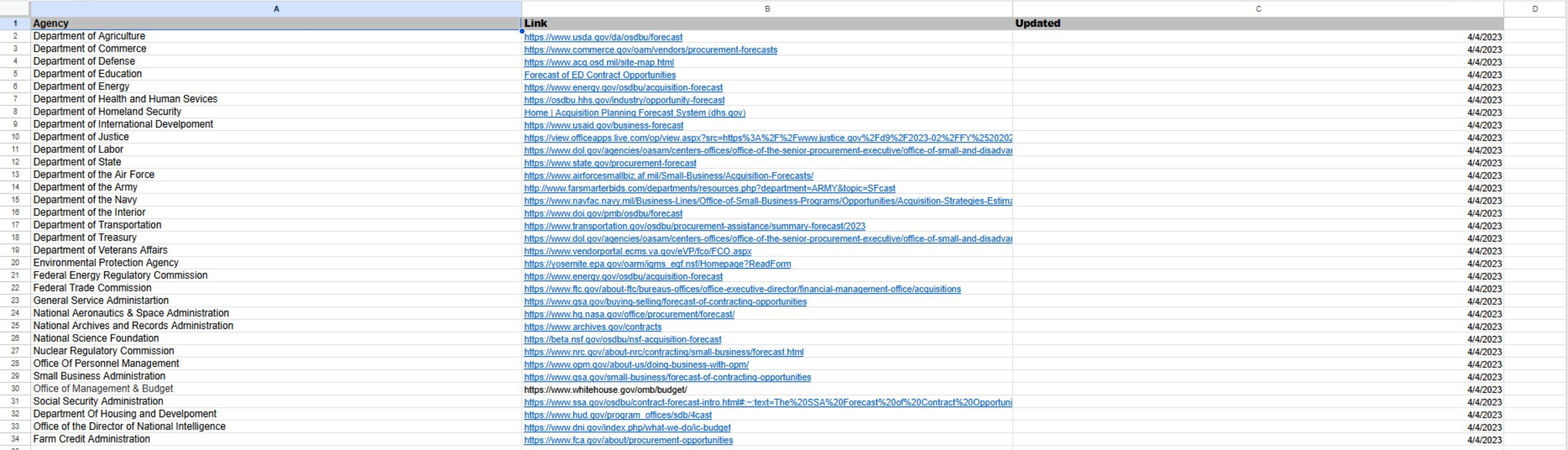
Open the worksheet image at full size.
This saved example illustrates the layout. Its entries show an Updated date of April 4, 2023; open the agency's link for its current forecast.
Choose Agency Forecasts to Excel on the department page. The example workbook has one sheet with three columns: Agency identifies the agency, Link opens its forecast, and Updated gives the date shown for that entry. Find the agency you need and open its Link. On the destination, record the forecast's own date and covered period; the link-list's Updated date does not replace them. Use browser Back to return to the department page.
Read the department profile
This Department of Veterans Affairs example shows the department links and its displayed 2026 expenditure total.

Open the department profile image at full size.
| Report field | What it tells you |
|---|---|
| ID | Stored department identifier used to follow report links. Keep it as an identifier, not a numeric amount. |
| Department Name | Stored department name, linked to its recorded website when available. Verify the current official site. |
| Agencies | Count of distinct agencies for most departments. For three special department groups, the report instead counts offices. Compare organizational level before ranking departments by this number. The count links to a finer agency or office list. |
| ORG CHARTS | Conditional organization-chart link. The chart itself may have a different update date. |
| CIO / CFO / HR / FM | Conditional links for chief information, finance, human resources and facilities-management information. A blank cell means no stored URL on this report, not no such office. |
| SADBU | Conditional small-business office link. Confirm its current name and program scope on the destination. |
| FIOA | This heading is spelled FIOA on the report; the link text says FOIA and opens an information-request resource. |
| PHONE BOOK | Conditional telephone-directory link. Verify contacts before outreach. |
| [Year] Expenditures | Department award-dollar total linked to an industry (NAICS) breakdown. The heading's year does not establish the exact period covered by the stored total. |
Follow Agencies to the agency/office table. That table may show ID (agency identifier), Department (parent department), Name (agency or office name), # of Offices (distinct office-code count), # of Contracts (sum of stored count values), and a dated Expenditures amount (sum of stored dollar totals). The exact organizational level and formula depend on which department link opened the table. A linked office count opens office details; a linked contract count opens a NAICS report. Report links should be followed in their displayed order rather than adding differently scoped counts together.
The office-level table shows ID, OfficeID, Name, Zip, # of Contracts and a dated Expenditures total. OfficeID is an office-code identifier, Zip is a postal identifier, and the two totals are stored aggregates. A Name link can open office contact information; a contract-count link can open an office NAICS breakdown. Preserve leading zeros in ZIP and codes.
Read the NAICS and incumbent drilldowns
The NAICS reports show some combination of NAICS (industry code), Name (industry description), Awards or # of Contracts (sum of stored counts), # of Agencies or # of Offices (organizational breadth), Incumbents (company count), and Expenditures (stored dollar total). Counts have different scopes. In a department or agency report, Incumbents can sum company counts from several agencies; the same CAGE may be represented more than once. At an office, it can be a distinct-CAGE count. Do not compare those values as if all were unique companies across the same population.
Click a NAICS amount or count to see a more specific agency, office or company list, then verify a particular award from its original record before calling a company an incumbent for an upcoming requirement. Some agency-name links may not open a further report; use the surrounding count or amount links for the next level when available.
When comparing levels, keep the report title, chosen department or office, NAICS and displayed year with each figure. The counts and dollars can cover different groups and periods.
The report field reference explains the distinct department, agency, office, NAICS and incumbent drilldowns field by field.
Example: plan outreach to a federal department
Select a target department and open its profile. Follow the agency or office count to learn the organization structure, then the NAICS expenditure link for the company's industry. Review the specific offices and incumbents relevant to the offering. Use the official department site and current notices to identify real buying contacts. Treat the static forecast workbook as a separate, dated planning source, and do not combine its figures with the profile's stored expenditures without aligning their periods and units.