Search subcontract award history
Part of these button learning paths: SubContractor History
Video sections for this page
- 0:00 — Open SubContractor History
- 0:06 — Set the description search
- 0:21 — Choose the matching Search button
- 0:45 — Keep prime and subcontract records distinct
- 1:20 — Use the result-page controls
- 1:46 — Distinguish the linked prime award
- 2:13 — Return to the subcontract results
- 2:37 — Read the AwardHistory worksheet
- 3:04 — Finish the worksheet review
From Main Menu → Research, choose SubContractor History to open this form. Enter the criteria you know, then choose the Search button beside the criterion you want to use; that opens the subcontract award result grid. The form is separate from prime award search. On results, use Back to return to this form or Main Menu to choose another feature.
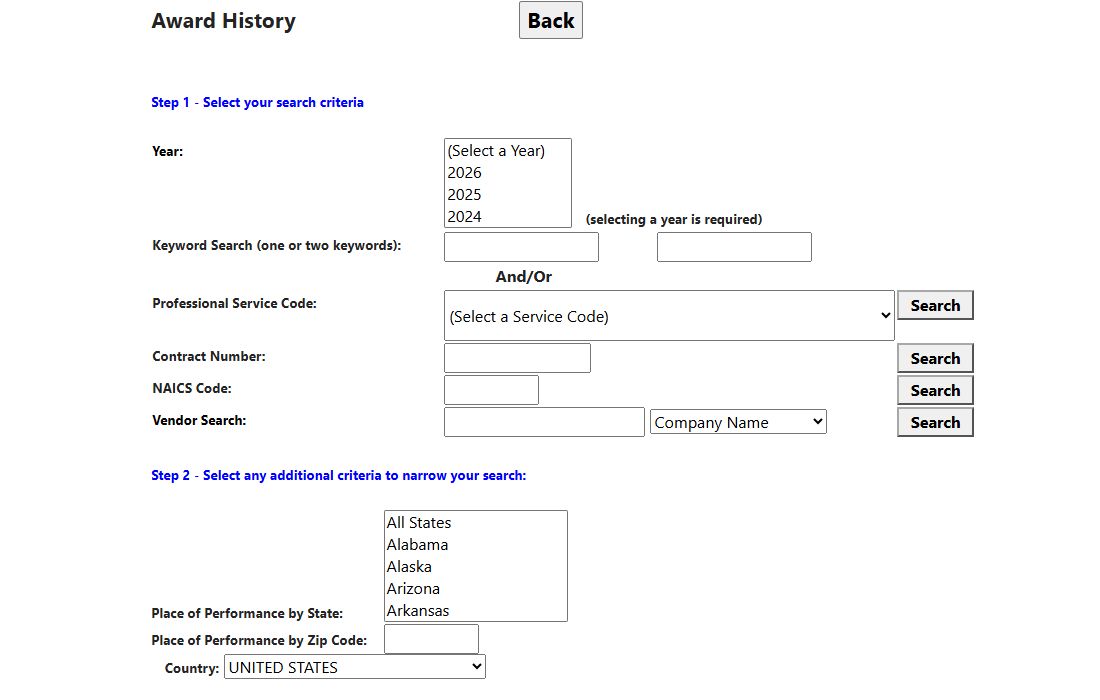
Subcontract Award History search form, October 11, 2026. Choose a criterion and use the Search button beside that section.
| Visible control | What to enter and what the search uses |
|---|---|
| Year | Select one or more award years from the list (2001–2026). The Service Code Search requires a year; the other Search buttons may work without one. |
| Keyword 1 / Keyword 2 | Search words in the subcontract project description. If you enter both, both phrases must match. For a keyword search, select a year and use the Search button by Service Code, leaving Service Code blank. |
| Service Code | A lettered product/service family such as D for IT or S for utilities/housekeeping. This choice is offered on the form, but its filtering is not established; use NAICS or a description keyword when you need to classify work. |
| Contract Number | Enter a subcontract number, prime contract number or prime reference number. Spaces and hyphens are ignored. A year is optional. |
| NAICS Code | Enter the full six-character principal NAICS code for the subcontract. The match is exact. |
| Vendor Search | Enter a name or identifier and choose Company Name, CAGE Code, DUNS Number, Prime Company Name, Prime CAGE or Prime DUNS Number. The first three look for subcontractors; the prime choices look for prime contractors. Codes match exactly. |
| Place of Performance by State | Select one or more states. Despite the label, this filters the subawardee's state, which may differ from where the work was performed. |
| Place of Performance by Zip Code | Enter the first five characters of the project's place-of-performance ZIP. Entering a ZIP takes precedence over selected states; do not use these together to narrow to their intersection. |
| Country | UNITED STATES is the unfiltered default. Other choices look for that country name in the project description, not in a verified location field. Use the award record to check where work occurred. |
Main Menu returns to the seller menu; Back returns to your previous page.
Worked search: construction subawards
- From Main Menu → Research, open SubContractor History.
- Select 2024 for Year. Enter
constructionin Keyword 1, leave Keyword 2 blank, and leave Service Code unselected. - Leave the other criteria at their defaults and press Search beside Service Code. The keyword boxes use that row's Search button even when no service code is selected.
- In the results, compare the prime company, prime contract number, subcontract number, subcontractor and reported amount. Open a contract link when you need the associated award detail; use Back to return to this search.
In the captured search, the first rows included prime SALADO with contract 89303322DEM000077, subcontract PO516293, and subcontractor PARPAL; a later row showed TETRATECH with contract W912EK23F0089. Use these as examples of how the prime and subcontract records appear together, not as current teaming opportunities. The separate results guide explains every visible field and the 13-column worksheet export.