Search prior awards
Part of these button learning paths: Award History
Video sections for this page
Video sections for this page
- 0:00 — Open award history
- 0:29 — Choose a year and search route
- 1:12 — Set additional criteria
- 1:55 — Search by work description
- 2:17 — Read individual award actions
- 3:00 — Search by classification
- 3:31 — Read grouped results
- 4:06 — Expand a result group
- 4:35 — Refine by place of performance
- 5:03 — Read flat result columns
- 5:41 — Search a known contract or vendor
- 6:24 — Follow buyer and vendor links
- 6:55 — locate-the-award-summary-row
- 7:24 — read-identity-and-transaction-details
- 7:50 — compare-action-dates-and-amount
- 8:19 — return-with-the-right-interpretation
- 8:41 — Review result actions and report links
- 9:12 — Export and interpret the workbook
- 9:56 — Finish and continue research
- 10:28 — Read the controlled award workbook
- 10:53 — Continue across the workbook columns
Video sections for this page
From Main Menu → Research → Award History to open the search form. Select a Year, choose one primary route and press that row's Search button. An award action is one recorded transaction on a contract, such as the original award or a later modification that adds, removes or changes funding. Several actions can belong to one contract; the action date and amount describe that transaction.
The Award History page helps research recorded contract actions: what work an office bought, who received it and when an action occurred. These are past awards, not open solicitations. The examples below show how different Search buttons lead to flat actions or grouped contracts. See Read award results for both layouts.
Choose a year and a way to search
For work described in words, choose 2026, enter custodial in Keyword 1 and Memphis in Keyword 2, and press Search beside Professional Service Code. That search returned six individual award actions. For an industry view, enter NAICS 561720 and press the NAICS-row Search; the result groups related contract actions. See the custodial walkthrough and award results.
Adding Tennessee under Place of Performance by State to the 2026 / NAICS 561720 search opens individual actions instead. That lets you examine where the work occurred, while changing the layout from grouped contracts to a flat action list.
If you know a contract number, choose 2026, enter 140FS225P0147 under Contract/Solicitation Number, and press that row's Search. The example returns four modifications in a flat list; the four-action Excel example shows their amounts and dates. Keep the contract number, each Mod #, action date and selected year together. Four actions do not mean four separate contracts.
Choose a year and one primary route. Use words when you know the work but not its code; use a code when you know the classification; use a contract number or vendor identifier when you already know the record or company. The page has separate Search buttons for service code/keywords, contract number, NAICS and vendor. Values left in another row are not automatically combined. The visible Back button follows browser history.
Year lets you select one or more award-action years, from 2001 through 2026 on this form. Choose a year even when the Search button does not require one, so the result stays focused. This is the year of the recorded action, not its expected completion year.
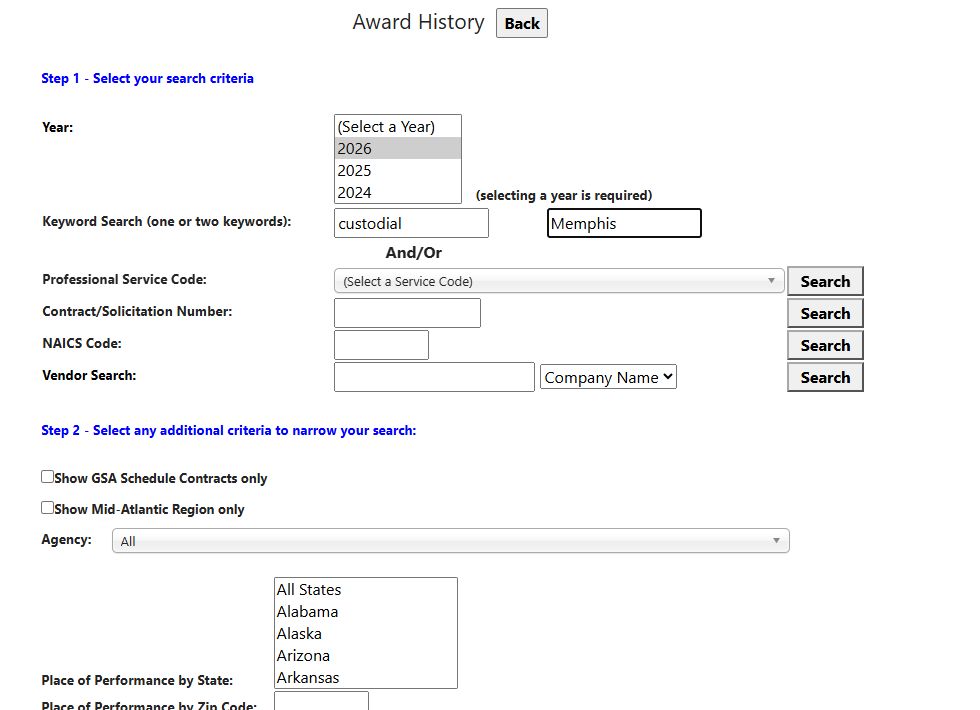
The confirmed form above shows the service-code row button used for this keyword example.
Primary search controls
| Visible field and button | What to enter and what it shows | Useful distinction |
|---|---|---|
| Keyword Search (one or two keywords), boxes 1 and 2; Search beside Professional Service Code | Enter a work term in box 1; add box 2 if both terms should appear in recorded requirement descriptions. Press the visible Search beside Professional Service Code. | The keyword row's own Search is hidden. Box 2 alone does not start a search. This searches past-award descriptions, not current-notice titles. |
| Professional Service Code and its adjacent Search | Choose a code to browse related awards. A code alone, with default location/GSA/Country controls, opens grouped contracts. Add Keyword 1 to combine the code with a work term in a flat action list. | A code alone with State, Country, ZIP, GSA-only or Mid-Atlantic selected can open a flat search that does not apply the code. Clear those refinements for a code-only search, or add Keyword 1 and inspect the returned descriptions. |
| Contract/Solicitation Number and its own Search | Look up an identified contract or reference. The input removes hyphens and spaces before its search. The flat result compares the beginning of contract, reference or solicitation identifiers. | This is a prefix match, so verify the full Contract #, Ref # and Mod # in the result. A historic contract number is not an open solicitation. |
| NAICS Code and its own Search | Enter a six-character industry code. Default Step 2 choices open grouped contracts; a location/GSA/Country refinement opens individual actions. | Use the NAICS-row Search. Words left in the keyword boxes are not automatically combined with this route. Total has a different unit in each layout. |
| Vendor Search text box, selector and its own Search | Enter a company name or select CAGE Code, DUNS Number or UEI before entering that identifier. Use this row's Search to find its recorded awards. | A common name can return several firms. Compare the CAGE and company detail before attributing an award; UEI searches can differ between flat and grouped layouts. |
The printed And/Or separates form rows; the Search button you press determines which primary field is used. Use the visible controls described above.
Additional controls under Step 2
Step 2 narrows the chosen search. State, Country, ZIP, GSA-only and Mid-Atlantic can also change code-only, NAICS or vendor results from grouped contracts to individual actions. Agency and Set Aside narrow results without making that layout change by themselves. Check the returned heading before comparing amounts: a grouped Total and an individual action amount answer different questions.
| Visible control | Why use it | How it narrows results |
|---|---|---|
| Show GSA Schedule Contracts only | Focus on awards marked as GSA Schedule contracts. | A matching result may also have a GSA Sched. View link to examine the related reference. |
| Show Mid-Atlantic Region only | Research performance in VA, MD, DC or WV. | Checks a separate performance-state mapping for those four jurisdictions. When selected, the ordinary multi-state list is not used. |
| Agency | Narrow to recorded actions from a particular agency. | Uses the selected contracting-office agency identifier. Confirm the actual office on each result. |
| Place of Performance by State | Select one or more states where comparable work occurred. | Uses the mapped place-of-performance state when no ZIP and no Mid-Atlantic restriction are selected. A contractor's registered address is a different field. |
| Place of Performance by Zip Code | Narrow to a work-location ZIP prefix. | The first five entered characters are used. A ZIP takes precedence over the selected state list; clear it before trying several states. |
| Set Aside | Look for past awards in a selected competition category. | The category describes the historical action. Check a new notice for its own requirements. |
| Country | Research work described for a selected country. | This searches the country name in the description, so check the actual worksite on a result. The initial UNITED STATES option applies no country filter. |
For keywords, use the visible Search beside Professional Service Code. If you return from a search, review the selected Step 2 controls before pressing another row's Search.
Worked search routes
Compare a code search with a location refinement
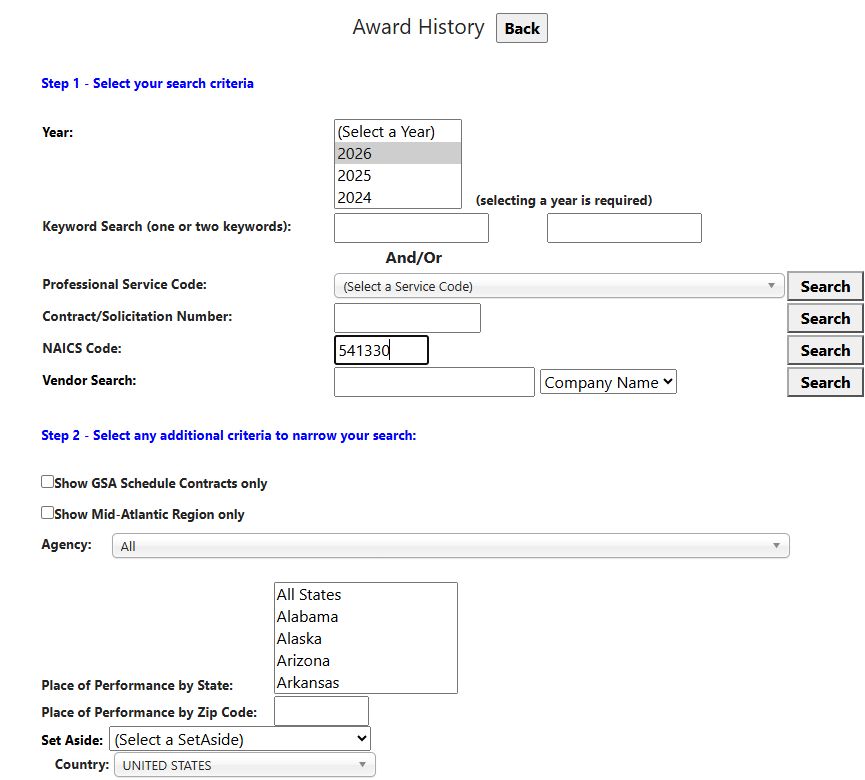
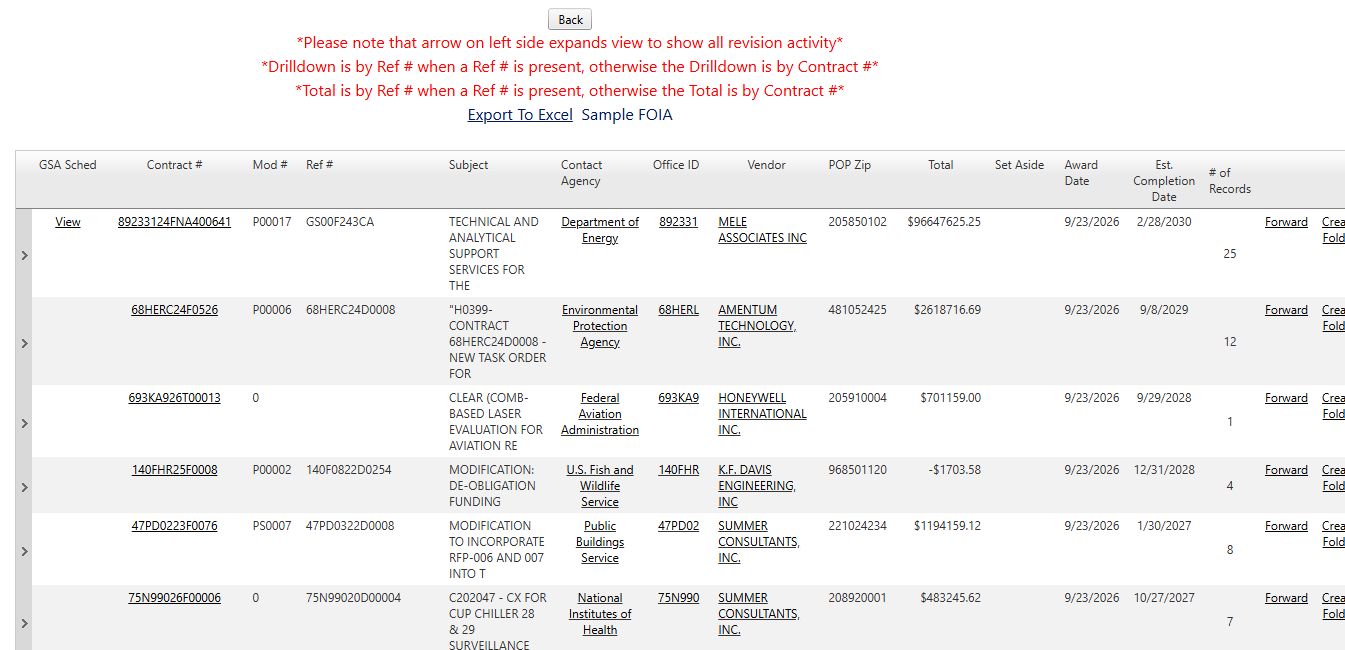
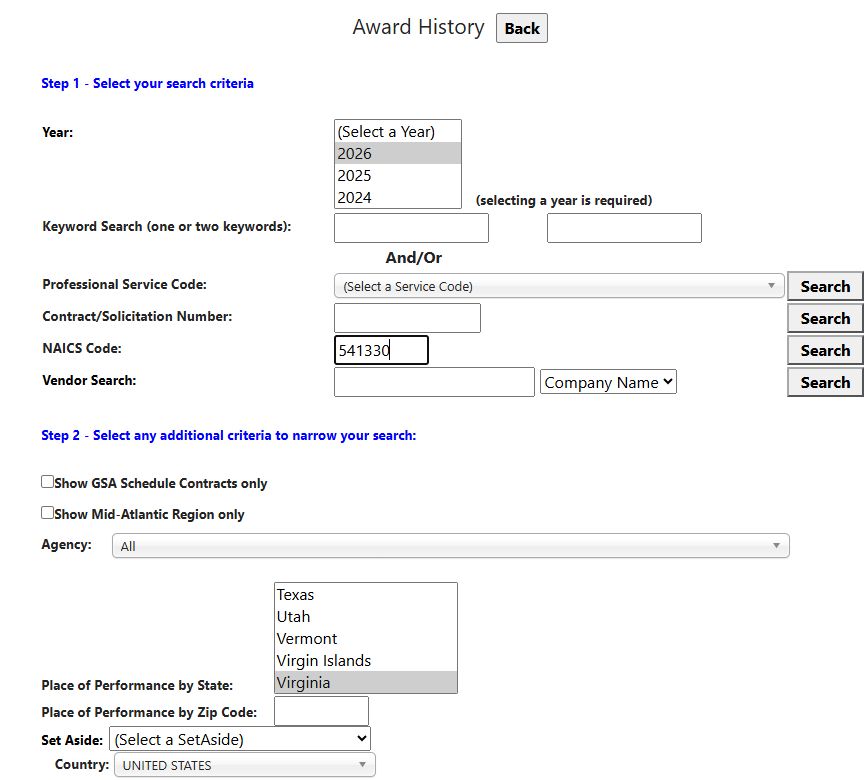
- From Main Menu → Research → Award History, select 2026 and enter 541330 in NAICS Code. Leave the other search fields blank and the additional criteria at their defaults. Press Search beside NAICS Code.
- The result displays groups of related contract actions. The arrow at the left opens the actions in a group; # of Records tells you how many records it contains. Select a child Contract # to read one award or modification.
- Return to the search form with Back, keep 2026 / 541330, and select Virginia in Place of Performance by State. Press the same NAICS Search.
- This result displays individual actions directly. Compare Subject, Vendor, Award Date and Est. Completion Date, then select Contract # for its details. Back returns you to the list.
The state is where the work is performed; it is useful when your company serves a particular area. It is different from the vendor's mailing address. The two examples use the same NAICS and year so you can see what adding a state changes.
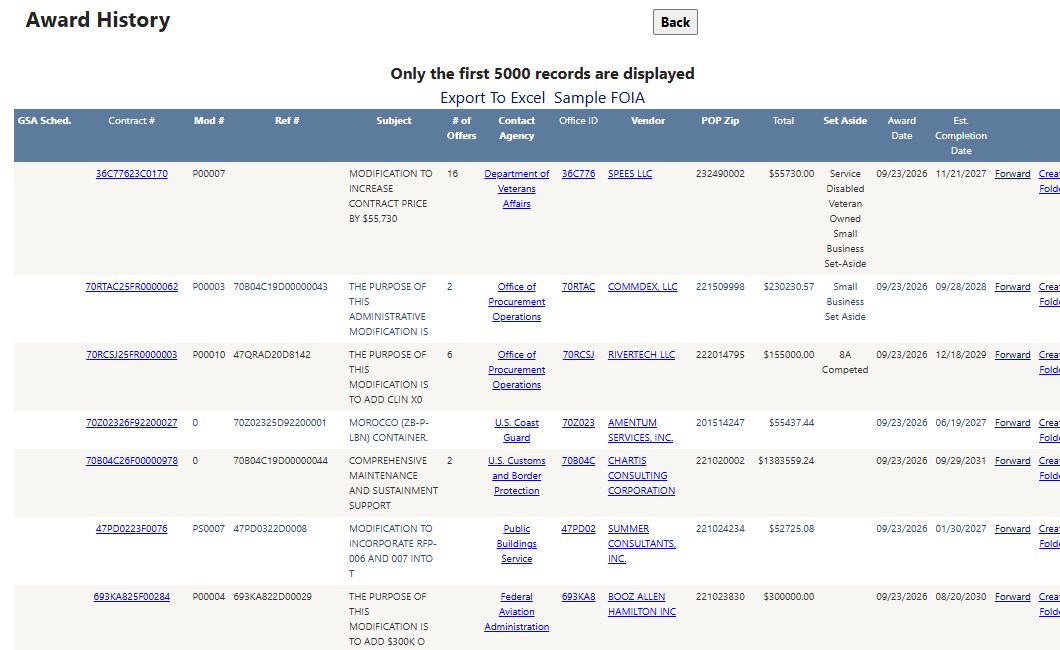
In this example the first Virginia row is contract 36C77623C0170, modification P00007, for SPEES LLC. Its $55,730 is the amount on that action. See Read award results for the meaning of each column and the difference between an action amount and a grouped Total. Results change as new records arrive.
Other ways to reach an award
The first four routes use captured October examples; their stated result layouts/counts were observed. Follow the next click to inspect a contract action, then use that page's Back button to return to the result list.
- Find similar work: from Main Menu → Research → Award History, choose 2026, enter
custodialin Keyword 1 andMemphisin Keyword 2, then press Search beside Professional Service Code. The captured result contains six individual award actions. Select a Contract # to read that action in Award Details; use Back to return and compare another row. - Browse a market by code: choose 2026, enter NAICS
561720, clear state, ZIP, Country, GSA-only and Mid-Atlantic refinements, then press NAICS Search. The captured result is grouped by contract/reference. Select an arrow to view its actions; choose a child Contract # for detail, then Back to return. - Limit that market by worksite: keep Year 2026 and NAICS
561720, select Tennessee under Place of Performance by State, then press NAICS Search. The captured result is a flat action list. Open Contract # on an action and use Back to return. - Inspect one known contract: choose 2026, enter
140FS225P0147under Contract/Solicitation Number, and press that row's Search. The captured result has four modifications. Open a Contract # row for one action; keep its Mod # with the contract number, then use Back to compare the other modifications.
From a result list, Back follows browser history where shown; the flat result page hides Main Menu. To research whether related work is currently open, return to Main Menu and use the separate solicitation search. A past award is not an open competition.
Start with a known vendor CAGE
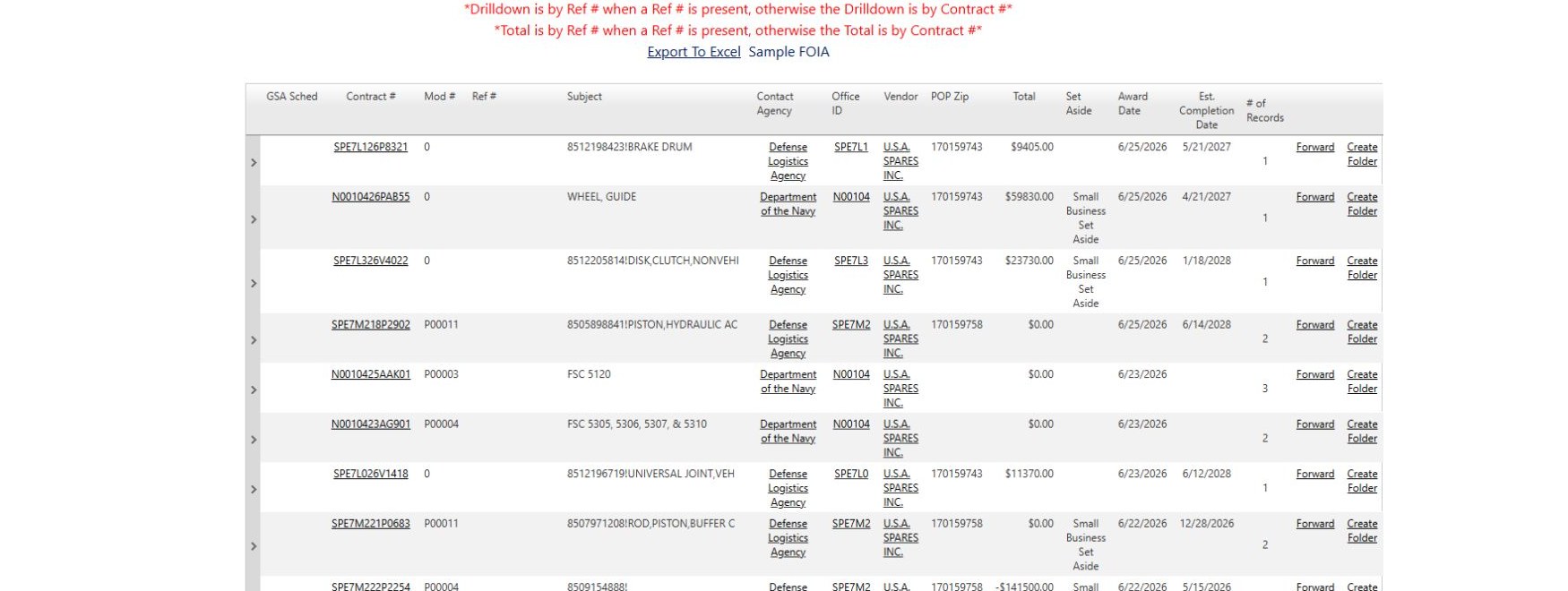
From Main Menu → Research → Award History, select 2026, choose CAGE Code beside Vendor Search, enter 1UF60, and press the Search on that vendor row. Leave Step 2 at its defaults. This actual search returned 251 grouped items across three pages for U.S.A. SPARES INC.; it is a different starting point from a work description or NAICS market search.
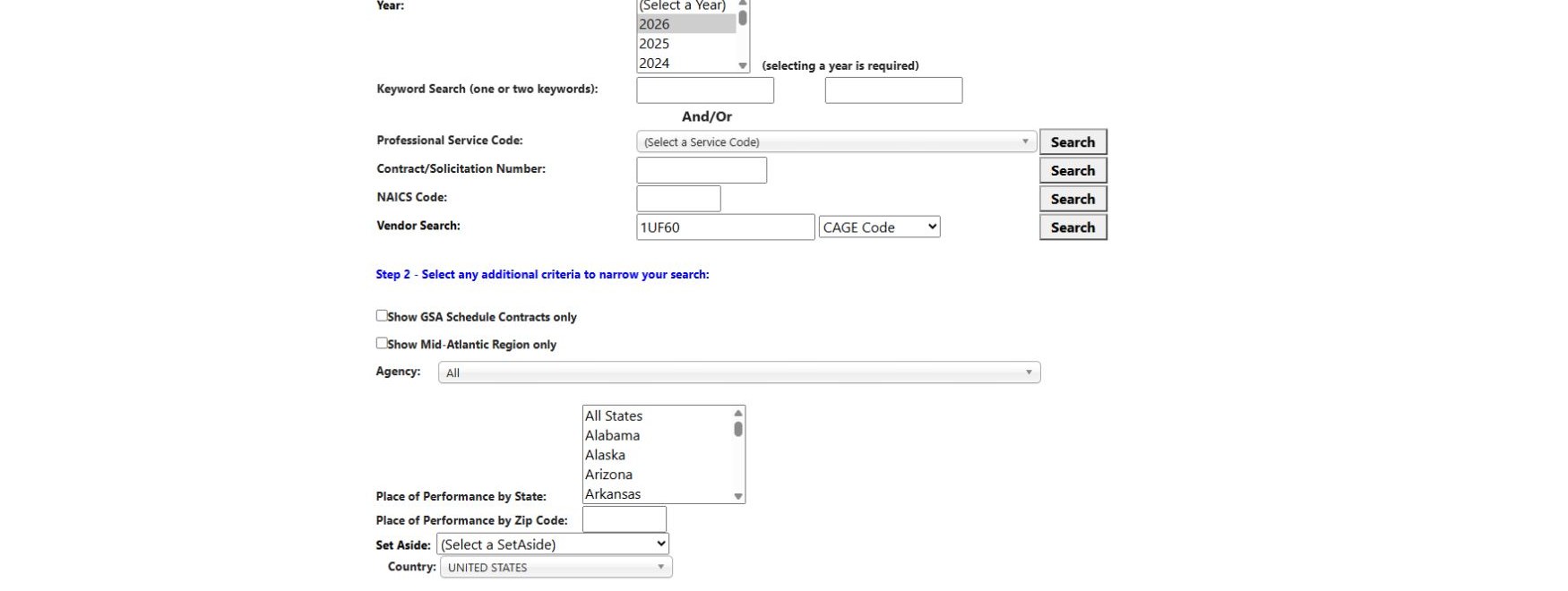
The first group is contract SPE7L126P8321, subject BRAKE DRUM, with $9,405 Total and one record. Select its Contract # to open Award Details. The action shows modification 0, $9,405 Action Obligation, June 25, 2026 Date Signed, May 21, 2027 Ultimate Completion Date, DLA Land and Maritime as the buying location, and U.S.A. SPARES INC. as vendor. Select Back in the detail page to return to the grouped result. Its Office ID SPE7L1 and Vendor links are other ways to research the buyer and company.