Review contracting officers matched to your account
Part of these button learning paths: Just My Contracting Officers
Video sections for this page
- 0:00 — Open the account officer list
- 0:14 — Read account-matched officers
- 0:38 — Interpret the NAICS section
- 1:22 — Check which account sections are available
- 1:45 — Read a Service Code worksheet example
- 2:06 — Read an FSG worksheet example
- 2:30 — Use the separate officer search
- 2:50 — Read the separate search result
- 3:36 — Follow Office View to a buying location
- 4:01 — Open the contact’s recorded RFQs
- 4:19 — Review the recorded notices
- 5:03 — Return to the officer result
- 5:16 — Return to My Contracting Officers
From Main Menu → Just My Contracting Officers, open the contact directory matched to your account's industry, service or supply-group criteria. This page has no search boxes; select a section's page number to see more rows or use that section's Export … to Excel link to prepare its spreadsheet. Back returns to the prior page and Main Menu returns to feature choices. To search solicitation-derived officer records with criteria you enter, use the separate Main Menu → Research → Find Contracting Officers option.
In the October 12, 2026 account view, the Contracting Officers by NAICS section included NAICS 238210 and listed Houston Bolles first, associated with the Administrative Office of the U.S. Courts. The rows are displayed contact text, with no per-row drilldown link. Other sections appear only when that account has matches for them. Use the contact details as leads, then check a current agency source before outreach.

This closeup shows the observed section and headings; contact values are omitted from the illustration.
Follow a contact into recent RFQs
From Main Menu → Just My Contracting Officers, read the NAICS 238210 section. Its first contact was Houston Bolles for the Administrative Office of the U.S. Courts. To research that person, return to Main Menu → Research → Find Contracting Officers; the My CO row itself is plain text.
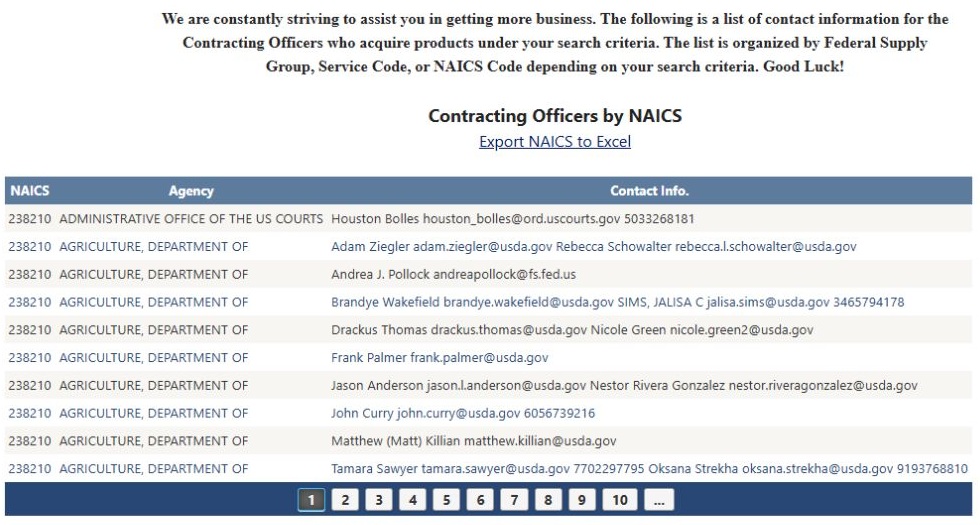
Open the NAICS 238210 contact section at full size.
On Find Contracting Officers, leave State at All States, Agency at its default and ZIP blank. Enter Houston Bolles in Search Name and press that mode's Search. One officer row appeared for U.S. District Court, Oregon, Portland, OR 97204. Select Recent RFQs → View on that result.
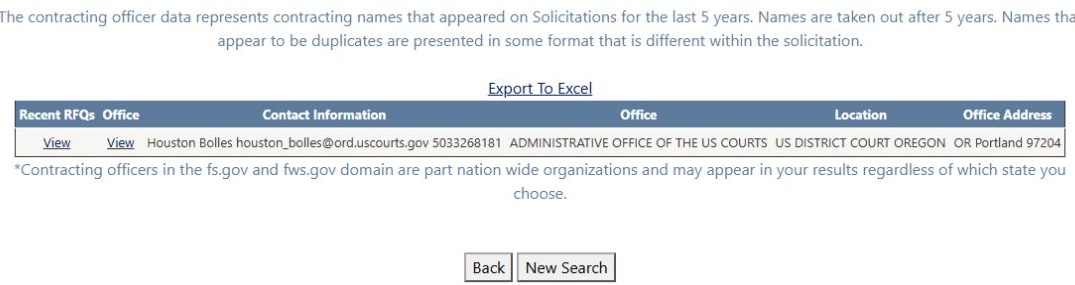
Open the Houston Bolles officer result at full size.
The RFQ page showed two rows titled 2025 SOLICIATION FOR COURTROOM NETWORK CABLING. One ran from 06/30/25 to 07/07/25; the other from 05/30/25 to 06/30/25. These older notice dates show the type of requirement associated with the contact, not an open bid. Use the original notice for scope and current procurement status. Browser Back returned to the officer result; Main Menu → Just My Contracting Officers returned to the account list.
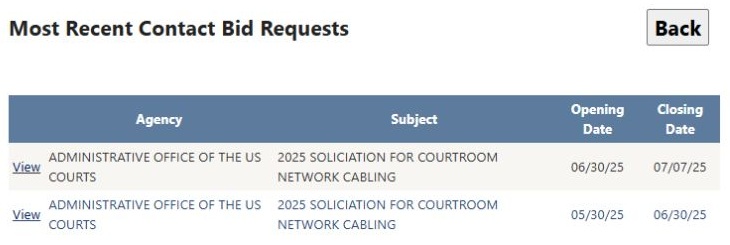
Open the Houston Bolles RFQ list at full size.
Understand the three sections
| Section | What it matches | Why you would use it |
|---|---|---|
| Contracting Officers by NAICS | Matches the account's industry codes. | Find agencies associated with the kinds of work your business performs. |
| Contracting Officers by Service Code | Matches broad one-character service groups, not a full four-character PSC. | Explore buying organizations in a service family. |
| Contracting Officers by FSG | Matches two-character Federal Supply Groups. If the account has no saved solicitation criteria, its associated supply classes can provide groups. | Explore contacts for a product family before narrowing to an item. |
If a section is missing, ask the account administrator to review its saved classifications.
Every displayed field
| Field | Plain-English meaning | How to interpret it |
|---|---|---|
| NAICS | Industry classification attached to the contact-directory entry and matched to your account. | It explains why this row appeared. It is not a solicitation number, a certification, or proof of an open purchase. |
| Service Code | Broad service category associated with the contact. | Use it to group related buying activity. Do not assume it is the same level of detail as a four-character code used elsewhere. |
| FSG | Federal Supply Group: the broad group above an individual supply class. | Use the group to start product-market research; verify the exact FSC/NSN in the relevant notice. |
| Agency | Buying organization recorded with the contact entry. | Distinguish the agency from the specific office and person. Similar agency labels can occur on many rows. |
| Contact Info. | Stored contact text, which may contain one or more names, email addresses or telephone numbers. | Read the whole cell: one row is not necessarily one person. A blank or old value does not establish that an agency has no buyer for your product. These are displayed text cells, not a promised award-history or message-sending button. |
The directory does not show when a contact was last verified or which current notice they handle.
Buttons, links and display states
| Control or state | What happens | Practical use |
|---|---|---|
| Numbered page links and … | Move within that section’s result pages; the current page is displayed as a number rather than a link. | Review beyond the first ten visible rows. Page numbers are navigation, not a count of contacts. Each section has its own paging. |
| Export NAICS to Excel | Prepares all NAICS-section rows, beyond the visible page. | Work with the industry-matched list in Excel. |
| Export Service Code to Excel | Prepares all service-code-section rows. | Compare service-family contacts. |
| Export FSG to Excel | Prepares all FSG-section rows. | Compare product-family contacts; columns can differ from the other exports. |
| Missing section or export link | The page hides headings/exports when the corresponding grid has no rows. | Check the account’s relevant criteria. Absence of one section does not mean the entire contact directory is empty. |
| No Results Were Found for Your Cage | None of the three grids has rows in that state. | Confirm the signed-in account and ask the administrator to review its criteria. It does not mean no government buyer exists. |
| Main Menu | Returns to the application’s feature menu. | Open a separate award, solicitation or manual officer search when you need a different research route. |
Column headings do not sort this list. Use the page links to see more rows.
Export the section
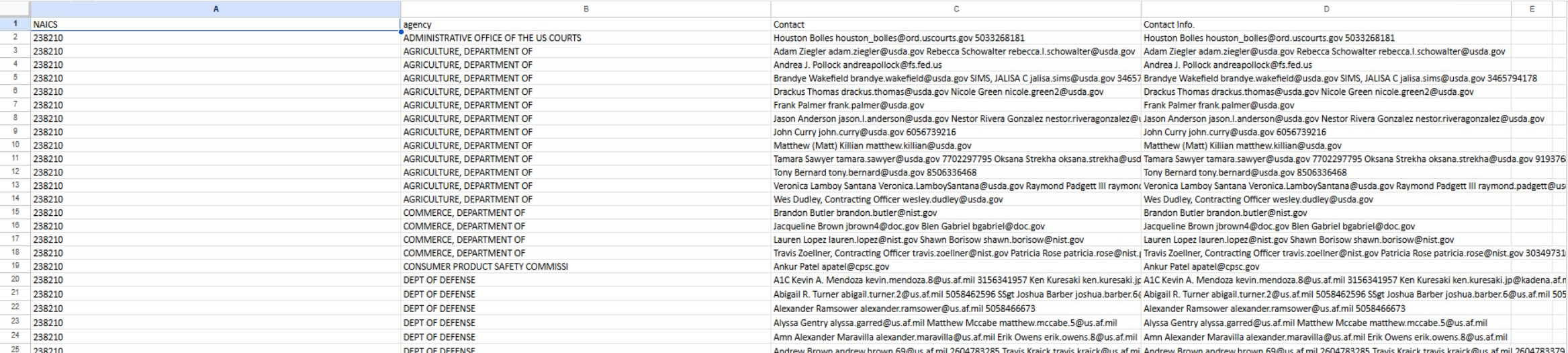
Open the worksheet image at full size.
The NAICS_Report example has four columns: NAICS, agency, Contact, and Contact Info. NAICS identifies the industry, agency names the buying organization, and the two contact columns contain contact text. Contact and Contact Info. can repeat the same information; they do not necessarily identify different people. Widen the columns or select a cell to read longer entries.
The Service Code example contains four data rows; the FSG example contains 22. Each worksheet has four columns. The exact headings are Service Code, Agency, Contact, and Contact Info. for Service Code, and FSG, agency, Contact, and Contact Info. for FSG. Both exports include the two contact fields; read them together because they may repeat information. These October 11, 2026 examples show worksheet layouts, not a complete list of contacts:

Open the Service Code worksheet image at full size.
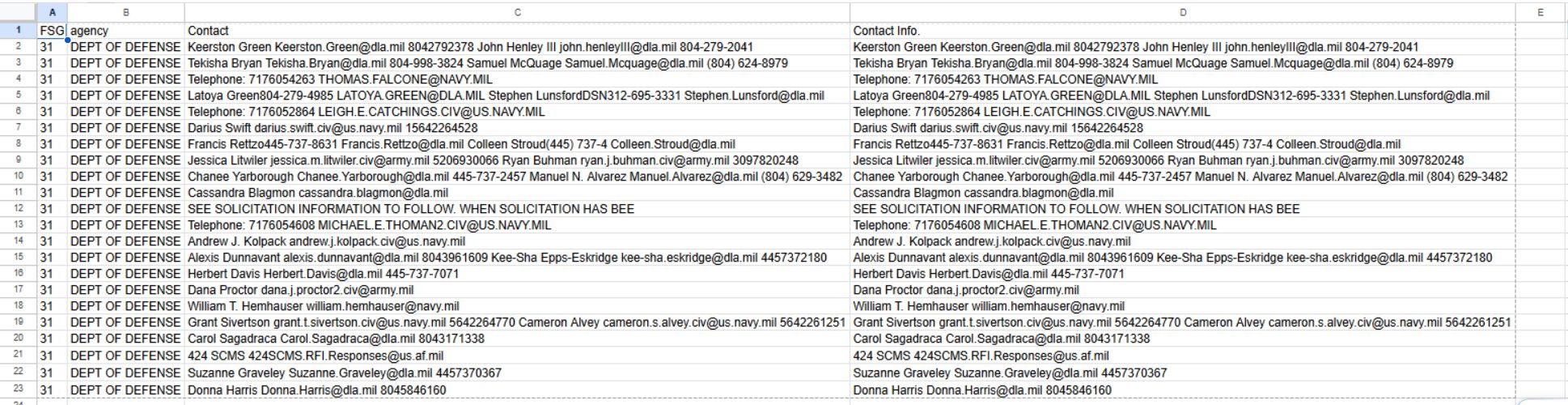
Open the FSG worksheet image at full size.
To prepare a buyer-research list, filter the whole worksheet by NAICS or agency, keeping each contact with its row. Return to Just My Contracting Officers for the account's directory, or use Main Menu → Research → Find Contracting Officers when you want to enter your own search and follow its Recent RFQs links.
Each Export … to Excel link prepares a spreadsheet for its full section, including rows beyond the displayed page. Review the downloaded sheet headings before sorting or sharing it.
If a section has no rows, its export may say No data available to export.
A practical business workflow
- Start with your actual capability and confirm which industry, service or product classifications the administrator has saved. This page does not edit them.
- Open Just My Contracting Officers and note which sections appear. Read the matching classification before treating any row as relevant.
- Compare the Agency with the agencies appearing in your award research. A directory match alone does not show that a contact handled a particular award.
- Read Contact Info. completely. Validate the responsible office and current contact through the current notice or agency source.
- Review further pages and export the appropriate section when you need an offline research list. Record the date and account context for your own working file.
- Return to solicitation research to check actual current demand. Preparing a contact list and finding an open opportunity are separate tasks.
Service-business example: a custodial firm should confirm its service criteria before using this page. An account configured with unrelated electrical-contractor codes may show a perfectly functioning list that is unsuitable for custodial research. Change the research plan or ask the administrator to correct the account; do not assume the first displayed contacts match the firm’s business.
Parts-business example: begin with the relevant supply group, then verify an exact item and current notice through the parts tools. An FSG match does not establish interchangeability, stock, price or an active request for that NSN.