Explore fabrication and machine-shop categories
Part of these button learning paths: Machine Shops Opportunities
Video sections for this page
- 0:00 — choose-category
- 0:29 — review-spacer-row
- 1:00 — Read the notice fields and research links
- 1:47 — compare-item-dimensions
- 2:18 — inspect-drawing-reference
- 2:47 — Select drawing files and return
- 3:20 — Continue into item research with a separate example
- 3:49 — Open Technical Characteristics
- 4:02 — Read each characteristic across its row
- 5:05 — Open Award History
- 5:23 — Compare the award date, quantity and price
- 6:25 — Open Associated Documents
- 6:47 — Choose the matching document number
- 7:21 — Read the listed specification revisions
- 8:03 — Open Substitutes
- 8:14 — Read the substitute relationship row
- 8:59 — Open the item's drawing list
- 9:10 — Compare drawing, sheet, type and revision
- 9:52 — Confirm the selected drawing row
- 10:16 — Open the combined HTML report
- 10:31 — Match catalog and management sections
- 11:11 — Read the report award quantities and prices
- 11:42 — Compare the report technical characteristics
- 12:06 — Read the report's document references
- 12:45 — Finish with substitutions and MOE rules
- 13:23 — Return to the NSN summary
- 13:52 — Organize a prospect in a project folder
- 14:19 — Start from the assigned parts record
- 14:43 — Understand the first Folder visit
- 15:05 — Read the project folders
- 15:34 — Create a subfolder under Notes
- 15:45 — Verify the new folder
- 15:58 — Copy the folder to Misc
- 16:08 — Paste into the destination folder
- 16:19 — Confirm the copied folder in Misc
- 16:34 — Review Upload options without submitting a file
- 17:04 — Return to My Projects Folder and reopen this record
- 17:20 — Continue work in the saved project
- 17:32 — Return to categories and choose the next opportunity
Fabrication Station groups machine-shop, CNC, milling and fabrication opportunities by supply category. Choose a category that fits your equipment, then inspect each notice and its technical requirements before deciding whether to quote.
How to get here and continue
- From Main Menu, go to Parts/Products and select Machine Shops Opportunities. The next page is the category list; it has category titles rather than a search box.
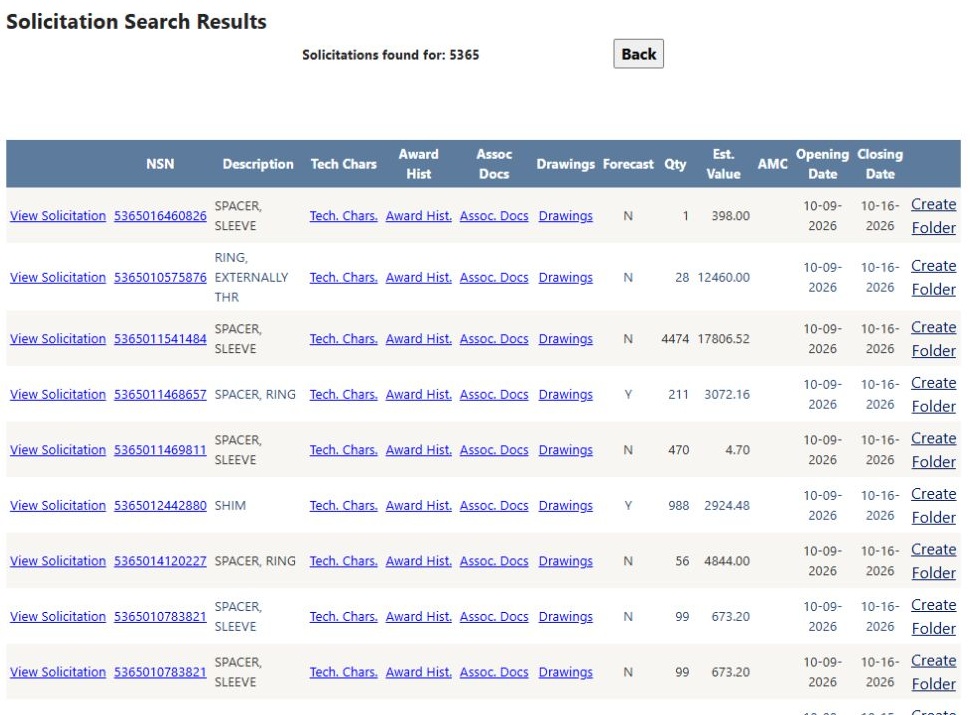
- Select a category title, such as FSC 5365 — Rings, Shims and Spacers, to open that class's solicitation rows. From a row, use View Solicitation for the notice, NSN for item detail, Tech Chars for attributes, or Drawings for the drawing index when available. Forecast is a displayed indicator on this list.
- Use browser Back from technical characteristics or the drawing index to return to the class list. From the class list, Back returns to the category page so you can select another FSC.
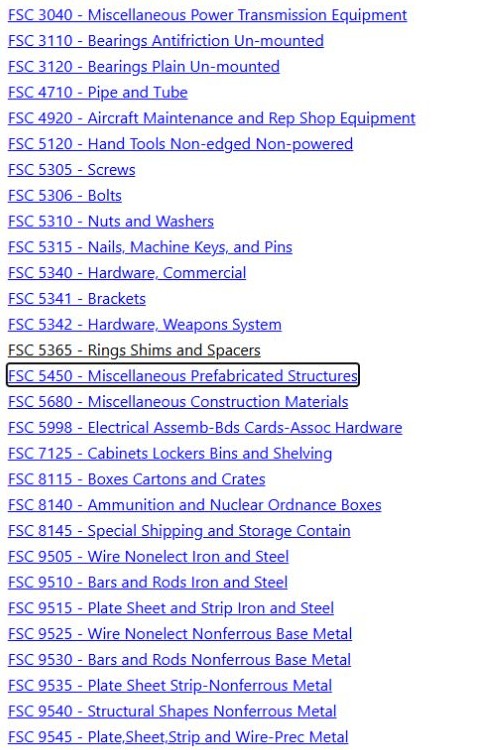
The entry page lists category titles. Select one to see opportunities in that Federal Supply Class (FSC). There is no search box or export on the category page.
Performed example: FSC 5365 spacer
On October 12, 2026, Main Menu → Parts/Products → Machine Shops Opportunities opened Fabrication Station. Its category links included FSC 5365 — Rings, Shims and Spacers. Selecting that title opened the FSC 5365 solicitation list. This category route uses a drawing-related filter; the result page identifies the selected FSC.
Open the category page at full size.
The first result row was NSN 5365016460826, SPACER, SLEEVE, Qty 1, Est. Value $398.00, Forecast N, a blank AMC, Opening Date 10-09-2026, and Closing Date 10-16-2026. These values describe the list as observed that day; confirm current bid terms and dates in the original notice. The View Solicitation link pointed to a DLA PDF named SPE4A027T0146.PDF.
Open the FSC 5365 results at full size.
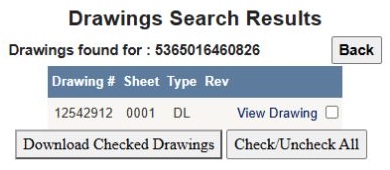
Select Drawings on the first row to open the drawing index for NSN 5365016460826. It showed one row: Drawing 12542912, Sheet 0001, Type DL, and a blank Rev field. View Drawing is the link to inspect the sheet; the checkbox, Download Checked Drawings, and Check / Uncheck All are controls for selecting drawing files. Treat DL and the blank revision exactly as displayed; inspect the drawing itself for the actual specification and revision before quoting. Back returned to the solicitation list.
Open the drawing index at full size.
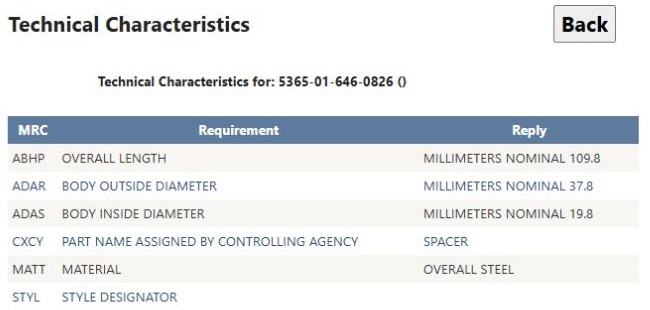
Back on the list, select Tech Chars for the same row. The technical-characteristics view displayed ABHP Overall Length 109.8 millimeters nominal, ADAR Outside Diameter 37.8 millimeters, ADAS Inside Diameter 19.8 millimeters, CXCY Assigned Name SPACER, and MATT Material STEEL. STYL was blank. Use the dimensions and material as an early check against shop capability, then review the source notice and drawing before deciding whether to quote. The view provides Back to return to the solicitation list.
Open the technical characteristics at full size.
Another category layout
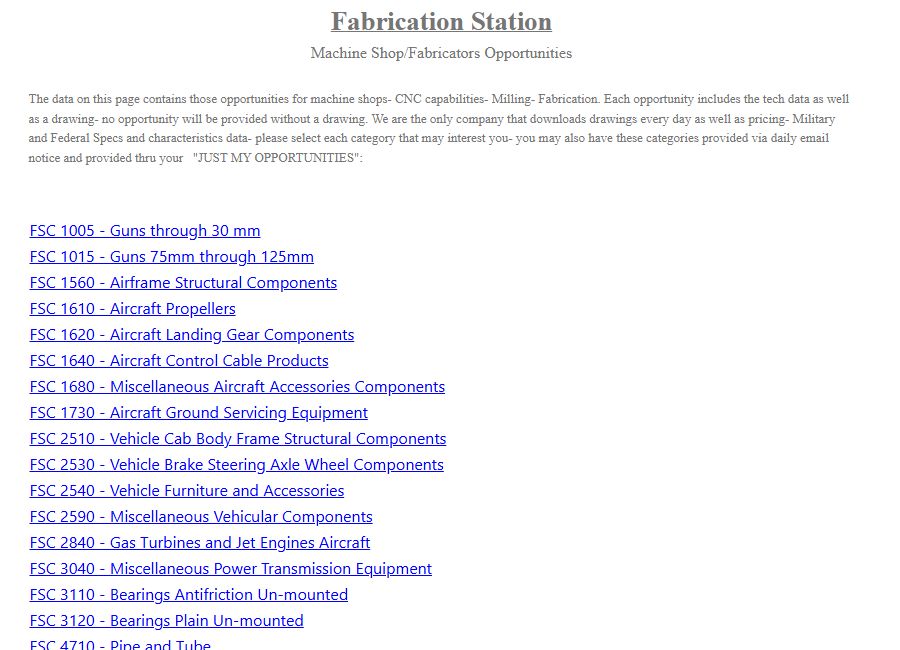
The category list on October 10, 2026 also showed FSC 1560; selecting another class uses the same category-to-list pattern.
The selected category opens a result list for its FSC and drawing indicator:
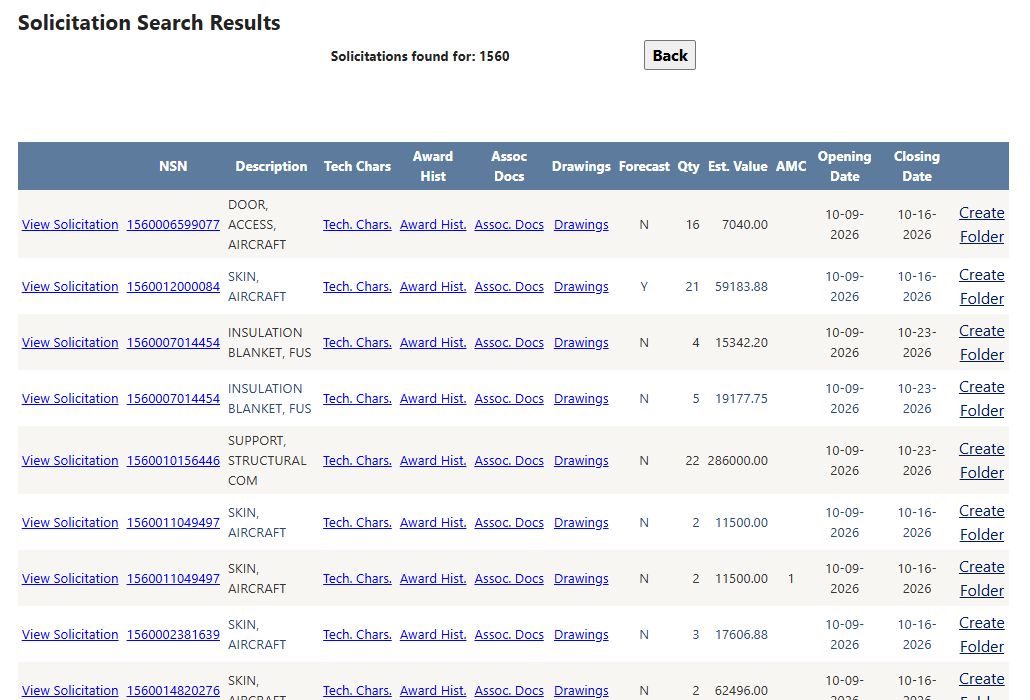
The FSC 1560 list on October 10, 2026. The first rows show item, technical, document, drawing, forecast, quantity, value and date fields. The visible Create Folder links save account work, so open them only when you intend to organize a project.
| Column or action | Meaning and business use |
|---|---|
| View Solicitation | Opens the source notice, subject to the current login/role. Confirm the official current status, work statement, amendments, deadline and response method there. |
| NSN | National Stock Number link. Use it to confirm exact catalog identity before quoting a part. |
| Description | Stored item name/description; it may omit dimensions, material and quality requirements. |
| Tech Chars | Opens technical characteristics. Check required attributes against shop capability. |
| Award Hist | Opens historical NSN awards; past price and awardee do not set a current quote. |
| Assoc Docs | Opens recorded item-associated documents. Check the exact required specification and revision. |
| Drawings / No Drawings | Shows whether the record offers a drawing link. Open the file and check every required sheet and revision before quoting. |
| Forecast | Stored forecast marker. It is planning context, not an open bid or funded quantity. |
| Qty | Recorded solicitation quantity. Verify the unit of issue, packs and options in the official notice. |
| Est. Value | Stored estimate, not a guaranteed award amount or target price. |
| AMC | Acquisition Method Code from the solicitation data. Its code affects sourcing context; read the current notice and supporting item record before deciding eligibility. |
| Opening Date / Closing Date | Stored opening and close dates. They can be stale if the notice changes; the authoritative current record controls. |
| Folder link | Opens the opportunity in a project folder, where you can organize follow-up work. |
The result list depends on your signed-in account. A blank list means no matching rows are shown for that selection. There is no Excel button on this list. See solicitation results for related notice fields.
For a CNC shop, shortlist a relevant category, compare the displayed dimensions and material with shop capability, then inspect the original notice and drawing before judging the work. Award history can add pricing context after you understand the current requirement.