Work with project folders
Part of these button learning paths: Research All Open Solicitations · Just My Opportunities · My Projects Folder · Machine Shops Opportunities · Unfulfilled NSN Opportunities · Award History
Video sections for this page
- 0:00 — Open My Projects Folder
- 0:15 — Choose the owner and saved project
- 0:42 — Expand an award project
- 1:11 — Open the project file area
- 1:37 — Create and organize a parts project
- 1:56 — Start from the assigned parts record
- 2:20 — Understand the first Folder visit
- 2:41 — Read the project folders
- 3:11 — Create a subfolder under Notes
- 3:21 — Verify the new folder
- 3:35 — Copy the folder to Misc
- 3:45 — Paste into the destination folder
- 3:56 — Confirm the copied folder in Misc
- 4:11 — Review Upload options without submitting a file
- 4:40 — Return to My Projects Folder and reopen this record
- 4:57 — Continue work in the saved project
- 5:09 — Navigate within the explorer
- 5:29 — Distinguish file deletion from project deletion
Video sections for this page
- 13:52 — Organize a prospect in a project folder
- 14:43 — Understand the first Folder visit
- 15:05 — Read the project folders
- 15:34 — Create a subfolder under Notes
- 15:45 — Verify the new folder
- 15:58 — Copy the folder to Misc
- 16:08 — Paste into the destination folder
- 16:19 — Confirm the copied folder in Misc
- 16:34 — Review Upload options without submitting a file
- 17:04 — Return to My Projects Folder and reopen this record
- 17:20 — Continue work in the saved project
Video sections for this page
- 37:59 — Understand the first Folder visit
- 38:21 — Read the project folders
- 38:50 — Create a subfolder under Notes
- 39:01 — Verify the new folder
- 39:14 — Copy the folder to Misc
- 39:24 — Paste into the destination folder
- 39:35 — Confirm the copied folder in Misc
- 39:50 — Review Upload options without submitting a file
- 40:20 — Return to My Projects Folder and reopen this record
- 40:37 — Continue work in the saved project
- 41:28 — Use row actions and export carefully
Video sections for this page
Video sections for this page
- 0:00 — Start from the assigned parts record
- 0:24 — Understand the first Folder visit
- 0:46 — Read the project folders
- 1:15 — Create a subfolder under Notes
- 1:26 — Verify the new folder
- 1:39 — Copy the folder to Misc
- 1:49 — Paste into the destination folder
- 2:00 — Confirm the copied folder in Misc
- 2:15 — Review Upload options without submitting a file
- 2:45 — Return to My Projects Folder and reopen this record
- 3:01 — Continue work in the saved project
Two ways to enter a project
Start a project from a notice: search for solicitations, read the results, and select Create Folder / Go To Folder on the row you want to pursue. From My Opportunities, the row action is Folder. Read the creation behavior below before selecting it; opening it can save the project immediately.
Return to a saved project: choose Main Menu → Primary Searches → My Projects Folder. Confirm the owner at the top; if the selector offers several names, choose the right one. Find the row under Parts By NSN, Federal, State and Local, or Expiring Contracts, and select its Folder link. The project workspace opens in a separate window.
Inside the workspace, choose a subfolder in the tree, then use Upload to add a file there. Open a listed file to download it. Close the separate project window to return to the Opportunities index. The Folder link opens working files; the row's notice or contract link opens the underlying research record.
My Projects Folder opens the account’s Opportunities folder index. It separates parts by NSN, federal/state/local notices and expiring-contract records. Use folders to organize a pursuit. Opening Folder can save a project immediately, and Delete can remove its files.
Follow a saved award project
This signed-in example shows the full route to a labeled training project. From Main Menu → Research → Award History, select 2026, enter contract 6973GH26F00452 in Contract/Solicitation Number, and choose the Search button beside that field. The result includes several actions for the same FAA contract and a Create Folder link. Selecting it opens Enter Folder Name. The example entered TRAINING DEMO 2026-10-11 6973GH26F00452 and selected Create Folder. The resulting explorer opened with the new project's standard subfolders; the named project was then visible under My Projects Folder → Expiring Contracts. Its reference number is 6973GH26D00022.
On My Projects Folder, the current owner example had one selectable owner. Parts By NSN and Federal, State and Local showed No records to display; that does not hide the saved award project in Expiring Contracts. Select the arrow beside the project name to show its award-action rows. In this example, the group contained eight actions for one contract. Choose Folder on a row to reopen the existing workspace; the return visit went directly to the explorer without asking for another name. Contract # concerns the award record, while Folder opens working files. Close the separate explorer window to return to the index.
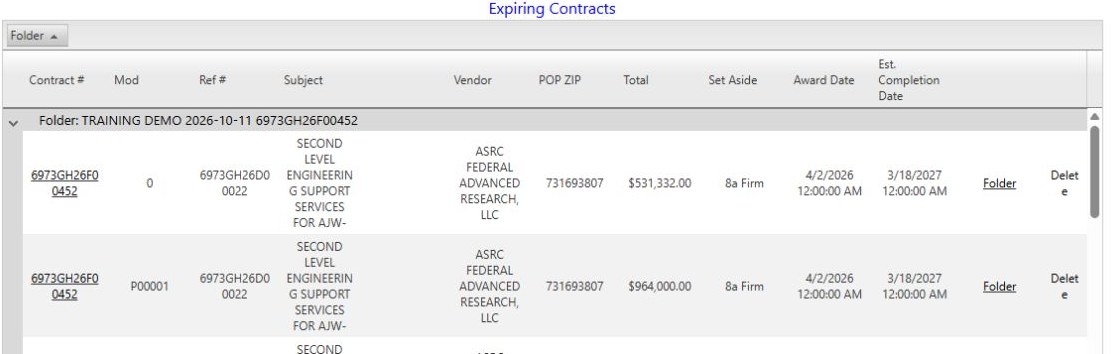
Open the saved-project image at full size.
Find an existing project
The user selector at the top changes the folder owner shown in all three lists and refreshes the page when changed. The available names depend on the signed-in account. Confirm which user you are managing before opening or removing anything. The index requires a signed-in session and sends an unauthenticated visitor to Login.
Parts By NSN

This saved-row example shows the item and its notice together. Folder opens the project workspace; Delete removes saved material, so use it only when you intend to remove that project.
| Column or action | What it means and why to use it |
|---|---|
| NSN | National Stock Number for the item; its link searches related solicitation results for that NSN. Keep it with the solicitation number because one item can be sought more than once. |
| Description | Stored short description of the requested item. Check technical requirements in the original notice rather than assuming this is the whole specification. |
| Tech Data | Stored drawing-availability indicator shown as a value, not a file-download link. A positive flag does not mean the drawings are attached to this folder. |
| AMC | Stored Acquisition Method Code for the item. It helps assess sourcing restrictions, but interpret the actual code with the current item record rather than guessing from the number alone. |
| Solicitation Number | Identifier linked to the stored source URL. Open the original notice to check amendments, scope and present response status. |
| Opening Date / Closing Date | Stored start and end dates for this solicitation row. A saved date can be superseded; use the original notice for the actual deadline. |
| Source | Stored source or publisher of the notice, not the place where the work will be performed. |
| Set Aside | Recorded participation category for that solicitation. Confirm current eligibility and the official notice's terms. |
| Qty | Recorded requested quantity. Its unit and packaging belong to the solicitation, not this short grid cell. |
| Est. Value | Currency-formatted estimated value. It is not a bid price or confirmed award amount. |
| Folder / Delete | Folder opens a separate project window and can create an association and files on first visit. Delete removes the saved row and can remove its directory and uploaded files; see below. |
Federal, State and Local
| Column or action | What it means and why to use it |
|---|---|
| View Solicitation | Opens the stored notice URL. Check the publisher's current record, attachments and amendments before pursuing it. |
| Subject | Short notice description for screening work that may fit the business; it is not the full statement of work. |
| Agency | Buyer or publisher label saved with the notice. Confirm the responsible office on the original record. |
| Opening Date / Closing Date | Saved publication/start and closing values for the row. Verify any live response deadline at the source. |
| Set Aside | Recorded category of firms eligible or targeted for this notice. Confirm current requirements at the source. |
| Folder / Delete | Folder opens a separate project window and can save this notice on first visit. Delete can remove both the saved association and its project files. |
This section groups saved notices from those sources.
Expiring Contracts
| Column or action | What it means and why to use it |
|---|---|
| Contract # | Recorded contract identifier. The contract number is intended to link to award detail; confirm that the link opens for your account. Keep it with Mod and Ref #. |
| Mod | Modification/action identifier for the contract row. Several rows may belong to one contract rather than several new awards. |
| Ref # | Related reference or contract-vehicle identifier when present; it is not interchangeable with Contract #. |
| Subject | Stored description of the prior contract requirement. Read the detail for fuller scope. |
| Unlabeled contact cell | This column may offer a contact-page link without a visible label. If a link appears, verify its contact against a current official notice; a blank cell proves nothing about available contacts. |
| Vendor | Recorded awardee. It does not establish current capacity or interest in partnering. |
| POP ZIP | Recorded place-of-performance ZIP, distinct from the vendor's or contracting office's address. |
| Total | Currency-formatted obligation for this recorded action, not automatically the contract ceiling or a new opportunity's value. A modification can increase or reduce it. |
| Set Aside | Category recorded for the historical action; future eligibility can differ. |
| Award Date | Date of this recorded action, not a new bid opening date. |
| Est. Completion Date | Stored estimated completion horizon. It is a monitoring lead, not a promised rebid or response deadline. |
| Folder / Delete | Folder opens an existing named project or asks for a name; Delete removes the association and may remove the named project directory when no saved row still uses it. |
This grid groups rows by folder name. Expand a group to inspect its award actions; the grid can sort and shows up to 100 rows per page. An expiring-contract row helps research possible future work but is not a new notice.
What opening Folder does
- From a parts opportunity, Folder saves the NSN and solicitation, creates the project tree on the first visit and opens the explorer. A new folder also receives HTML for the item's award history, technical characteristics and FLIS data. It does not copy the linked DLA solicitation document; open that notice separately. If creation stops partway through, check what was saved before trying again.
- From a federal/state/local notice, Folder saves the notice and creates its project tree on the first visit. It does not copy the original notice into the folder.
- From an expiring-contract row, Folder opens an existing named project or asks for Enter Folder Name and Create Folder. A new project saves the award and an award-details HTML file. Folder Exists may appear if creation does not succeed; check the folder index before retrying.
New projects get subfolders for Award history of project, Bid Submittal, Communication With Government, FOIA, Invoice, Misc, Notes, Office correspondence, Pre-Solicitation, Protest, Research, RFP-Solicitation, Shipping Data and Tech Data. Parts projects also get FLISData. These are places to save work; the FOIA folder includes a sample letter that should be adapted before use.
Use the file explorer
The project opens with a folder tree, file grid, toolbar and right-click menus. Select a folder to see its files. The toolbar provides navigation, new folder, upload, delete and open. The right-click menu also provides Copy and Paste. Moving up one folder means navigating to its parent; it does not relocate your files. There is no address box or file-grid paging.
The training project opened under Opportunities with Award history of project, Bid Submittal, Communication With Government, FOIA, Invoice, Misc, Notes, Office correspondence, Pre-Solicitation, Protest, Research, RFP-Solicitation, Shipping Data and Tech Data. Select Award history of project in the left tree to see the generated 6973GH26F00452.html file in the right grid. FOIA contained sample foia letter.doc. Those files were observed in the newly created example; a different project may contain different files.
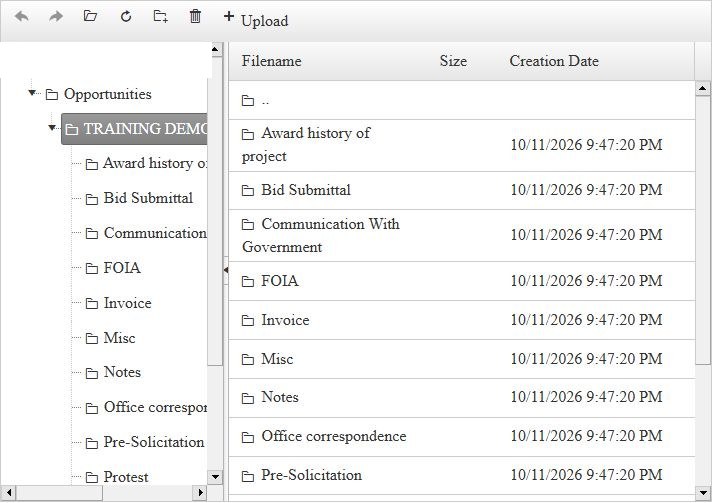
Open the explorer image at full size.
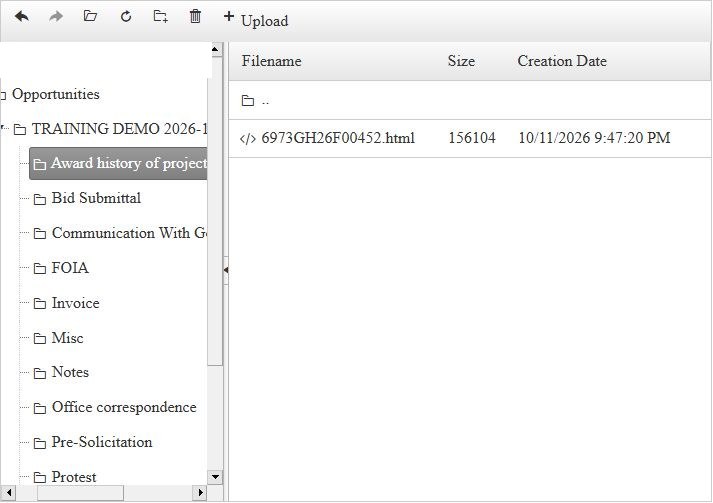
Open the award-file image at full size.
| Explorer control | How to use it |
|---|---|
| Left folder tree | Select the project or a subfolder to display its contents on the right. The selected folder determines where a later upload or new subfolder goes. |
| Filename, Size, Creation Date | Read the selected folder's entries. Select a heading to sort. Size applies to files; the displayed date has the folder/file distinction described below. |
| .. | Move to the parent folder in the file grid. The toolbar also shows Back, Forward, Open and Refresh for navigating or reloading the current view. |
| New Folder | Add a subfolder under the selected location. Name it for a specific part of the pursuit so it is easy to find later. |
| Upload, Select files, Overwrite if file exists? | Select the target folder, choose a local file, decide whether an existing same-name file may be replaced, then select Upload. Check that the filename appears in the grid afterward. |
| Open or a listed file | Open the selected entry. A file may download as an attachment rather than preview in the browser. |
| Copy / Paste | In the file grid, right-click the item and choose Copy. Open the destination folder, right-click its file area and choose Paste. Check the destination before pasting, and review any same-name prompt. Copy keeps the original in its original folder. |
| Back / Forward / Refresh | Return to a previously viewed folder, go forward again, or reload the current folder listing. These navigation controls do not move files. |
| Delete | Removes the selected item. Check the selected folder and file before using it; this training example did not delete anything. |
The Creation Date heading needs care: for a file, it shows filesystem creation time; for a folder, it shows last modified time. Do not use it to infer when a folder was created. Folder Rename is disabled in the tree menu and may be disabled in the grid; check the available actions before trying to change a name.
Select the intended folder before uploading. The explorer advertises a 1 GiB upload limit, but your browser, server or account may allow less. Test with a small file before relying on that limit. Verify the displayed owner and project before a file operation. Opening a file is designed to start an attachment download, not an in-page preview; check the downloaded name and contents before using it. Keep essential bid material backed up before using Delete in the explorer.
The three folder types use different identifiers and creation routes. Do not assume that a saved SAM.gov notice is the same project as a part notice with similar words or an expiring-contract award. Use the original source and full identifier to reconcile them.
Remove a folder association carefully
Each index list has a Delete action. Deleting a parts or federal/state/local folder row removes its project directory and files. Deleting an expiring-contract row removes its saved association and may remove the named directory when no other rows use it. This is not a reversible hide action. Check the selected user, identifier and files before deleting.
Before making changes, confirm the selected owner and the project’s full NSN, notice or contract identifier. Keep a separate copy of important working files before deleting a project; the page has no demonstrated undo for removed files.