Review my opportunities
Part of these button learning paths: Just My Opportunities · Machine Shops Opportunities
Video sections for this page
Video sections for this page
- 0:00 — Choose the parts list and account CAGE
- 0:38 — Read the 120-day contracts roadmap
- 1:29 — Read the roadmap agency results
- 1:59 — Read the roadmap incumbent companies
- 2:20 — Read a monthly action example
- 2:54 — Read the assigned parts row
- 4:06 — Research the same NSN
- 4:55 — Return from item research to the assigned queue
- 5:11 — Read a SAM.gov row and open its source
- 5:50 — Open a project folder from a SAM.gov notice
- 6:07 — Read the notice's project folders
Video sections for this page
- 0:00 — Enter my opportunities
- 0:35 — Choose the parts list and account CAGE
- 1:13 — Read the 120-day contracts roadmap
- 2:04 — Read the roadmap agency results
- 2:34 — Read the roadmap incumbent companies
- 2:55 — Read a monthly action example
- 3:29 — review-unfulfilled-nsn-opportunities--open-the-unfulfilled-list
- 3:56 — review-unfulfilled-nsn-opportunities--choose-an-unfulfilled-item-row
- 4:27 — review-unfulfilled-nsn-opportunities--read-the-nsn-result-rows
- 4:59 — review-unfulfilled-nsn-opportunities--compare-the-technical-characteristics
- 5:30 — review-unfulfilled-nsn-opportunities--return-to-the-opportunity-list
- 5:54 — Read the assigned parts row
- 7:06 — Follow the parts item to results
- 7:38 — Research the same NSN
- 8:27 — Open Technical Characteristics
- 8:40 — Read each characteristic across its row
- 9:43 — Open Award History
- 10:01 — Compare the award date, quantity and price
- 11:03 — Open Associated Documents
- 11:25 — Choose the matching document number
- 11:59 — Read the listed specification revisions
- 12:41 — Open Substitutes
- 12:52 — Read the substitute relationship row
- 13:37 — Open the item's drawing list
- 13:48 — Compare drawing, sheet, type and revision
- 14:30 — Confirm the selected drawing row
- 14:54 — Open the combined HTML report
- 15:09 — Match catalog and management sections
- 15:49 — Read the report award quantities and prices
- 16:20 — Compare the report technical characteristics
- 16:44 — Read the report's document references
- 17:23 — Finish with substitutions and MOE rules
- 18:01 — Return to the NSN summary
- 18:30 — Open FLIS Header
- 18:32 — FLIS Header — Segment A
- 19:51 — Open MOE Rules
- 19:55 — MOE Rules — Segment B
- 20:51 — Open MCRL
- 20:55 — MCRL — Segment C
- 21:51 — Open Shipping
- 21:54 — Shipping — Segment G
- 23:02 — Open ML-C
- 23:06 — ML-C — Segment H
- 24:10 — Open Inventory
- 24:14 — Inventory
- 24:56 — Open BackOrder
- 25:00 — BackOrder
- 25:40 — Return to item research
- 26:07 — Check the screw's APL lookup
- 26:49 — Use a separate populated APL example
- 27:32 — Read the pump list's parts
- 28:14 — Read the screw's forecast result
- 28:41 — Identify the monthly forecast
- 28:59 — Read monthly quantities and total
- 29:07 — Read price and acquisition fields
- 29:20 — Switch from item months to class quarters
- 29:43 — Read the chain's quarterly quantities
- 30:21 — Read this screw's three-year market result
- 30:53 — Read a populated item market example
- 31:24 — Open the item competitor list
- 31:46 — Use a separate opened-drawing example
- 32:23 — Inspect the opened drawing file
- 32:54 — Open the printable award table
- 33:32 — Follow an awardee to its CAGE profile
- 34:02 — Read the associated specification itself
- 34:45 — Browse documents related to the specification
- 35:25 — Choose the right reference link on the screw
- 35:52 — See where the part-number link goes
- 36:25 — Confirm the referenced organization
- 36:52 — See what IPB Search opens
- 37:20 — Return from item research to the assigned queue
- 37:35 — Start from the assigned parts record
- 37:59 — Understand the first Folder visit
- 38:21 — Read the project folders
- 38:50 — Create a subfolder under Notes
- 39:01 — Verify the new folder
- 39:14 — Copy the folder to Misc
- 39:24 — Paste into the destination folder
- 39:35 — Confirm the copied folder in Misc
- 39:50 — Review Upload options without submitting a file
- 40:20 — Return to My Projects Folder and reopen this record
- 40:37 — Continue work in the saved project
- 40:49 — Read a SAM.gov row and open its source
- 41:28 — Use row actions and export carefully
- 42:02 — Open Possible History For The Notice
- 42:33 — Compare The First History Candidate
- 43:11 — Read The Candidate Award Detail
- 43:46 — Inspect history candidate and return
- 44:36 — Open a project folder from a SAM.gov notice
- 44:52 — Read the notice's project folders
- 45:29 — Read the parts opportunity workbook
- 45:56 — Continue across the parts export
- 46:20 — Read the samgov opportunity workbook
- 46:49 — Recap the review sequence
Video sections for this page
- 0:00 — Enter my opportunities
- 0:35 — Understand the two queues
- 1:13 — Read a real parts opportunity
- 1:53 — Follow the parts item to results
- 2:24 — Read parts characteristics and return
- 3:08 — Screen the samgov notice
- 4:05 — Open possible history from the notice
- 5:07 — Inspect history candidate and return
- 5:57 — Read the parts opportunity workbook
- 6:24 — Continue across the parts export
- 6:47 — Read the samgov opportunity workbook
- 7:17 — Use row actions and export carefully
- 7:50 — Recap the review sequence
Video sections for this page
Get here and open a notice
- On the application Main Menu, choose Just My Opportunities under Primary Searches.
- For parts, choose the appropriate CAGE in the selector and read the Parts by NSN rows. For other notices, go to the SAM.gov opportunities list on the same page.
- In a parts row, select Solicitation Number to open the notice, or NSN to research the item. In a SAM.gov row, select View Solicitation for the original notice.
- Return to this list after reading the notice. If it opened in another tab, close that tab. Select Possible History to compare earlier contracts, or Folder to keep the opportunity and your working files.
The two lists and their export buttons are separate. Use the export beside the list you intend to download.
My Opportunities brings together parts and other notices assigned to your account. Review the lists, then open a promising notice for its current instructions and deadline. This is your assigned queue, not a search of every public opportunity.
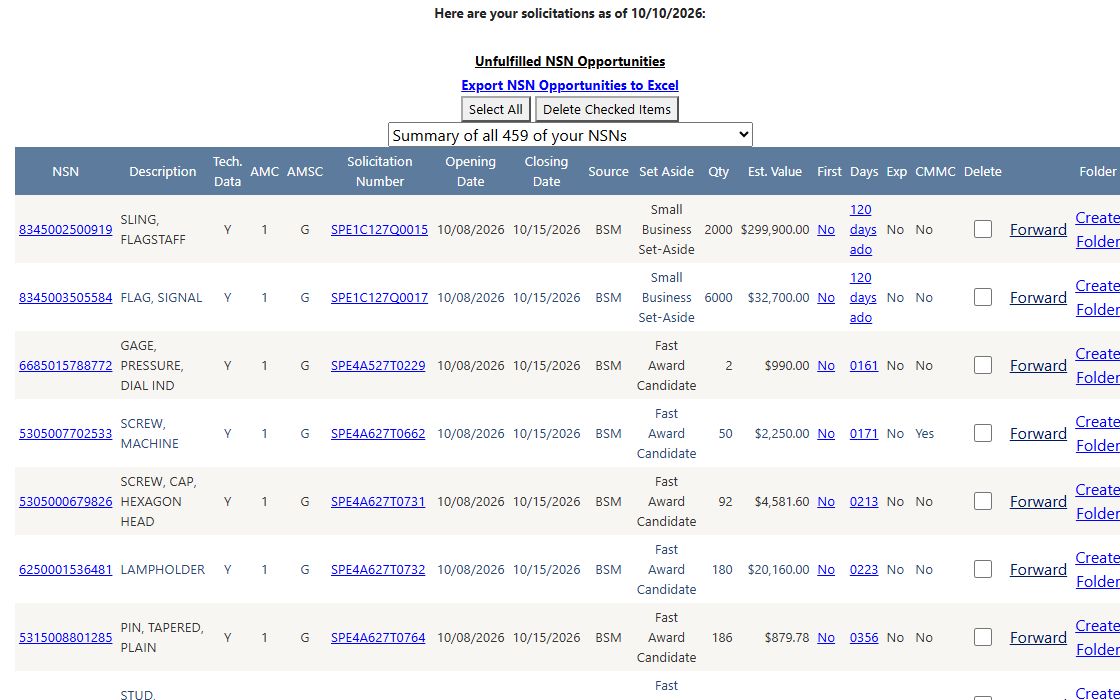
The assigned parts list captured October 11, 2026; the page itself shows an October 10 as-of date. Use the linked solicitation number to check the current notice. Delete Checked Items and Create Folder change saved account work when used.
Choose the right list
| Visible control | What to do and what it shows |
|---|---|
| Unfulfilled NSN Opportunities | Open the separate unfulfilled parts list to review older matched solicitations and check whether a response is still possible. |
| Export NSN Opportunities to Excel | Download the account's parts opportunities. Its 20 fields cover the NSN and item, notice dates and source, quantity/value, supplier and technical codes, plus Exp and CMMC. See the workbook field reference. |
| CAGE selector | Refreshes the parts list for the selected account CAGE. ALL is used when none is selected. It does not change the SAM.gov list. |
| Export SAM.GOV Opportunities to Excel | Download assigned notices for the account CAGE, including notice ID, subject, buyer, office, state, dates, matching criterion, set-aside, link and award-history field. See the workbook field reference. |
| Expiring Contracts 120 Days | Opens the expiring-contracts roadmap in a new tab. Use its headings to understand the displayed period and market. |
Both lists allow sorting and show up to 50 rows per page. Each has its own Select All / UnSelect All, Delete checkboxes and Delete Checked Items button. Selection applies to rows on the displayed page. Delete Checked Items removes the selected account assignments; it is not a way to reject a notice privately without changing the queue. Review the checked rows and account before using it. Empty results say only that this account has no rows returned by this assigned-list view at that time. They do not prove the market has no notices.
When several rows are checked, the page removes their assignments one at a time. If the request stops partway through, some assignments may already be gone; refresh and compare the remaining rows before retrying.
If an export produces no file, check whether that assigned list has rows.
Parts by NSN list
| Column or action | How to read it |
|---|---|
| NSN | National Stock Number for the part. Its link opens the site's NSN summary. Confirm the exact item and technical requirements there. |
| Description | Stored item text for the assigned NSN. Compare it with the current solicitation and technical requirements; a short description cannot establish fit or interchangeability. |
| Tech. Data | A stored drawings-available flag. It does not open a drawing or establish that your account is allowed to receive technical data. Check the current notice and DLA's drawing-access instructions. |
| AMC | Acquisition Method Code from the recorded DLA opportunity. It reflects a technical procurement classification, not an approved-source decision for your firm. Interpret the exact code with the current solicitation and DLA source-approval guidance. |
| AMSC | Acquisition Method Suffix Code. It adds engineering, manufacturing or technical-information context to AMC. The displayed letter alone cannot settle your eligibility; read the code and source-approval instructions for this notice. |
| Solicitation Number, Opening Date, Closing Date, Source | The linked notice identifier, dates and recorded source. Open the notice to confirm the current amendment and response deadline. |
| Set Aside, Qty, Est. Value | Recorded competition category, quantity and estimate. Treat the estimate as a lead, not a bid price or award value. |
| First, Days | First-article and delivery-days values. Both link to the site's solicitation report for the same notice. Read the report and current notice before planning delivery. |
| Exp | Yes flags export-control wording such as RQ032 or RD032; it is not an expiration date. Read the notice's actual restrictions even when this cell says No. See DLA's RQ032 description. |
| CMMC | Yes flags cybersecurity wording such as RD004 or RD005; it is not your company's certification. Read the notice's clauses even when this cell says No. See DLA's CMMC guidance. |
| Forward | Opens a prefilled email draft containing the notice number, NSN, estimated value and link. Sending is controlled by your mail program. |
| Folder | Opens a project folder. The parts route can add the opportunity to the user's folder records and create project directories immediately on opening, before any separate Save button. See Project folders. |
| Delete | Check a row only if you intend to remove that assigned notice with the parts-list Delete Checked Items button. |
SAM.gov opportunities list
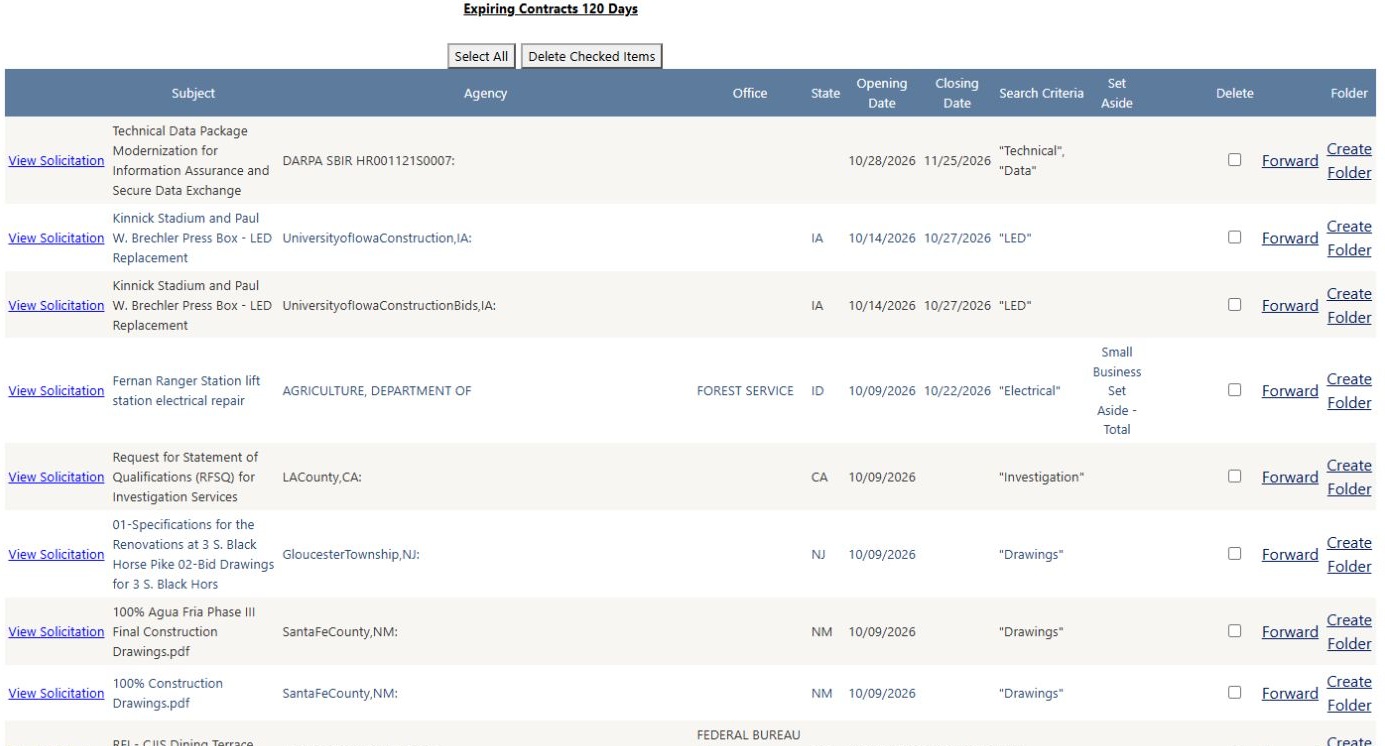
Example captured October 11, 2026. The Fernan Ranger Station electrical-repair notice shows the Forest Service, Idaho, its opening and closing dates, the matching criterion Electrical, and its small-business set-aside. Use these columns to choose relevant work, then select View Solicitation to read the notice.
| Column or action | How to read it |
|---|---|
| View Solicitation | Opens the source notice in a new tab. Read the full requirement, amendments, response instructions and current deadline there. |
| Subject, Agency, Office, State | The stored title, buyer, office and state. Words or geography can be misleading; check the notice before deciding that the work fits. |
| Opening Date, Closing Date | Dates in the assigned row. These are not a live deadline guarantee; confirm against the current notice. |
| Search Criteria | The stored criterion associated with the assignment. This explains why a row may have appeared; it does not certify that the work fits the firm's capabilities. |
| Set Aside | Stored competition category. Verify current eligibility and the notice's actual restriction. |
| Possible History | Appears only when the row's history flag is true. It opens a related award-history search by service code, NAICS and ZIP. “Possible” does not identify a predecessor, incumbent or the same requirement. |
| Interested Parties | Appears only when the row carries that availability flag; it opens a separate page. An empty cell is not evidence that nobody is interested. |
| Forward | Opens a prefilled email draft containing notice number, subject and source link; review it before sending. |
| Folder | Opens the notice's project folder. On first opening, the current route can create an assignment and directory without a Save step. See Project folders. |
| Delete | Check only rows you intend to remove with this list's own Delete Checked Items button. |
Before acting on any row, use View Solicitation to check the publisher’s current status and amendments. A saved matching criterion or older deadline can remain visible after a notice is canceled or changed. Use the original notice for the current decision.
Example Excel downloads
These views show actual September 29, 2026 downloads. They illustrate the exported columns, not the notices currently assigned to your account. The workbook field reference explains each column.
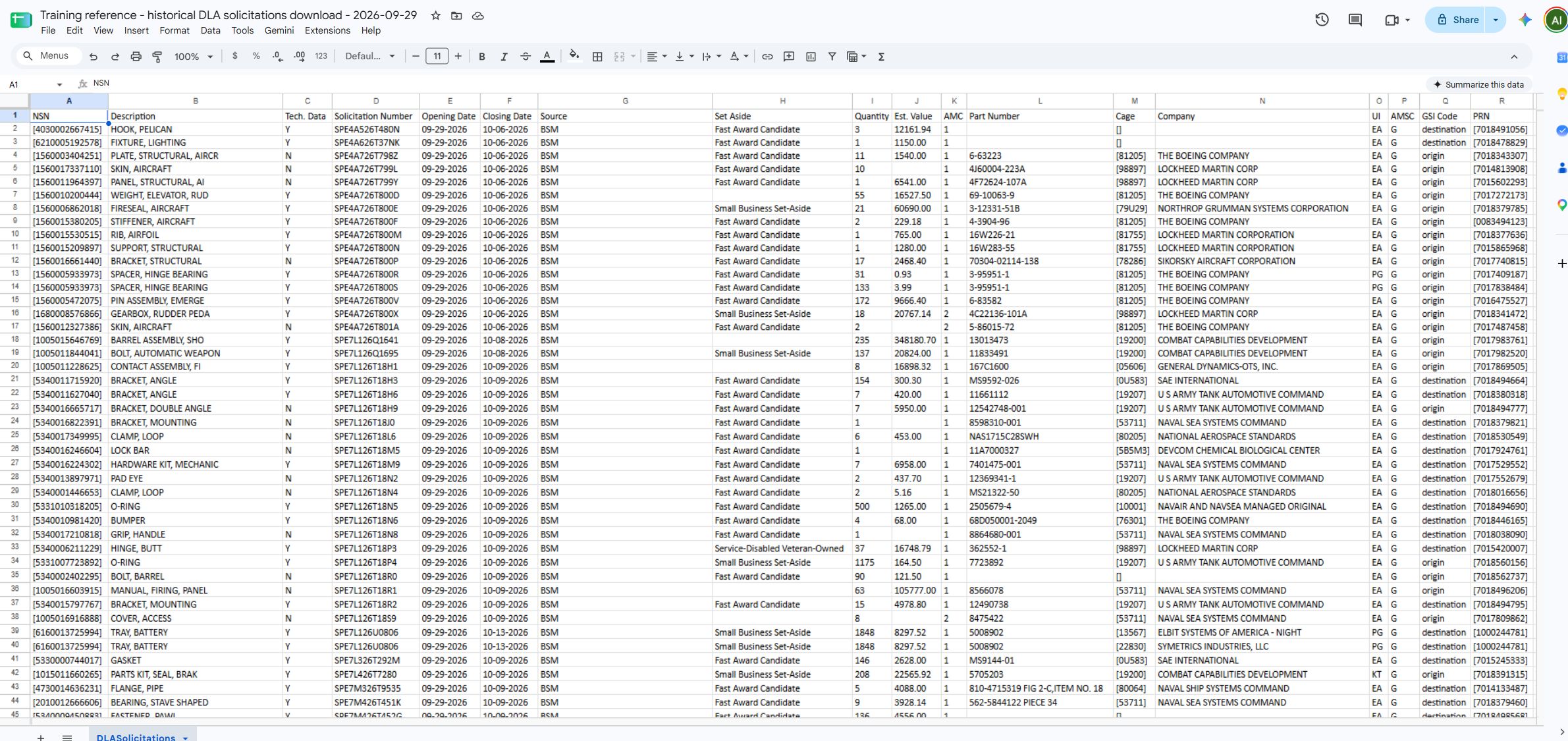
The DLA workbook begins with NSN, description, technical-data marker, solicitation number and dates, then includes quantity, value, part and supplier fields.
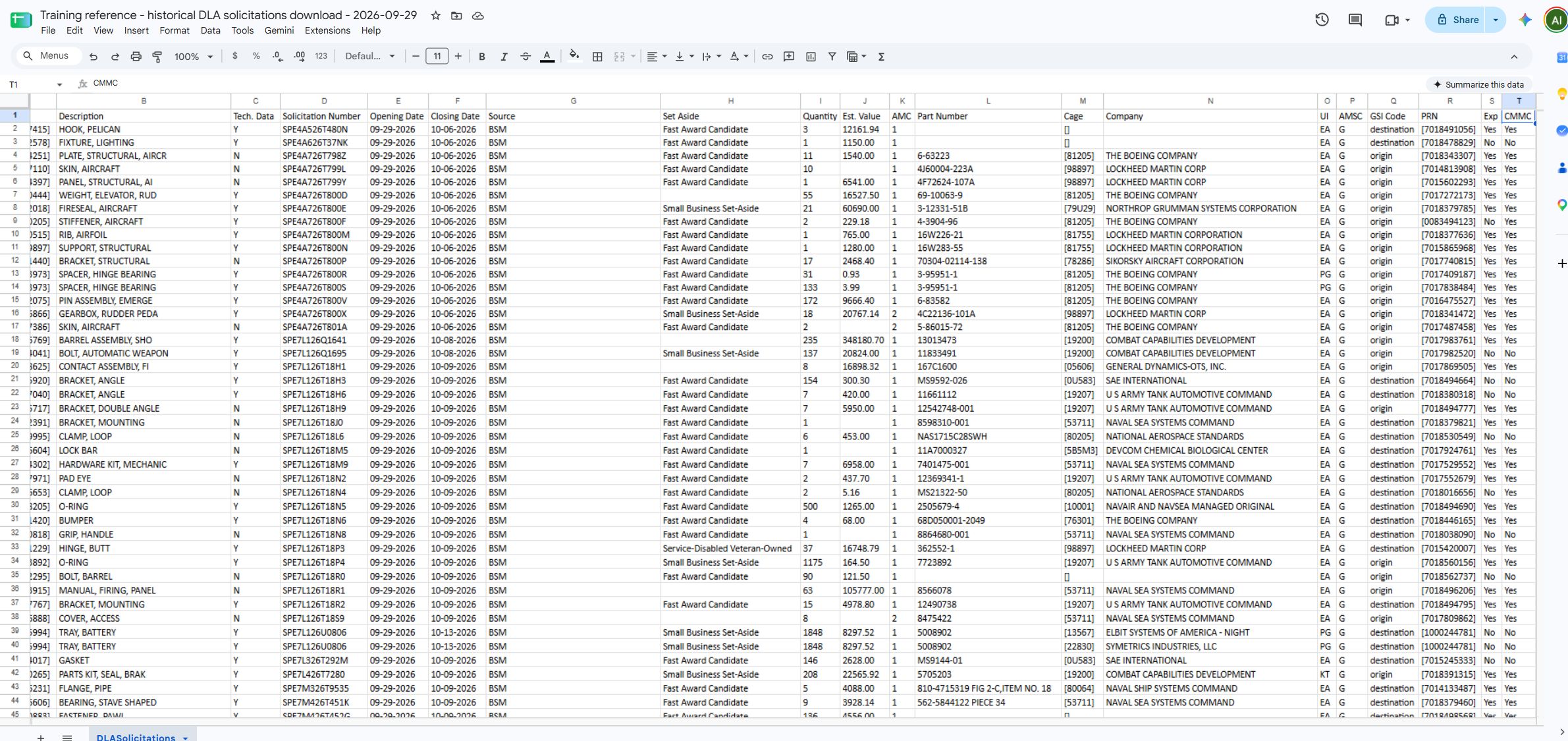
The second view completes the 20 columns, including Exp and CMMC at the right.
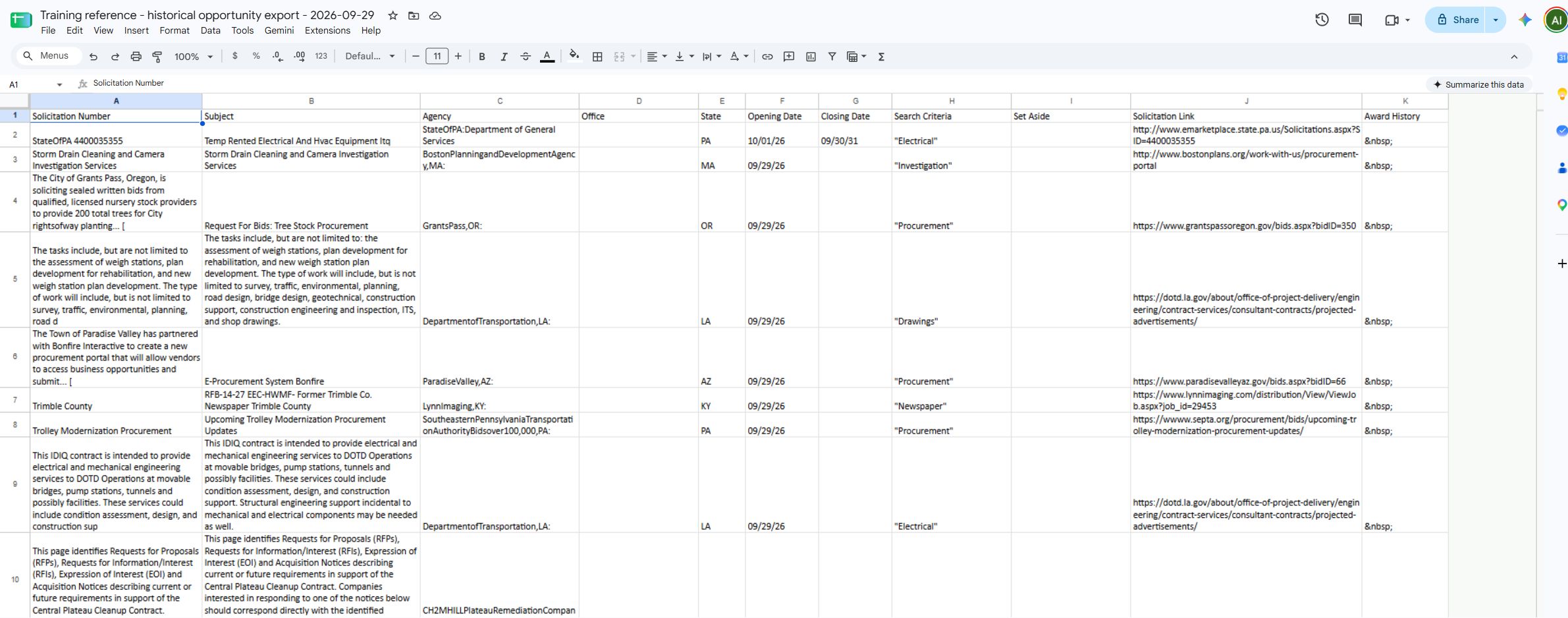
The SAM.gov/other-opportunities download includes matching criteria, the notice link and an Award History field when available. State and local rows can also appear.