Read an NSN result
Part of these button learning paths: Research All Open Solicitations · Just My Opportunities · Machine Shops Opportunities · Unfulfilled NSN Opportunities · Search by NSN/NIIN · APL/AEL Historical · DLA Prime Contractors · Naics To FSC Cross · Commercial Part Number to NSN · Weapons System Designator Codes
Video sections for this page
Video sections for this page
Video sections for this page
Video sections for this page
Video sections for this page
Video sections for this page
Video sections for this page
- 4:27 — review-unfulfilled-nsn-opportunities--read-the-nsn-result-rows
- 18:01 — Return to the NSN summary
- 32:54 — Open the printable award table
- 34:02 — Read the associated specification itself
- 34:45 — Browse documents related to the specification
- 35:25 — Choose the right reference link on the screw
- 35:52 — See where the part-number link goes
- 36:52 — See what IPB Search opens
Video sections for this page
- 0:00 — Start at the NSN item page
- 0:31 — Open FLIS Header
- 0:33 — FLIS Header — Segment A
- 1:52 — Open MOE Rules
- 1:56 — MOE Rules — Segment B
- 2:52 — Open MCRL
- 2:55 — MCRL — Segment C
- 3:51 — Open Shipping
- 3:55 — Shipping — Segment G
- 5:03 — Open ML-C
- 5:07 — ML-C — Segment H
- 6:11 — Open Inventory
- 6:15 — Inventory
- 6:57 — Open BackOrder
- 7:00 — BackOrder
- 7:40 — Return to item research
Video sections for this page
- 0:00 — Continue research on the same NSN
- 0:29 — Open Technical Characteristics
- 0:42 — Read each characteristic across its row
- 1:45 — Open Award History
- 2:03 — Compare the award date, quantity and price
- 3:06 — Open Associated Documents
- 3:28 — Choose the matching document number
- 4:01 — Read the listed specification revisions
- 4:43 — Open Substitutes
- 4:54 — Read the substitute relationship row
- 5:39 — Open the item's drawing list
- 5:50 — Compare drawing, sheet, type and revision
- 6:32 — Confirm the selected drawing row
- 6:56 — Open the combined HTML report
- 7:11 — Match catalog and management sections
- 7:52 — Read the report award quantities and prices
- 8:22 — Compare the report technical characteristics
- 8:46 — Read the report's document references
- 9:25 — Finish with substitutions and MOE rules
- 10:04 — Return to the NSN summary
Video sections for this page
Video sections for this page
- 0:00 — Check the screw's APL lookup
- 0:42 — Use a separate populated APL example
- 1:25 — Read the pump list's parts
- 2:07 — Read the screw's forecast result
- 2:34 — Identify the monthly forecast
- 2:52 — Read monthly quantities and total
- 3:00 — Read price and acquisition fields
- 3:13 — Switch from item months to class quarters
- 3:35 — Read the chain's quarterly quantities
- 4:14 — Read this screw's three-year market result
- 4:46 — Read a populated item market example
- 5:17 — Open the item competitor list
- 5:39 — Use a separate opened-drawing example
- 6:16 — Inspect the opened drawing file
- 6:47 — Open the printable award table
- 7:25 — Follow an awardee to its CAGE profile
- 7:55 — Read the associated specification itself
- 8:38 — Browse documents related to the specification
- 9:18 — Choose the right reference link on the screw
- 9:45 — See where the part-number link goes
- 10:18 — Confirm the referenced organization
- 10:45 — See what IPB Search opens
- 11:13 — Start another item lookup
Video sections for this page
- 0:50 — Confirm the matching item
- 1:49 — Choose the next research question
- 4:59 — Open the printable award table
- 7:44 — Read the associated specification itself
- 8:27 — Browse documents related to the specification
- 12:28 — Start at the NSN item page
- 20:09 — Return to item research
- 23:44 — Return to the NSN summary
- 29:51 — Choose the right reference link on the screw
- 30:19 — See where the part-number link goes
- 31:19 — See what IPB Search opens
- 31:46 — Start another item lookup
- 33:14 — Confirm the item found by NIIN
- 34:58 — Confirm the FSG search result
- 36:19 — Confirm one name-search candidate
An NSN result gathers the catalog identity, part references and links to related research for one item. Use it to confirm the stock number, then open the sections that answer your question.
How to get here and continue
- From Main Menu > Parts/Products, choose Search by NSN/NIIN. Enter a 13-character NSN or nine-character NIIN and press Search; the next page is the result for that item.
- Confirm the complete NSN/NIIN and item name first. Then choose the relevant item link—such as Award History, Associated Docs, Substitutes, APL, Forecasting, Inventory, BackOrder or Create Report—to open that research view.
- New Search returns to the single-item search form; Back returns through browser history. Use the linked guides below to choose a detail view and interpret its fields.
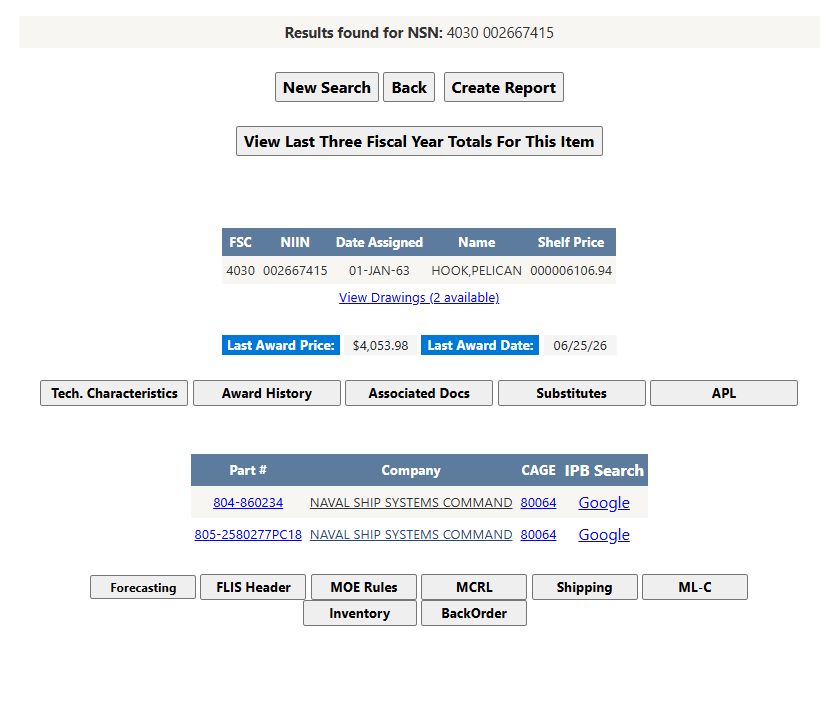
For NSN 4030-00-266-7415, the result showed HOOK,PELICAN, assigned 01-JAN-63. It displayed Shelf Price 000006106.94, Last Award Price $4,053.98, Last Award Date 06/25/26, and 2 available drawings. The item also had two part-reference rows for CAGE 80064, with part numbers 804-860234 and 805-2580277PC18. Shelf Price and Last Award Price come from different records; compare them only after checking their unit and date context.
Confirm the item
The heading Results found for NSN combines the four-character FSC and nine-character NIIN. Compare the full number and item name with the number you searched. If there is no catalog row, the page shows No results found for: followed by the identifier. DLA's PUB LOG guidance introduces the identification, characteristics, management and reference information collected for an item.
| Field | What it shows and why it is useful |
|---|---|
| FSC | Four-character Federal Supply Class. It groups similar items and forms the first part of the NSN. |
| NIIN | Nine-character National Item Identification Number. Keep leading zeros when copying it. |
| Date Assigned | Date the catalog assigned the stock number. |
| Name | Catalog item name. Use it with the NSN to confirm the item before following its references. |
| Shelf Price | Stored management-data price. Read it with the management unit and effective date; it is separate from Last Award Price. |
| End Item | Equipment context, when the catalog supplies it. |
| Last Award Price and Last Award Date | Stored historical award price and date. Compare the amount with the award's quantity and unit; it is not a current quote. See NSN award history. |
| View Drawings / No Drawings Found | Opens the drawing list when drawing records are available. No Drawings Found means this lookup returned no drawing row. See drawings for a known NSN. |
Part references
The reference grid shows up to four rows per page. Read Part # and CAGE together: the row associates a recorded part number with an organization.
| Column or link | What it shows and where it leads |
|---|---|
| Part # | Recorded reference number. The link searches the web for that number; compare results with the item's technical and purchase documents. |
| Company | Stored company name associated with the reference. |
| CAGE | Organization identifier associated with the reference. The link opens the site's company detail; see contractor results and profiles. |
| IPB Search | Searches for an illustrated parts breakdown using the reference information. |
Related actions
| Button | What it opens |
|---|---|
| New Search | Returns to the single-item search. |
| Back | Returns to the previous page. |
| Create Report | Opens a combined report with Associated Documents, All Awards, FLIS Header, MCRL, ML-C, MOE Rules, Substitutes and Technical Characteristics. See the combined-report guide. |
| View Last Three Fiscal Year Totals For This Item | Opens the short-form market report. See how to read its fields and totals. |
| Tech. Characteristics | Opens recorded item characteristics. See Read an item's technical characteristics. |
| Award History | Opens the item's historical award lines. See read an NSN's award history. |
| Associated Docs | Opens recorded documents associated with the NIIN. See find documents associated with an NSN. |
| Substitutes | Opens recorded substitute relationships. See evaluate recorded substitute items. |
| APL | Opens the Allowance Parts List / Allowance Equipage List search. See the APL/AEL guide. |
| Forecasting | Opens a DLA forecast view for the NIIN. See monthly and quarterly forecasts. |
| FLIS Header | Opens Segment A item-identification fields. See FLIS identification and references. |
| MOE Rules | Opens Segment B management-rule fields. See FLIS identification and references. |
| MCRL | Opens Segment C part-reference fields. See FLIS identification and references. |
| Shipping | Opens Segment G shipping-data fields. See FLIS shipping and management data. |
| ML-C | Opens Segment H management-list fields. See FLIS shipping and management data. |
| Inventory | Opens the recorded on-hand and reorder-point view. See inventory and backorder figures. |
| BackOrder | Opens the recorded backorder view. See inventory and backorder figures. |
Follow up on a part
Confirm the item name and identifier first. Use the technical-characteristic and document links to review item requirements, then compare a candidate Part # and CAGE with those requirements. Award history and forecasts provide separate historical and planning views. Each link answers a different question; the current notice and its required documents provide the purchasing instructions.
Workflow: check an item's requirements and past awards
Use this path when a notice names a stock number and you need to check technical requirements, related specifications and prior purchases before deciding whether to pursue it.
- From Main Menu > Parts/Products, open Search by NSN/NIIN. Enter the 13-digit NSN
4030002667415and select Search. Confirm that the result identifies 4030-00-266-7415, HOOK,PELICAN. - Select Tech. Characteristics. Compare the displayed requirement/reply rows with the notice and drawing; the accepted example includes Forged, Steel, Zinc, 18.562 inches overall length, and 0.875 inches accommodated material diameter. Use the exact row wording and units when checking a proposed part.
- Return with browser Back to the item result and select Associated Docs. Compare MIL-STD-130N(1) and its displayed title/status with the specification and revision required by the notice. Open a document link only to inspect the referenced file; use the notice to confirm the governing revision.
- Return to the item result and select Award History. Compare the newest line's contract, line item, quantity, price, date and Modified value together. The accepted example shows Contract SPE4A526V1672, Qty 1.000, Price $4,053.98, Awarded 06/25/2026, Modified N. This is historical context, not a current quote.
- Use Back from Award History to return to the item result. Choose New Search there to start another lookup, or use browser Back to return to the NSN search form.
The technical-characteristics guide, associated-documents guide and award-history guide explain the respective results and provide their accepted screen examples.
The short NSN video example follows some of these transitions and includes an .