Find a part by NSN or NIIN
Part of these button learning paths: Unfulfilled NSN Opportunities · Search by NSN/NIIN
Video sections for this page
- 0:00 — Choose the search that matches what you know
- 0:38 — Use a nine-character NIIN when you have it
- 1:04 — Confirm the item found by NIIN
- 1:29 — Browse by supply group and class
- 2:16 — Follow stored item terms to a NIIN
- 2:48 — Confirm the FSG search result
- 3:19 — Search from an item name
- 3:39 — Compare item names and stock numbers
- 4:09 — Confirm one name-search candidate
- 4:35 — Search by technical-characteristic description
- 5:11 — Choose the matching description
- 5:34 — Read the requirements and starting count
- 6:01 — Choose a reply for one requirement
- 6:33 — Narrow by exact values and units
- 7:07 — Review the narrowed NSN list
Video sections for this page
- 0:00 — Search a drawing by stock number or drawing number
- 0:39 — Read stock-number drawing matches
- 1:17 — Search from a drawing identifier
- 2:02 — Prepare an NSN batch report
- 2:37 — Select report sections
- 3:23 — Identify the report workbook and its tabs
- 3:41 — Read the battery MCRL reference
- 3:49 — Read the sling TechChars reply
- 4:02 — Identify the award-only workbook tabs
- 4:13 — Read the sling award line
Video sections for this page
- 0:00 — Open Search by NSN/NIIN
- 0:22 — Enter the stock number
- 0:50 — Confirm the matching item
- 1:49 — Choose the next research question
- 2:23 — Open Technical Characteristics
- 2:36 — Read each characteristic across its row
- 3:39 — Open Award History
- 3:56 — Compare the award date, quantity and price
- 4:59 — Open the printable award table
- 5:37 — Follow an awardee to its CAGE profile
- 6:07 — Open Associated Documents
- 6:29 — Choose the matching document number
- 7:02 — Read the listed specification revisions
- 7:44 — Read the associated specification itself
- 8:27 — Browse documents related to the specification
- 9:07 — Open Substitutes
- 9:18 — Read the substitute relationship row
- 10:03 — Open the item's drawing list
- 10:14 — Compare drawing, sheet, type and revision
- 10:56 — Confirm the selected drawing row
- 11:20 — Use a separate opened-drawing example
- 11:57 — Inspect the opened drawing file
- 12:28 — Start at the NSN item page
- 12:59 — Open FLIS Header
- 13:01 — FLIS Header — Segment A
- 14:20 — Open MOE Rules
- 14:24 — MOE Rules — Segment B
- 15:20 — Open MCRL
- 15:24 — MCRL — Segment C
- 16:20 — Open Shipping
- 16:23 — Shipping — Segment G
- 17:31 — Open ML-C
- 17:35 — ML-C — Segment H
- 18:39 — Open Inventory
- 18:43 — Inventory
- 19:25 — Open BackOrder
- 19:29 — BackOrder
- 20:09 — Return to item research
- 20:36 — Open the combined HTML report
- 20:51 — Match catalog and management sections
- 21:32 — Read the report award quantities and prices
- 22:02 — Compare the report technical characteristics
- 22:26 — Read the report's document references
- 23:06 — Finish with substitutions and MOE rules
- 23:44 — Return to the NSN summary
- 24:13 — Check the screw's APL lookup
- 24:55 — Use a separate populated APL example
- 25:38 — Read the pump list's parts
- 26:20 — Read the screw's forecast result
- 26:46 — Identify the monthly forecast
- 27:05 — Read monthly quantities and total
- 27:13 — Read price and acquisition fields
- 27:26 — Switch from item months to class quarters
- 27:48 — Read the chain's quarterly quantities
- 28:27 — Read this screw's three-year market result
- 28:59 — Read a populated item market example
- 29:30 — Open the item competitor list
- 29:51 — Choose the right reference link on the screw
- 30:19 — See where the part-number link goes
- 30:52 — Confirm the referenced organization
- 31:19 — See what IPB Search opens
- 31:46 — Start another item lookup
- 32:10 — Choose the search that matches what you know
- 32:48 — Use a nine-character NIIN when you have it
- 33:14 — Confirm the item found by NIIN
- 33:39 — Browse by supply group and class
- 34:26 — Follow stored item terms to a NIIN
- 34:58 — Confirm the FSG search result
- 35:29 — Search from an item name
- 35:50 — Compare item names and stock numbers
- 36:19 — Confirm one name-search candidate
- 36:45 — Search by technical-characteristic description
- 37:21 — Choose the matching description
- 37:44 — Read the requirements and starting count
- 38:11 — Choose a reply for one requirement
- 38:43 — Narrow by exact values and units
- 39:17 — Review the narrowed NSN list
- 39:47 — Search a drawing by stock number or drawing number
- 40:26 — Read stock-number drawing matches
- 41:04 — Search from a drawing identifier
- 41:48 — Prepare an NSN batch report
- 42:23 — Select report sections
- 43:09 — Identify the report workbook and its tabs
- 43:27 — Read the battery MCRL reference
- 43:36 — Read the sling TechChars reply
- 43:48 — Identify the award-only workbook tabs
- 43:59 — Read the sling award line
- 44:34 — Read item identity and assignment fields
- 45:05 — Read the remaining catalog indicators
- 45:39 — Match part references to CAGE and company
- 46:28 — Read requirements beside their replies
- 47:09 — Read ML-C supply, unit and price fields
- 47:42 — Read ML-C control and service fields
- 48:16 — Read MOE rule rows
- 49:05 — Identify associated document references
- 49:37 — Read substitute relationships
- 50:24 — Identify each returned award line
- 50:46 — Read price, date and the sling example
- 51:21 — Use the right view for the next question
Enter a stock number to open its catalog result. An NSN has 13 characters: a four-character Federal Supply Class (FSC) followed by a nine-character National Item Identification Number (NIIN). You can also search with the nine-character NIIN alone. Keep leading zeros.
How to get here and continue
- From Main Menu > Parts/Products, select Search by NSN/NIIN. The next page has the stock-number entry and links to other parts searches.
- Enter a 13-character NSN or nine-character NIIN and select Search to open the item result. For a different discovery route, choose Search NSNs by FSG, Search NSNs by Item Name, Search Technical Data Drawings or Search Technical Characteristics; the next screen is the corresponding search form.
- Use the result's New Search to return here, or Back to return through browser history. Create a Batch Report starts the separate saved-list workflow; see its warning before submitting.
| Screen choice | What it does |
|---|---|
| NSN/NIIN | Enter the 13-character NSN or nine-character NIIN. Hyphens in an NSN are accepted; the search uses the item’s NIIN. |
| Search | Opens the item result. Check its FSC, NIIN and name to confirm you found the intended item. For example, NIIN 002667415 and NSN 4030-00-266-7415 identify HOOK,PELICAN. |
| Create a Batch Report | Opens the separate multiple-item workflow. See Prepare an account NSN list. |
| Search NSNs by FSG | Browse supply groups, classes and item-name terms. See Find NIINs through supply groups and classes. |
| Search NSNs by Item Name | Search catalog item names. The phrase search is described in Discover NSNs by item name. |
| Search Technical Data Drawings | Search by stock number or drawing number. See Search drawings. |
| Search Technical Characteristics | Find items through recorded characteristic replies. See Search technical characteristics. |
A practical search
When a notice gives an NSN, enter it here and compare the returned FSC, NIIN and item name with the notice. Then follow the relevant links to inspect technical characteristics, part references, drawings, award history or associated documents. The result page explains each link in Read an NSN result.
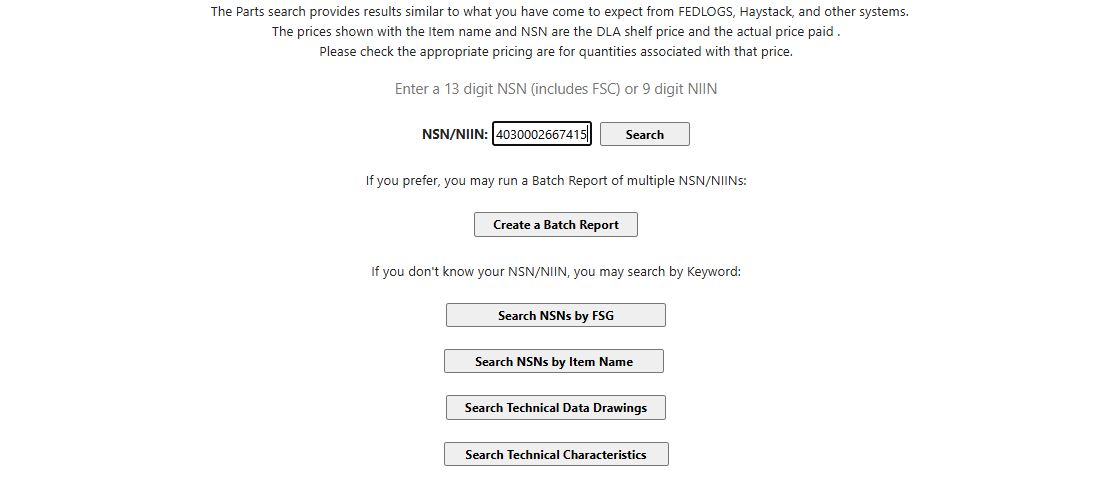
The input box displays only part of a long number at once. In the example, 4030-00-266-7415 returned FSC 4030 / NIIN 002667415. Compare the complete number on the result page.
For more about FLIS data categories, see DLA's federal logistics data description. The short NSN video example includes an .