Search for solicitations
Part of these button learning paths: Research All Open Solicitations
Video sections for this page
Video sections for this page
Video sections for this page
- 0:00 — base-open-the-solicitation-search
- 0:31 — base-set-up-a-two-keyword-title-search
- 1:07 — base-review-the-broad-title-results
- 1:36 — base-narrow-the-keyword-search-to-virginia
- 2:03 — base-choose-a-virginia-cleaning-notice
- 2:48 — base-search-by-naics-and-location
- 3:19 — base-compare-the-naics-set-aside-refinement
- 3:54 — base-read-the-naics-result-grid
- 4:27 — base-search-by-a-professional-service-code
- 5:03 — base-select-a-supply-group-and-class
- 5:35 — base-read-the-parts-and-service-results
- 6:19 — base-inspect-the-parts-characteristics-and-return
- 6:53 — base-choose-the-next-search-route
- 7:27 — Read the search form before choosing a route
- 8:13 — Use additional filters with the correct route
- 8:57 — Search the notice description as well as its title
- 9:24 — Search a known solicitation number
- 9:50 — Search opportunities by a company CAGE
- 10:20 — Use the documented filter-only search
- 10:42 — Enter an identifier in the format its route accepts
Video sections for this page
Start from the menu
From Main Menu, under Primary Searches, select Research All Open Solicitations. This opens the solicitation search form. Choose one search route, then press the Search button beside that route's input. The search form does not combine every populated row.
Search for solicitations by work description or by an identifier you already know: notice number, industry code, stock number or supply class. Use the Search button beside that input. See Read solicitation results for the next screen.
What the identifiers mean
A solicitation is a buyer's request for offers or information. Its current notice tells you what to submit and when. NAICS describes an industry; Product or Service Code (PSC) describes what the government buys. Use the Census NAICS reference or federal PSC manual when choosing a code.
For parts, a National Stock Number (NSN) has 13 digits: a four-digit Federal Supply Class (FSC) and a nine-digit National Item Identification Number (NIIN). The first two class digits are the Federal Supply Group (FSG). The NSN box accepts an FSC, NIIN or full NSN; the group/class selectors offer a broader search. See DLA's NSN guidance.
Choose the question before the button
Start with the work you do or an identifier you know. For example, enter janitorial,custodial in the first keyword box to search for either word, then services in the second box to require that additional idea. Choose Title for a focused search, then open promising notices to read the actual work, location and deadline.
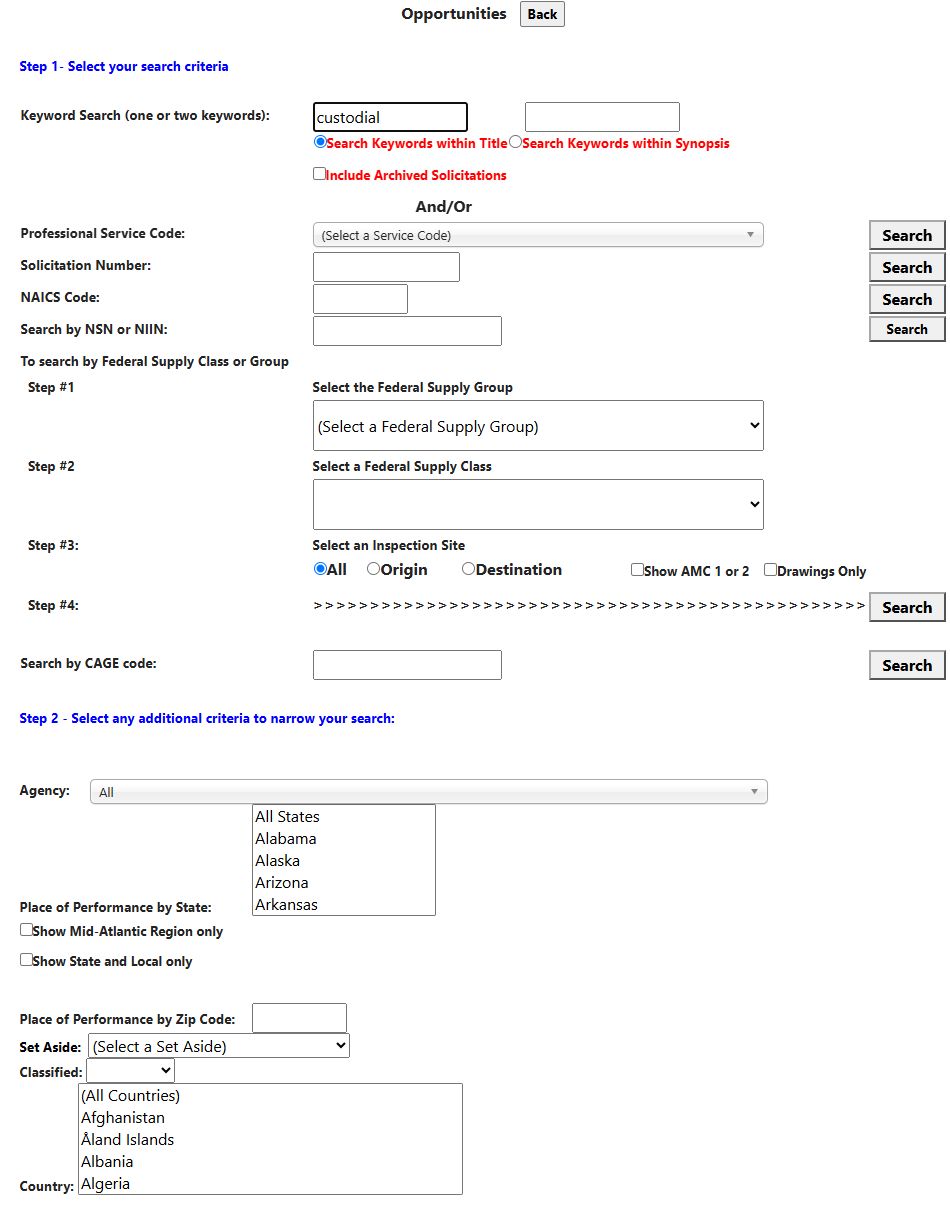
The upper portion of the search form. The first Search button beside Professional Service Code submits this keyword example.
The buttons run separate searches. Entering a NAICS code, NSN and keyword at once does not combine them automatically. The additional filters below work with the keyword/PSC, solicitation-number, NAICS and supply-group buttons; CAGE and NSN have their own paths.
Back returns to the previous page.
Text, service and known-number searches
| Control | How to use it |
|---|---|
| First Keyword Search box | Enter a work term. Separate alternatives with commas: janitorial,custodial seeks either. Use the Search button beside Professional Service Code. |
| Second keyword box | Add a term that must also match, such as services. It cannot start a search by itself. |
| Search Keywords within Title / Synopsis | Title searches the notice title and is selected initially. Synopsis searches the title or description. Both keyword boxes follow this choice. |
| Professional Service Code | Choose a product/service code to narrow the keyword search, or use its Search button with a code alone. A code-only search accepts codes beginning with the selected value. The on-screen And/Or text does not combine every field on the form. |
| Solicitation Number | Enter a known number and use its own Search button. Hyphens are ignored, but the remaining number must match exactly. |
| NAICS Code | Enter a six-character industry code, or comma-separated exact codes, and use its own Search button. A shorter entry stays on the form. |
| Search by CAGE code | Enter a five-character business identifier and use its own Search button. This search does not use the additional filters below. |
| Include Archived Solicitations | Check this to include older service notices. Without it, results focus on notices closing today or later and recent notices without a closing date. Read each original notice for its present status. |
Parts and supply searches
| Control | How to use it |
|---|---|
| Search by NSN or NIIN | Use its Search button with a four-digit FSC, nine-digit NIIN or 13-digit NSN; hyphens are ignored. Use the group selector below for a two-digit FSG. This search can return both parts and service-style notice rows. |
| Federal Supply Group (Step #1) | Select a group to load its available classes. Choose a group before using the Step #4 Search button. |
| Federal Supply Class (Step #2) | Select a class to narrow the DLA parts search. |
| Inspection Site — All, Origin, Destination | Choose where the part will be inspected. All is selected initially. |
| Show AMC 1 or 2 | Limit DLA parts results to these acquisition-method values. |
| Drawings Only | Request DLA parts results marked as having drawings. Open the drawing and check its revision before quoting. |
Additional narrowing controls
Use the controls under Step 2 - Select any additional criteria to narrow your search with the keyword/PSC, solicitation-number, NAICS or Federal Supply Group search. They do not narrow a new CAGE or NSN search. Clear earlier selections when you change search methods.
| Control | How to use it |
|---|---|
| Agency | Choose a buyer, or leave All. An agency-and-office choice narrows to that pair. |
| Place of Performance by State | Select one or more worksite states. A ZIP entry or Mid-Atlantic selection takes precedence over this state list. |
| Show Mid-Atlantic Region only | Limit location matches to VA, MD, DC or WV. Clear it when comparing other states. |
| Show State and Local only | Focus on notices marked non-federal or without a federal-only value. Check the publisher on each notice. |
| Place of Performance by Zip Code | Enter a ZIP; the first five characters are used. It searches the notice's performance or notice ZIP and takes precedence over selected states. |
| Set Aside | Choose a category to match the notice's set-aside wording. Confirm eligibility in the original notice. |
| Classified | The choice searches descriptions for security clearance. It is a wording filter, not a security-classification decision. |
| Country | Choose one or more worksite countries, or leave (All Countries) for no country limit. |
Use Include Archived Solicitations for older notices and award search for past awards. To search by Agency or Set Aside without a work term, enter * alone in the first keyword box and use the PSC-row Search button. That special case is not a general wildcard search.
Worked example: electrical opportunities in Florida
Follow this path: Main Menu → Primary Searches → Research All Open Solicitations → NAICS Search → Solicitation Search Results.
An electrical contractor wants to review work in Florida before deciding which notices to pursue.
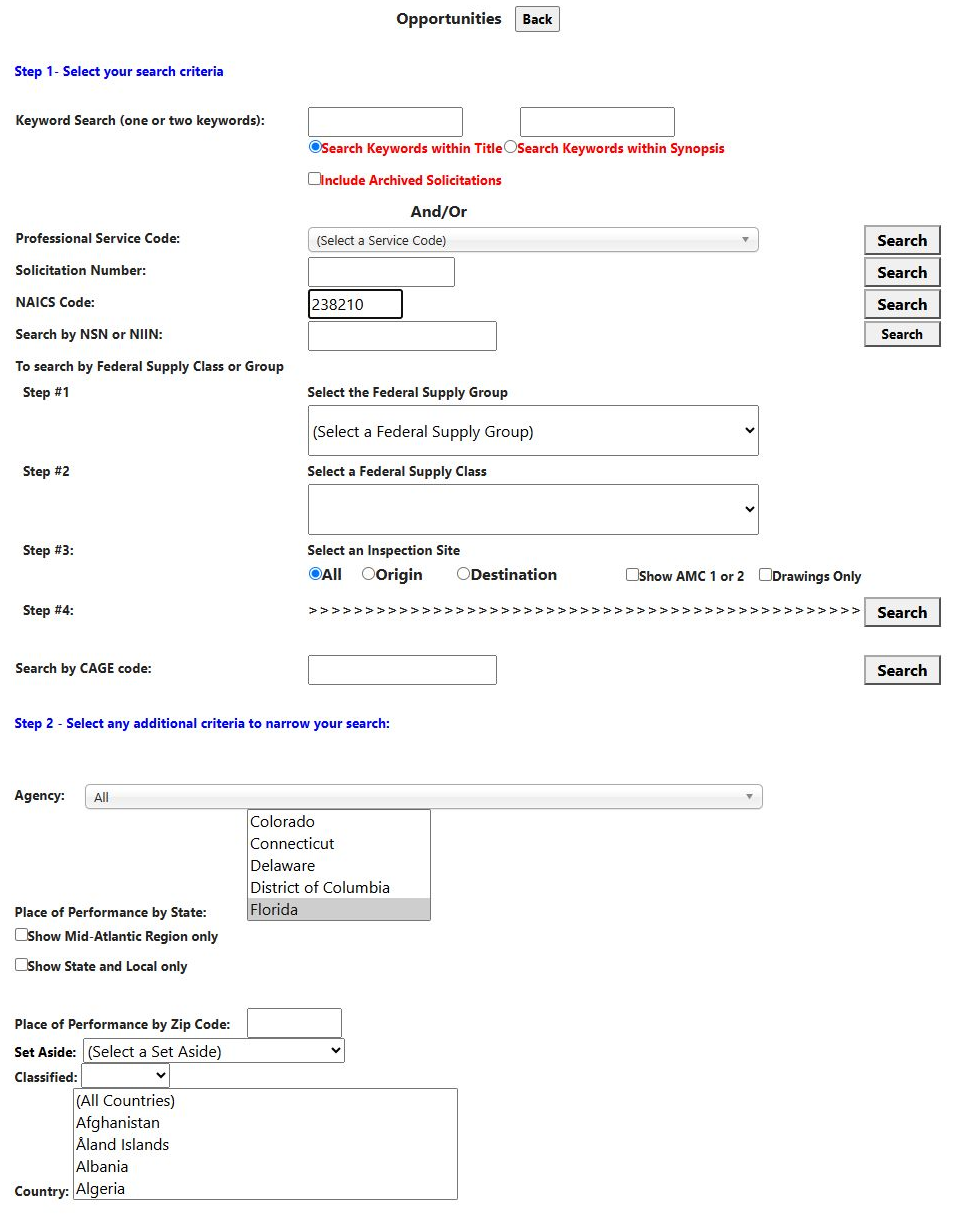
- Start with a fresh search. Leave both keyword boxes blank.
- Enter 238210 in NAICS Code.
- Under Step 2, select Florida in Place of Performance by State. Leave Agency at All, Set Aside unselected, and ZIP blank.
- Press Search beside NAICS Code, not the keyword or NSN Search button.
- Read Solicitation Search Results. The captured search returned four notice rows, including VA projector installation work and a Navy telecommunications notice.
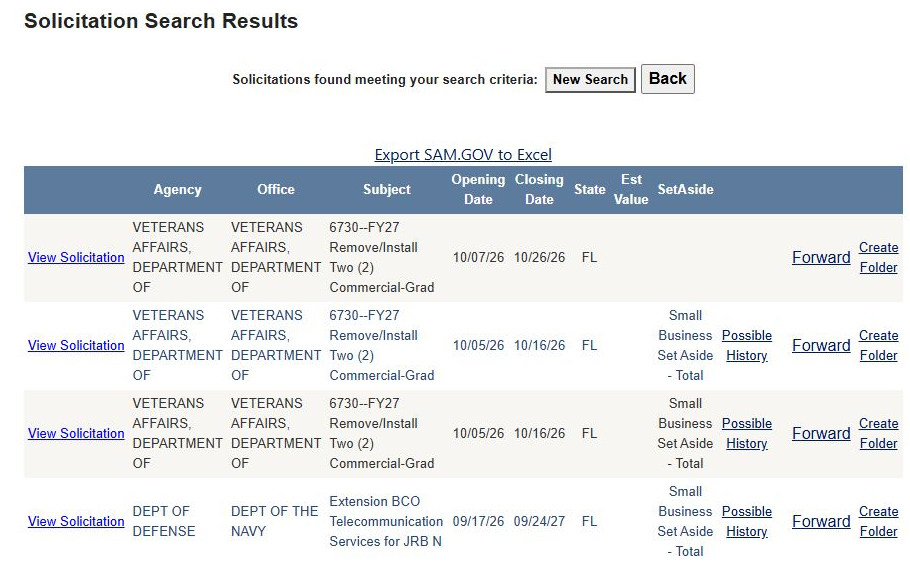
Read the Subject, Closing Date and SetAside before opening a notice. View Solicitation opens the publisher's notice, where you read the full scope and response instructions. Possible History, where offered, opens related earlier awards for further research. The result guide explains every result column and action.
Narrow the same search to small-business notices
Choose New Search, enter 238210 again, select Florida, and choose Small Business under Set Aside. Press the NAICS-row Search. This produced three rows in the captured example; each shows Small Business Set Aside - Total.
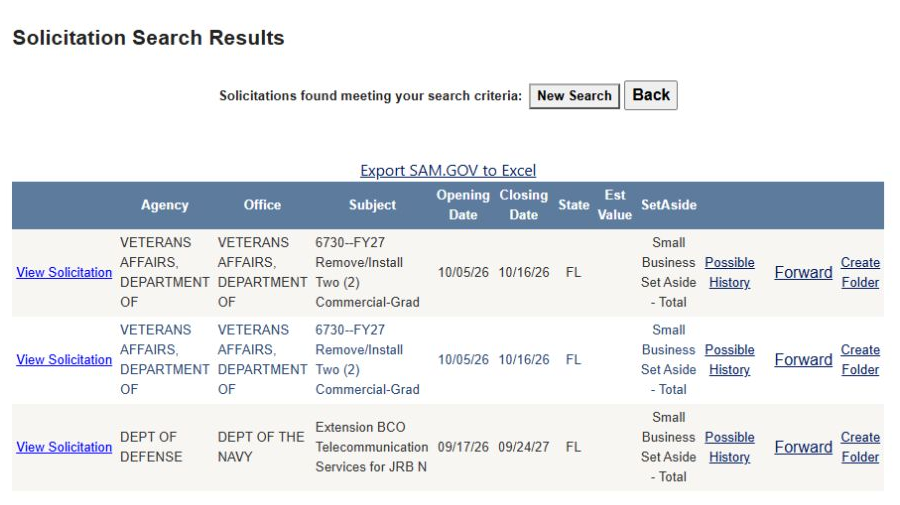
This comparison shows why you might start broadly and then add a filter. Read the notice's eligibility requirements before deciding whether your company can bid. These screenshots record the October 11, 2026 search; dates and matching rows change as notices change.
Continue from the notice to earlier work
On the VA projector-installation row, choose Possible History. The next page is SAM.GOV to Expiring Contracts Match, grouped by award year. In this example its 2026 rows include 36C24826C0045, awarded to DOUBLE BAR CONSTRUCTION, LLC, for a water-tower projector system at Lake Nona.
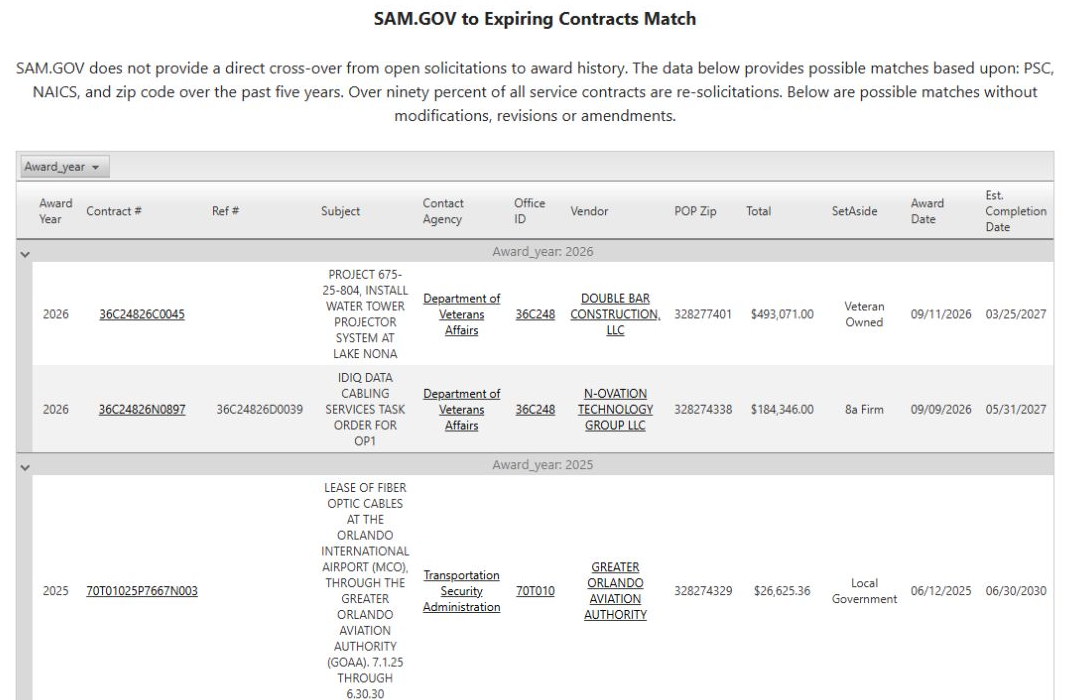
Select 36C24826C0045 in Contract # to open Award Details. The example shows a signed date of September 11, 2026 and an action obligation of 493071.00. Use this to understand earlier purchases; a possible match does not establish that the current notice replaces this contract.
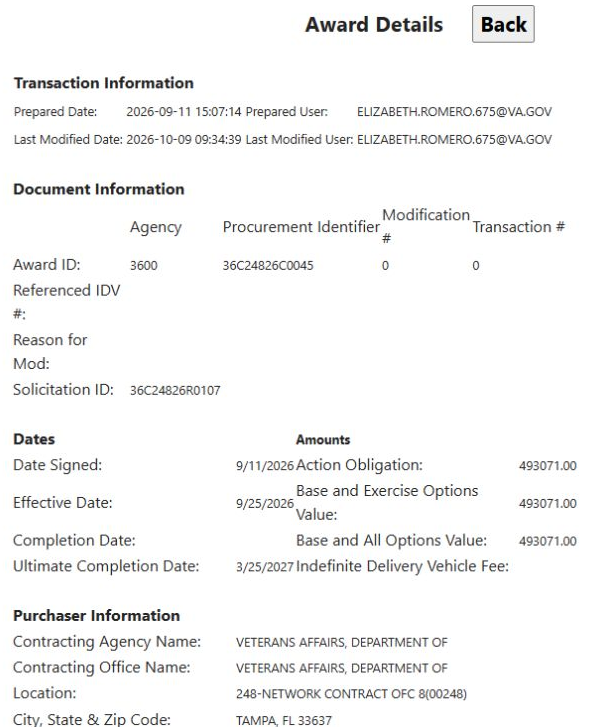
Use Back to return to the candidate list. If a link opens another tab, return to the results tab. The possible-history guide explains its agency, office and vendor links; award details explains the complete award display.
Worked example: find cleaning work, then narrow the area
Follow this path: Main Menu → Primary Searches → Research All Open Solicitations → keyword Search → Solicitation Search Results.
- Enter janitorial,custodial in the first keyword box and services in the second.
- Keep Search Keywords within Title selected. Leave other filters unselected for the first pass.
- Press the Search beside Professional Service Code. This button submits the keyword search even when you have not selected a service code.
- The captured first result page displayed 100 notice links, including school, county, state and federal purchasing notices. This is the displayed page, not a claim that only 100 matches exist.
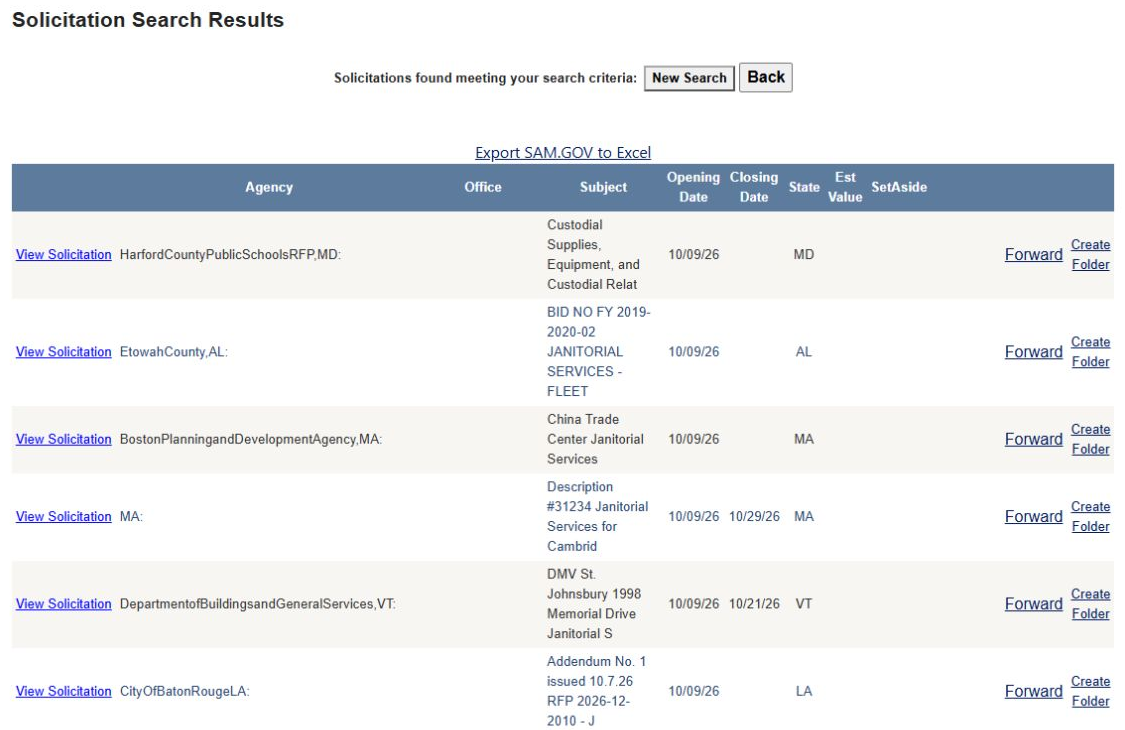
Focus on Virginia state and local work
Choose New Search. Re-enter the two keyword entries above, select Virginia, and check Show State and Local only. Press the keyword/PSC-row Search again. This search displayed 21 notice rows, including Janitorial Services for Petersburg Public Library, IFB 161193 Janitorial Services Louisa Residency, and Janitorial Services Contract - YRTP.
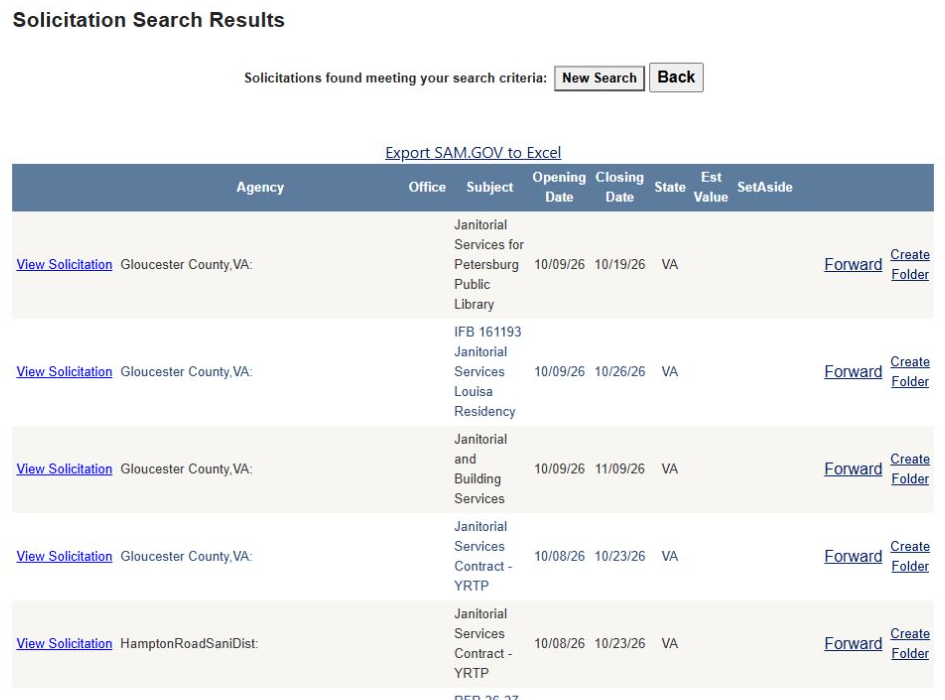
Compare the title, location and closing date. Select View Solicitation to continue at the publisher. Some publishers link directly to the notice; others open an opportunity list where you find the displayed title or notice number. Use New Search when you want to change the geography or terms. See solicitation results for the notice links and returning to your results.
Worked example: find a DLA notice for a known part
Follow this path: Main Menu → Primary Searches → Research All Open Solicitations → Search by NSN or NIIN → Solicitation Search Results → Award Hist.
- Choose New Search and enter 1005015186043 in Search by NSN or NIIN.
- Press the Search beside that box.
- The captured result identifies PARTS KIT, GUN, AMC 1, estimated value 17400.00, opening 10-12-2026, and closing 10-22-2026.
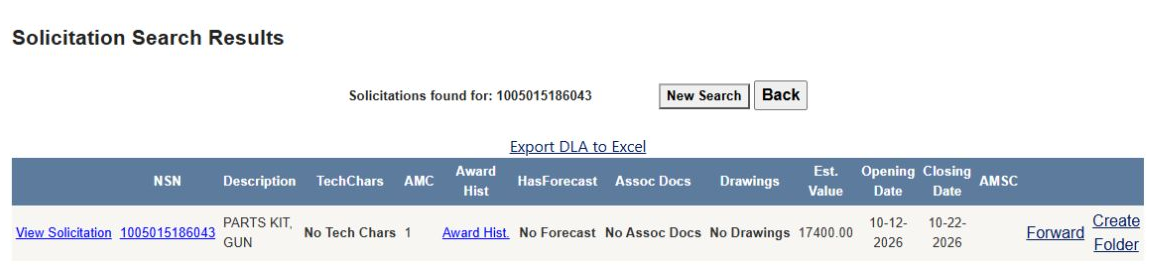
The NSN link opens the item information. View Solicitation links to RFQ SPE7L327Q0031. Award Hist. opens previous purchases of this part. Text such as No Tech Chars or No Drawings means that action is not offered for this row; it is not a link.
- Select Award Hist.. The first displayed purchase is SPE7L126P99S1, with 8 pieces at $4,350.00 each, totaling $34,800.00, awarded August 19, 2026 to SEY TEC, INC.
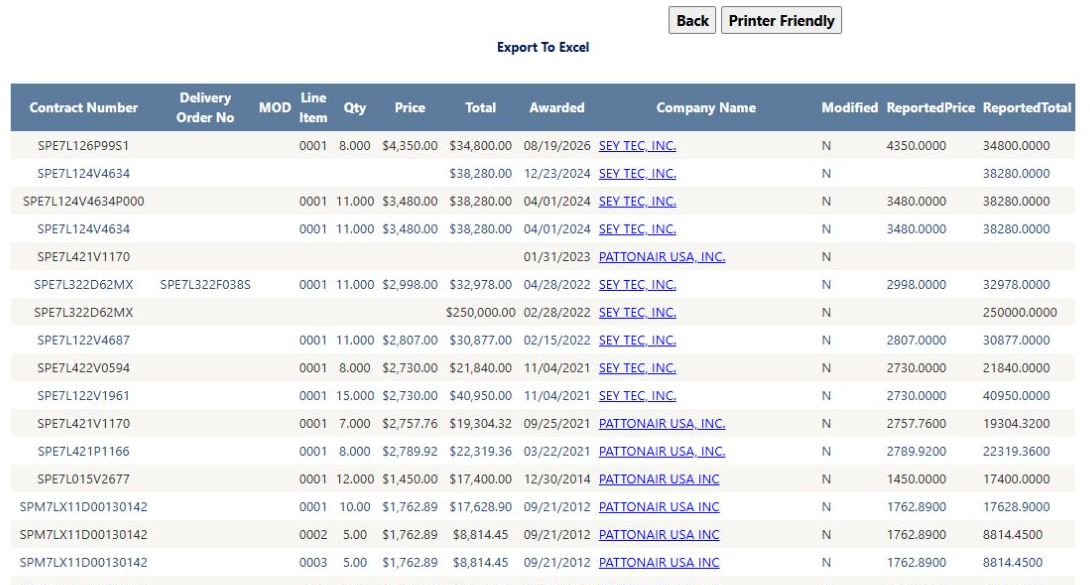
Use the history to compare previous quantities, prices and suppliers. Select a Company Name to research that supplier. Back returns to the solicitation results. For all history fields and the already illustrated worksheet, see NSN award history and Excel exports.
Find the same notice by its RFQ number
Choose New Search, enter SPE7L327Q0031 in Solicitation Number, and press that row's Search. The captured result shows the same part and RFQ. This route is useful when a customer or colleague gives you a specific notice number instead of a stock number.
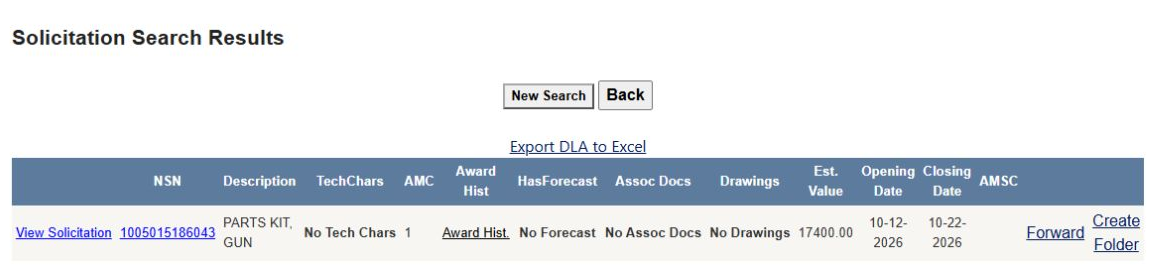
Use New Search to change methods. Do not put several identifiers in different Search rows and assume they will all be combined; use the button for the question you are asking.
Worked example: search a service code instead of keywords
Start at Research All Open Solicitations with a fresh form. Leave both keyword boxes blank. Open Professional Service Code and select S201-CUSTODIAL JANITORIAL SERVICES. Select Virginia under the state list, then press the Search beside the service code.
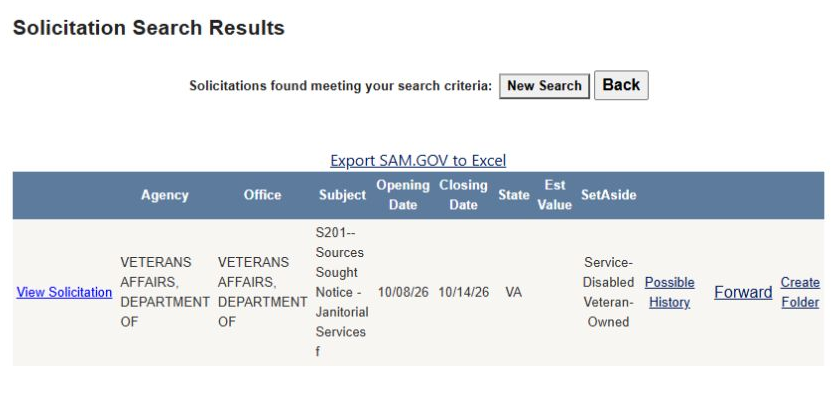
The captured result contains a VA Sources Sought notice for janitorial services, with a closing date of October 14, 2026 and Service-Disabled Veteran-Owned displayed under SetAside. Open View Solicitation to read what the agency is requesting. A sources-sought notice gathers market information; read its instructions rather than assuming it is a request for a priced bid.
A code search and a keyword search can produce different lists. Use codes when you know the purchasing category, and keywords when you want to find the buyer's description of the work. You can also enter keywords with a selected service code to focus that category further.
Search the synopsis
For another text-based route, choose New Search, enter janitorial,custodial and services, select Search Keywords within Synopsis, and select Virginia. Leave Show State and Local only unchecked to include federal notices too. Press the keyword/PSC-row Search.
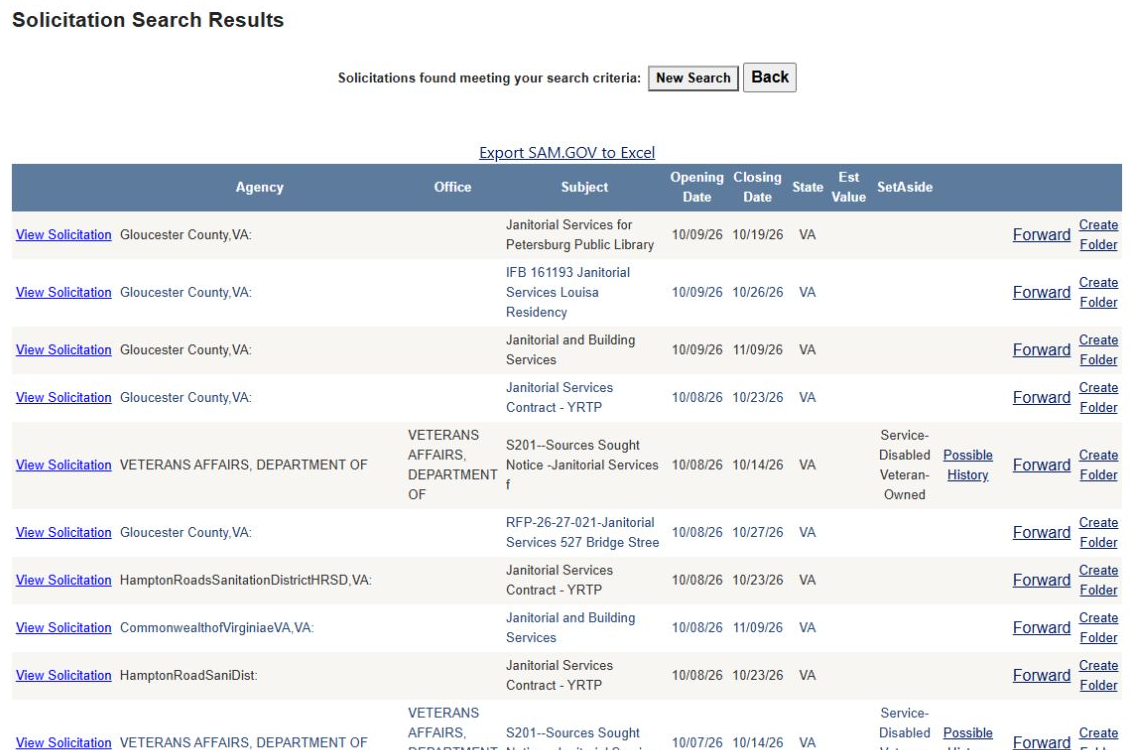
This captured search displayed 28 notice rows. It includes the VA sources-sought notice as well as local cleaning work. Synopsis is useful when the title is brief and the detail you need appears in the description. Read the notice itself before deciding that the work fits your business.
Worked example: supply class with inspection and AMC filters
Follow this path: Main Menu → Primary Searches → Research All Open Solicitations → Federal Supply Group/Class → Solicitation Search Results → Tech. Chars.
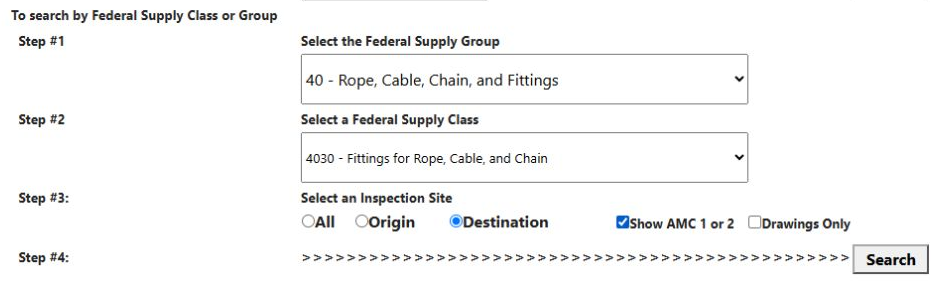
- Choose 40 - Rope, Cable, Chain, and Fittings in Step #1.
- When its classes load, choose 4030 - Fittings for Rope, Cable, and Chain in Step #2.
- In Step #3, select Destination and check Show AMC 1 or 2. Leave Drawings Only unchecked for this example.
- Press Search in Step #4, immediately below these controls.
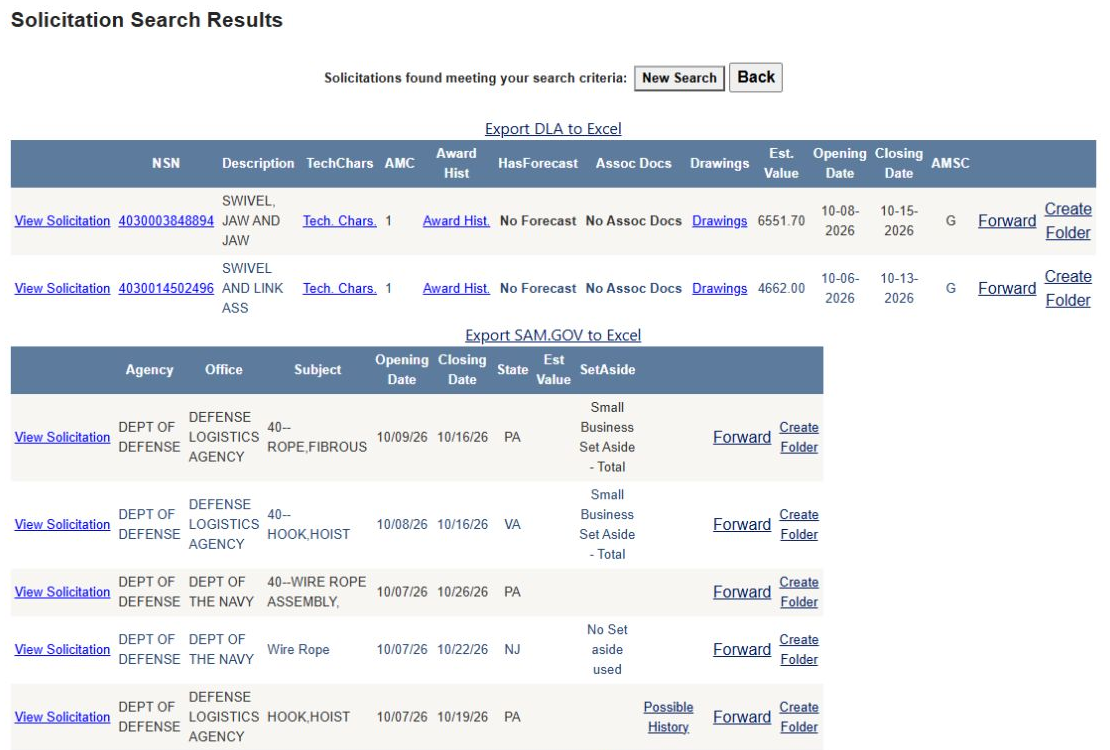
The captured page shows two DLA parts rows, followed by a separate SAM.gov notice table. The first part is 4030003848894 — SWIVEL, JAW AND JAW, with AMC 1, estimated value 6551.70, and closing date 10-15-2026. The two tables have different columns and their own Excel links.
Select Tech. Chars. beside 4030003848894. The next screen identifies the same NSN and lists its requirements and replies: DROP FORGED fabrication, STEEL material, CADMIUM surface treatment, and dimensional values.
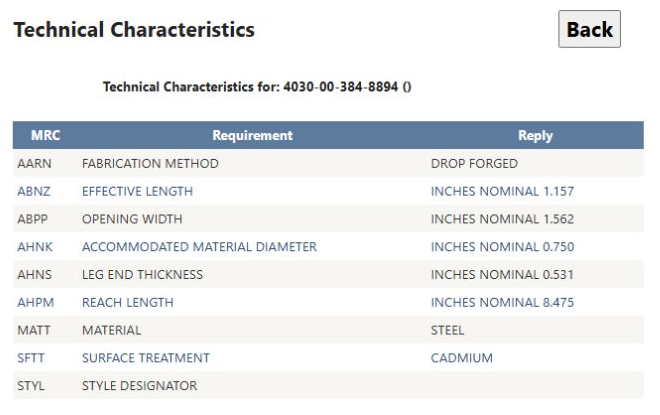
Use the Requirement and Reply together: for example, OPENING WIDTH is INCHES NOMINAL 1.562. This helps you determine whether the item matches what you supply. Back returns to the result list. See technical characteristics for the field reference and drawings for the separate drawing action.
Worked example: opportunities related to a supplier's CAGE
The parts award-history example above identifies SEY TEC, INC. Its company profile identifies CAGE 0FGC4. To research notices related to that supplier, choose New Search, enter 0FGC4 in Search by CAGE code, and press the Search beside it. Do not use the NAICS or NSN Search button.
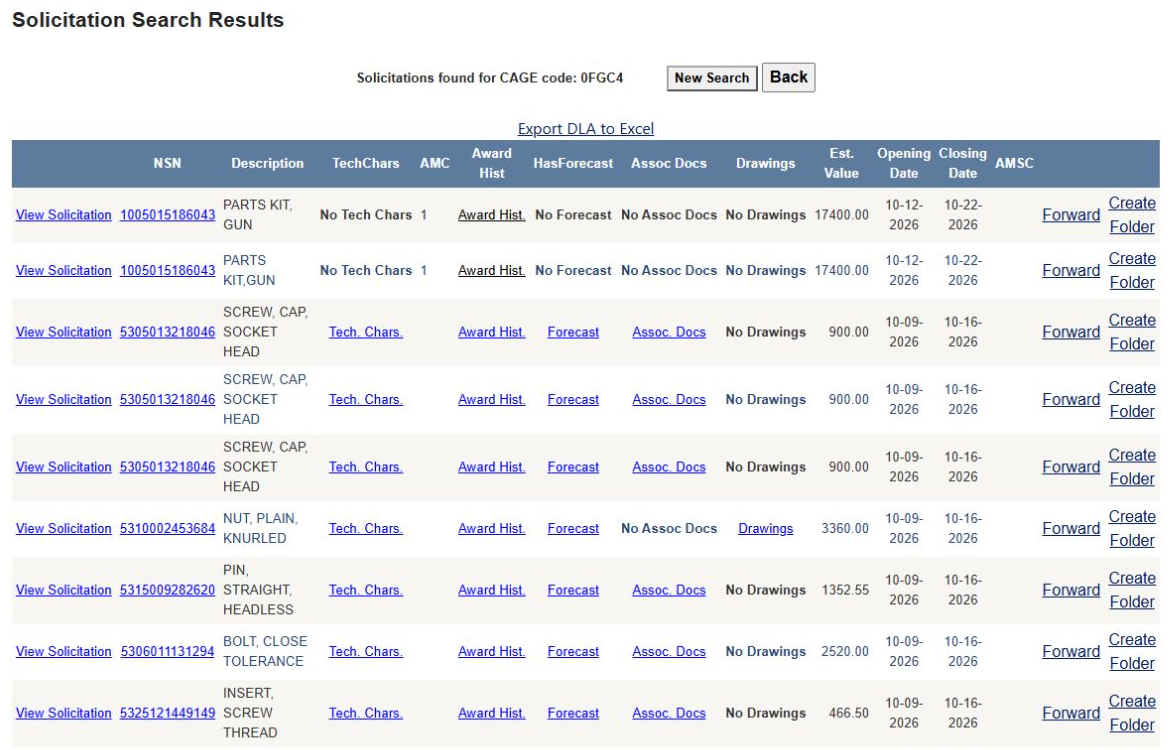
The captured result displays 45 notice rows, including the earlier 1005015186043 parts kit and 5305013218046 — SCREW, CAP, SOCKET HEAD. This is an opportunity list, not a list of awards to that company. For a promising item, follow its NSN, Tech. Chars., Award Hist., Forecast, or Assoc. Docs link as available. Each answers a different question before you open the solicitation and prepare a response. Return to the results tab to compare another part.