Research federal offices and institutions by state
Part of these button learning paths: Federal and State Institutions
Video sections for this page
- 0:00 — Open Federal and State Institutions
- 0:05 — Select a state and directory categories
- 0:23 — Expand the federal buying-office groups
- 0:57 — Review an office's presolicitation list
- 1:37 — Read the hospital directory fields
- 2:03 — Read the nursing-home directory fields
- 2:23 — Search the Florida university directory
- 2:41 — Read the university directory rows
- 3:08 — Read the State Prisons directory fields
- 3:29 — Choose a contact directory
- 3:53 — Read the APHIS office email directory
- 4:14 — Return to the Agriculture office list
- 4:32 — Use FOIA Contacts for records requests
- 5:02 — Return to the institution results
From Main Menu → Research, choose Federal and State Institutions. Select a state, check one or more categories and press Submit to open the results. Expand a federal department row to see its offices, then use an available OSDBU, FOIA Contacts, Contact Emails, Award History or presolicitation link to continue. Use Map It! on an institution row when present. Back returns to the prior screen. This is a directory and research starting point; a listed institution is not proof of government ownership, a current purchase or an active opportunity.
Choose a state and category
| Control | Meaning |
|---|---|
| Select a State | Choose the state whose offices and institutions you want to research. |
| Military and Federal Purchasing Locations | Requests federal buying-office information. |
| Hospitals | Requests hospital directory rows in the selected state. |
| Nursing Homes | Requests nursing-home directory rows. |
| Universities | Requests university directory rows. |
| State Prisons | Requests prison directory rows. |
| Submit | Opens the selected state's results and category sections. If you return to another search afterward, you may need to enter its criteria again. |
| Back | Returns through browser history. |
For example, selecting Florida with Hospitals and Nursing Homes shows those sections and a grouped Federal Buying Locations table. The federal table can therefore appear even when its category was not selected. Read each section by its heading.
Federal buying-office results
The grouped list starts with department rows. Open a row's arrow to see its offices and available contact or award links.

Open the federal buying locations image at full size.
The federal table groups by Department and starts with collapsed groups. Expand Groups changes to Collapse Groups when all groups are expanded; a department's own arrow opens just that group. In the saved Florida result, Department, Agency and Zip Code headings were sorting controls. Sorting rearranges the directory result, not the order of current opportunities. The visible fields are:
| Field or action | Meaning and use |
|---|---|
| Department / Agency | Stored organizational names. Confirm the current hierarchy on the agency's official site. |
| ContractingOffice | Stored office name, with an outside facility/office website link when available. |
| Zip Code | Office postal identifier, not a radius or place-of-performance measure. Preserve leading zeros. |
| Contact Emails | Conditional link to stored office email addresses. The linked directory displays distinct stored email/creator strings, not verified current employees. |
| Unlabeled presolicitation action | Conditional related presolicitation link. Its result fields and date logic are explained below. |
| Award History | Conditional related award-results link. The presence of an award count does not prove this office is currently buying the selected product. |
| Awards Naics | Conditional office/agency industry-award report. Record its exact office/agency scope and period before comparing totals. |
| OSDBU / Phone Book / FOIA Contacts | Conditional links to agency small-business contacts, an outside telephone directory and agency/office FOIA contacts. Verify each destination's current information. |
This is an office directory. The grouped federal table does not offer a 90 Day Expiring Contracts or Tenants action. Use the linked presolicitations and awards to investigate specific procurement activity.
Hospital, nursing-home, university and prison rows
| Section | Fields and their meaning |
|---|---|
| Hospitals | Hospital Name identifies the stored facility; Address, City, State, Zip Code locate its recorded site; Phone and Fax are stored contacts; Hospital Type is stored text/code without an accepted value legend; Web Site is stored website text. |
| Nursing Homes | Nursing Home identifies the stored facility; Address, City, State, Zip, Tel and Fax are recorded location/contact fields. |
| Universities | State, Title, URL and ZipCode provide the directory's location, name and external site lead. |
| State Prisons | State, Title, URL and ZipCode serve the same directory purpose for prison entries. |
| Map It | Where present, opens a map using stored name/address and latitude/longitude values. This does not validate the coordinates or exact entrance/delivery site. |
Select a heading to sort an institution section. Map It! uses stored location information, which can be incomplete. Check the address and the institution's current website before planning a delivery or outreach.
Related directory and presolicitation screens
Contact Emails presents one Email Address column of stored office-email strings. OSDBU presents Office, Title, Contact, Address 1, Address2, City, State, Zip, Telephone, Fax, Email and Web Site. These identify a small-business directory office or person and ways to reach them. FOIA Contacts presents Department, Branch, FOIA Contact, Title, Address, an unlabeled second address column, City, State, Zip, Telephone, Fax, Email, Additional Contacts, an unlabeled second additional-contact column and Web Site. If an office-specific FOIA entry is unavailable, this directory may show agency-wide contacts. See the small-business and FOIA contact guide for how to choose the right directory and read its fields.
For example, select Florida and Military and Federal Purchasing Locations, press Submit, expand DEPT OF DEFENSE, find W7M2 USPFO ACTIVITY FL ARNG, and select that row's View Presols link. The results show Solicitation Number (notice identifier), Subject (short description), Contact (listed contact), PSC or FSG (the classification shown for the notice), NAICS (industry code), Set A-side (the page's spelling for the set-aside category), POP Zip (place-of-performance ZIP), Open Date (notice opening date) and Date Closed (listed closing date). POP Zip is the work location, not the office ZIP. The downloaded workbook has those same nine headings, in the same order. The list can include older or closed notices, shows 100 rows per page, and offers Export To Excel as an Excel-readable .xls file. Use Back to return to the institution results. Open the current official notice and amendments for live deadlines.
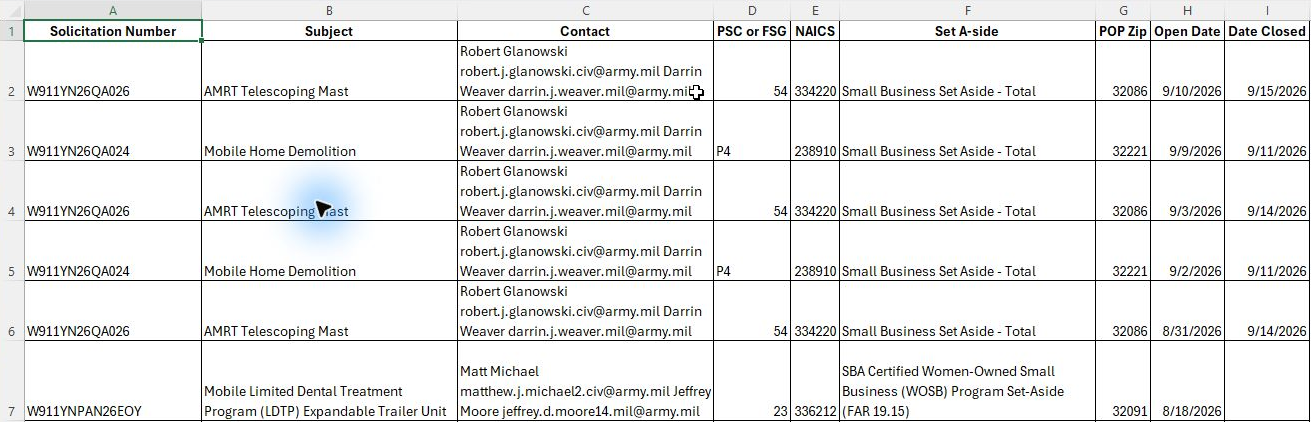
Open the presolicitation worksheet at full size.
Example: map a state health-care market
Select a state with Hospitals and Nursing Homes. Review names and locations, then verify which institutions are public entities and where each publishes solicitations. Run a separate federal-office category if the business also sells to federal health facilities. Compare office ZIP with performance ZIP on a presolicitation; they can differ. Use official procurement notices for bidding dates and terms.
Download this article as Markdown