Find military specifications and related documents
Part of these button learning paths: Mil-Spec or Non-Govt. Standards
Video sections for this page
Mil-Specs and Standards searches recorded specifications by document number or words in a title, then links to available versions and related documents. Compare the listed document with the exact revision named in your solicitation.
How to get here and continue
- From Main Menu → Parts/Products, open Mil-Spec or Non-Govt. Standards. The search page lets you choose a search type and enter a document number or title words.
- Submit the search to see matching document records and available version or related-document links. Open a candidate and compare its identifier and revision with the current solicitation.
- New Search returns to the search form. Main Menu returns to the site's menu; Back returns through browser history. A document link may open a file or related page, so check its identifier and revision before using it.
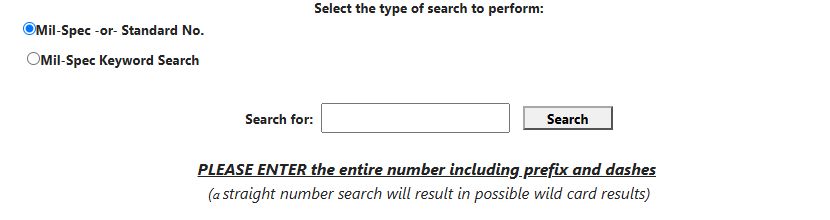
Search by number or words
| Control | Meaning and use |
|---|---|
| Mil-Spec -or- Standard No. | Search for a document number, including its prefix and dashes when known, such as MIL-A-52818. A short number may match several documents. |
| Mil-Spec Keyword Search | Search words or a phrase in document titles. This searches titles, not the full document text. |
| Search for | Enter the number or title words for the selected search mode. |
| Search | Runs the selected search. |
| Click Here for non-government standards | Opens an external standards store. Its listings and access are separate from the Proxity document list. |
| Main Menu | Returns to the site's main menu when available. |
The page displays a limit of 24 military-specification downloads per 24 hours and notes that non-government standards may carry copyright fees. Check the current access terms before downloading or sharing a document.
Understand search results
The result page shows either the number-search grid or the title-search grid, each with eight-row paging. Both show the same three visible columns:
| Column or control | Meaning and next decision |
|---|---|
| Document No. | Recorded specification/standard identifier. Click it to inspect available document versions. Compare all prefix, suffix and dash characters with the solicitation. |
| Status | Status value recorded with the document. |
| Title | Descriptive title. A title can help reject a false-positive number match, but it does not establish required revision or file availability. |
| New Search | Returns to the search form. |
| Back | Browser history; it may return you to an earlier result page. |
Number mode shows a format reminder when no documents match; title mode shows No results found. Please try a new search. Search results have no Excel export.
Open versions and associated material
The document-detail heading repeats Document No. Its row fields and actions are:
| Field or action | Why it matters |
|---|---|
| Document type | Descriptive type from the application's document-type list. Distinguish a base specification from another recorded document category. |
| TypeID | Identifier for the document subtype. |
| Document date | Date recorded for that file/version. Compare it with the revision named by your solicitation. |
| Page count | Number of pages recorded for the file. |
| View Document | Opens the recorded file when a usable link is available. Check its revision before using it. |
| Assoc. Docs. | Opens documents recorded as related to this specification. Those references may include other standards and do not replace the exact requirement in the notice. |
| New Search / Main Menu / Back / contact us | Start another search, return to the menu or previous page, or open the contact form when a document is missing. |
The Associated Documents page lists Doc. #, Type, TypeID, and View Document. It pages 15 rows and can display No Associated Documents Found. A link may open a site outside the application. This document-centered route differs from the NSN-associated-documents view.
Performed number search: MIL-STD-129
On October 12, 2026, Main Menu → Parts/Products → Mil-Spec or Non-Govt. Standards opened the search form. Choose Mil-Spec -or- Standard No., enter MIL-STD-129 in Search for, and press Search. This number search matched several identifiers, including MIL-STD-1290, so use the full Document No. and Title before opening a record.
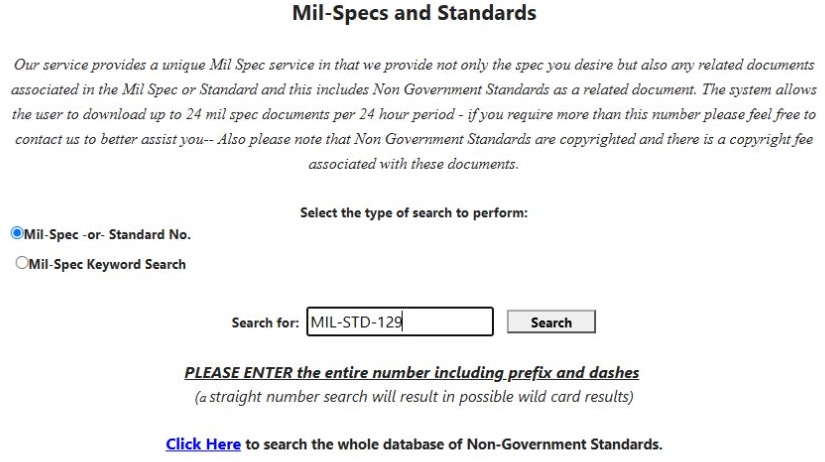
Open the number search form at full size.
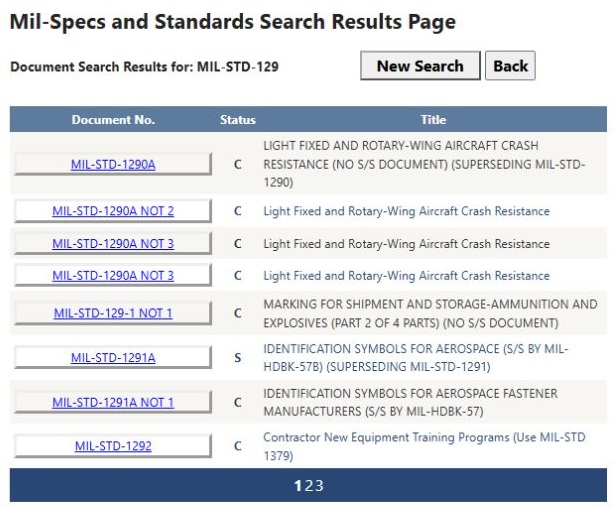
Open the first number-search results at full size.
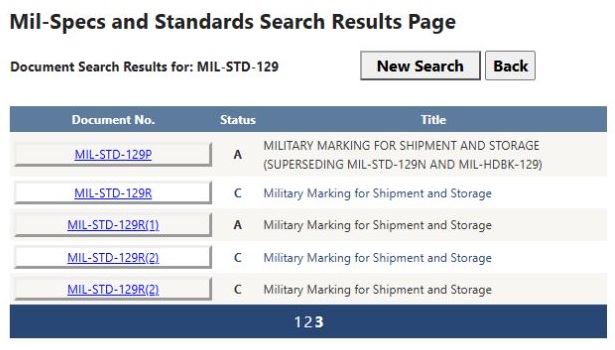
The result had three pages. Page 3 included MIL-STD-129P, MIL-STD-129R, MIL-STD-129R(1), and MIL-STD-129R(2). Select MIL-STD-129R(1) to view its recorded versions. This is a useful check before relying on a document suffix: the results grid and the version list answer different questions.
The version list showed Revision R Change 2 dated 09/27/2019 first, Revision R Change 1 (change incorporated) dated 05/24/2018 second, and Revision R dated 02/18/2014, with older revisions including P below. Read the specific row and date required by the solicitation; neither first position nor a similar title alone establishes which edition governs a purchase.
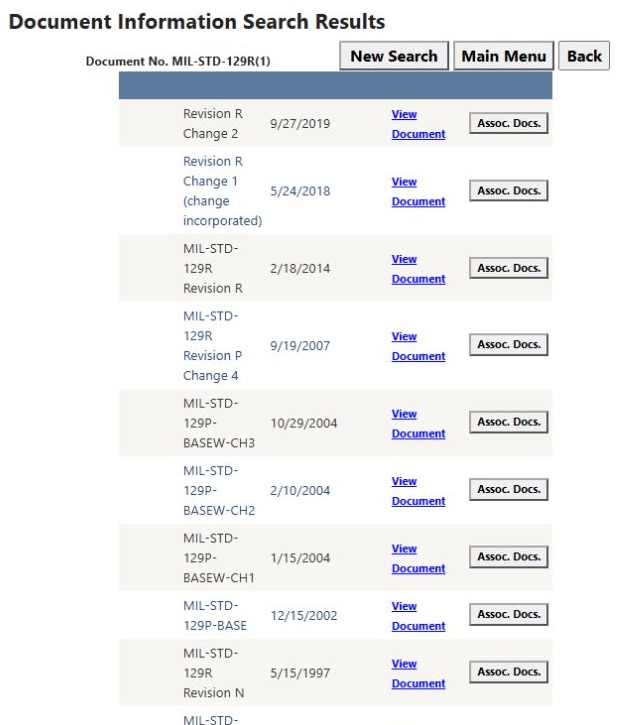
Open the version list at full size.
Use View Document on the chosen version to open its file in a new tab and compare the revision with your requirement. Selecting Assoc. Docs. on the second row opened the related-document list, with 15 rows per page and 10 pages. Visible entries included STANAG 4329 ED4, 4281 ED3, SAE AMS-STD-595, MIL-STD-290H(1), 2073-1E(4), 130N(1), and MIL-PRF-61002B(2). Treat each as a related reference; check the actual solicitation for which ones are required. Browser Back returned to the version list, and New Search returned to the form.
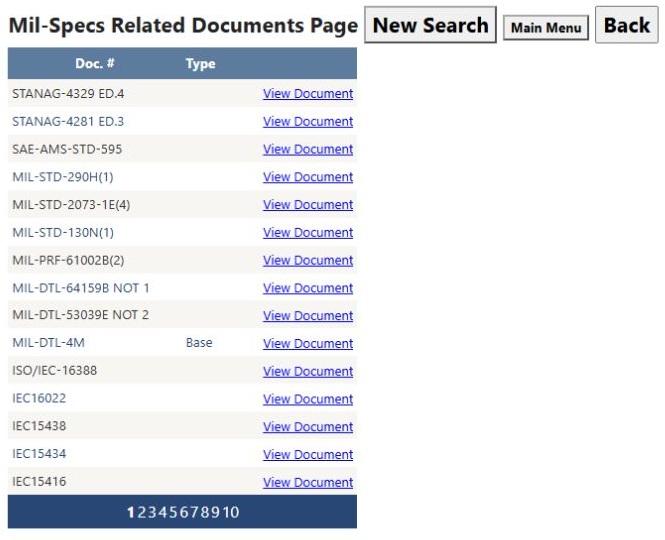
Open the associated-document list at full size.
Performed keyword search: shipment
Back at the form, choose Mil-Spec Keyword Search, enter shipment, and press Search. This opened title-search results that included DD FORM 1252 (customs declaration), 1299 (shipment and storage), and 1387 (military shipment label). A title word can find different document families; inspect Document No., title and available versions before using one for a specific requirement. New Search starts another query.
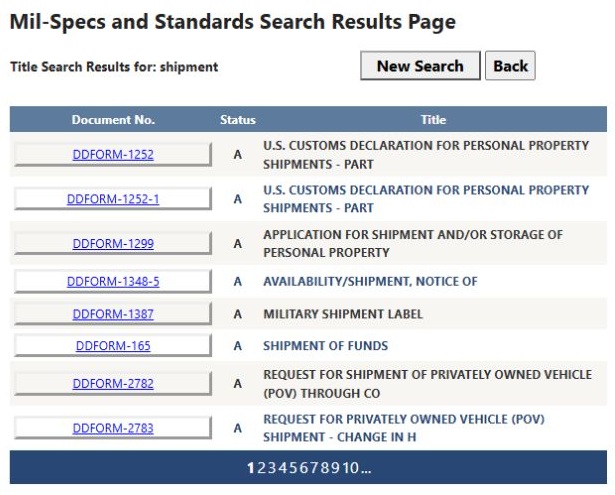
Open the shipment results at full size.
For an actual solicitation, begin with its stated document number when you have it. Use a title keyword to discover candidates when you do not. Compare the recorded identifier and edition with the issuing organization's required current revision and amendments. A matching local listing does not replace the source requirement.
Download this article as Markdown