Inspect and download item drawings
Part of these button learning paths: Research All Open Solicitations · Just My Opportunities · Machine Shops Opportunities · Unfulfilled NSN Opportunities · Search by NSN/NIIN · APL/AEL Historical · Drawings · DLA Prime Contractors · Naics To FSC Cross · Commercial Part Number to NSN · Weapons System Designator Codes
Video sections for this page
Video sections for this page
View Drawings on the NSN result opens drawing rows for that item. The separate Drawings search accepts an NSN/NIIN or drawing number and has different result and access controls. Compare each drawing's number and revision with the current requirement before using it.
How to get here and continue
- Search an item through Search by NSN/NIIN, then choose View Drawings on its NSN result. The next screen lists drawing rows associated with that item.
- Open a row when you intend to inspect that drawing. Check its number, sheet and revision against the requirement. If you see a sign-in or access message, follow its directions and return to the drawing list.
- Back returns through browser history to the preceding item page. Use that item page to continue catalog research.
| Field or control | Meaning and action |
|---|---|
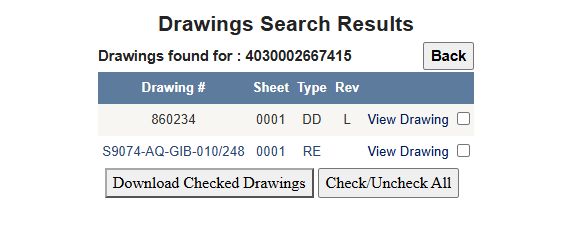
| Drawing # | Recorded drawing identifier. Match it to the drawing number specified in the current requirement. |
| Sheet | Sheet identifier within that drawing. Confirm that all required sheets are present. |
| Type | Stored drawing type indicator. Its code meaning must be verified before relying on it. |
| Rev | Recorded revision. Compare it with the solicitation and the drawing title block; do not assume this listing is the latest revision. |
| View Drawing / Members Only | Select View Drawing to open the listed file in a new tab when your account has access. If the page shows Members Only, follow the displayed access instructions or contact your account administrator. If you are asked to sign in, complete sign-in and return to the drawing list. Check the opened file's number and revision. |
| Selection checkbox | Marks an individual row's file path for the ZIP download. Check only files you are authorized to access and need. |
| Download Checked Drawings | Select the drawing rows with their checkboxes, then choose this control to request a ZIP of the selected files. Open the ZIP and check the included sheets and revisions before using them. |
| Check/Uncheck All | Toggles each drawing checkbox to its opposite state. Review the selected rows before downloading. |
| Back | Browser history. The Main Menu control starts hidden. |
The drawing list shows up to 100 rows per page. When it returns no rows, the page may display explanations such as no drawing in the list, a controlled drawing, or a drawing the site has not acquired. Check the current solicitation and issuing office for the required technical package.
For NSN 4030-00-266-7415, the example shows two rows: Drawing 860234, Sheet 0001, Type DD, Rev L; and Drawing S9074-AQ-GIB-010/248, Sheet 0001, Type RE, with no revision displayed. Each row has View Drawing, and the page has Download Checked Drawings and Check/Uncheck All. In the example, View Drawing opened a one-page PDF for 860234. Use the PDF viewer's rotation and zoom controls to inspect its title block, dimensions and notes. Compare the drawing type and revision with the current notice.
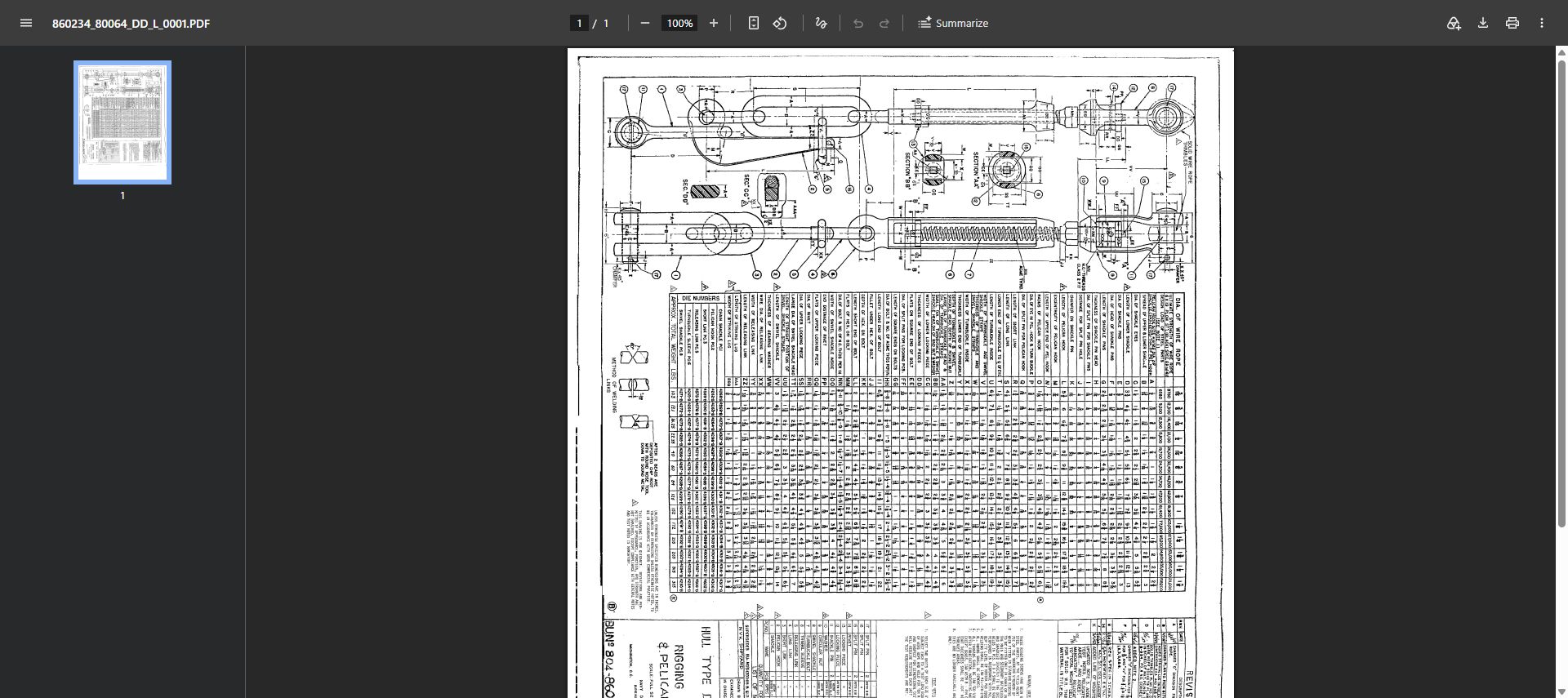
Engineering review example
Open the NSN, read the drawing number and revision, and compare the current notice's required revision. View each relevant sheet and verify its title block, notes and permitted use. Before using a ZIP download, open it and confirm it contains the expected sheets and revisions.
Download this article as Markdown