Find NIINs through supply groups, classes and item terms
Part of these button learning paths: Search by NSN/NIIN
Video sections for this page
Video sections for this page
Choose Search NSNs by FSG from Search by NSN/NIIN. The form provides four stages: supply group, supply class, stored item-name terms and NIIN. It reads catalog data and clears or enables choices on the form; it does not save or reset the account's technical-characteristic reply list. That separate workflow is described in Search Technical Characteristics.
How to get here and continue
- From Main Menu > Parts/Products, open Search by NSN/NIIN, then choose Search NSNs by FSG. The next screen starts with the supply-group choice.
- Choose an FSG, then an FSC, use Show Term(s) to see stored item-name terms, and select a term or NIIN to continue. An NSN/NIIN choice opens its item result; related reference links are covered below.
- Main Menu returns to the Parts/Products menu, and Back returns through browser history. Choosing a class or term here does not start the separate, account-saving technical-characteristics search.
Work through the four stages
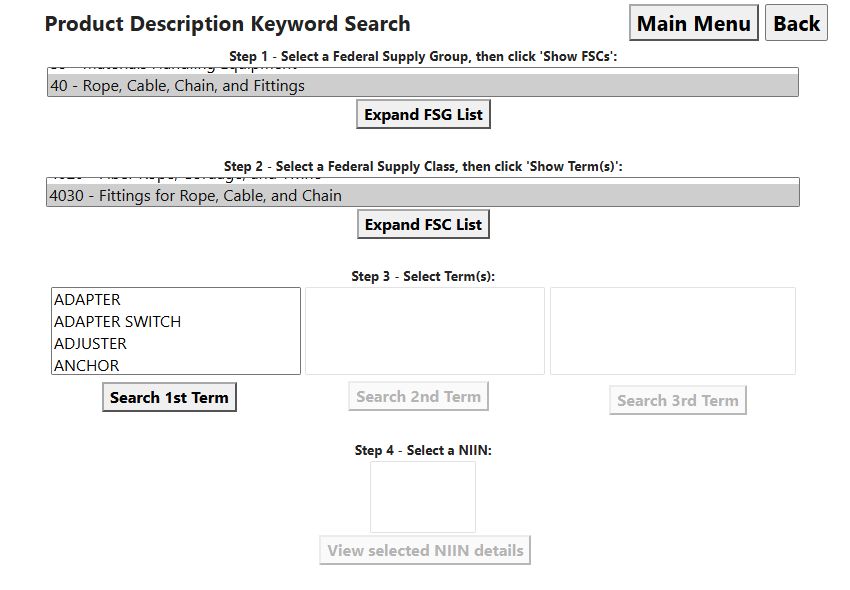
Here, group 40 — Rope, Cable, Chain, and Fittings leads to its supply classes. Select a class, then use Show Term(s) to continue toward a specific item.
| Field or control | Meaning and exact step |
|---|---|
| Step 1 — Federal Supply Group list | Choose the displayed two-character FSG code and group name. Groups are sorted by code. The selected group constrains the class list. |
| Show FSCs | Enables the class list and Show Term(s), clears lower term and NIIN choices, and disables their search/detail buttons. Choose this after changing the group before continuing. |
| Expand FSG List | This replaces the Show FSCs label after that action. It expands the group list for viewing and restores the Show FSCs label; it does not itself submit a new item search. |
| Step 2 — Federal Supply Class list | Choose the four-character FSC code and stored class description within the selected group. The FSC is the first four characters of an NSN, not a complete item identifier. |
| Show Term(s) | Loads the first stored item-name terms for the selected FSC, enables the first-term search and clears/disables later terms and NIINs. A sole first-term option is selected automatically. |
| Expand FSC List | This replaces Show Term(s) after terms are shown. It expands the class list and restores Show Term(s). |
| Step 3 — First-term list | Choose the first stored item-name term under that FSC. This is a list of catalog terms, not a free-text box or physical characteristic. |
| Search 1st Term | Clears later choices, then loads second terms matching the chosen first term and FSC. If there are none, it goes directly to matching NIINs and enables the detail step. A sole second-term option is selected automatically. |
| Second-term list / Search 2nd Term | Choose an available second term, then search it. The search keeps both the first term and FSC, clears later choices, and loads third terms. If there are none, it shows matching NIINs. A sole third-term option is selected automatically. |
| Third-term list / Search 3rd Term | Choose the remaining term and search. Matching NIINs must have the selected FSC and all three terms. A sole returned NIIN is selected automatically. |
| Step 4 — NIIN list | Distinct nine-character identifiers matching the completed term path, sorted by NIIN. Preserve leading zeroes. The list can become available after the first, second or third term according to whether another term level exists. |
| View selected NIIN details | Opens the NSN result only when a nonempty NIIN is selected. Confirm the full FSC/NIIN and item name there. |
| Main Menu | Returns to the Parts/Products menu. |
| Back | Browser history. Check that the displayed selections still describe the intended path before continuing. |
Initially the class, term and NIIN stages are disabled. Continue with the button adjacent to the stage you have completed. After changing an earlier selection, use its Show or Search button to refresh the later choices. This form has no Excel or report-export button.
Example: narrow a broad product group
When a requirement supplies a likely FSC but no NIIN, select its group, then the matching class and displayed item terms. Follow only the levels offered; some first or second terms lead directly to NIINs. Open each candidate and compare the item name, reference numbers, technical characteristics and drawing with the requirement. The term path is a discovery aid, not proof of an approved product or current buying opportunity. If the group or class is unknown, try item-name phrase search first.
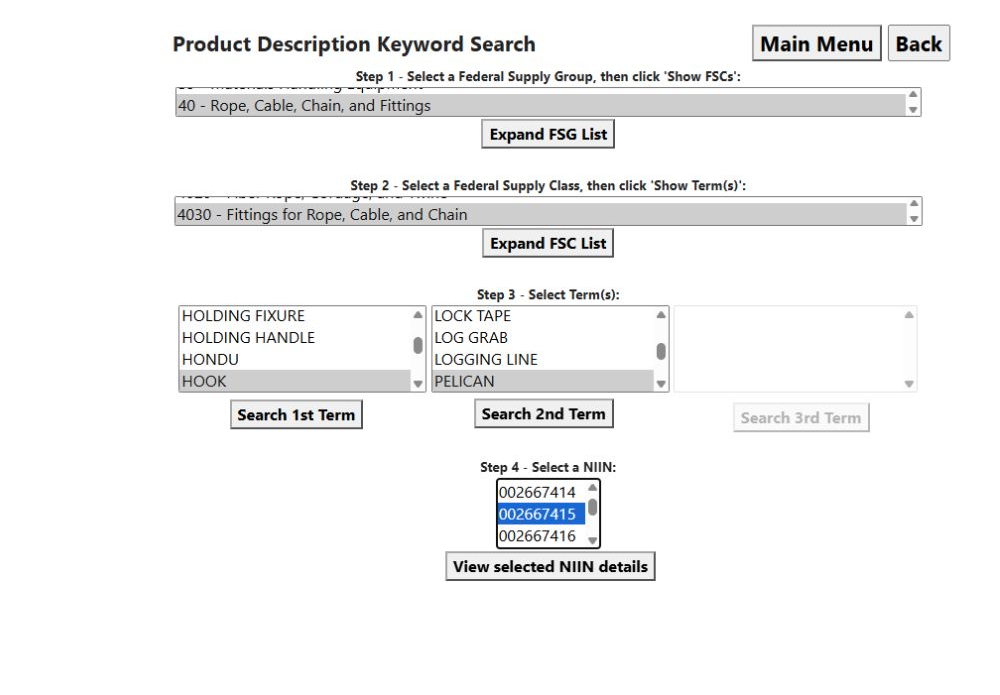
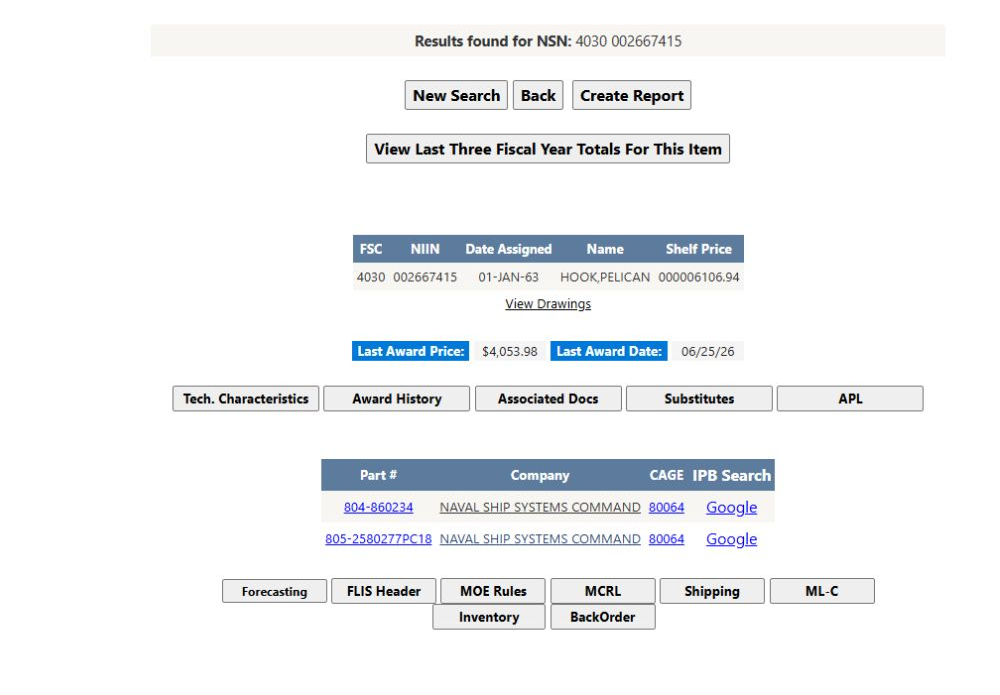
Live example: FSG 40 to a catalog item
From Main Menu → Search by NSN/NIIN → Search NSNs by FSG, choose FSG 40 — Rope, Cable, Chain, and Fittings and select Show FSCs. Choose FSC 4030 — Fittings for Rope, Cable, and Chain, then select Show Term(s). Choose first term HOOK and select Search 1st Term; choose second term PELICAN and select Search 2nd Term. The NIIN choices include 002667415. Select it and choose View selected NIIN details to open NSN 4030-00-266-7415, named HOOK,PELICAN. This path uses two terms. Use Main Menu to leave the search or browser Back to return to the preceding page.