Find DLA buyers by name or supply class
Part of these button learning paths: DLA Buyers
Video sections for this page
- 0:00 — Open DLA Buyers
- 0:05 — Set the class search
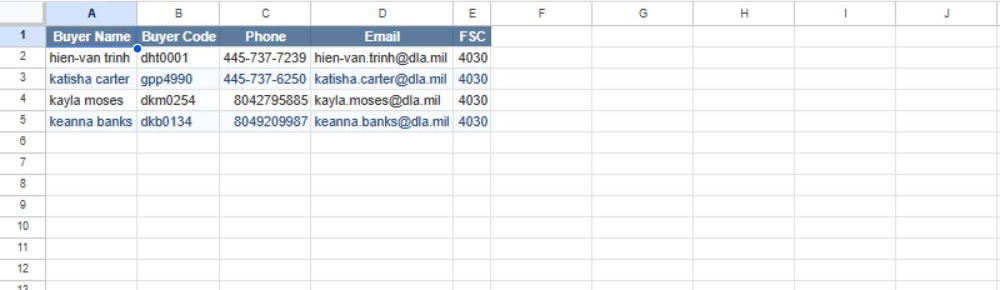
- 0:30 — Read the current FSC 4030 results
- 0:56 — Start a name-only search
- 1:11 — Review name-only matches
- 1:39 — Narrow by name and class together
- 1:53 — Confirm the combined match
- 2:19 — Revise or export the current result
- 2:43 — Distinguish the earlier worksheet example
Buyer Search looks up recorded DLA/DIBBS buyer contacts by name and/or supply class. Use it to find a contact to check against the current solicitation. For contracting officers, see Find Contracting Officers; for contacts associated with your account, see account contacts.
How to get here and continue
- From Main Menu, open DLA Buyers. The form is titled Buyer Search.
- Enter a buyer name, choose an FSG and then an FSC, or use both kinds of criteria together. Press Search to see Buyer Search Results, with the submitted criteria and matching contact rows.
- Use New Search on the results page to revise the criteria. Browser Back returns to the page from which you opened Buyer Search; to begin again from another area, return to Main Menu.
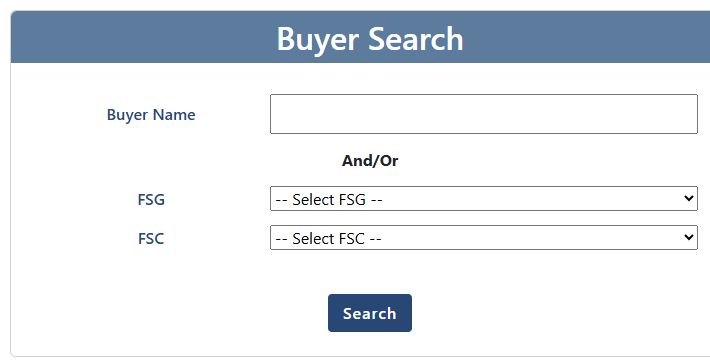
Choose criteria and press Search
| Control | What it means and why you use it |
|---|---|
| Buyer Name | Enter a buyer's name to narrow the contact list. The field accepts up to 100 characters; use letters, numbers, spaces, %, hyphens, periods or underscores. If an input message appears, remove unsupported characters and try again. |
| FSG | Two-character Federal Supply Group, a broad family of items. Start at -- Select FSG --, choose a group, then choose from the FSC list it supplies. It does not submit a group by itself. |
| FSC | Four-character Federal Supply Class within the chosen group. This is the value sent with Buyer Name. Use it to focus on buyers recorded against an item class; class membership does not assign ownership of every item or solicitation. |
| And/Or | You can search with a name, a class, or both. |
| Search | Runs the lookup using the entered name and selected class. Choose an FSC within the FSG before searching by class. If both search fields are blank, the page asks for a name and/or supply group and class. |
If you work with hooks in FSC 4030, select its FSG and then choose 4030. Search that class, or add a buyer name to narrow the list. Confirm contact details against the current solicitation or agency source before outreach.
Interpret the results
| Column or action | Plain-English meaning and use |
|---|---|
| Buyer Name | Name recorded for the buyer. |
| Buyer Code | Code attached to the buyer record. |
| Phone | Phone number recorded for the buyer. |
| Email address recorded for the buyer. | |
| FSC | Federal Supply Class associated with the buyer row. |
| Page controls | The displayed list pages at 100 rows. Paging changes which rows you see; it does not necessarily narrow the whole match set. |
| New Search | Returns to Buyer Search to revise the criteria. |
| Export to Excel | Downloads the buyer results for use in a spreadsheet. |
Below Buyer Search Results, review the displayed Name and FSC/Stock criteria to see which search was run. The page does not show a contact update date, so confirm details before using them.
The five-column grid does not link to a buyer profile. If the list is empty, broaden the name or class criteria and search again.
Use the exported buyer list
On Buyer Search Results, choose Export to Excel to work with the matching buyer list in Excel. Use these result fields to review contacts and compare them with the current solicitation.
| Result field | How to use it |
|---|---|
| Buyer Name | The name recorded for the buyer. Compare it with the buyer shown on the current solicitation. |
| Buyer Code | The code recorded for the buyer. Keep it with the name when organizing or comparing contact records. |
| Phone | The phone number recorded for the buyer. Confirm it against a current agency or solicitation source before calling. |
| The email address recorded for the buyer. Confirm it against a current agency or solicitation source before writing. | |
| FSC | The Federal Supply Class associated with the buyer row. Use it as a search lead, not proof that the buyer owns a particular item or solicitation. |
| ## Example: buyers for FSC 4030 |
In this example, leave Buyer Name blank, choose FSG 40 — Rope, Cable, Chain and Fittings, then FSC 4030 — Fittings for Rope, Cable and Chain, and select Search. The results show four buyer rows for FSC 4030. Select Export to Excel to review the five result fields in a worksheet.