Search contracts expected to expire
Part of these button learning paths: Expiring Contracts 120 Days · My Government RoadMap · Expiring Contracts through 2030
Video sections for this page
- 0:00 — Choose Expiring Contracts through 2030
- 0:15 — Choose one primary route
- 0:45 — Search NAICS 541330 with defaults
- 1:07 — Compare parent and child actions
- 1:28 — Refine the same code by worksite
- 1:53 — Use a keyword to find individual actions
- 2:16 — choose-expiring-contract-search
- 2:41 — read-the-group-summary
- 3:08 — compare-the-expanded-actions
- 3:38 — read-the-selected-action-detail
- 4:11 — return-to-the-expiring-results
- 4:31 — Carry a CAGE from the company profile
- 4:59 — Treat dates as research cues
From Main Menu → Research → Expiring Contracts through 2030 to open this form. (The separate Primary Searches button Expiring Contracts 120 Days goes to a different page.) Choose a search route and expected-completion year, then press the Search button beside that route.
Choose Expiring Contracts through 2030 on the Main Menu to research contracts by expected completion year. The form offers 2026 through 2031, extending beyond the menu wording. Choose a year and search route to find past awards worth monitoring; an expected completion date is a starting point for research into future work. See Read expiring-contract results.
Step 1: choose one search route
First decide whether you know the work description, a PSC or NAICS code, or a vendor. Press the Search button beside the row you use. For words, enter Keyword 1 and press the visible Search beside Professional Service Code; selecting a PSC is optional. The printed And/Or does not combine all filled rows automatically.
| Field and button | What to enter and what appears | Useful distinction |
|---|---|---|
| Keyword Search (one or two keywords) | Enter a work term in box 1 and, optionally, a second term that must also appear in the recorded requirement description. Press the PSC-row Search. Keywords alone open individual award actions; a selected PSC adds that code. | The keyword row's own Search is hidden. Box 2 alone does not start a search. |
| Professional Service Code and its Search | Select a PSC and a year to browse grouped contracts. Add Keyword 1 to narrow by description and see individual actions. | Use the PSC manual to choose a code. The page says “Professional Service Code,” but PSCs cover products and services. |
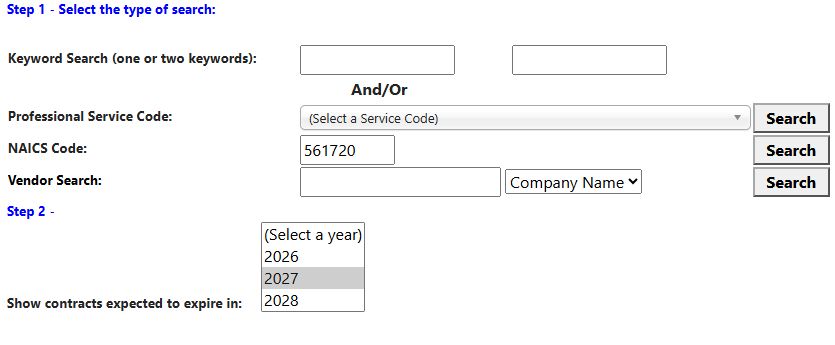
| NAICS Code and its Search | Enter a six-character industry code and choose a year to see contracts recorded under that NAICS. With default Step 3 choices, results are grouped. | Check the code in the Census reference. NAICS 561720 and year 2027 returned the grouped example below. |
| Vendor Search entry and choice | Select Company Name, CAGE Code, DUNS Number or UEI, enter the corresponding name or identifier, choose a year and press this row's Search. | An identifier is more precise than a common name. The result shows recorded awards associated with the vendor. |
Choose a year for each search. The PSC and Vendor buttons require one; NAICS checks that the entered code has six characters. Back returns through browser history. The form's Main Menu button is hidden.
Step 2: choose the expected-expiration year
Show contracts expected to expire in lets you choose one or more years from 2026–2031. It looks at expected completion, not the year the contract action was awarded. For example, a 2026 action can show an estimated 2027 completion. Open the result to compare the dates and modifications.
Step 3: narrow the award history
| Visible filter | What it does and why you might use it |
|---|---|
| Show GSA Schedule Contracts only | Focuses on awards marked as GSA Schedule contracts. Open a relevant result to check its vehicle and terms. |
| Show Mid-Atlantic Region only | Focuses on work recorded in VA, MD, DC or WV; it uses the work location, not the vendor address. |
| Agency | Focuses on the selected buying agency. Use it to research a customer; its office and the worksite may be in different places. |
| Place of Performance by State | Choose one or more states where work occurred. Clear POP ZIP and Mid-Atlantic to make the selected states your location filter. |
| Place of Performance by Zip Code | Enter a worksite ZIP; the first five characters are used. This is distinct from the contractor's business ZIP. |
| Open Contracts Dollar Value | Choose under $1 million, $1–5 million or All Dollar Values to focus by grouped contract Total. Every selected option, including All Dollar Values, limits this search to recorded actions marked no set-aside. |
| Set Aside | Focuses on a recorded competition category for past actions. Use it to study previous buying patterns; read a new notice for its own set-aside. |
| Classified | Searches descriptions for “classified” or “secret.” Open a result for context; this text match is not a security determination. |
| Country | A selected non-default country searches that country name in the contract description. The initial UNITED STATES option applies no country filter. Check the actual work location in a result. |
For NAICS and Vendor searches, choosing a worksite state, ZIP, non-default country, GSA-only or Mid-Atlantic opens the flat action list instead of grouped contracts. For a PSC-only grouped search, leave those five choices clear; with one selected, Search may leave you on the form. PSC-plus-keyword and keyword-only searches also open the flat list. Read its heading before comparing a single action amount with a grouped Total.
Try these search routes
The first recipe uses a captured example below; the others describe how to submit a search and do not assert result counts.
- Compare a service market: enter NAICS
561720, select 2027, leave Step 3 defaults and press NAICS Search. The recorded example returned 1,189 grouped items across 12 pages. - Check one vendor: choose CAGE Code in Vendor Search, enter the known CAGE, choose a year and press Vendor Search.
- Search by work description: enter a phrase in Keyword 1, optionally add a required phrase in Keyword 2, choose a year and press the visible Search beside Professional Service Code.
A cleaning-services firm can enter NAICS 561720, select 2027, leave Step 3 at its defaults and press the NAICS-row Search. The example returned 1,189 grouped items across 12 pages. Compare a buyer, worksite and description with your services, then expand a relevant row to see its historical actions. The first contract shows a $41,760 group Total while its selected action obligated $10,440. Use the estimated January 2027 completion date to decide when to check current notices and agency plans for related work.
If you are researching a particular company, copy its CAGE from contractor details. In Vendor Search, select CAGE Code, enter the code, choose 2027 (or another listed year), and press the Vendor-row Search. The one-company example shows four grouped contracts for CAGE 8EWY6.
Compare a nationwide search with one state
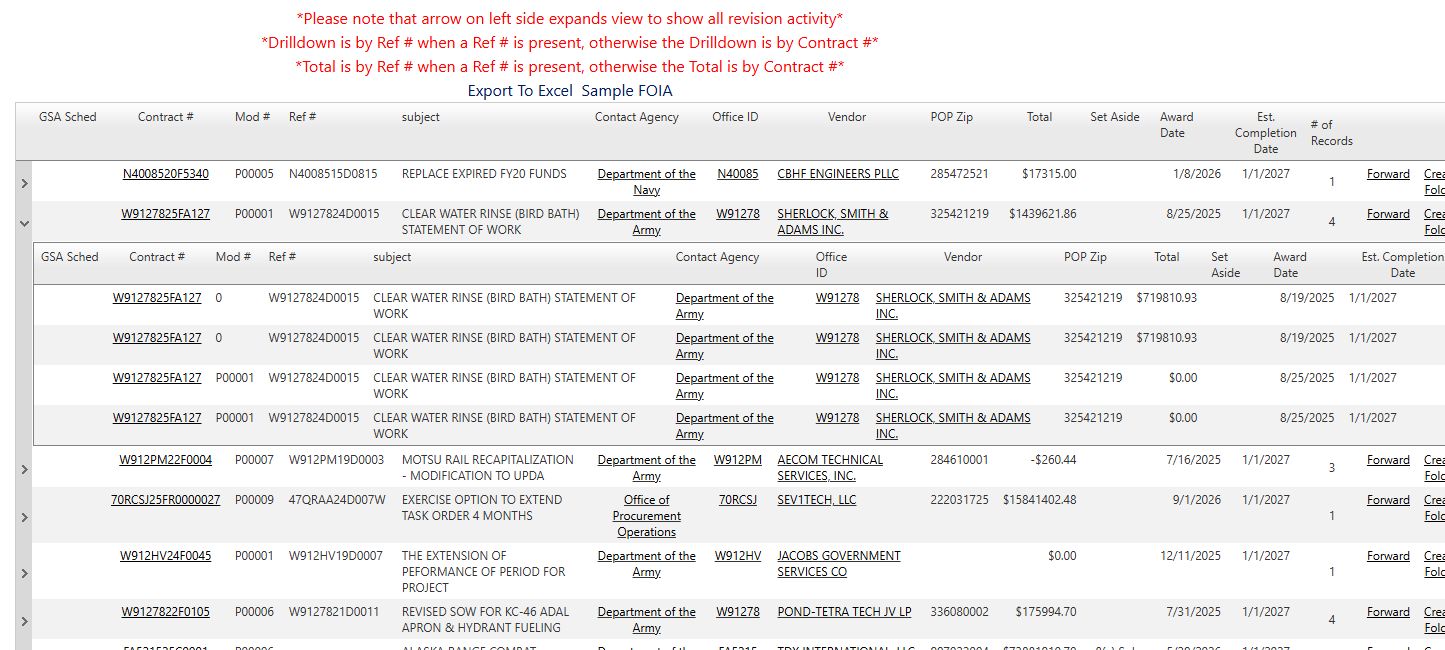
From Main Menu → Research → Expiring Contracts through 2030, enter 541330 in NAICS Code, select 2027 under expected expiration, and leave the remaining controls at their defaults. Press Search beside NAICS Code.
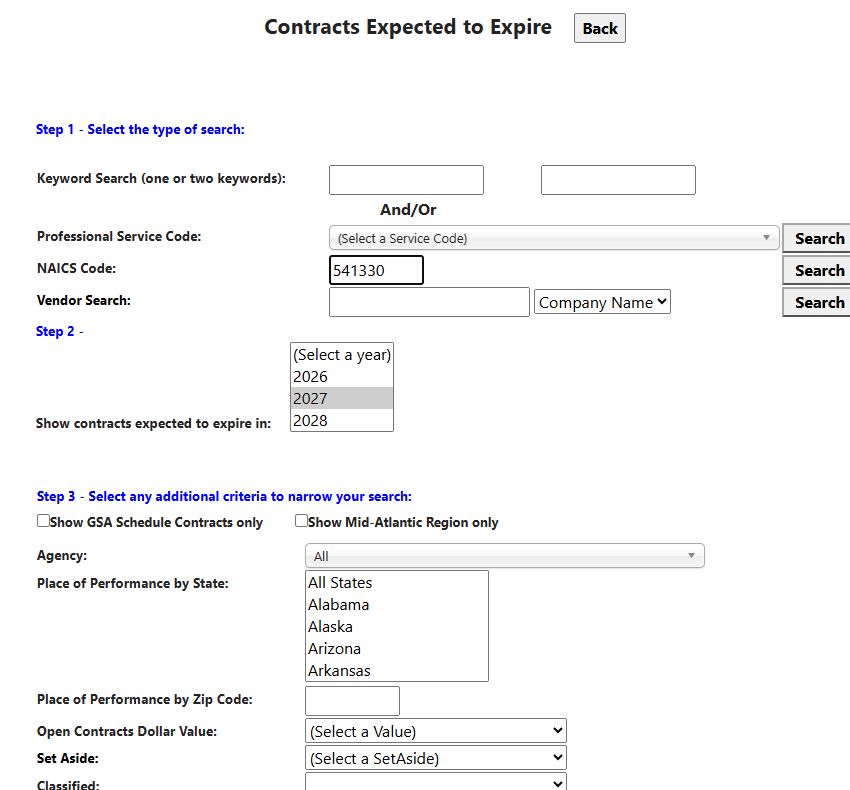
This example opens grouped results. Expand the arrow beside a contract to see its recorded actions underneath. Here the expanded W9127825FA127 group contains four rows. Each row retains its own modification, amount and dates. Select a child Contract # to read its award details; use Back to return to the list. The results guide explains the columns and other links.
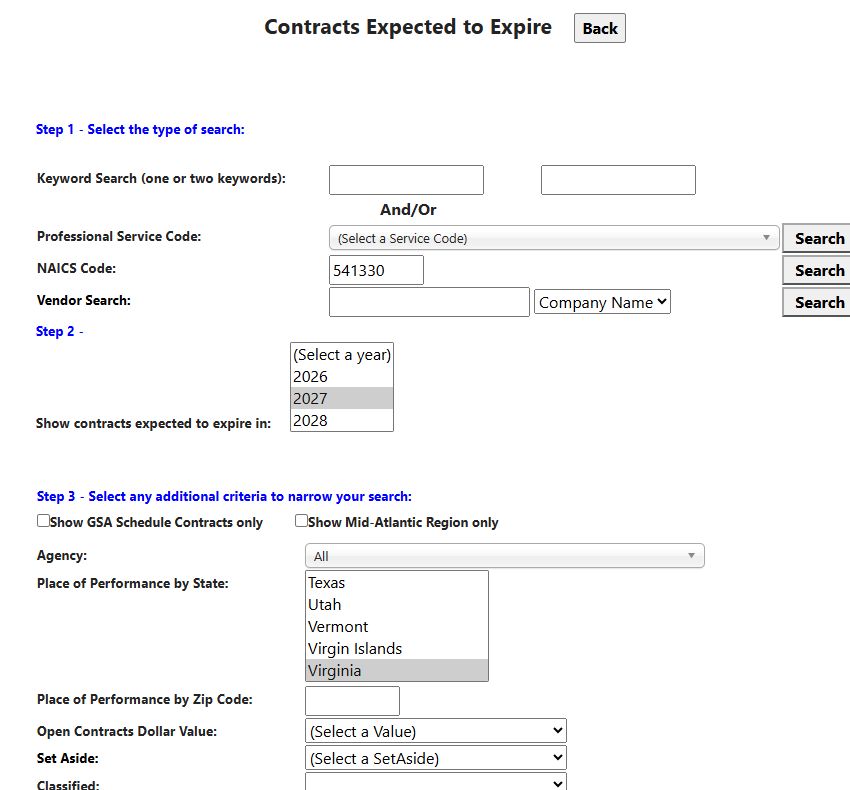
Return to the search form using browser Back. Keep 541330 / 2027, select Virginia under Place of Performance by State, and press the same NAICS Search. This helps you focus on work in a state your company serves.
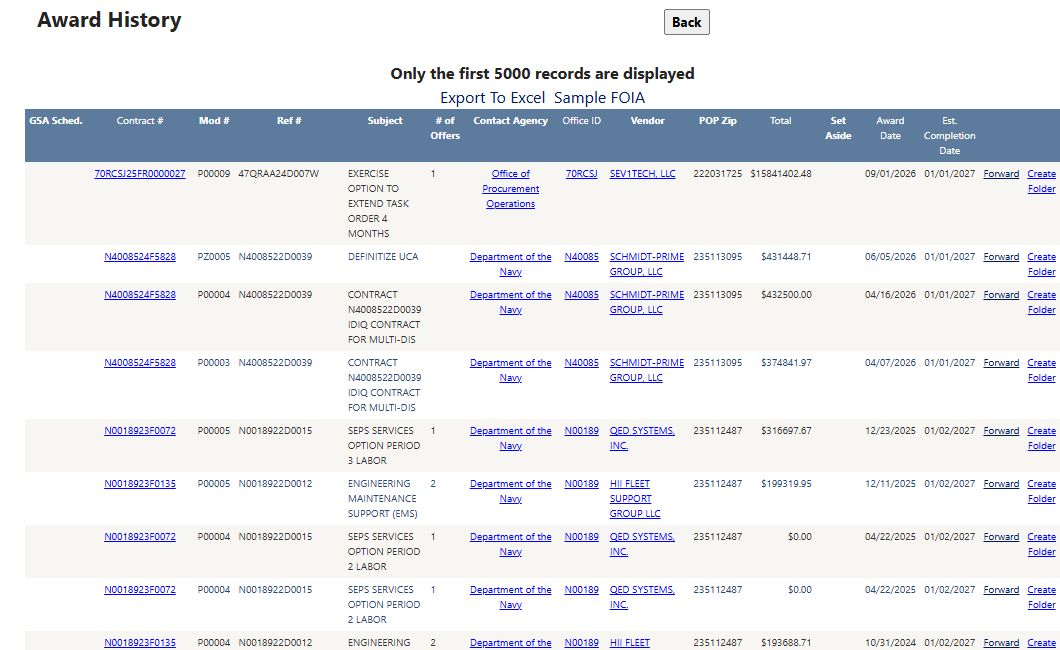
The result now lists individual actions directly. Although the heading says Award History, you arrived here from the expected-expiration search: read Est. Completion Date for the anticipated end of the work and Award Date for the recorded action's date. In the first row below, those dates are January 1, 2027 and September 1, 2026, respectively. Select Contract # for the action, Vendor for the company, or Office ID for the buying office. Use Back to return to your search.
An expected completion date helps you plan follow-up research. It does not by itself announce a new solicitation. After reviewing a contract, use Research All Open Solicitations to look for current notices.
Two more populated ways to search
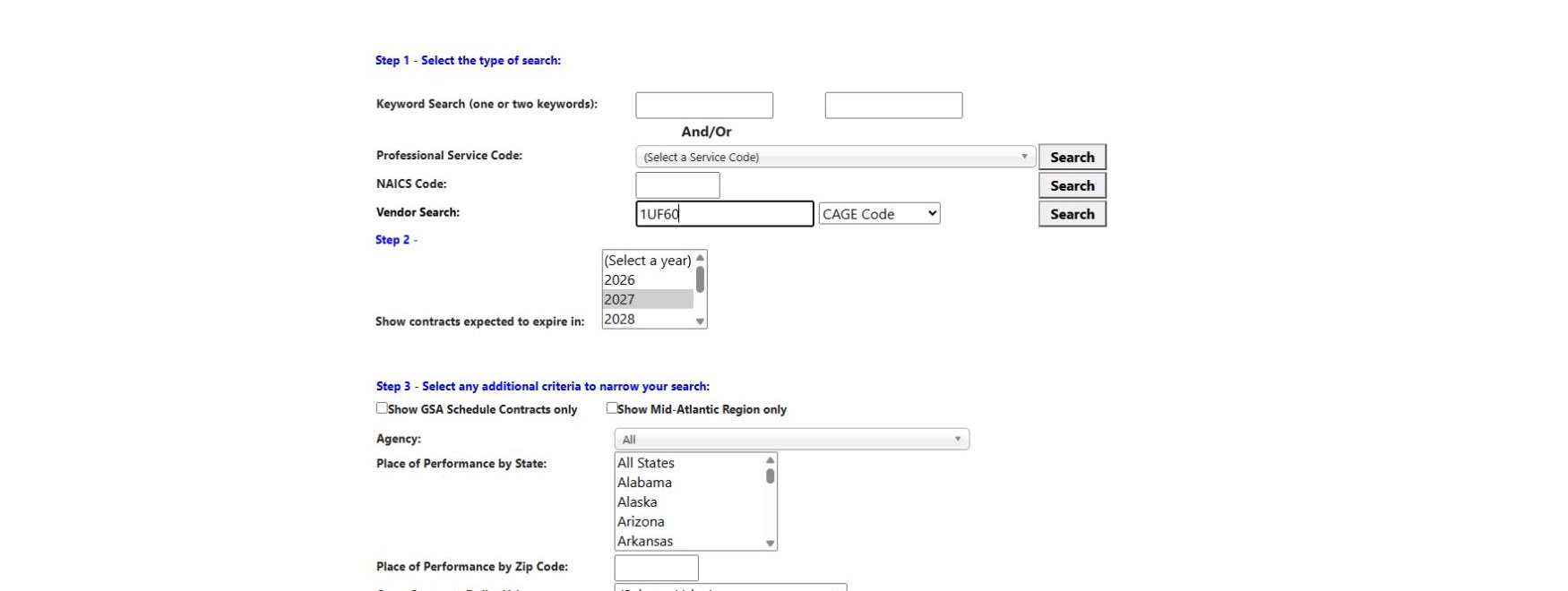
Known vendor. From Main Menu → Research → Expiring Contracts through 2030, select CAGE Code on the Vendor Search row, enter 1UF60, choose expected-expiration year 2027, leave Step 3 at defaults, and press the Vendor Search button. This returned 131 grouped contracts across two pages for U.S.A. SPARES INC. Expand the first contract, SPE4A625PV722, to compare its three actions; then select its P00001 Contract # for detail and Back to return. The results walkthrough explains why the parent and modification amounts differ.
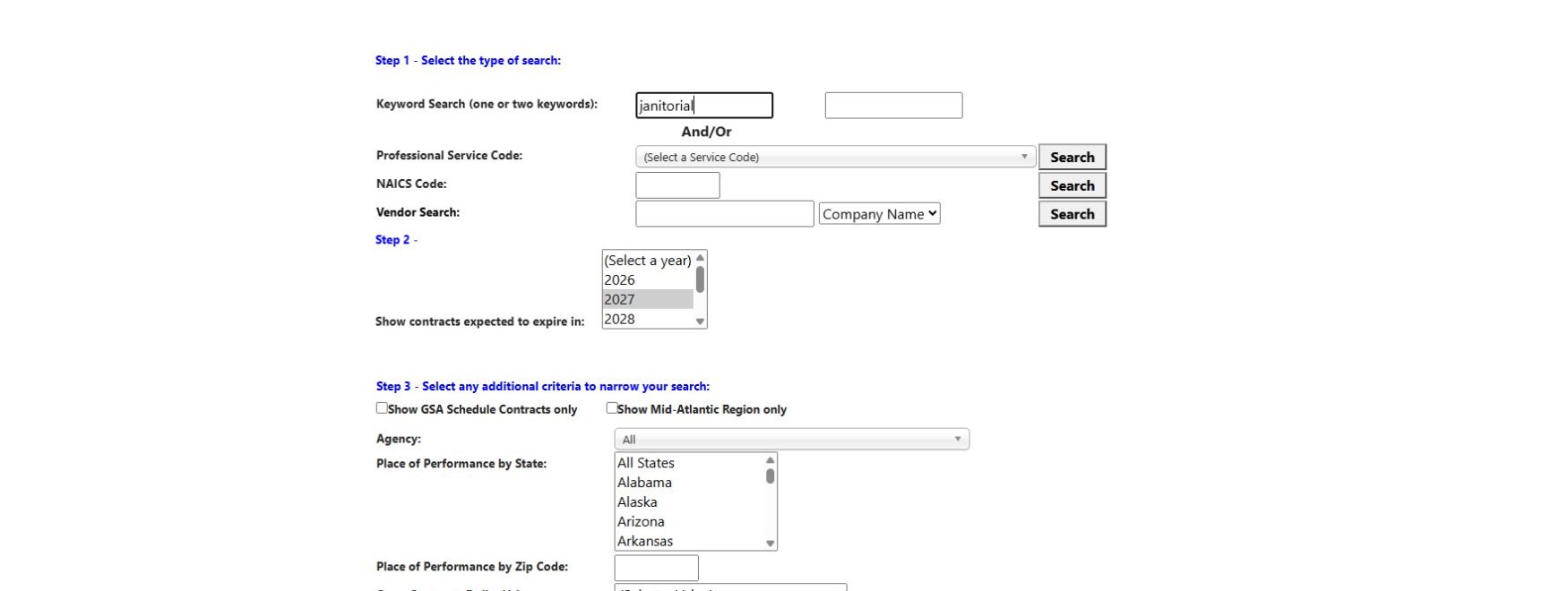
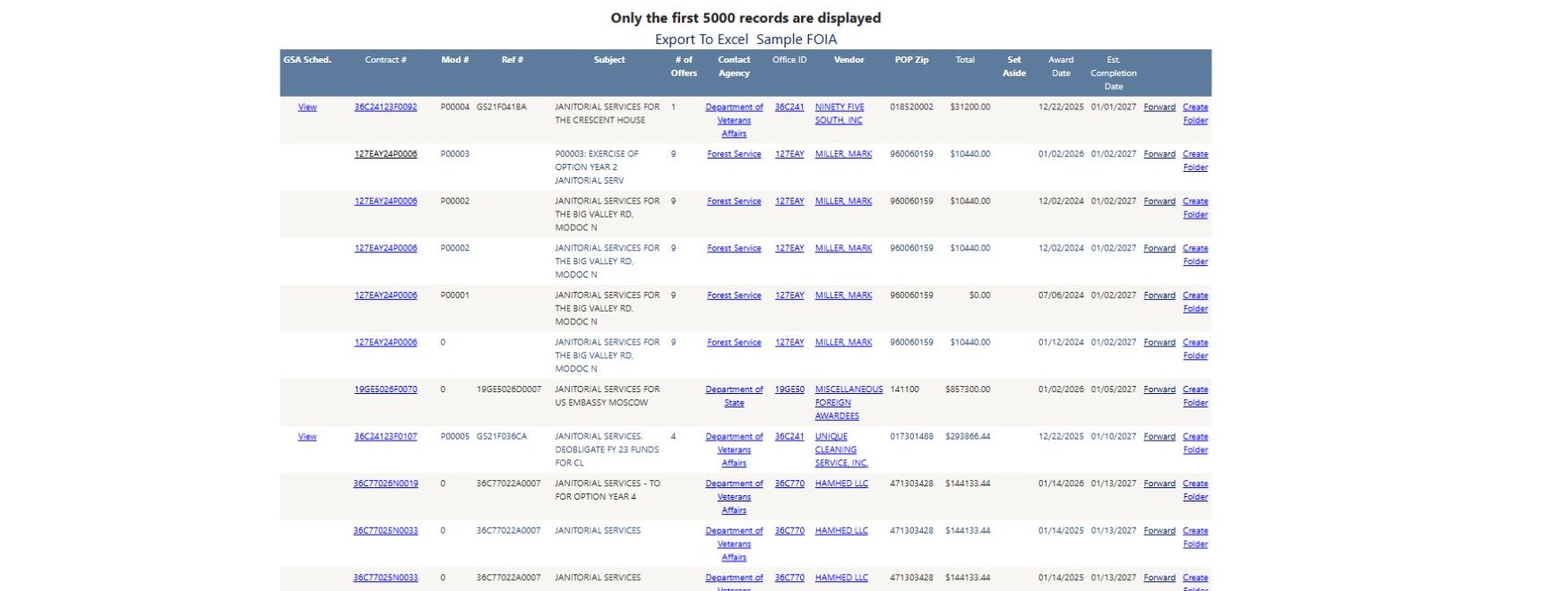
Work description. Return to the form, clear the vendor entry, enter janitorial in Keyword 1, keep 2027, and press Search beside Professional Service Code without selecting a PSC. This opens an Award History flat action list because the keyword route lists individual actions. Its first action is 36C24123F0092 / P00004, a VA janitorial service record with $31,200 action obligation, December 22, 2025 Award Date, and January 1, 2027 Est. Completion Date. Select the Contract # for the award detail, then its Back button to return. The 2025 award date is consistent with the 2027 expected-completion choice: this search filters the completion horizon, not award year.