Search drawings by stock number or drawing number
Part of these button learning paths: Search by NSN/NIIN · Drawings
Video sections for this page
- 0:00 — Open Drawings from Main Menu
- 0:16 — Choose stock number mode
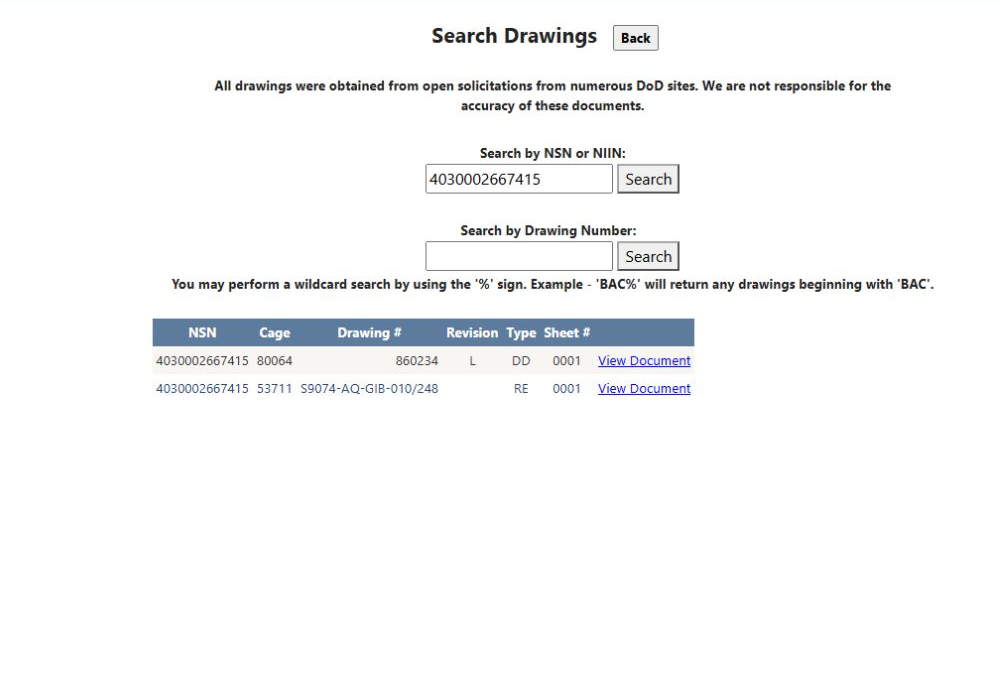
- 0:44 — Read two drawing records
- 1:13 — Understand every result column
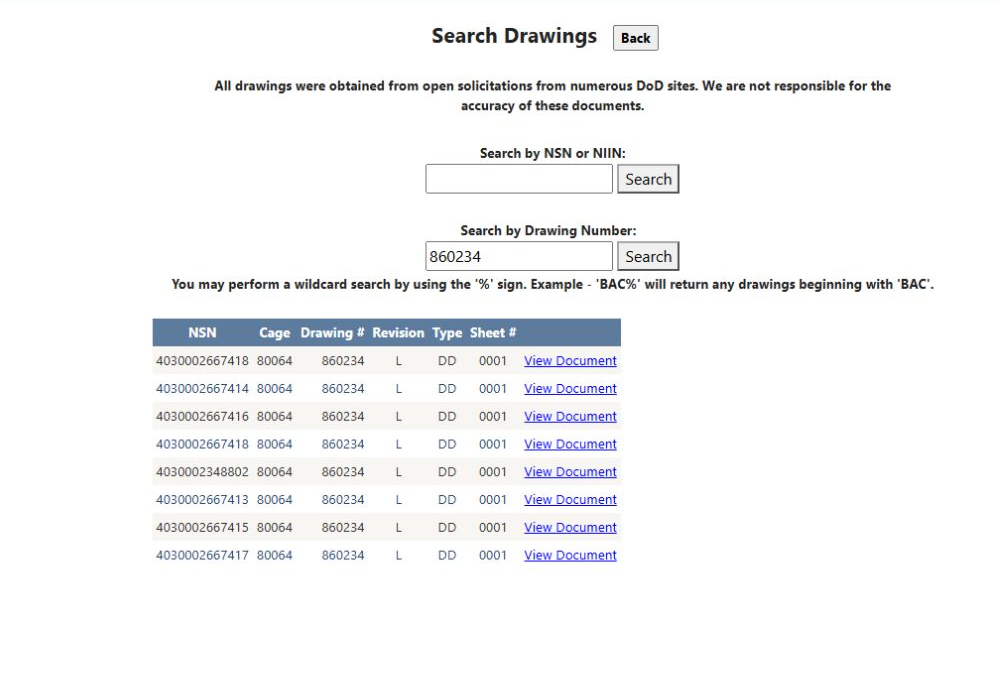
- 1:39 — Search the drawing number
- 2:05 — Refine and return
- 2:30 — Continue from the same known item
- 2:47 — Open known item drawings
- 3:16 — Select the first drawing
- 3:42 — Inspect the open drawing
- 4:05 — Choose files and return
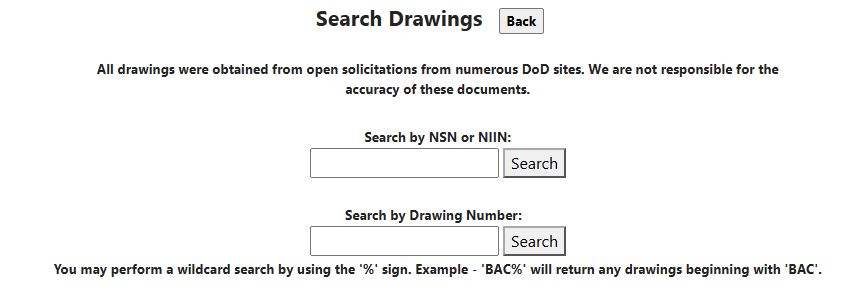
Choose Drawings from the Main Menu, or Search Technical Data Drawings from Search by NSN/NIIN. This standalone search has two inputs and two result grids. It is separate from the View Drawings list and ZIP controls for a known NSN.
How to get here and continue
- Open Main Menu > Parts/Products > Drawings, or start at Search by NSN/NIIN and choose Search Technical Data Drawings. The next screen has separate stock-number and drawing-number searches.
- Enter a value in the matching search mode and submit it. The page returns the corresponding result grid; use a listed drawing link only after checking its identifier and revision.
- Back returns to the preceding page. For a drawing list already tied to a known NSN, use View Drawings on the NSN result instead.
Choose one search mode
| Field or control | Meaning and action |
|---|---|
| Search by NSN or NIIN | Enter nine NIIN characters or 13 NSN characters, preserving leading zeroes. This form trims outer spaces but does not remove hyphens, unlike the ordinary NSN search. Use a continuous nine- or 13-character identifier. The lookup compares the last nine characters with stored drawing stock numbers. |
| Adjacent Search | Checks length 9 or 13, clears the drawing-number input, then requests matching drawing rows. It does not check that all characters are digits. Other lengths are intended to show the printed length-warning label; actual warning and result visibility remain untested. |
| Search by Drawing Number | Enter the drawing identifier. A % pattern is supported: the printed BAC% example searches numbers beginning with BAC. Without wildcards, the entered drawing number is matched as a whole. Outer spaces are trimmed. |
| Adjacent Search | Clears the NSN/NIIN input and searches for the entered drawing number. |
| Back | Returns to the previous page. |
The two inputs are alternative modes, not combined filters. Pressing one Search clears the other input. The page also prints a note that drawings were acquired from solicitation sources and that their accuracy is not guaranteed. The current lookup has no open-notice or date filter, so these are stored drawings, not necessarily drawings from an active procurement.
Read either result grid
Both result grids use the same columns and allow paging.
| Column or link | Meaning and practical check |
|---|---|
| NSN | Stored stock number linked to the drawing row. Confirm all 13 characters against the current requirement. |
| Cage | Stored entity code associated with the drawing record. It is an identity lead, not a source-approval decision. |
| Drawing # | Stored drawing identifier. Compare exact number and suffix with the required technical data. |
| Revision | Revision text shown for the drawing. If no revision is displayed, compare the drawing title block and the current requirement. A displayed value is not proof that it is the latest required revision. |
| Type | Drawing-type value recorded for the row. |
| Sheet # | Sheet identifier, not a total sheet count. Check that all sheets required by the notice and drawing are present. |
| View Document, without a column heading | Opens the row's PDF location in a new tab. The link points to a legacy document host. Availability depends on account access; confirm the document revision against the current notice. |
If no drawings match, the page can show No Drawings found. The two grids have no spreadsheet export or selection/ZIP controls; those are available in the separate known-item drawing list.
Example: verify a drawing reference
The known-item example lists drawing 860234 for NSN 4030-00-266-7415. To look for the drawing, enter 860234 in Drawing Number, then compare the returned NSN, revision and sheet with the current solicitation. You can also search continuous NSN 4030002667415 or NIIN 002667415. A prefix search can help find variants; check the required revision in the solicitation.
Live examples: drawing number and stock number
From Main Menu → Parts/Products → Drawings, search Drawing Number 860234. The results include eight rows with CAGE 80064, revision L, type DD, and sheet 0001; one returned stock number is 4030002667415.
To search by stock number, enter continuous NSN 4030002667415 in Search by NSN or NIIN and select its Search button. The results contain two rows: drawing 860234, CAGE 80064, revision L, type DD, sheet 0001; and S9074-AQ-GIB-010/248, CAGE 53711, revision RE, sheet 0001. Choose Back to return to the preceding page. This standalone search is separate from the item's View Drawings list and its PDF/ZIP controls.