Read contractor results and profiles
Part of these button learning paths: Research All Open Solicitations · Just My Opportunities · All Government Contractors · Machine Shops Opportunities · Unfulfilled NSN Opportunities · Search by NSN/NIIN · NSN Market Analysis 3 years · DLA Prime Contractors · Naics To FSC Cross · Commercial Part Number to NSN · Weapons System Designator Codes · Construction Menu · Expiring Contracts through 2030 · Award History · SubContractor History · Teaming/SubContractor Data · Prime Contractors By NAICS
Video sections for this page
Video sections for this page
Video sections for this page
Video sections for this page
Video sections for this page
Video sections for this page
- 0:00 — Open a CAGE-based profile
- 0:33 — Read the company identity and location
- 1:13 — Choose a parts-history range
- 1:44 — Check the company’s DLA parts history
- 2:43 — Read federal contract awards
- 3:34 — Review the company’s part references
- 4:23 — Check the GSA Schedule view
- 5:07 — Switch to the registration example
- 5:29 — open-registration-details
- 5:43 — match-the-business-identity
- 6:22 — interpret-registration-dates-and-next-step
- 7:05 — Explore the company RoadMap
- 7:34 — open-the-contractor-opportunity-view
- 8:00 — read-the-match-summary-and-part-row
- 8:44 — verify-notice-source-and-match-fit
- 9:11 — Open the SubContractor Report
- 9:31 — Return to company search
Video sections for this page
Video sections for this page
Video sections for this page
Video sections for this page
Application path: Main Menu → All Government Contractors → Find a Contractor → Search Contractors → Find a Subcontractor results → View Details for the company profile.
From Main Menu → All Government Contractors, enter your criteria on Find a Contractor and select Search Contractors. The next page is headed Find a Subcontractor. Use View Details beside a company to open its profile; select a research button there to continue to award history, GSA, SAM details or another available company screen. Back returns to the contractor search and Main Menu returns to the feature menu. See the search guide for the inputs and the profile actions below for the next choices.
Read the company list
This CAGE search result shows the company row and its View Details link.

Open the contractor result image at full size.
The list displays up to 50 rows per page. Use the page controls for more companies. Back returns to your previous page.
| Field or link | What it shows or opens |
|---|---|
| View Details | Opens the company profile with its address, contacts and available research links. |
| Opens a draft addressed to the listed contact in your email application. | |
| CAGE | The company's five-character identifier. Useful for following the same company across parts and award records. |
| Company | Business name. Its link opens the recorded company website in a new tab. |
| Phone, Fax | The company's listed telephone and fax numbers. |
| Address, City, State, Zip Code | The company's business address. This helps distinguish locations and find nearby companies. |
Export the list
Export To Excel downloads the company contact list. Review its headings before sorting, filtering or sharing the file.
Example: take a contractor list into Excel
Follow the Florida electrical contractor search: Main Menu → All Government Contractors → Keyword: electrical → State: Florida → Show Vendors with Award History Only → Search Contractors. On Find a Subcontractor, select Export To Excel and open the downloaded workbook in Excel or Google Sheets.
The illustrated download contains one Contacts worksheet with 3,908 company rows. The browser displays 50 rows at a time; this workbook gives you a longer list to filter and organize. Your count will depend on your search and the records available when you run it.
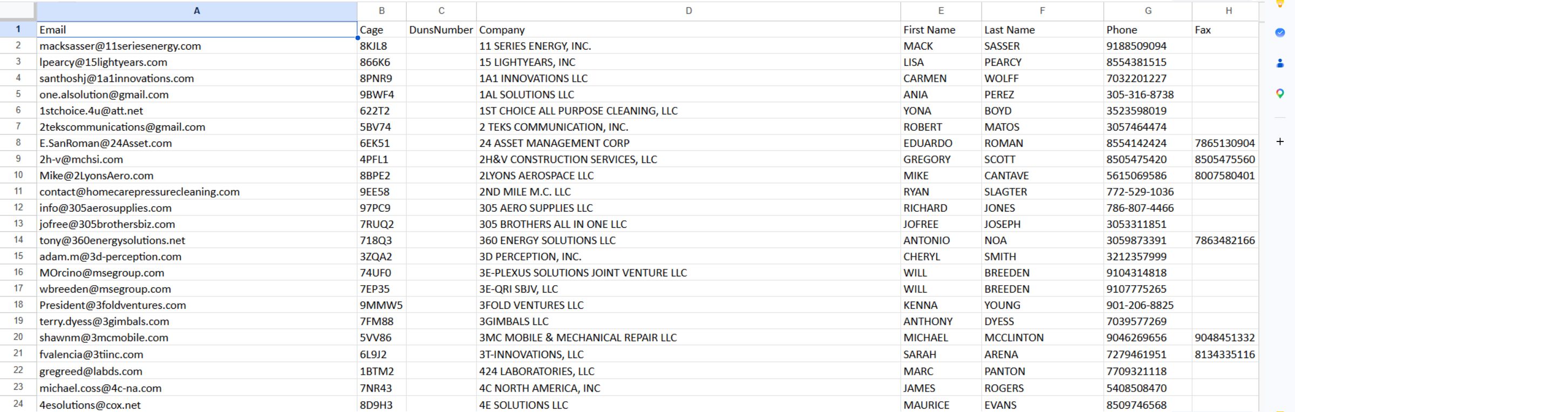
Enlarge the contact-columns illustration.
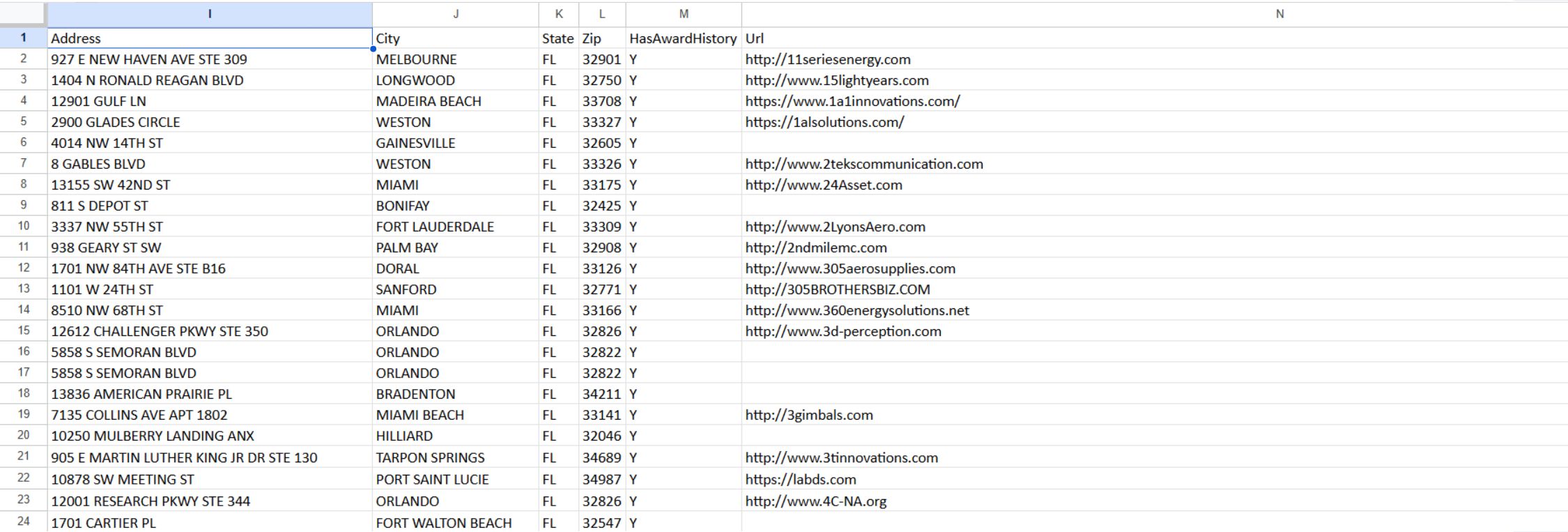
Enlarge the address-columns illustration. These views show the same worksheet, scrolled horizontally; column widths and zoom were adjusted for readability.
| Worksheet column | Meaning and use |
|---|---|
| Listed contact email address for follow-up. | |
| Cage | Five-character company or facility identifier. Keep it with your notes so you can find the same company in the application. |
| DunsNumber | Older business identifier. It may be blank in a record. |
| Company | Business name. Use this to label your research and distinguish firms. |
| First Name | Listed contact's given name. |
| Last Name | Listed contact's surname. Together with First Name, identifies the contact. |
| Phone | Listed telephone number. |
| Fax | Listed fax number, when supplied. |
| Address | Business street or mailing address. |
| City | City of the business address; useful for narrowing a follow-up list. |
| State | State of the business address. This is the company's location, not necessarily where its contracts are performed. |
| Zip | Business postal code. Preserve leading zeroes when working with postal codes. |
| HasAwardHistory | Y indicates the company is marked as having award history. It does not state the award amount or date; return to its profile and open award history for those details. |
| Url | Listed company website for further research. A blank cell means no website is supplied in that row. |
Use the list: turn on your spreadsheet's filters, filter City or Zip to your preferred area, and keep Company and Cage alongside any follow-up notes you add in a working copy. Sort the entire table together so contact details remain attached to the correct company. To investigate a firm's past work, use its Cage in All Government Contractors, select View Details, then View FBO/FPDS Award History. Return to the original results tab to continue through the list.
When no companies appear
Return with Back and simplify the search. Try a distinctive portion of the company name, a known CAGE, or fewer location filters.

For example, CAGE 41QM4 with North Carolina / 27612 matched a company, while changing ZIP to 99999 excluded it. Both location fields must match when supplied.
Read the company profile
The profile presents company identifiers and contacts below its research buttons. The image below is the 8EWY6 profile for ASRC FEDERAL ADVANCED RESEARCH, LLC, reached in a signed-in session by Main Menu → All Government Contractors → CAGE: 8EWY6 → Search Contractors → View Details. The result row identified the firm in Beltsville, Maryland. This is a useful example because its federal awards, MCRL parts, SAM registration, RoadMap and company opportunities all have visible results. Other buttons can lead to an empty view for the same company.
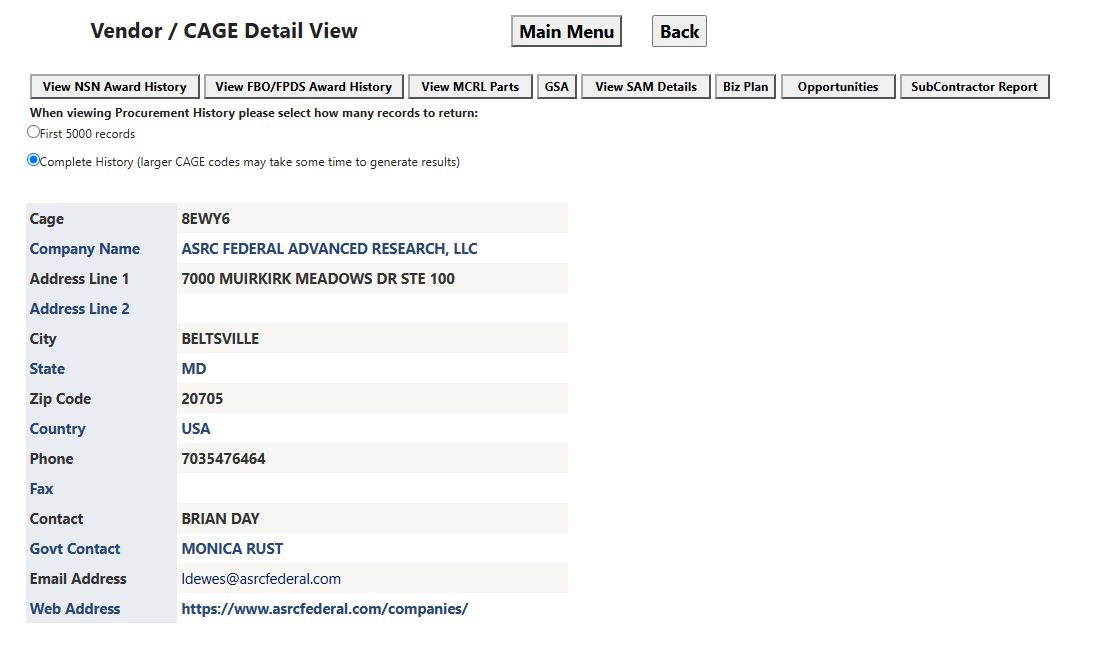
Open the populated profile image at full size.
An earlier profile example for 41QM4 is also shown below.
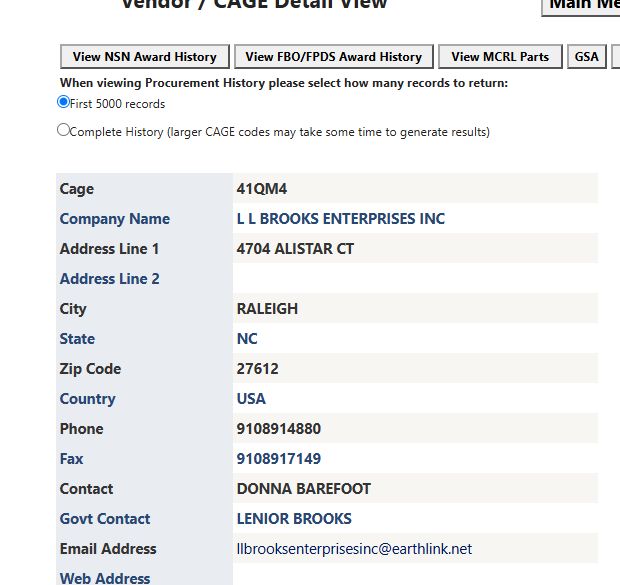
Open the contractor profile image at full size.
View Details opens Vendor / CAGE Detail View when a CAGE is available. Otherwise it opens Vendor Detail View, with fewer research buttons.
| Profile field | Meaning |
|---|---|
| Cage | Commercial and Government Entity code identifying the company or facility. |
| Company Name | The business name. |
| Address Line 1 | Street or mailing address. |
| Address Line 2 | Additional address information, such as suite or unit. |
| City | Business-address city. |
| State | Business-address state. |
| Zip Code | Business-address postal code. Keep any leading zeroes. |
| Country | Country of the business address. |
| Phone | Business telephone number. |
| Fax | Business fax number. |
| Contact | Listed business contact person. |
| Govt Contact | The contractor's government-business contact, rather than an employee of a government agency. Shown in the CAGE profile. |
| Email Address | Contact email; selecting it opens an email draft. |
| Web Address | Listed company website. |
| NAICS | Industry classification, shown in the profile without a CAGE. See the glossary. |
Work through the company research actions
The eight buttons belong to the selected company, not to your own account profile. Start at View Details, choose one button, then use the resulting page's Back control when present. For a report or PDF that opens separately, return to the company-detail tab. The observed 8EWY6 outcomes below show what to expect; another company's data can differ.
| On the 8EWY6 profile, select | What the signed-in page showed | Return and next use |
|---|---|---|
| View NSN Award History | A parts-procurement history page said No awards found for ASRC FEDERAL ADVANCED RESEARCH, LLC. An Export To Excel link was still visible. An empty result here does not erase the separate federal contract awards. For a populated parts example and all nine fields, see company DLA award history. | Select Back to return to the profile. Try View MCRL Parts for part-number associations or View FBO/FPDS Award History for contract awards. |
| View FBO/FPDS Award History | A populated award table included FAA contract 6973GH26F00452, an engineering-support subject, award date September 22, 2026, and estimated completion March 18, 2027. | Select a Contract # for the award detail, use the left arrow to expand revisions, or select Back to return. The award-results guide explains the remaining columns and export. |
| View MCRL Parts | Items carried by ASRC FEDERAL ADVANCED RESEARCH, LLC listed FSC 5995, NIIN 012288669, WIRING HARNESS, BRANCHED, and part 12351461. | Select the linked NIIN for the part summary, or Back for the profile. See part-number cross-references. |
| GSA | The GSA worksheet route opened with no contract rows for this example. A blank worksheet is not proof of a current GSA contract. | Use the browser's back navigation to return to the profile. For a populated example, see ALUTIIQ LOGISTICS & MAINTENANCE SERVICES, CAGE 7GSM6, whose worksheet shows a contract. |
| View SAM Details | SAM Details View showed the same CAGE, legal business name, UEI HQ6BEJMMEYJ3, registration and renewal dates, and many registration fields. | Select Back for the profile. Use the SAM field guide to interpret the registration fields. |
| Biz Plan | A four-page Roadmap report opened for 8EWY6. Its first page listed industry rows with award, agency, vendor, active-solicitation, GSA and expiring-contract columns. | Use the report's page arrows, then browser back navigation to return to the profile. See Government RoadMap fields. |
| Opportunities | A matching page displayed Loading Opportunities for Cage 8EWY6 and then Click here to see your results. That link opened populated DLA part and federal-notice tables headed My Solicitations. | Read the company opportunities walkthrough, then use browser back navigation twice to return to the profile. The account's Just My Opportunities is a separate Main Menu feature. |
| SubContractor Report | A separate browser tab opened 8EWY6 Report, a PDF for this CAGE. | Read or print in that tab, then return to the original company-detail tab. The button's presence does not guarantee every company has a PDF. |
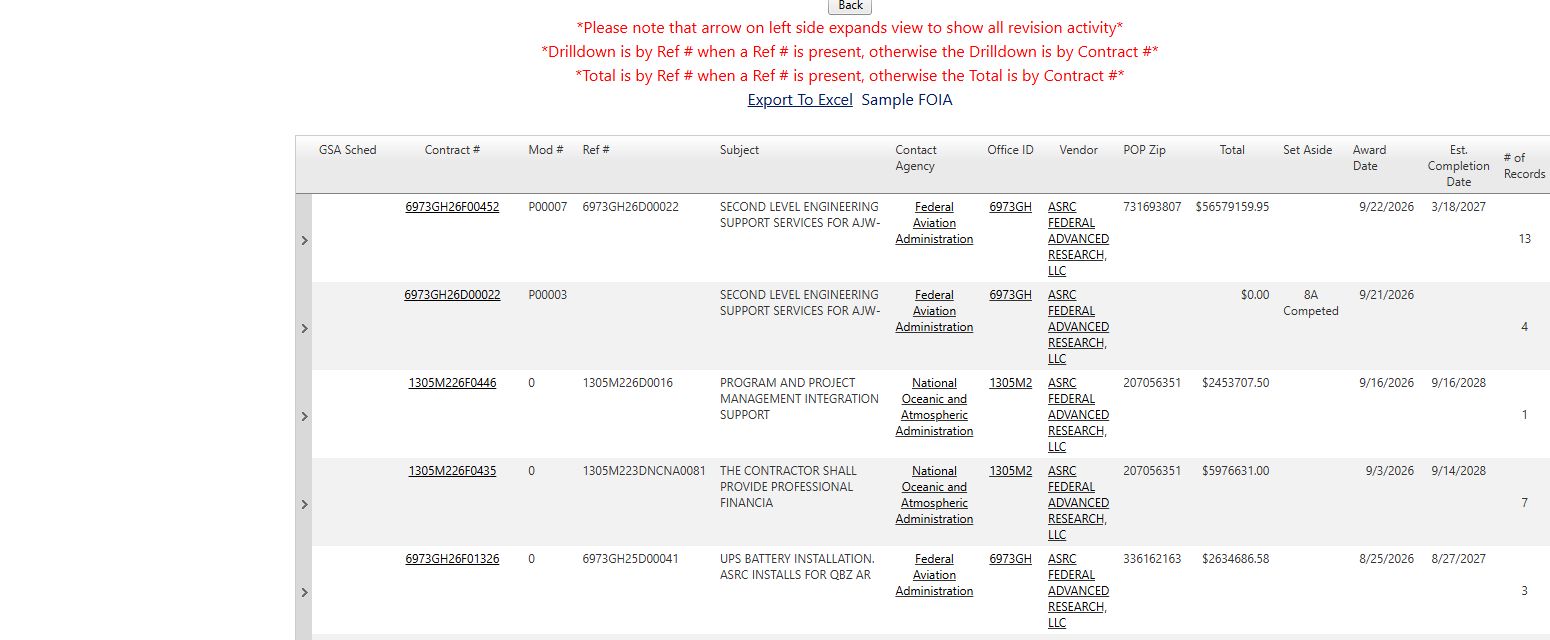
Open the award example at full size.
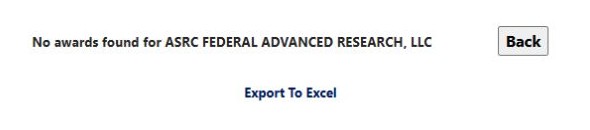
Open the NSN history example at full size.
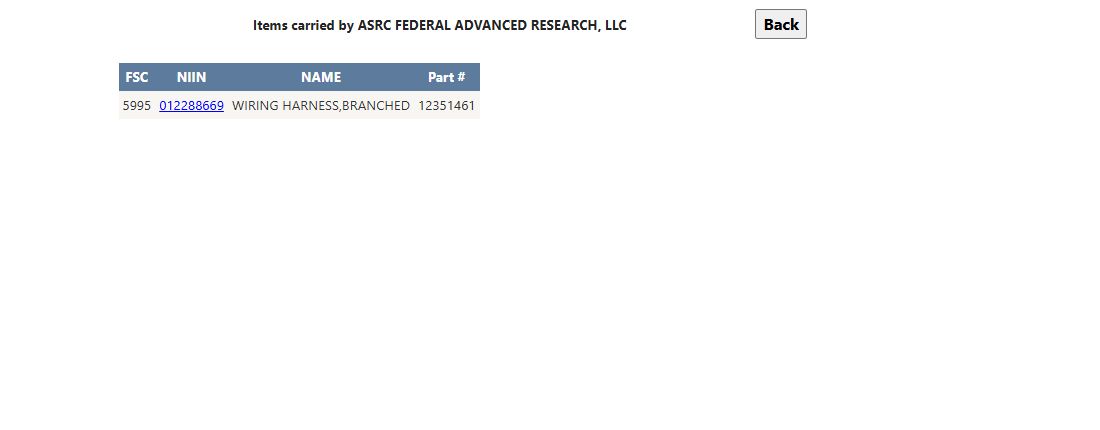
Open the MCRL example at full size.
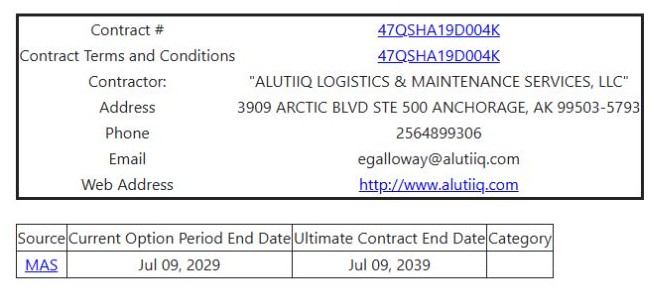
Open the GSA example at full size.
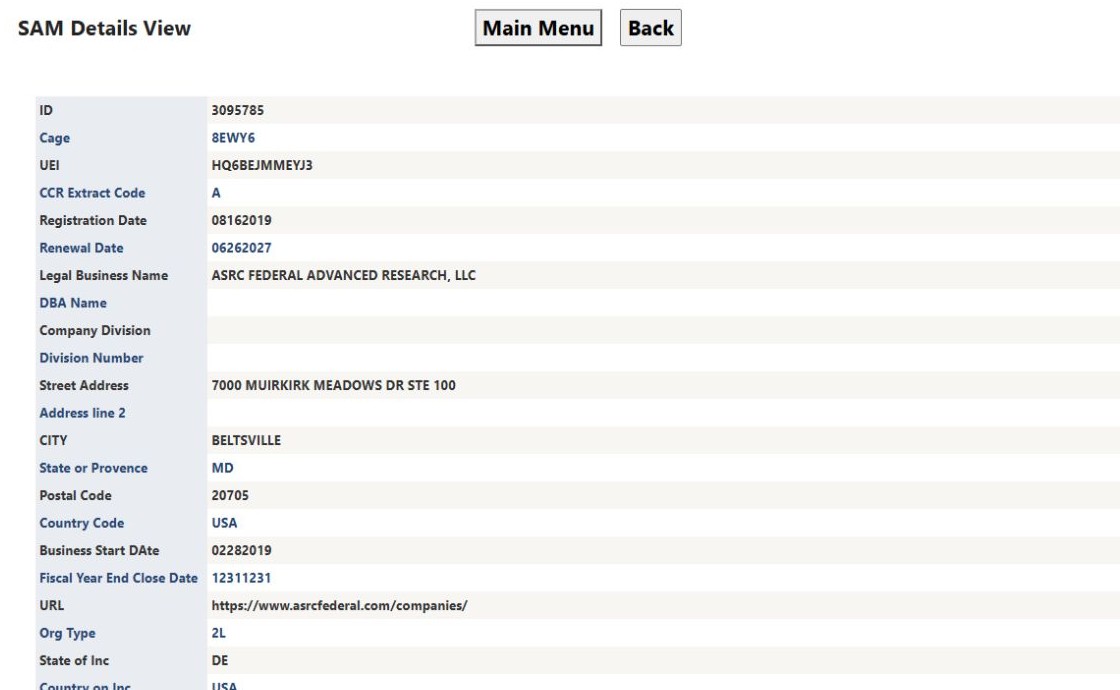
Open the SAM example at full size.
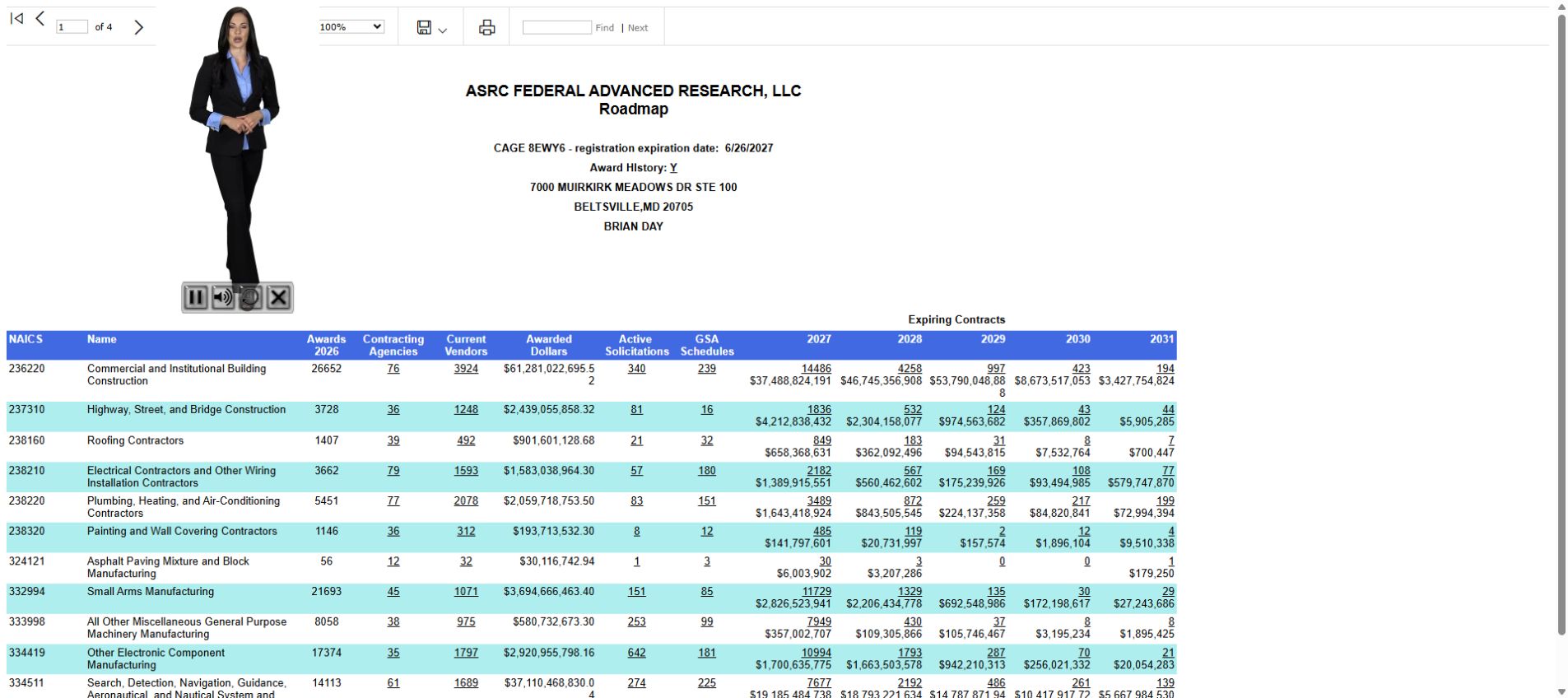
Open the RoadMap example at full size.
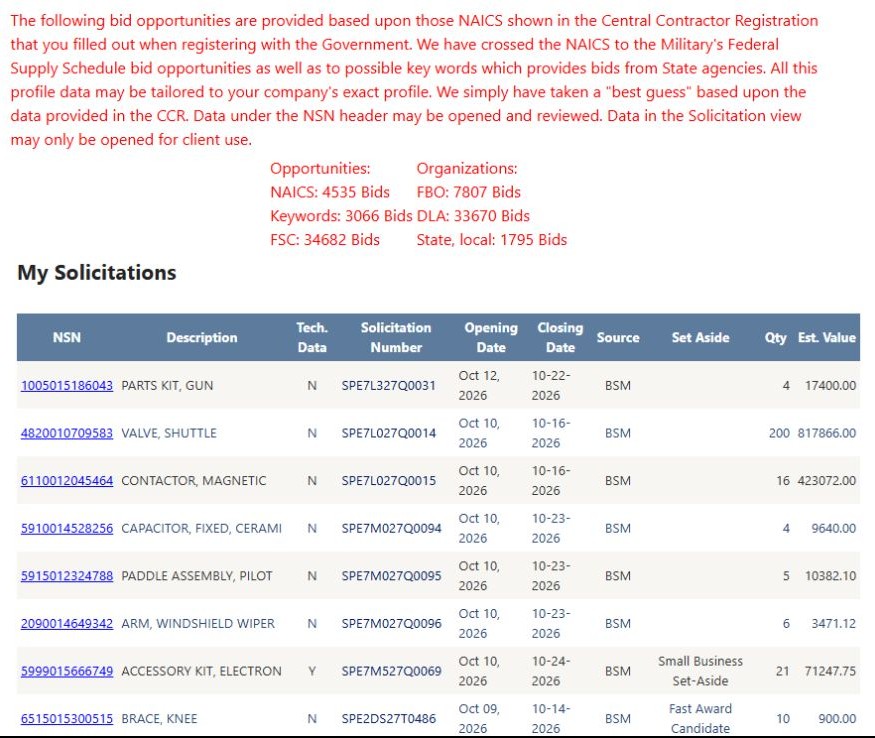
Open the company opportunity example at full size.
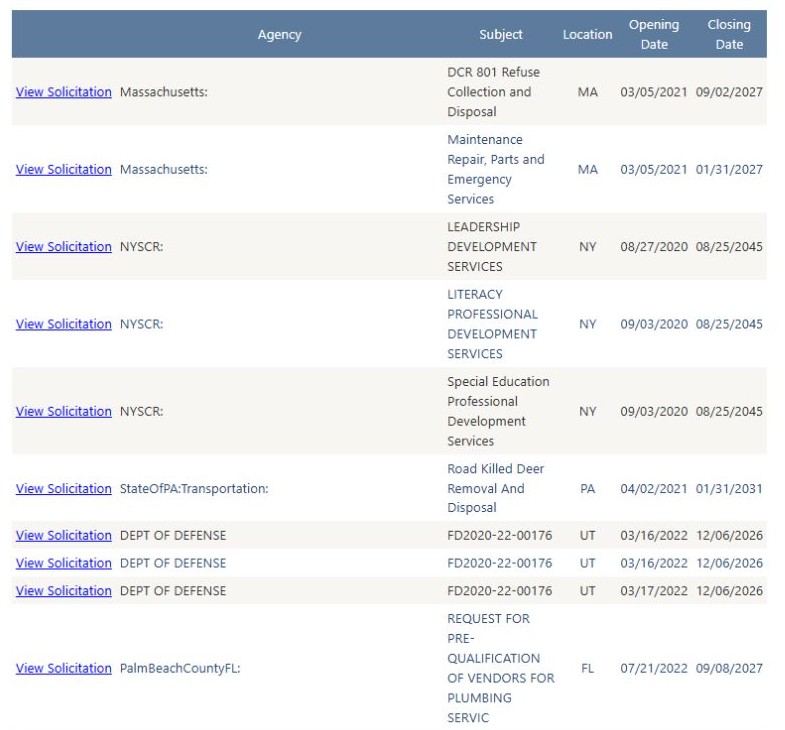
Open the notice example at full size.
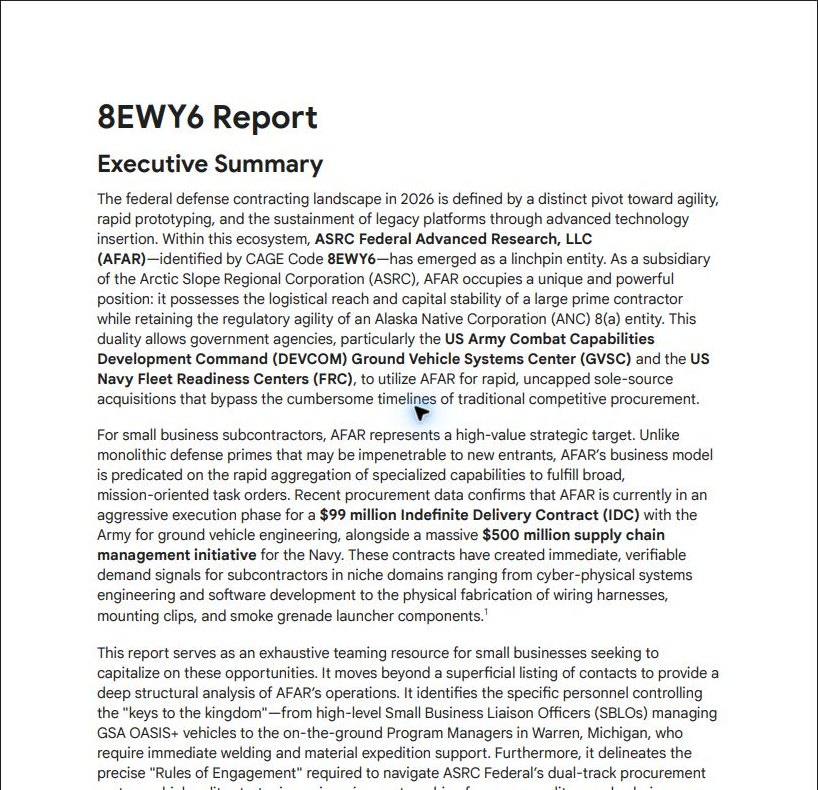
Open the report example at full size.
The First 5000 records and Complete History radio choices sit below the action buttons. First 5000 records is selected initially. Choosing Complete History changed the observed NSN history request to the broader view, although this company's result was still empty. The MCRL request also received the selected view setting. Choose the shorter option first when researching a large company; these options do not filter the FBO/FPDS award table. At the top of the profile, Back returns to the contractor result list and Main Menu returns to the feature menu.
Example: Vendor Detail View without a CAGE
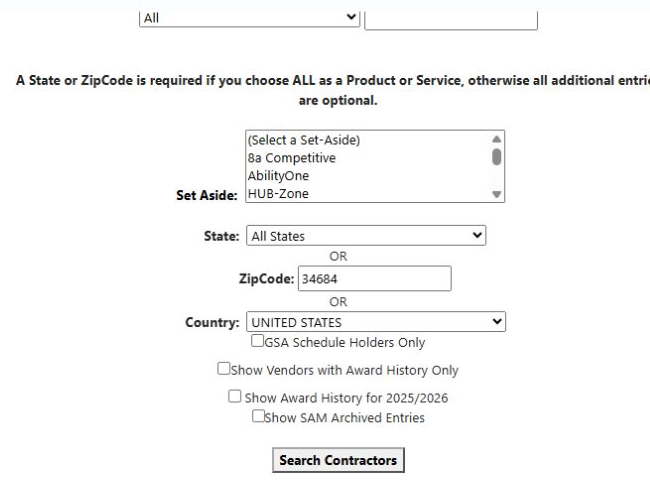
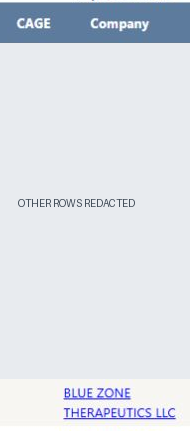
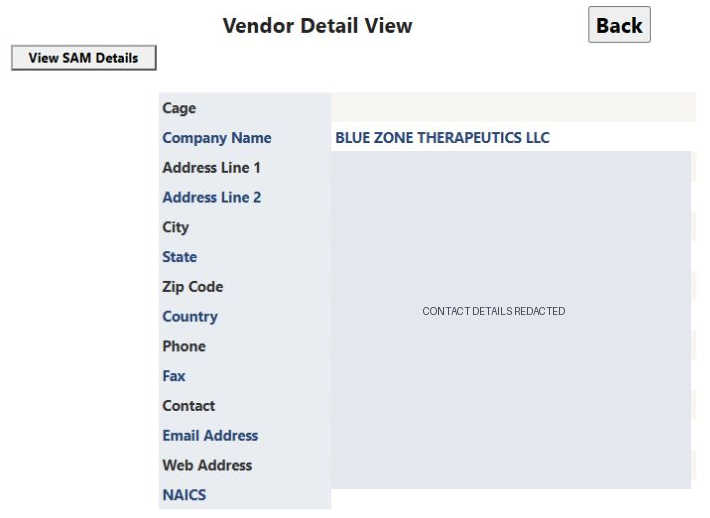
The saved October 14 example begins at Main Menu → All Government Contractors. It uses All, All States, ZIP 34684, UNITED STATES, and no optional checkboxes. The results include BLUE ZONE THERAPEUTICS LLC with no CAGE value. In this record, View Details is associated with a Vendor Detail View rather than Vendor / CAGE Detail View.
The row crop keeps the recorded View Details link and company name. The adjacent CAGE/Company crop shows the blank CAGE cell for this same row; unrelated result rows are masked. The observed row's destination is the no-CAGE Vendor Detail View.

In this saved profile, Cage and NAICS are blank. The other visible profile fields include the company name and address/contact categories; the crop masks those values for this teaching example. The only profile actions shown are Back and View SAM Details. The CAGE-specific award, GSA and MCRL research buttons are not shown in this view.
View SAM Details opens SAM Details View for the record. Its Back button returns to the Vendor Detail View; Back there returns to the contractor results. The saved form retained the original ZIP and search criteria when returning. The SAM image is cropped to the page title and navigation controls; identifying registration values are not repeated here.

These captures document a real saved result and its associated detail and return states. They do not establish that every company without a CAGE has the same populated fields.
Example: company address and work location
The October 10, 2026 search for CAGE 41QM4 opened L L BROOKS ENTERPRISES INC, Raleigh, NC 27612. Its award record showed work in Memphis. These answer two different questions: where the company is located and where the contract work is performed.
Download this article as Markdown