Keyword roadmap report: fields and drilldowns
Part of these button learning paths: Expiring Contracts 120 Days · My Government RoadMap
Follow a keyword through the report
- On Main Menu select Expiring Contracts 120 Days. This opens the account's keyword report; there is no keyword-entry box on this report.
- Find the keyword row you want to investigate.
- Select # Sols to see notices, # of Agencies to see buyers, Incumbents to see companies, or a monthly count to see contracts expected to complete in that month.
- Read the destination heading and selected keyword before comparing rows. Return to the keyword report with browser Back, or close a separately opened child tab, to choose another count.
For a different keyword that is not in this account report, use Research All Open Solicitations for a one-time search. Ask the account administrator about changing recurring criteria.
The Main Menu's Expiring Contracts 120 Days button opens an Expiring Contracts report for the signed-in account's CAGE. It shows market information for keywords in that account's saved solicitation criteria. If a keyword is missing, review the saved criteria; absence from this report does not mean there are no future purchases. See how the viewer works and the roadmap introduction.
| Displayed field | Meaning and practical use |
|---|---|
| Keyword | Saved account search term for this row. Use it to identify the business topic; it is not itself an open opportunity. |
| Awards [year] | Past contract count associated with the keyword. Use it to gauge historical activity, not as a count of open bids. |
| # of Agencies | Buyer count associated with the keyword. Select it to explore agencies in a separate report. |
| Incumbents | Company count associated with the keyword's past awards. Select it to see company names and award information. |
| $ | Dollars obligated on past awards associated with the keyword; this is market history, not available budget. |
| # Sols | Count of solicitations recorded for the keyword. Select it to open keyword-filtered solicitation results, then verify each original notice's current status and deadline. |
| Month1–Month4 | Count and dollars for contracts expected to complete in each displayed month. Select a month to see the award actions and their dates. Completion is a research lead, not a promised rebid. |
The header shows the account's stored legal business name, CAGE, registration-renewal date, address and electronic-business point of contact. These identify the account behind the keyword rows; the address does not filter the report by worksite. Award History: Y/N is a company-history flag, not a count. Its link opens award history for that CAGE. Check current registration and contact details before outreach.
The keyword table does not show separate registered-company or GSA-schedule columns.
Example: read a month cell and its award
On October 10, 2026, the Business Development row displayed 21 awards, 13 agencies, 19 incumbents, $9,091,388.18 and 18 solicitations. Choose the linked number that answers your question: agencies for buyers, incumbents for companies, or solicitations for notices.
For this dated example, Month1–Month4 represent October 2026 through January 2027. Month2 displayed 1 / $57,824. Selecting its count opened award action 1331L526F13OS0149, modification 0, with $57,823.76 obligated and an estimated completion date of November 15, 2026. The report rounds the dollars for display. This is a November completion lead, not a November solicitation deadline or a promise to recompete.
When a month changes, open the linked award list and read its heading and completion dates before assuming it matches the adjacent summary cell.
Open the agency report
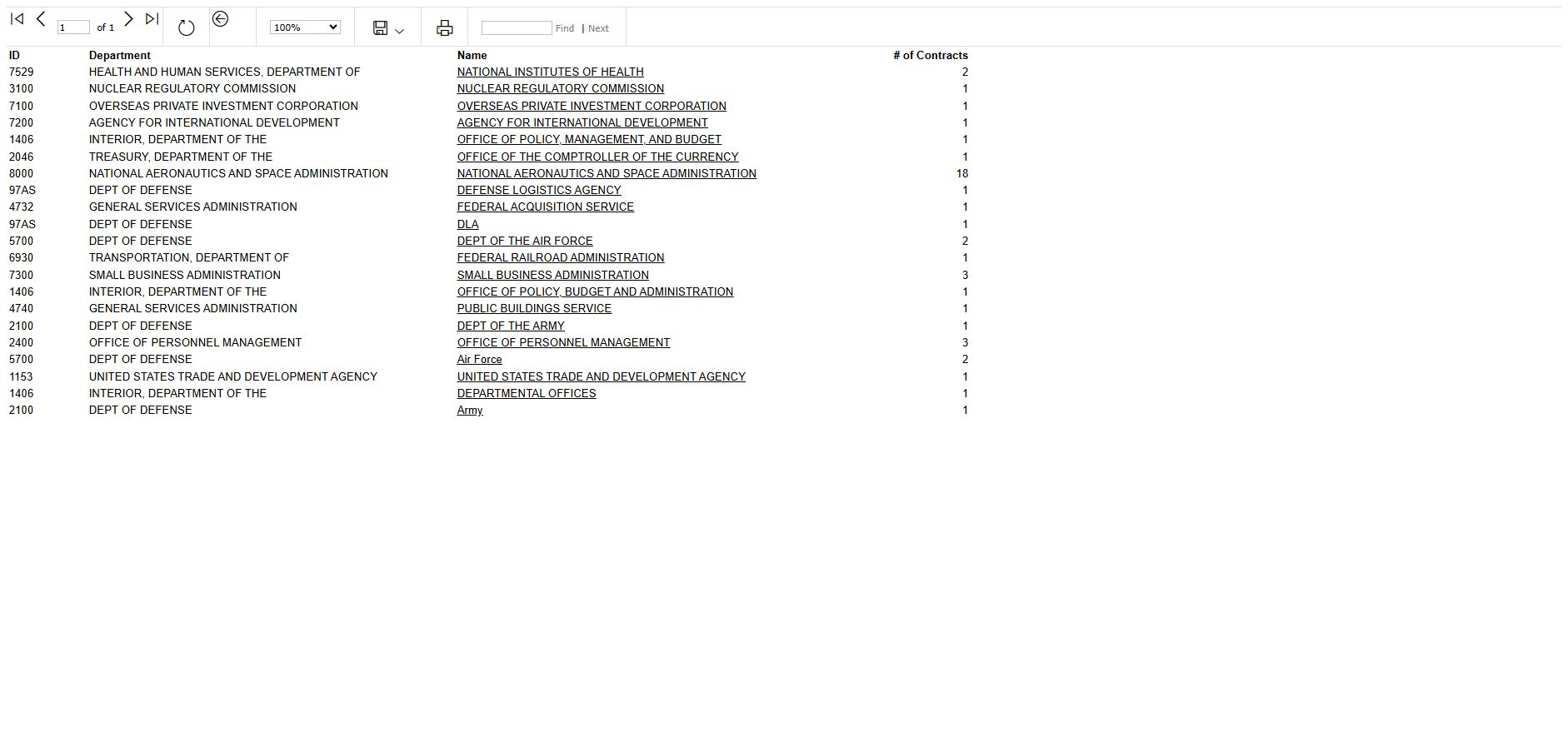
Open the agency report image at full size. Selecting 13 under # of Agencies opened the agency report. Use its ID, department, name and contract-count columns to identify buyers. The report may show more than one recorded name for an ID.
| Agency report column | How to read it |
|---|---|
| ID | Recorded agency identifier for the row. Use it with the name when identifying a buyer. |
| Department | Department name associated with that ID. |
| Name | Recorded agency name. Select it for a further report by ID; that destination does not retain the selected keyword, so read its heading and scope. |
| # of Contracts | Contract count shown for that agency row in this report. |
The agency report shown here covers October 2013 through September 2014. Keep that period with any buyer names you use from it.
Agency Excel worksheet
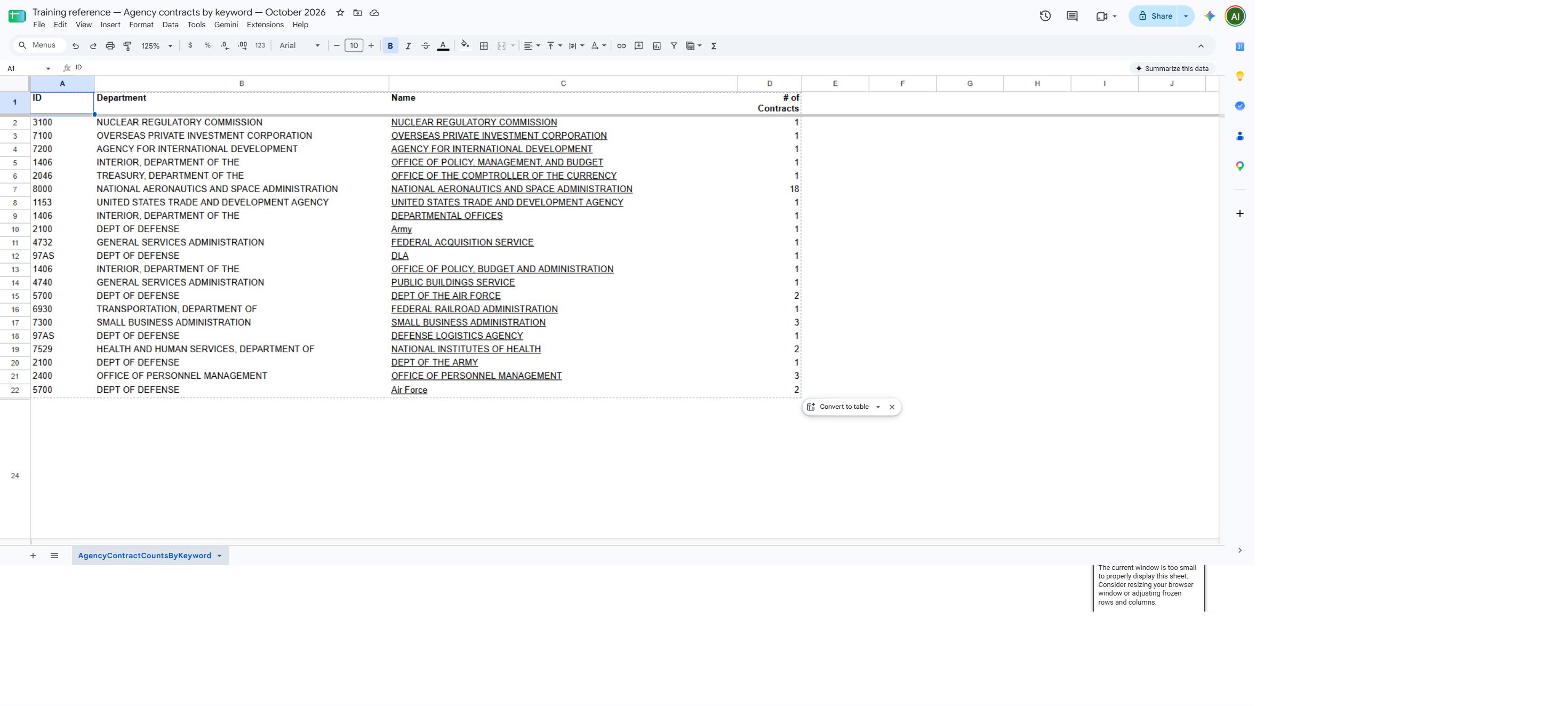
Open the agency worksheet at full size. The AgencyContractCountsByKeyword sheet contains ID, Department, Name and # of Contracts. Select a linked name to open the agency report by ID; check the destination's heading because it does not carry the keyword.
Read the incumbent company report
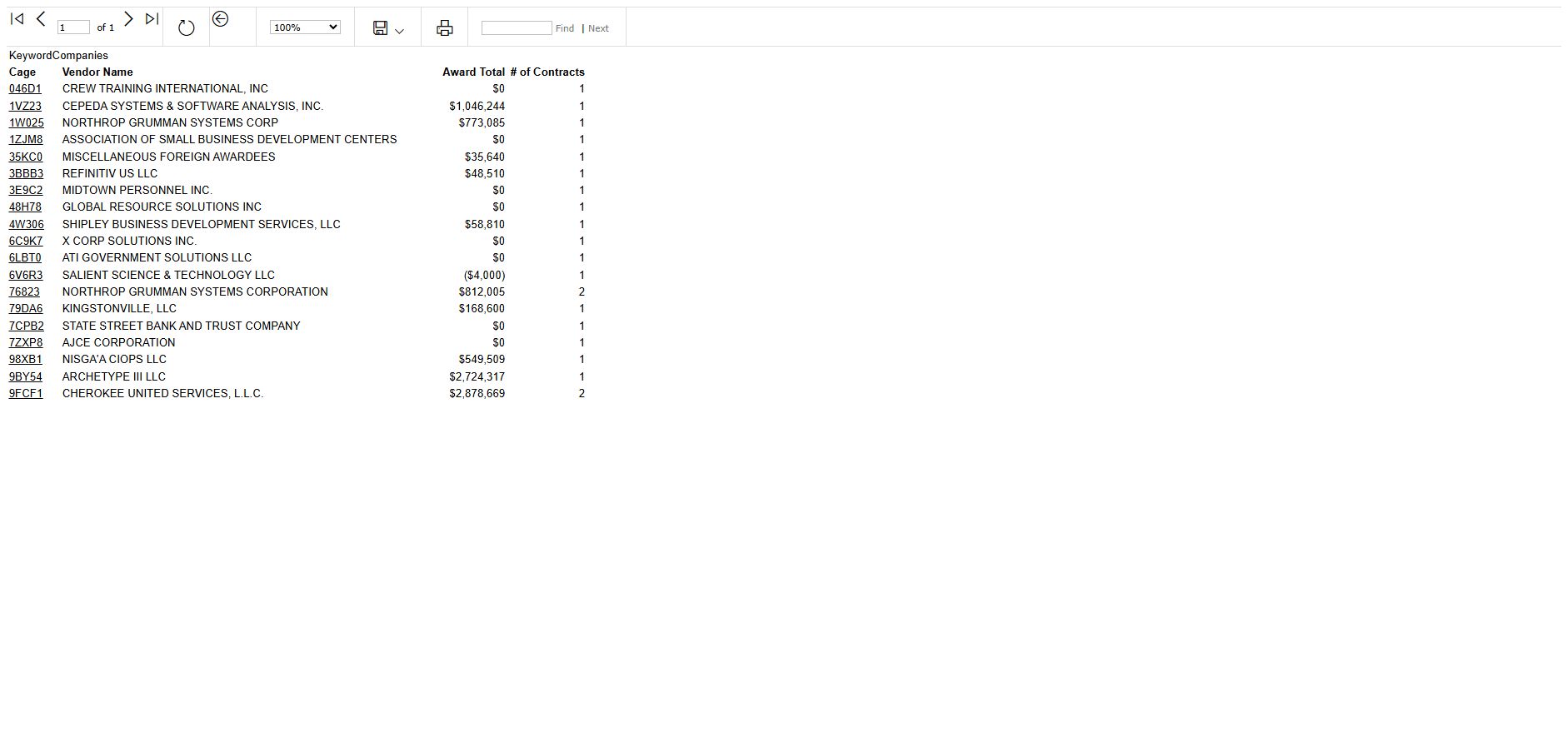
Open the company report image at full size. Selecting 19 under Incumbents opened 19 CAGE rows for Business Development. Read the CAGE and vendor name together to identify a company. This report gives historical award context, not current performance status.
| Company report column | How to read it |
|---|---|
| Cage | Awarded vendor's CAGE identifier. It links to vendor detail; verify the current entity there before outreach. |
| Vendor Name | Name attached to the stored vendor record. Use with CAGE to avoid confusing similarly named businesses. |
| Award Total | Recorded obligations for that CAGE and keyword, shown in whole dollars. Zero or negative values are possible; they are not contract ceilings or proof of no current business. The rounded display can hide cents. |
| # of Contracts | Past contract count shown for that company and keyword, not open solicitations. |
Company Excel worksheet
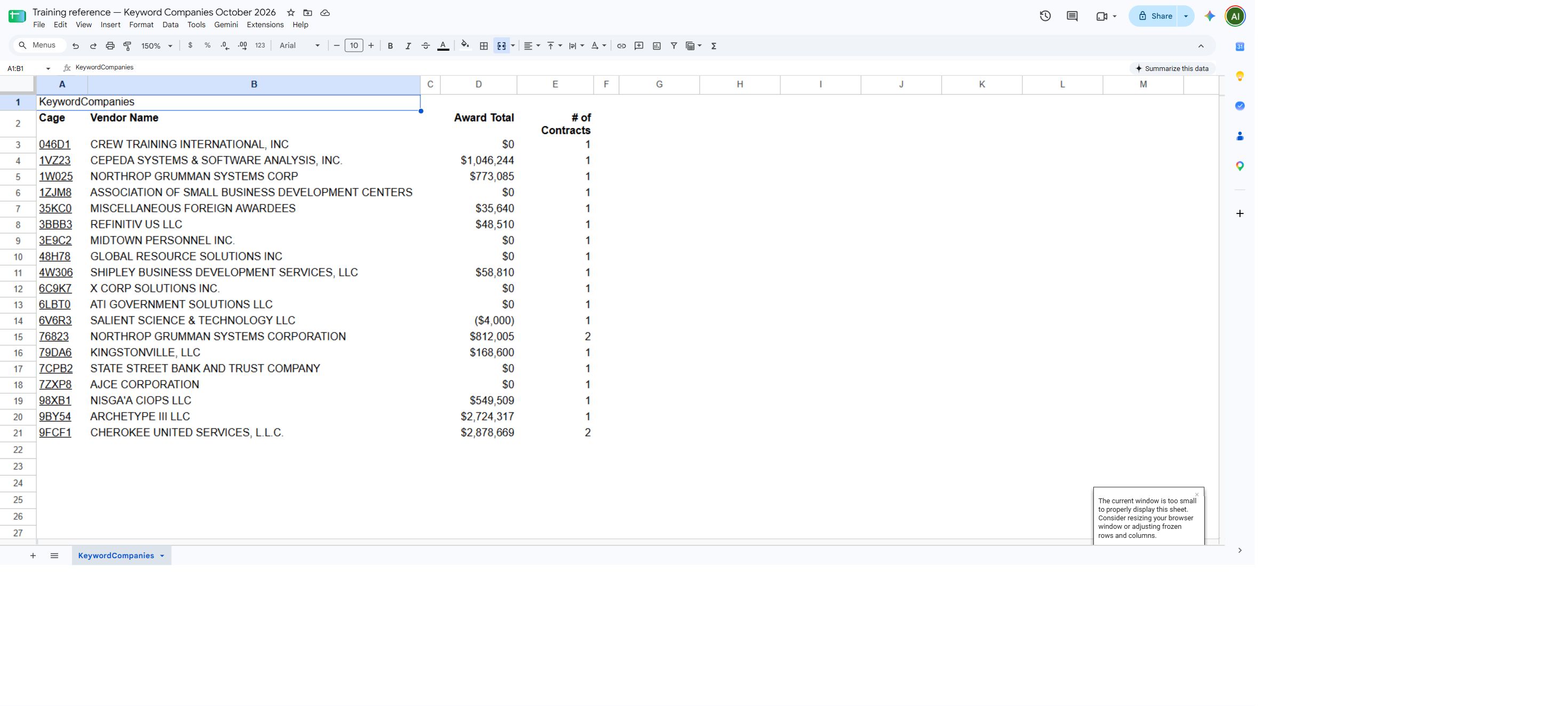
Open the company worksheet at full size. The KeywordCompanies sheet has 19 company records with CAGE, vendor name, award total and contract count. CAGE links lead to vendor detail. The stored amounts retain cents even though the report displays whole-dollar currency; use the numeric cells for calculations.
Download this report to Excel

Open the worksheet image at full size. This excerpt shows the downloaded workbook in Google Sheets. The column headings identify the counts and amounts for each keyword.

The viewer's Export → Excel produced a BizPlanByKeywordCage sheet with 96 keyword rows on October 10. The Business Development row shows the report's 21 awards, 13 agencies, 19 incumbents, $9,091,388.18 and 18 solicitations. Its Month2 cell shows 1 and $57,824 on separate lines and links to the November 2026 award list. A later download may change with the account's saved keywords and report data.
For calculations, check cell types: $ is numeric currency, while Month1–Month4 combine a count and rounded dollars as text. Some # of Agencies and Incumbents cells display a URL instead of a numeric count; do not count them as zero. Open linked records for current context. See Excel export guidance.
For a business review, confirm the account's saved keywords, use historical awards and companies for market context, and follow # Sols to inspect original current notices. Follow a month link to read the underlying award actions and estimated completion dates, not to assert that a contract will be rebid. Record the report title, CAGE, keyword and clicked cell when sharing a finding.
Download this article as Markdown