Find state contractors
Part of these button learning paths: State Contractors
Video sections for this page
Video sections for this page
- 0:00 — State Contractor Search
- 0:19 — Find a company
- 0:24 — Choose the company location
- 0:34 — Read the results
- 0:43 — Contractor details
- 0:54 — Supporting information
- 1:06 — Search by business activity
- 1:16 — Add a NAICS code
- 1:26 — Recorded codes only
- 1:35 — Direct NAICS results
- 1:45 — Include code text evidence
- 1:54 — Expanded NAICS results
- 2:08 — Try NIGP in another state
- 2:17 — Direct NIGP results
- 2:27 — Expand the NIGP search
- 2:35 — Expanded NIGP results
- 2:46 — All and location filters
- 2:54 — Select a set-aside
- 3:04 — CCR and SAM options
- 3:16 — Review the filtered results
- 3:31 — Export the result set
- 3:44 — Understand the workbook
- 4:01 — Keep company and contact totals separate
- 4:12 — Help whenever you need it
Application path: Main Menu → B2B → State Contractors → Find State Contractors → enter criteria → Find Contractors.
Use this search to find companies listed in state vendor sources, review the matching company rows, and open a consolidated profile. The route starts at the State Contractors button in the B2B section of Main Menu. The form is titled Find State Contractors. After Find Contractors, the State Contractor Results page shows the matching companies. Choose View Details to open a contractor profile; use the results and export guide to read the company rows and workbook.
The examples below were searched October 13, 2026. Their counts and rows describe those searches at that time.
Contents
- Search fields
- Run a keyword search
- Search a formal NAICS code
- Expand a code search to descriptions and source text
- Search around a ZIP code
- Narrow by city
- Filter by source and CCR/SAM match
- Find a company by name
- Return to the form or start over
- Continue to results and company details
Search fields
| Field | Meaning and use |
|---|---|
| Search type and text | Choose Company Name for a company or DBA, Contact Name for a person, Email, Phone #, Keyword / Description for business descriptions and capabilities, or All to search those areas together. Enter the term in the adjacent box. A type other than All needs text, and text needs a type. Phone search compares digits without formatting. |
| State | The state in the consolidated contractor address. Choose a state or leave (Any State). This can differ from the jurisdiction of a source record. |
| City | Matches the beginning of the consolidated city name. Pair it with State when city names repeat across states. |
| ZipCode | Matches the beginning of the consolidated five-digit ZIP. With Radius selected, this becomes the search origin. |
| Radius (miles) | Choose 25, 50, 100, 250, or 500 miles around a five-digit origin ZIP. Use it with ZipCode. The results describe approximate ZIP-to-ZIP proximity. |
| Source | Limits results to a selected vendor directory or state-source list, such as Florida City of Tampa Certified Vendor. This is the source record's registry, not the contractor's State field. A source jurisdiction and a company's address state can differ. |
| Code Type | Choose NAICS to search business industries, SIC for the older industry classification, PSC for federal products and services, NIGP for public purchasing categories, or UNSPSC for products and services. Any Code searches across code types. |
| Code Value | Enter a formal code or prefix. The match starts with the entered value. A specific Code Type must be selected when searching for a code value. |
| Also search code descriptions and source text | Adds matching descriptions and eligible source text to a code search. Select a specific Code Type and enter a Code Value first. This can find suppliers whose source descriptions mention related work even when the formal code differs. |
| Set Aside | Select one or more recorded designations, such as Small Business, Woman Owned, Minority Owned, or Service-Disabled Veteran Owned. (All Set Asides) leaves this filter open. When multiple designations are selected, a contractor can match any selected value. |
| Also search set-aside descriptions and source text | Adds eligible descriptive evidence to selected set-aside values. Choose at least one designation first. |
| CCR/SAM | Choose All Contractors, Only CCR/SAM Matches, or Exclude CCR/SAM Matches to include all results, limit to profiles with a linked record, or leave linked profiles out. This describes the match shown by this application. |
At least one criterion is required to search. When you combine criteria, the result must meet each selected filter; the optional text-evidence choices add their own eligible matches within the selected code or set-aside. Search Help & Examples opens this guide, and Emma video guide opens the guided walkthrough. The form has Find Contractors and Back controls. Leave a field at its shown default when it is not part of the example. Search results have their own Back and New Search controls; return behavior is described below.
Run a keyword search
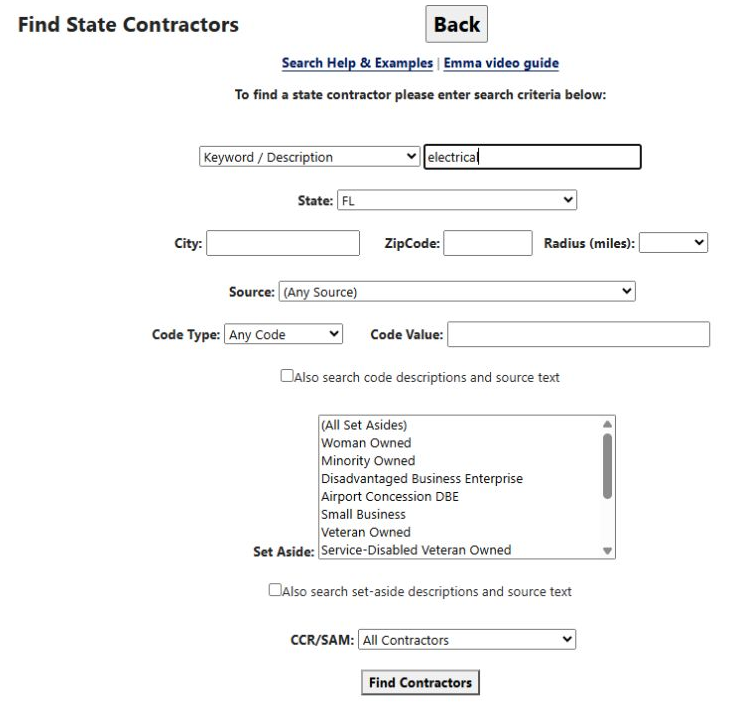
On the form, choose Keyword / Description, enter electrical, and set State to FL. Leave City, ZipCode, Radius, Code Value, and the optional text boxes blank. Keep Source at (Any Source), Code Type at Any Code, Set Aside at (All Set Asides), both description checkboxes clear, and CCR/SAM at All Contractors. Select Find Contractors.
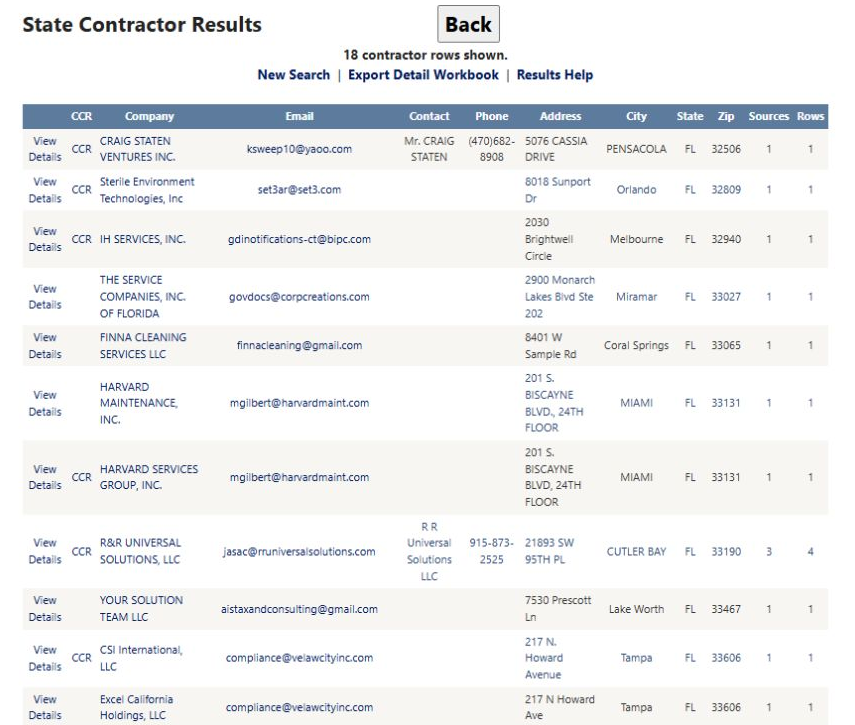
The October 13 result shows 844 contractor rows. The first company is AMERICAN WIRE GROUP, LLC. The table includes the company, contact, email, phone, address, city, state, ZIP, source count, and vendor-row count. In this row the State is FL, while street address, city, and ZIP are blank. Choose View Details for a consolidated profile or use the results guide for the row actions and columns.
Search a formal NAICS code
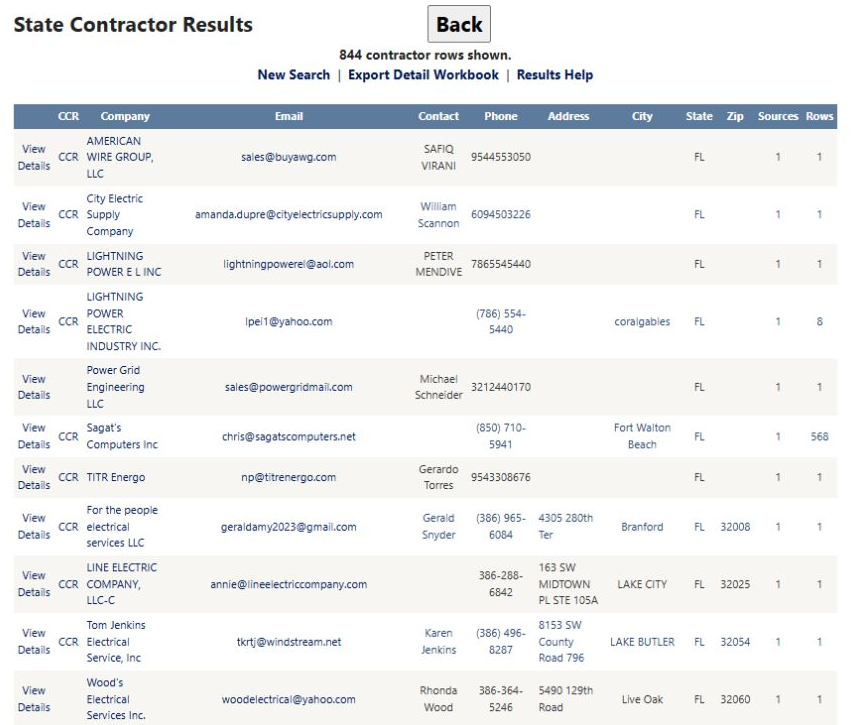
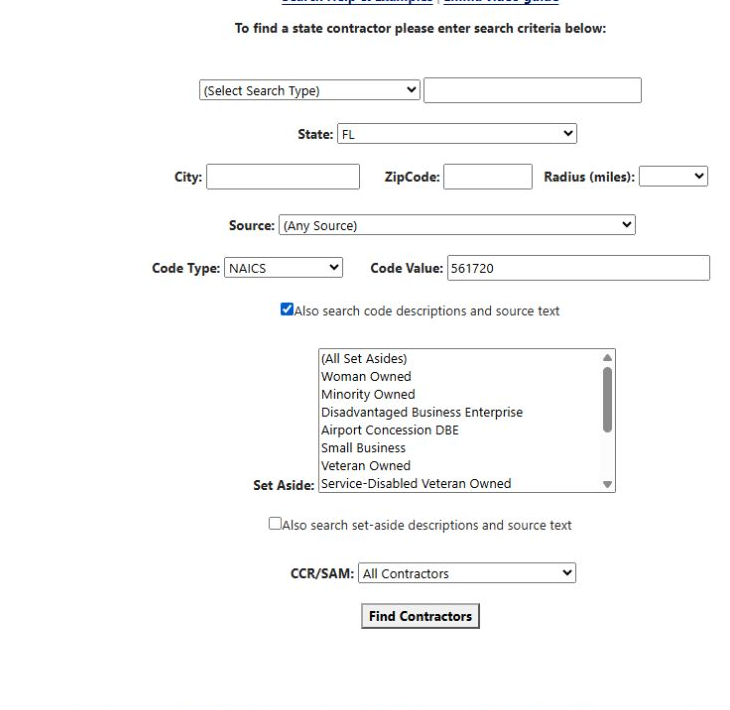
Start a new search. Leave the text search type unselected and its text box blank. Set State to FL, choose NAICS for Code Type, and enter 561720 for Code Value. Leave Also search code descriptions and source text unchecked, keep the other filters at their defaults, and choose Find Contractors.
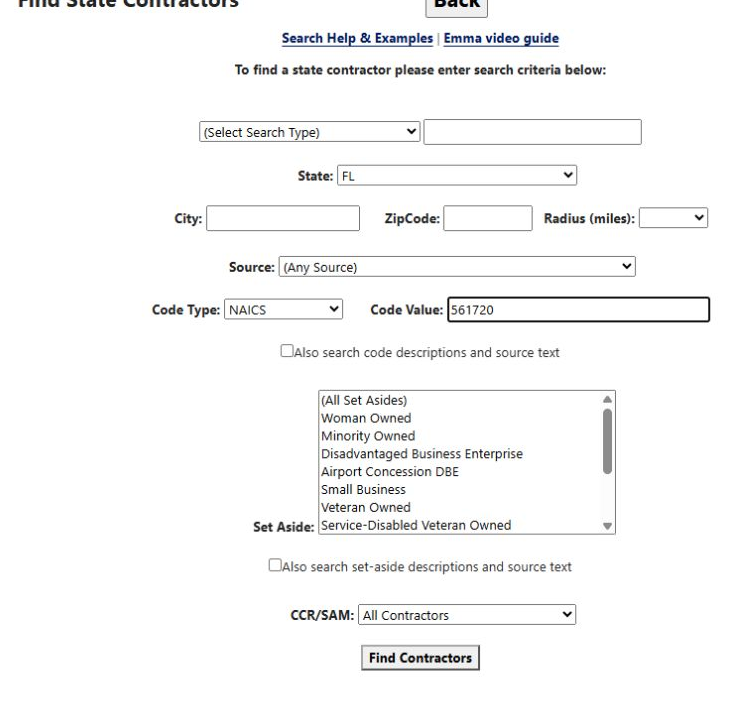
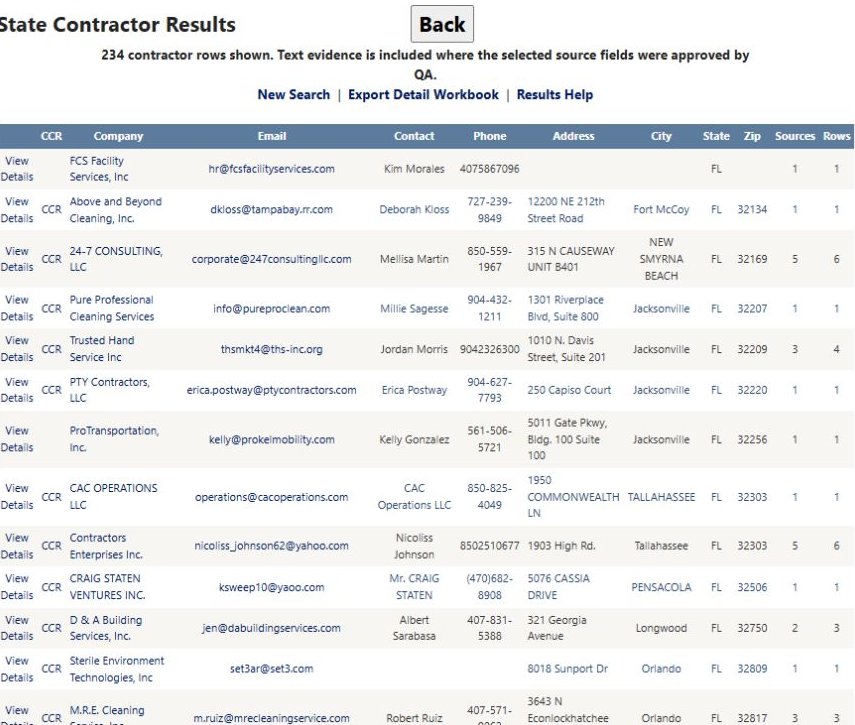
This direct-code search returned 18 contractor rows. The first results include CRAIG STATEN VENTURES INC. in Pensacola and Sterile Environment Technologies, Inc. in Orlando. A direct code search is a good way to start when the formal classification matters. Open View Details to see which codes and sources support an individual profile.
Expand a code search to descriptions and source text
Use the same FL, NAICS, and 561720 criteria, then check Also search code descriptions and source text. Keep all other criteria unchanged and select Find Contractors.
The result shows 234 contractor rows and explains that text evidence is included where the selected source fields are approved. This wider search can include records supported by business descriptions or source text, in addition to direct formal-code matches. It does not mean every result has a recorded NAICS 561720 code. In the profile or workbook, compare 06 Codes with 10 Search Matches to see whether a match came from a formal code or text evidence.
Search around a ZIP code
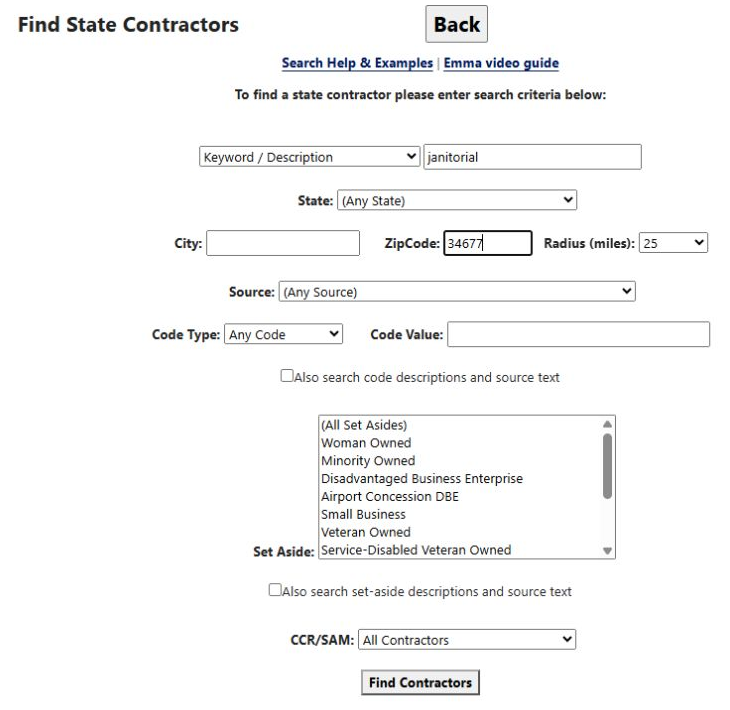
Start a new search. Choose Keyword / Description, enter janitorial, enter 34677 in ZipCode, and choose 25 for Radius (miles). Leave State at (Any State) and all other filters at their defaults. Select Find Contractors.
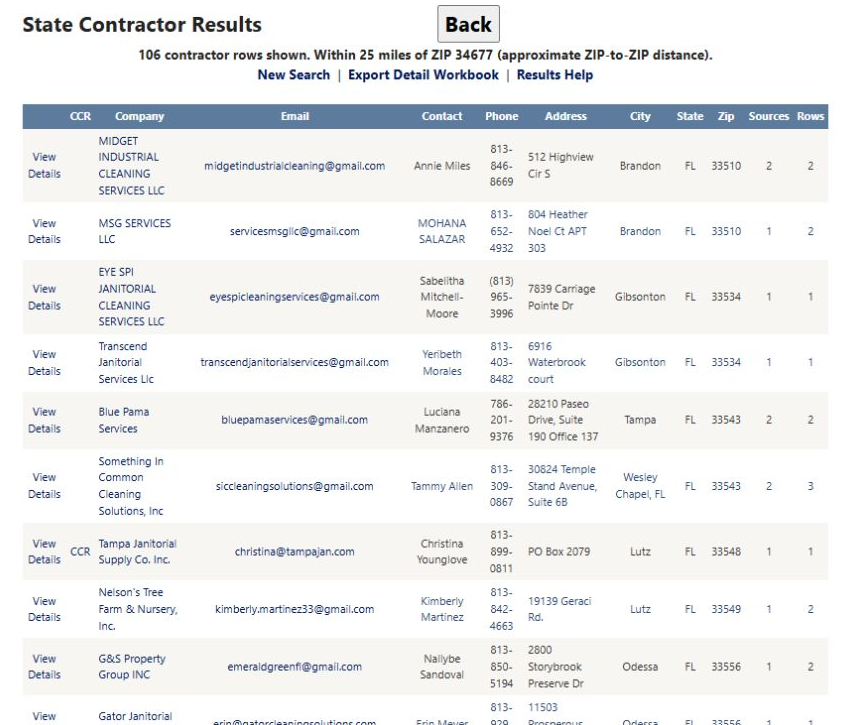
The October 13 result shows 106 contractor rows and the message Within 25 miles of ZIP 34677 (approximate ZIP-to-ZIP distance). The table lists the contractors' addresses and ZIP codes; it does not add a separate distance column. For example, MSG SERVICES LLC appears in Brandon, Florida, ZIP 33510. The row's Sources 1 / Rows 2 counts refer to source records, not miles.
Narrow by city
Start another search with Keyword / Description set to janitorial, State set to FL, and City set to Clearwater. Leave ZipCode and Radius blank and keep the remaining fields at their defaults. Select Find Contractors.
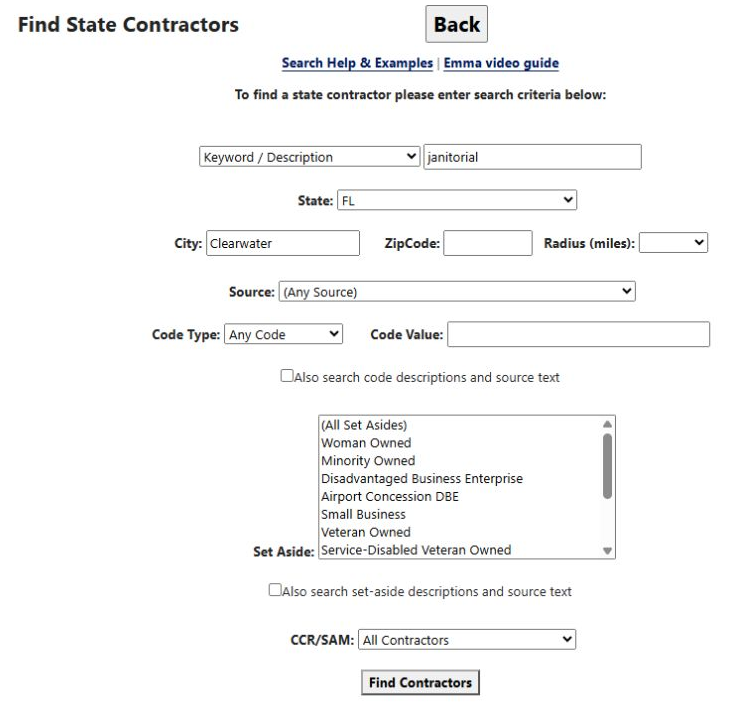
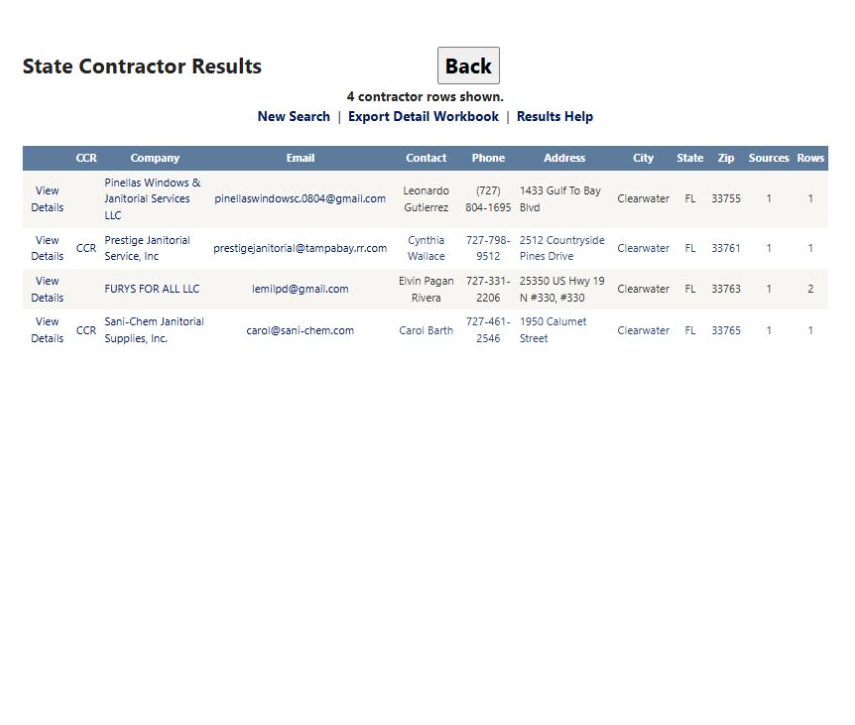
The result shows 4 contractor rows. One is Sani-Chem Janitorial Supplies, Inc. in Clearwater, ZIP 33765. Use View Details to open its consolidated profile. This company row is also a helpful starting point for the separate company-name search below.
Filter by source and CCR/SAM match
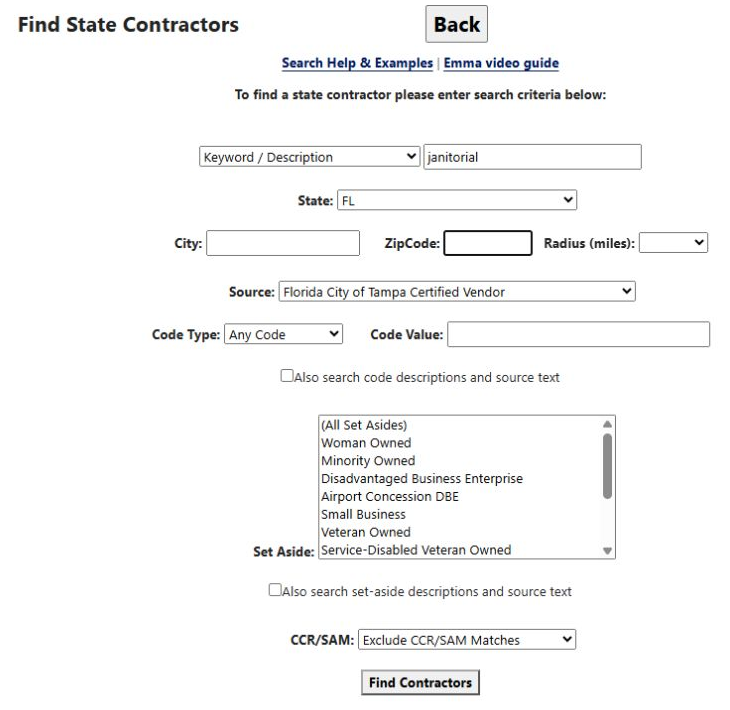
Start a new search. Choose Keyword / Description and enter janitorial; set State to FL and Source to Florida City of Tampa Certified Vendor. Choose Exclude CCR/SAM Matches. Keep City, ZipCode, Radius, and Code Value blank, with Code Type at Any Code; leave Set Aside at (All Set Asides) and the two description checkboxes clear. Select Find Contractors.
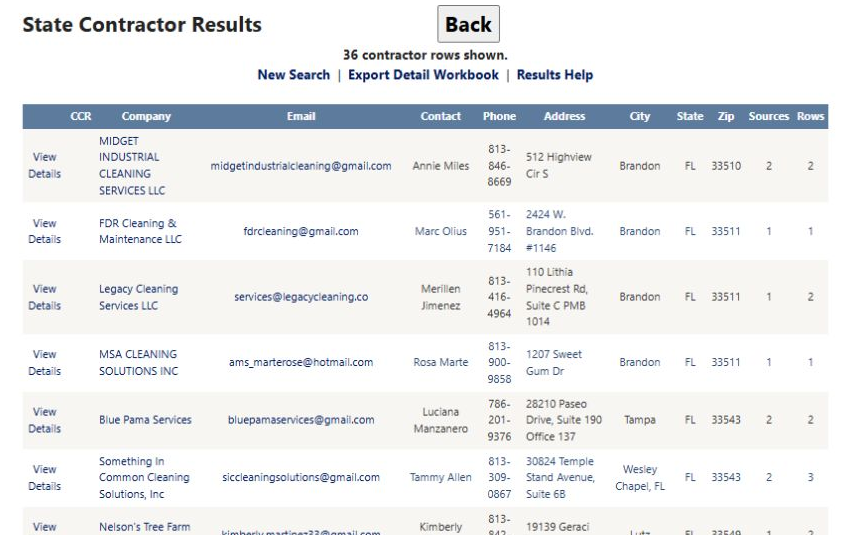
The form shows Florida City of Tampa Certified Vendor in Source and Exclude CCR/SAM Matches selected. The result shows 36 contractor rows. This combination looks for Florida-address profiles with a janitorial description and a contributing record from the selected Tampa vendor directory, while leaving profiles with a linked CCR/SAM match out of the list. State filters the contractor's consolidated address; Source selects the vendor registry that contributed evidence. Those two fields answer different questions.
Find a company by name
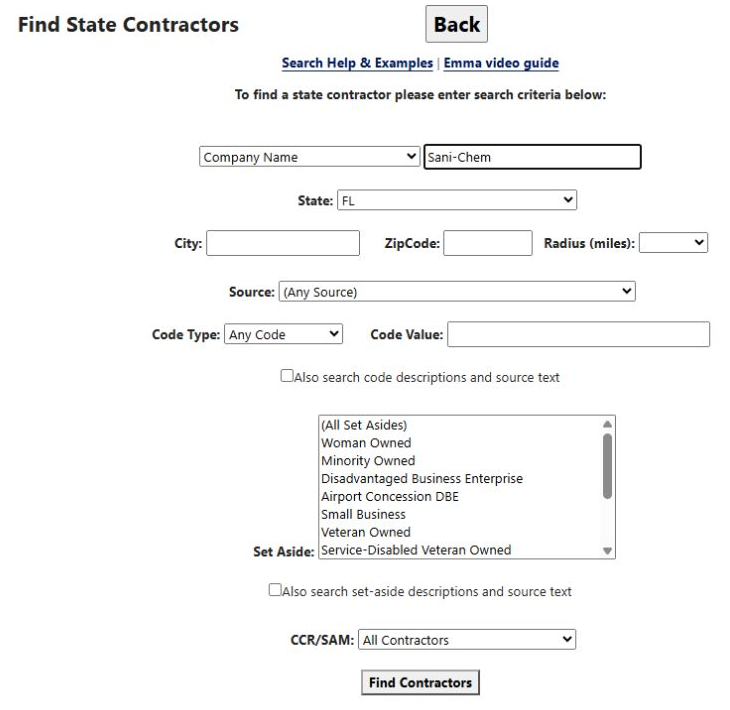
Start a new search. Choose Company Name, enter Sani-Chem, and set State to FL. Leave all other fields at their defaults and choose Find Contractors.
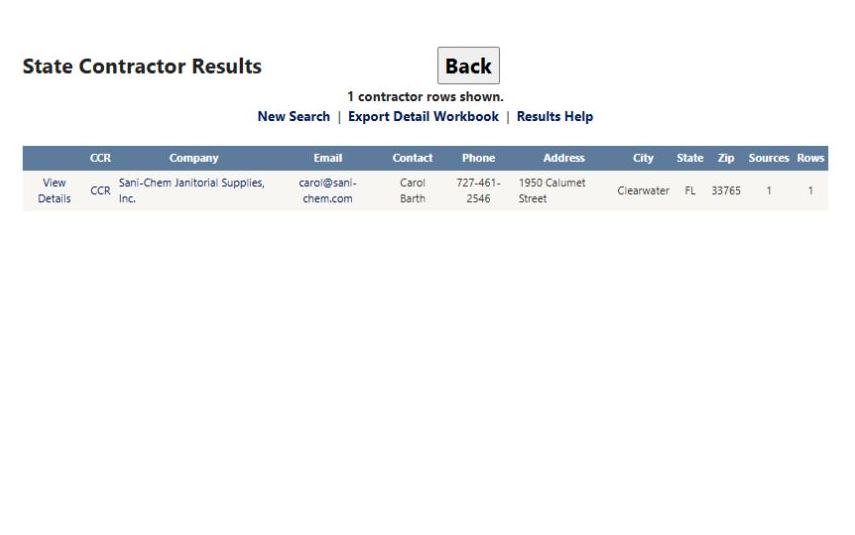
The result contains one contractor: Sani-Chem Janitorial Supplies, Inc., Clearwater, Florida, ZIP 33765, Contractor ID 1045153. Its CCR link opens the federal profile for CAGE 5HLX5. Choose View Details to inspect the consolidated profile and contributing source records; the CCR link opens its associated federal record.
Return to the form or start over
The form's Back button returns to the preceding application page. After a search, the results page's Back button returns to the form with the search criteria retained, so you can adjust an input. Choose Find Contractors again to run the changed criteria.
New Search opens a fresh form with cleared criteria. Use it when you want to set up a separate example, such as changing from a city search to the company-name search above. Check the result heading and count before opening a company.
If a search returns no rows
A search using VA, NAICS 238210, and Small Business returned no contractor rows in the October 13 check. If your search is empty, review the selected fields and remove or broaden one criterion at a time. For example, clear the set-aside selection or try the code-description and source-text option to see whether related descriptions are present. The changed search answers a different question, so compare its criteria with the original before using the expanded list.
Continue to results and company details
The State Contractor Results guide explains the table columns, source and CCR links, page navigation, Export Detail Workbook, and how to follow a result. Choose View Details on a company row to open its State Contractor Detail profile, where the consolidated summary, codes, designations, contacts, source records, and any CCR/SAM match are grouped together. Use Back from the profile to return to the results, or the results page's New Search to start over.
Download this article as Markdown