Use the state, county and city purchasing directory
Part of these button learning paths: State, City, and County RoadMap
Video sections for this page
Video sections for this page
Application path: Main Menu → State, City, and County RoadMap → select a state and category → Submit.
Use this directory to locate government purchasing resources and department contacts. It organizes links by government level so you can distinguish a state purchasing resource from a county or city resource.
Example: explore Florida
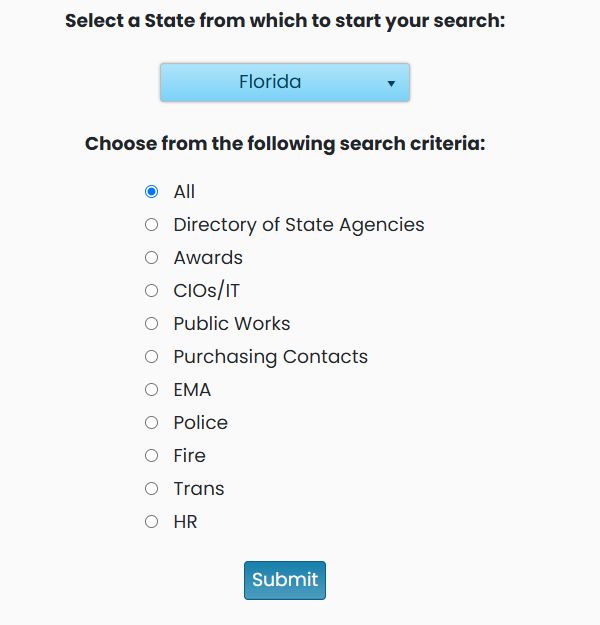
Select Florida, leave All selected and choose Submit. The October 21, 2026 example displays three sections: State, County and City.
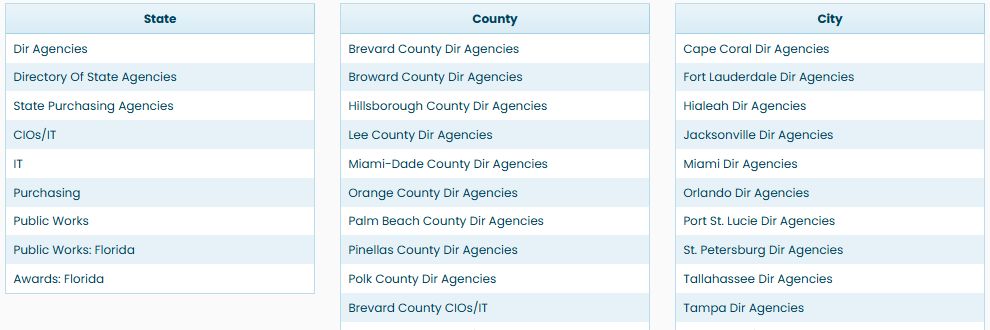
Each column represents a different government level. Read the level heading with each link: a resource in State is not the same office as a county or city resource. The tables can continue below the first visible rows, so scroll each column to review its remaining entries.
The State section includes Directory Of State Agencies, State Purchasing Agencies, CIOs/IT, Purchasing, Public Works and Awards: Florida. The County section includes directory entries for Hillsborough County and Pinellas County, along with purchasing and other categories. The City section supplies local-government resources.
Read both the organization and category in a link's label. A county purchasing link and a county IT link answer different questions, even when they refer to the same county.
Example: show purchasing resources only
Return to the form using browser Back. Choose Florida again, select Purchasing Contacts, confirm that Florida remains selected, and choose Submit. The results retain the State, County and City sections but show purchasing-related links. Examples visible in this result include Purchasing at State level, Purchasing Contacts: Charlotte County, and Purchasing Contacts: Dunedin.
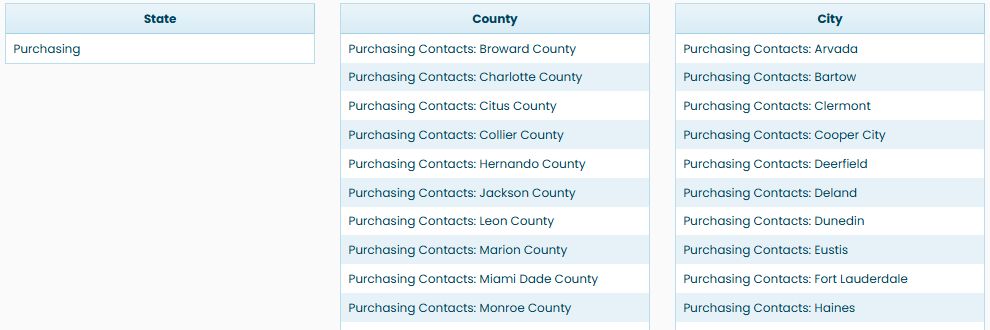
A purchasing link identifies the government organization or purchasing resource to visit. Choose the State, County, or City entry that matches the level you need, then review the linked resource for its current contact or procurement information.
Example: find Florida award resources
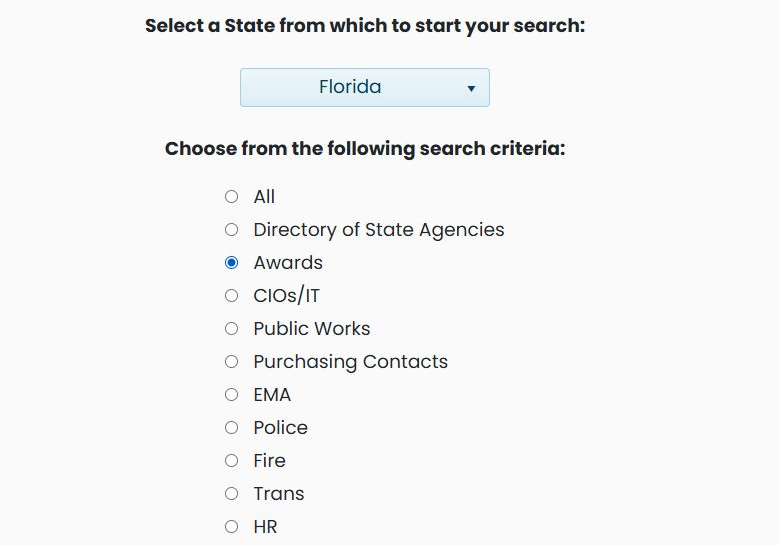
On the search form, select Florida, choose Awards, confirm Florida is still selected, and choose Submit. The result has one link under State: Awards: Florida. The County and City sections have no entries in this result. The State link points to Florida's Department of Management Services state-contracts site; open it when you want to continue your research there.

Example: find Florida CIO and IT resources
Return to the form, select Florida and CIOs/IT, then choose Submit. The result keeps the separate State, County and City sections. This example shows two State links, 11 County links and 26 City links. Use each link label to identify the jurisdiction and resource type before continuing.
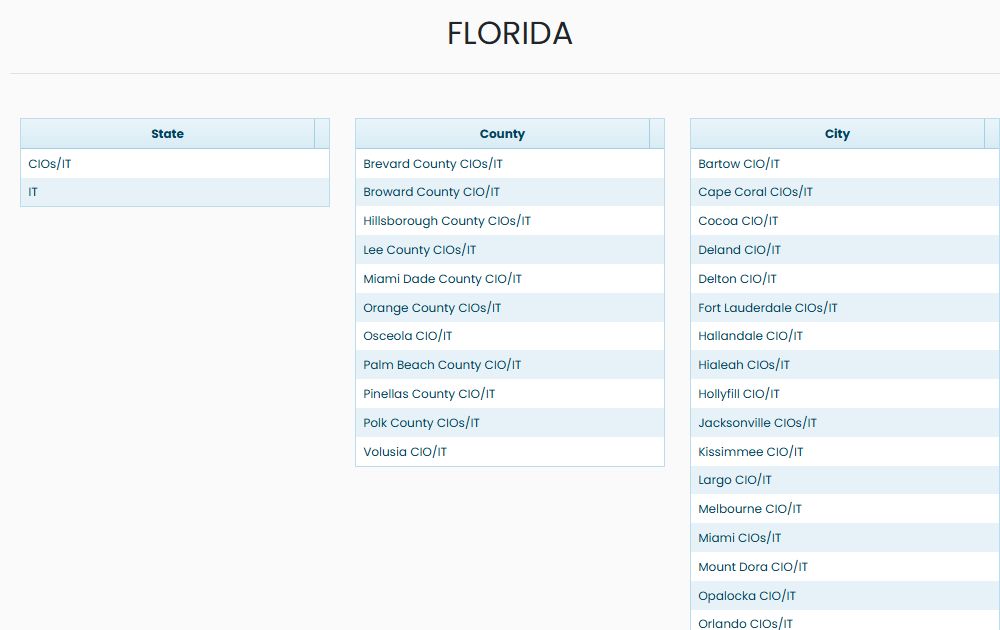
Choose an entry whose label matches the government level and subject you need, then select it to continue to that resource.
Choose a category
| Category | What to look for |
|---|---|
| All | All available resource categories for the selected state. |
| Directory of State Agencies | Government agency and department directories. |
| Awards | Published contract-award resources. |
| CIOs/IT | Chief information officer and information-technology resources. |
| Public Works | Public-works departments and purchasing resources. |
| Purchasing Contacts | Procurement contacts, departments and related purchasing resources. |
| EMA | Emergency-management resources. |
| Police | Police department resources. |
| Fire | Fire department resources. |
| Trans | Transportation resources. |
| HR | Human-resources departments. |
Choose the category closest to the office or information you need. Use All when you want to explore what is available. Each result section has its own heading; no Excel export is shown on this directory screen.