Save and reopen a search
Application path: Main Menu → Award History → results → Save Search; then Main Menu → Saved Searches.
Save a named search when you expect to return to the same criteria. The example below saves a computer-training award search and reopens its results from the Main Menu.
Save an award search
- Open Main Menu → Award History.
- Select 2026 under Year, enter 611420 under NAICS Code, and select the Search beside NAICS.
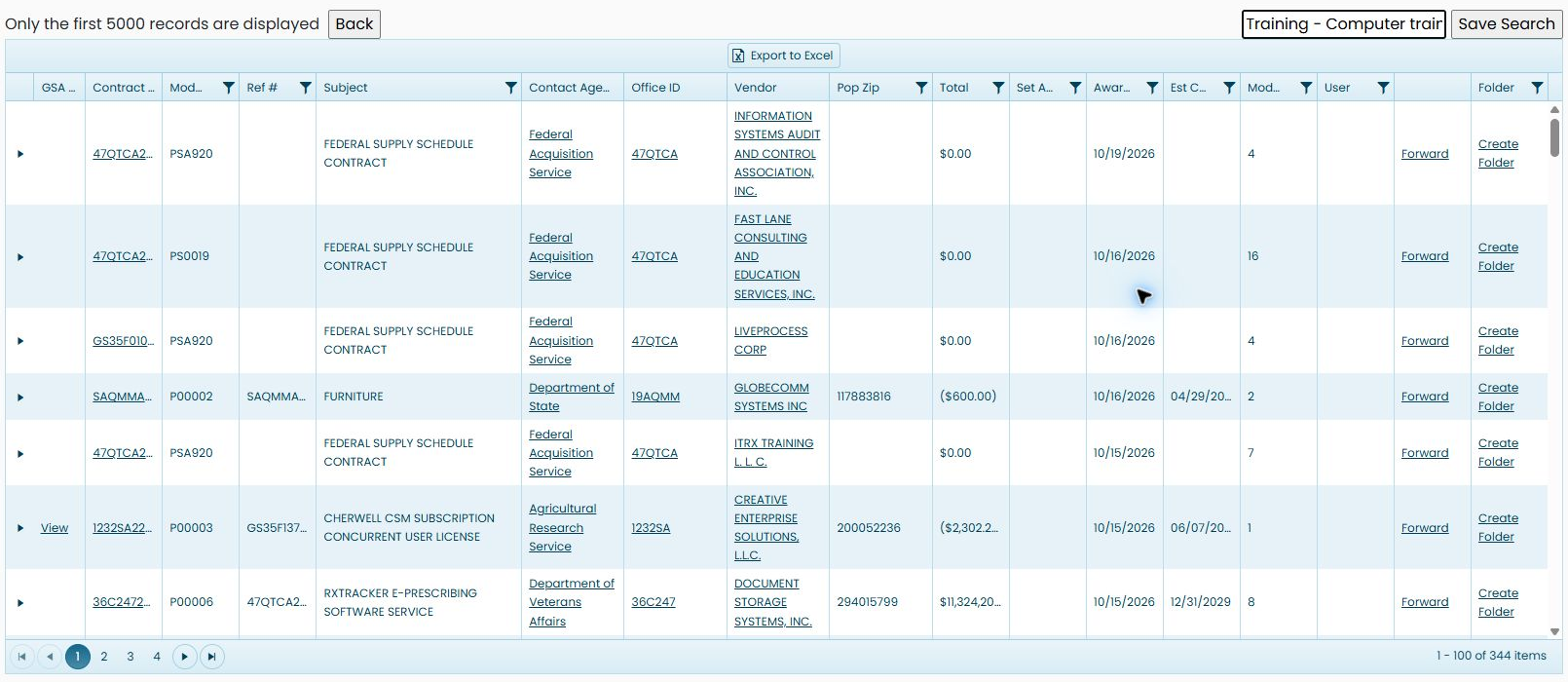
- Wait for the award summary to finish loading. The October 24, 2026 example contains 344 items, with 100 on the first page.
- In the text box beside Save Search, enter a descriptive name. This example uses Training - Computer training awards 2026.
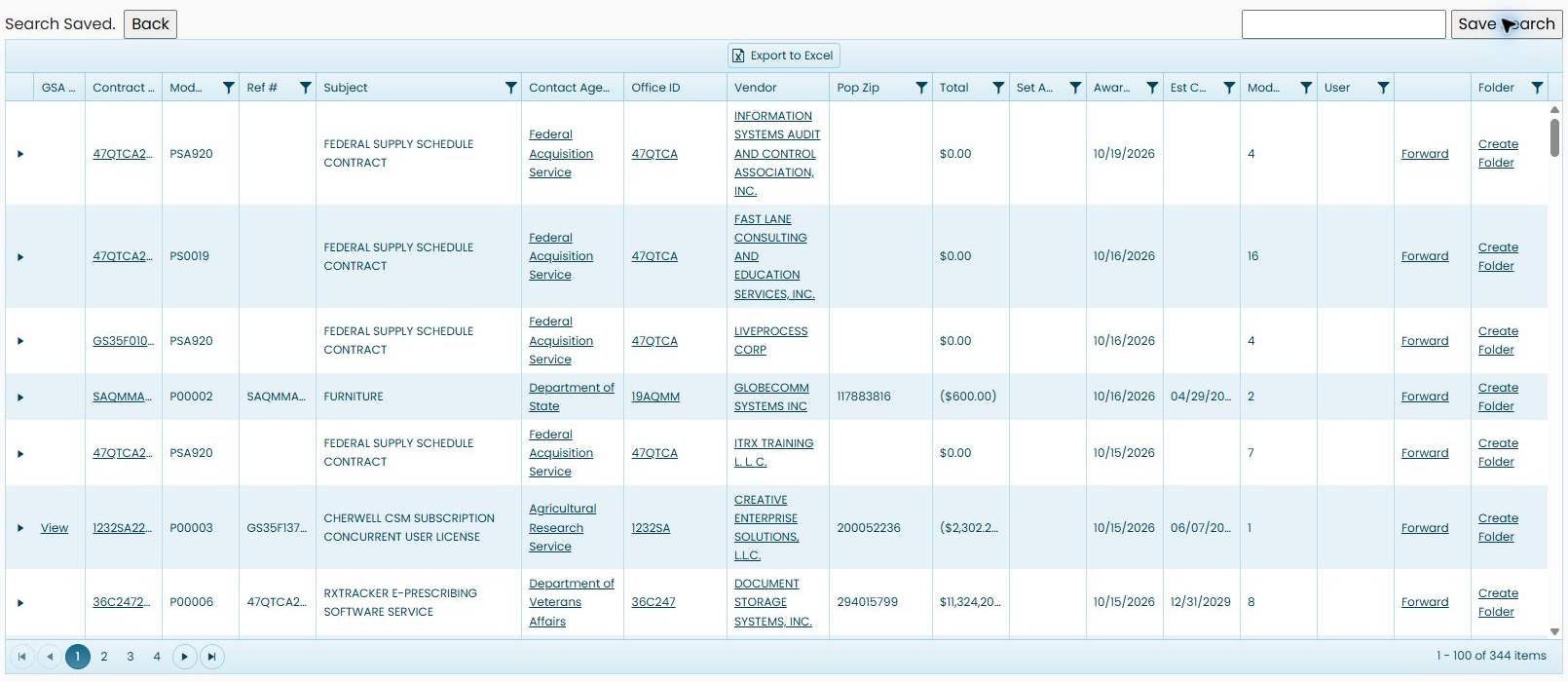
- Select Save Search. The page displays Search Saved. and clears the name box.
Reopen the named search
- Return to Main Menu and choose Saved Searches.
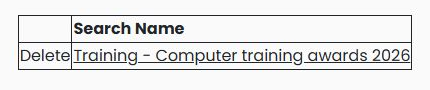
- Find your name under Search Name.
- Select the linked name to reopen that search's result page.
- Wait for the results to load, then use the normal result links, paging and export controls.
The reopened example again displayed 344 items. Counts can change as the underlying data changes; a saved search is a way back to the search, not a frozen Excel workbook.
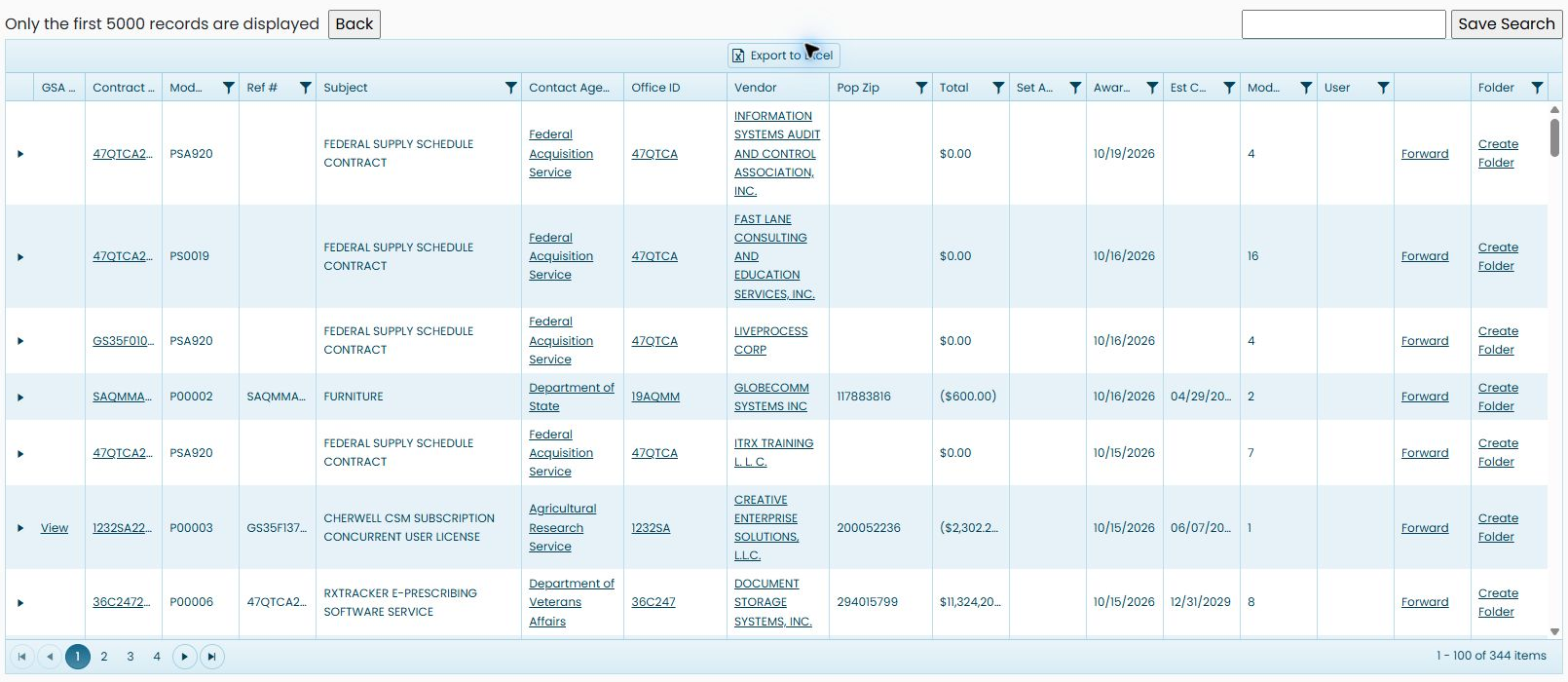
Continue with Award History results and their worksheet to read the summary, expand its records and use the export.
Understand the list controls
Search Name is the name you entered and the link that reopens the search. Delete is the control beside that saved entry for removing it from the list. Choose it only when you no longer want that saved entry. An account with no displayed saved entries may show no inner table; return to a results page with Save Search to create an entry.
Saved searches and recurring opportunities
A named saved search is different from the recurring matching criteria used for Just My Opportunities. Saving the demonstrated award search gives you a link to run it again. It does not establish a new recurring opportunity-monitoring rule. For assigned opportunities, use Just My Opportunities.