Read commercial prospecting results and the Excel output
Part of these button learning paths: Commercial Prospecting
Video sections for this page
- 1:07 — Read the company results
- 1:34 — Use the result links
- 1:54 — Inspect the selected cleaning company
- 2:21 — Read the hospital section
- 2:47 — Read the university section
- 3:55 — Review the statewide company list
- 4:20 — Read the nursing-home section
- 4:46 — Read the state-prison section
- 5:12 — Create a current workbook from the results
- 5:37 — Read company contacts and identifiers
- 6:03 — Review company flags and industry codes
- 6:30 — Read the service and office worksheet
- 6:56 — Read the hospital worksheet
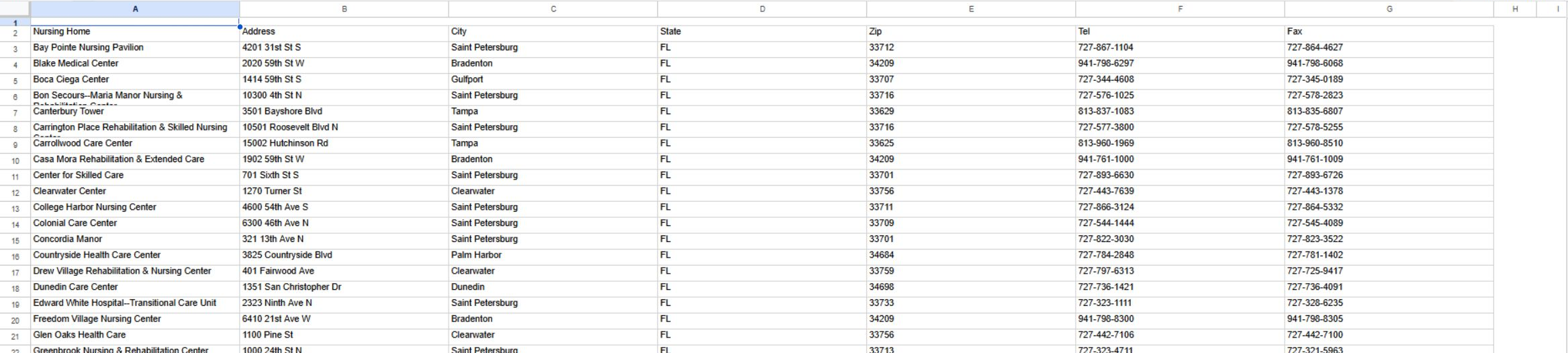
- 7:17 — Read the nursing-home worksheet
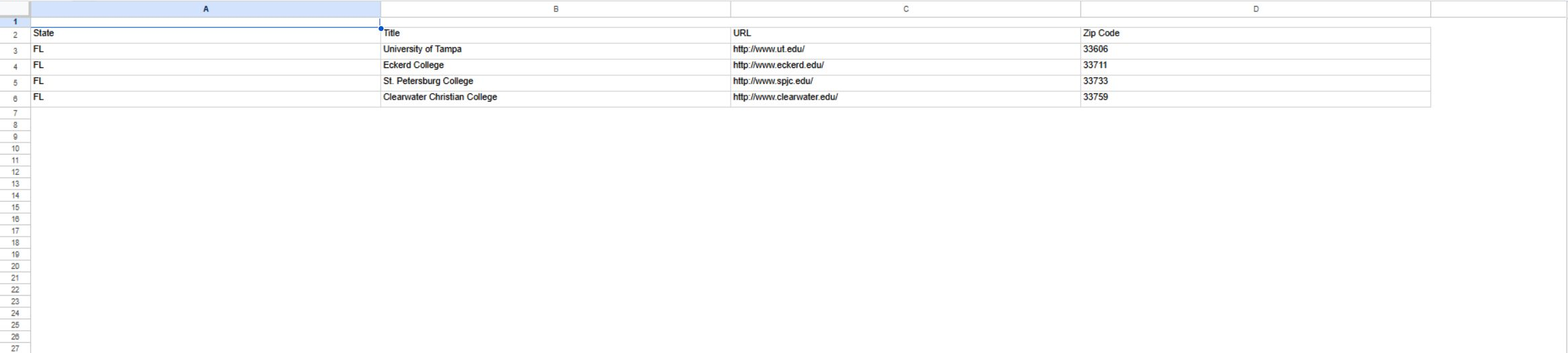
- 7:37 — Read the university worksheet
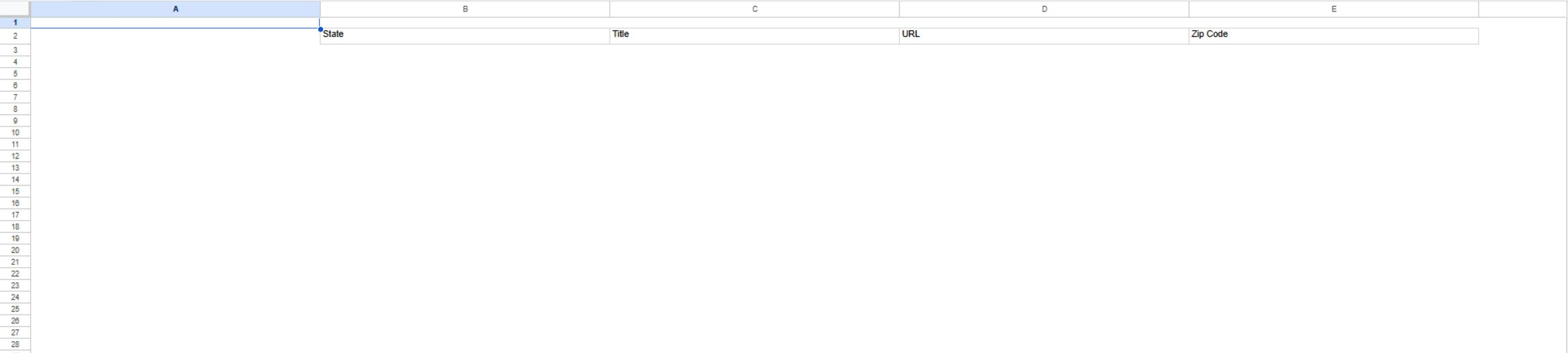
- 7:58 — Read the state-prison worksheet layout
From Main Menu → B2B → Commercial Prospecting, enter a location and market term, select the institution lists you need, and press Search. The UMRResults page shows company rows plus the selected institution sections. The two October 12, 2026 searches below exercised both geographic routes and all four optional institution sections. On a company row, View Details, Email, the linked company name, and Map It! are available actions. Follow View Details to research a company, then use browser Back to return to results and Back again to return to the form. See the search form guide for every input.
Example 1: ZIP radius and NAICS
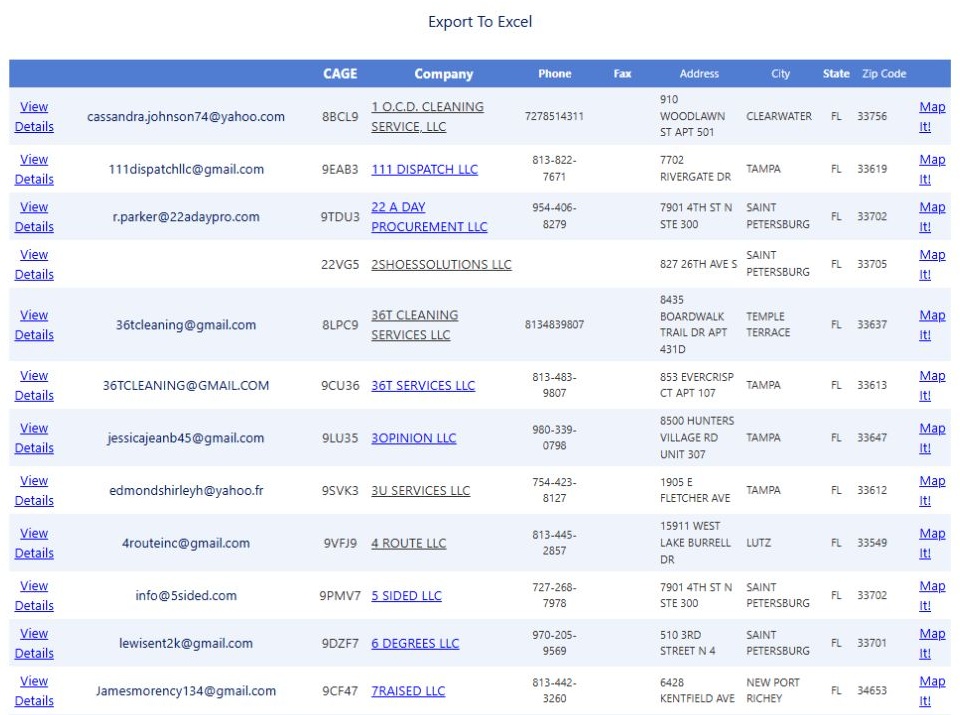
From Main Menu → B2B → Commercial Prospecting, the October 12 search used ZipCode 34684, Radius 25, no State or Bus Type, NAICS Code 561720, a blank Keyword, and an unchecked Over 1 Million in Sales to the Government box. Hospitals and Universities were selected. After Search, UMRResults showed a populated company grid with 50 rows per page, 29 hospital rows, and 6 university rows. The first company row was O.C.D. CLEANING SERVICE LLC, CAGE 8BCL9, Clearwater, FL 33756.
Open the ZIP and NAICS results at full size.
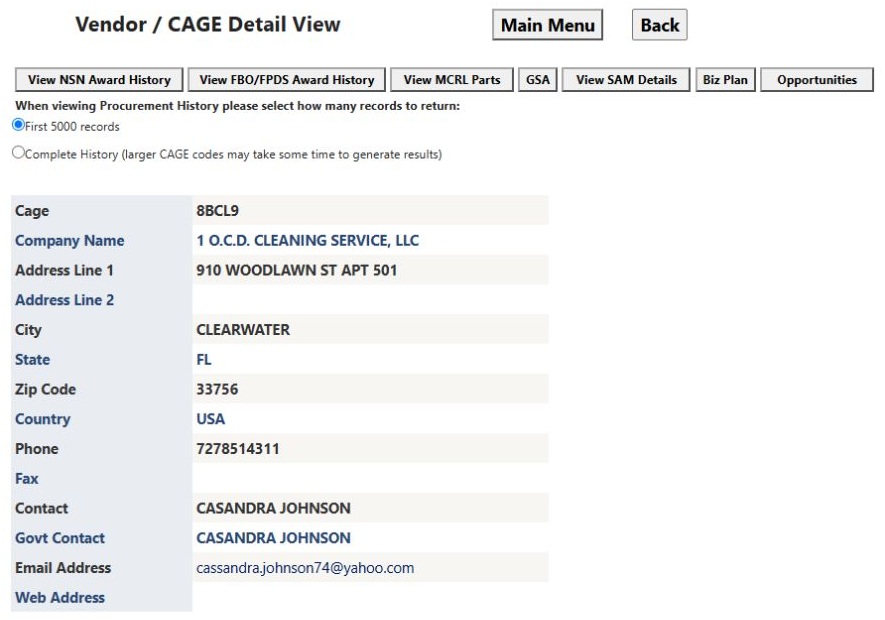
Select View Details beside 1 O.C.D. CLEANING SERVICE, LLC, CAGE 8BCL9, to open the Vendor / CAGE Detail View shown below. This profile displayed the company address and seven research buttons: View NSN Award History, View FBO/FPDS Award History, View MCRL Parts, GSA, View SAM Details, Biz Plan, and Opportunities. Each starts research for this company; the contractor profile guide explains the award, parts, GSA, registration, planning and opportunity screens with a company example.
Open the O.C.D. company profile at full size.
Browser Back returned to this UMRResults page; Back again returned to the populated search form.
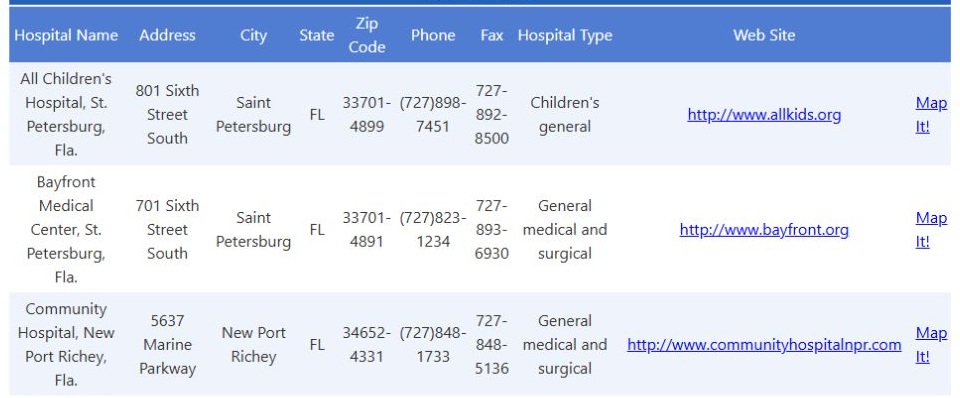
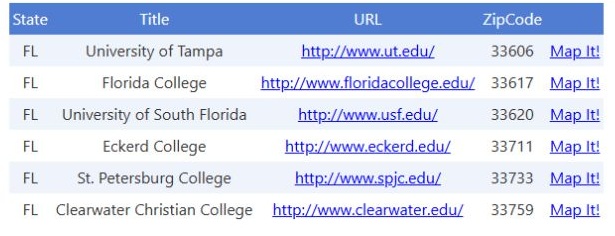
Below the contractors, read Hospitals as facility leads with location, contact, type and website fields; read Universities as institution leads with State, Title, URL and ZipCode. They are shown because their boxes were selected for the area. The NAICS choice does not classify those institutions.
Open the hospital results at full size.
Open the university results at full size.
Example 2: state, business type and keyword
Back on the form, the October 12 search left ZIP and NAICS blank, selected Florida and Women-owned Business, entered janitorial in Keyword, left the sales flag unchecked, and selected Nursing Homes and State Prisons. Search opened a populated UMRResults page with 50 company rows per page, 543 nursing-home rows, and 75 state-prison rows. The first company was “#1 CLEANING”, LLC, CAGE 8NQP5, Panama City, FL 32404. Abbey Delray appeared first in Nursing Homes; Apalachee-E C.I. appeared first in State Prisons.
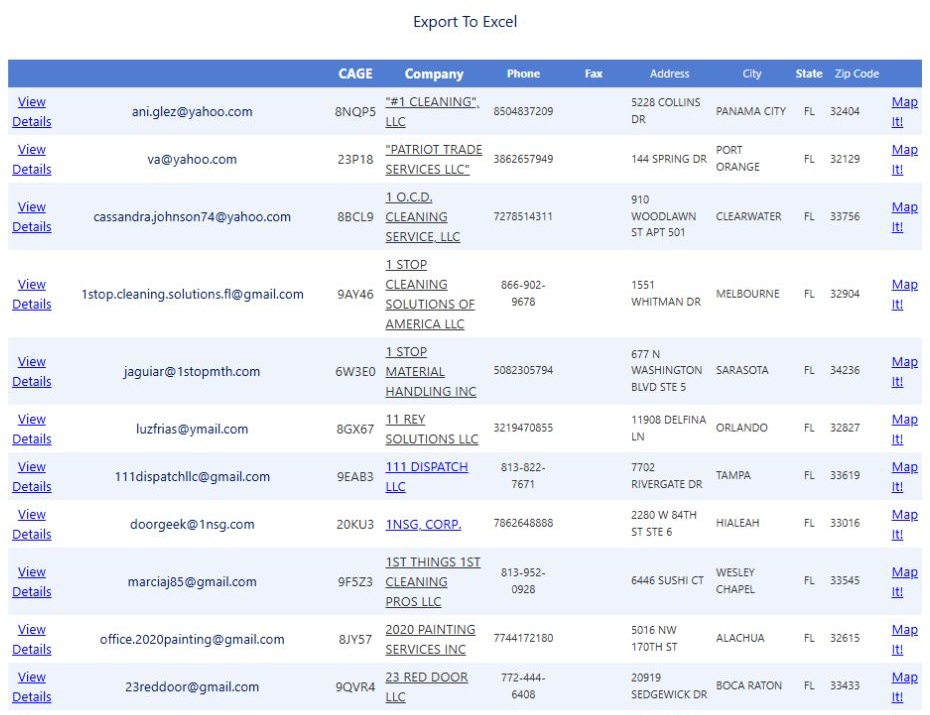
Open the Florida company results at full size.
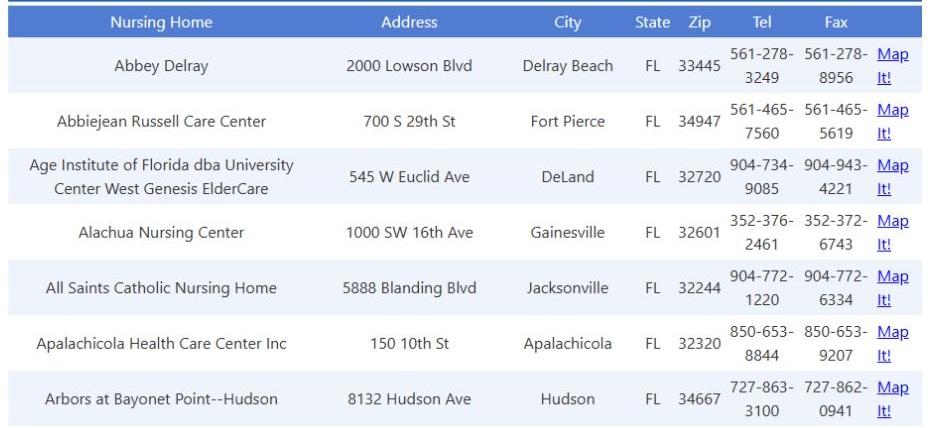
Open the nursing-home results at full size.
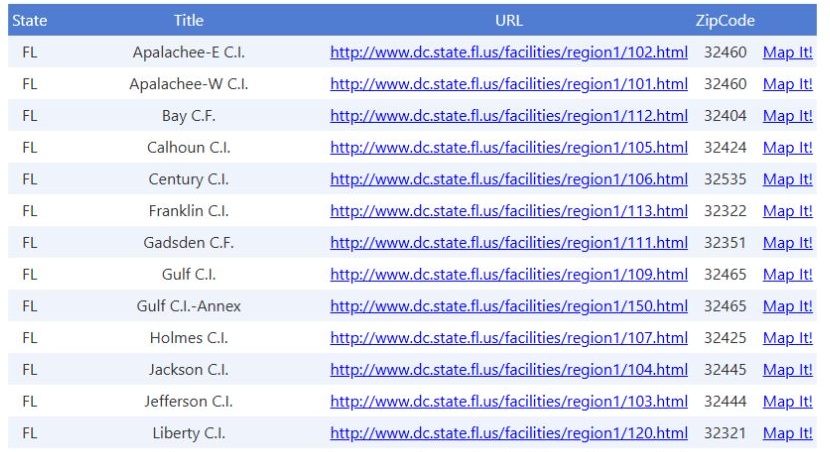
Open the state-prison results at full size.
The company list reflects the State, Bus Type and Keyword choices. The nursing-home and prison lists are geographic research leads, independent of the company classification and market term. Use their names and available location or website fields to find the appropriate buyer; a listing does not identify an open janitorial bid. These saved results reflect the October 12 search; confirm current contacts before outreach. Browser Back returned from results to the search form so the criteria could be changed.
Contractors
The first performed ZIP-area and NAICS search showed company rows with View Details, contact information and Map It! links.
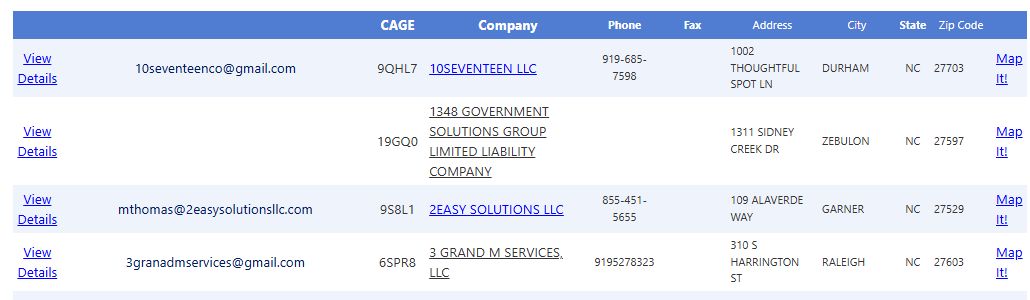
Open the company results image at full size.
In both observed searches, the company list showed 50 rows per page and sort controls. If an older results link no longer shows your search, return to the form and run it again. The other section row counts above are observed totals for their respective searches, not company counts.
| Column/action | Meaning and use |
|---|---|
| View Details | Opens the company profile. Available research links depend on whether the result has a CAGE; see contractor profiles. |
| Email link in an unlabeled column | Opens a draft addressed to the stored contact email. It does not send. Verify recipient and purpose before outreach. |
| CAGE | Recorded contractor facility identifier. Use with name and address to distinguish firms; blank CAGE needs the separate detail route. |
| Company | Stored legal business name, linked to the stored external web address. Confirm the link's destination and current ownership. |
| Phone, Fax | Stored contact numbers, not guaranteed current. |
| Address, City, State, Zip Code | Stored business location. A ZIP-radius search uses this geography for companies; the address does not mean the firm works at every institution listed below. |
| Map It! | Passes the row's name, coordinates and address to the site's map page in a new tab. Check the mapped point against the street address before planning a visit. |
Optional institution sections
These lists use the selected area, but do not use the company's NAICS, Keyword, Bus Type or sales flag. A hospital on the page therefore need not match the company industry filter. The Commercial Prospecting form has no choice for military facilities.
| Section | Every displayed field/action | How to use it |
|---|---|---|
| Hospitals | Hospital Name, Address, City, State, Zip Code, Phone, Fax, Hospital Type, Web Site, Map It! | Identify a nearby facility and verify its current name, type and purchasing process. Hospital Type is a stored classification, not a contract type. |
| Nursing Homes | Nursing Home, Address, City, State, Zip, Tel, Fax, Map It! | Research the facility and confirm its current operator and buyer before outreach. Tel is the stored telephone field. |
| Universities | State, Title, URL, ZipCode, Map It! | Title identifies the stored institution listing; the URL is an external site. Inspect purchasing and campus location there rather than assuming a central address from ZipCode alone. |
| State Prisons | State, Title, URL, ZipCode, Map It! | This is a location/institution lead. Check the current agency procurement site for opportunities and access rules. |
Read each field in those sections as follows. The same label can occur in several institution lists; its details and update timing can differ by list.
| Displayed field/action | Meaning and reason to use it |
|---|---|
| Hospital Name | Stored name of a hospital. Confirm the current institution and campus before mapping it to a buyer. |
| Nursing Home | Stored name of a nursing-home facility. The operator or purchasing group may differ from that facility name. |
| Title (Universities, State Prisons) | Stored listing title for the university or prison. Verify the present campus, agency and procurement office from its linked official site. |
| Address (Hospitals, Nursing Homes) | Recorded street address. It supports location checks; it is not a contracting office address by itself. |
| City | City of the recorded hospital or nursing-home location. Use with the full address when several facilities share a name. |
| State | State of the recorded facility/institution. It is a geographic filter and map cue, not the location of all contracts the organization may award. |
| Zip Code, Zip, ZipCode | Postal code under the label used by each grid. Preserve leading zeroes; a stored code may describe a campus or institution rather than an individual worksite. |
| Phone, Tel | Stored main telephone number under the label used by each grid. Verify the current purchasing contact before outreach. |
| Fax | Stored fax number where that grid provides it; verify it before sending any document. |
| Hospital Type | Stored category for the hospital. It does not specify a procurement vehicle or service requirement. |
| Web Site (Hospitals) | Stored hospital website address. Check the destination and locate its present purchasing instructions. |
| URL (Universities, State Prisons) | Stored institution website address. It may be an agency or general landing page, so navigate to current procurement notices. |
| Map It! | Opens the site's map view with stored name, coordinates and available address/ZIP. Verify the marker with current location details before using it for travel or market boundaries. |
To open the military-facility list, go to Main Menu → Research → Federal and State Institutions, choose a state, select Military and Federal Purchasing Locations, and press Submit. On the results page, select a row's View Awards link to open its award history. The facility list displays State, Service, Facility, Zip Code and the actions below. Those links help you find office contacts, presolicitations and historical awards for further research.
| Military-grid field/action | Meaning and use |
|---|---|
| State | Stored facility state, for regional comparison. |
| Service | Recorded military service or organizational designation; confirm the current buyer. |
| Facility | Recorded DoD facility name linked to its stored external facility URL. The site may change. |
| Zip Code | Facility postal code; use it to distinguish similarly named locations. |
| Representative / Contact Emails | Uses the stored representative name/link when available; otherwise opens this site's facility-contact page. It is a contact lead, not an authority to send a proposal. |
| View Presols | Opens this site's presolicitation route scoped by ZIP and contracting-office ID. Check dates and original notice. |
| View Awards | Opens Award History for the contracting office or ZIP shown by the facility row. Use the Award History field reference to read its standard award fields. An award is not a current opportunity. |
| View SADBU | When available, opens small-business information associated with the facility's ZIP. |
| View Phone Book | Appears only when a stored phonebook URL exists. Verify the source and freshness. |
| Map It! | Uses stored facility coordinates and ZIP to open the map page; validate the point before travel. |
Export To Excel
Export To Excel can produce a report using the area and company search. Its workbook can include contractors, military facilities, hospitals, nursing homes, universities and prisons—even categories that were not shown on the results page. Review each section by its heading; its contents may differ from the visible page and its 50-row paging. The saved workbook below explains the six worksheet layouts.
Older UMR workbook: six worksheet layouts
A saved January 2023 UMR.xls sample has six worksheets named Sheet1 through Sheet6. It illustrates one older workbook layout only; its rows are not current search results. Use the headings to understand the kinds of information the tabs can hold, and rely on a newly downloaded file for current results.
Sheet1 — company contacts
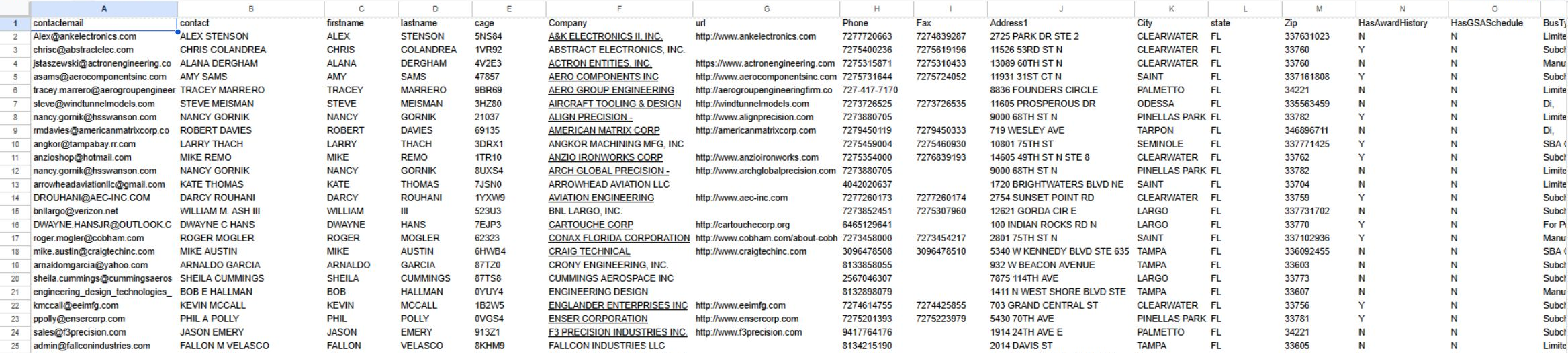
Open the first Sheet1 view at full size.
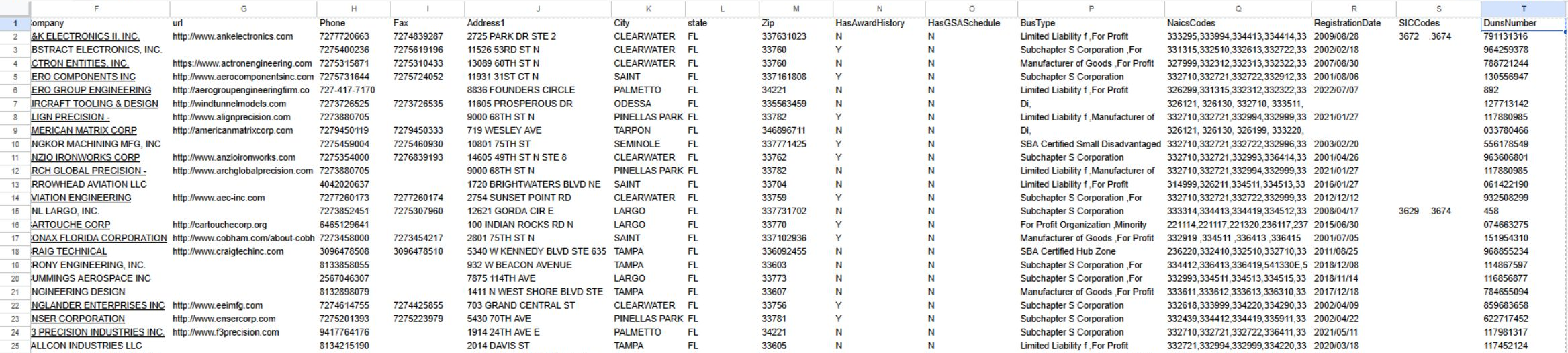
Open the second Sheet1 view at full size.
| Heading | Use |
|---|---|
| contactemail | Email address listed for the company contact. |
| contact, firstname, lastname | Contact name fields. contact is the displayed contact text; first and last name are separate fields. |
| cage, DunsNumber | Company identifiers. Keep them as text. |
| Company, url | Company name and listed website address. |
| Phone, Fax | Listed business phone and fax numbers. |
| Address1, City, state, Zip | Company mailing/location fields. Preserve the ZIP as text. |
| HasAwardHistory | Indicates whether the row is marked as having award history. |
| HasGSASchedule | Indicates whether the row is marked as having a GSA Schedule. |
| BusType | Business-type field shown for the company. |
| NaicsCodes, SICCodes | Industry classification codes listed for the company. |
| RegistrationDate | Company registration date shown in the sample. |
Sheet2 — service and facility/office listing
The headings are State, Service, Do D Facility, rep URL, and fac URL. State gives the location and Service names the service or organization. Do D Facility contains the facility or office name; the saved example includes a U.S. Attorneys Office. rep URL is the address used for the representative contact link, and fac URL is the address used for the facility link.
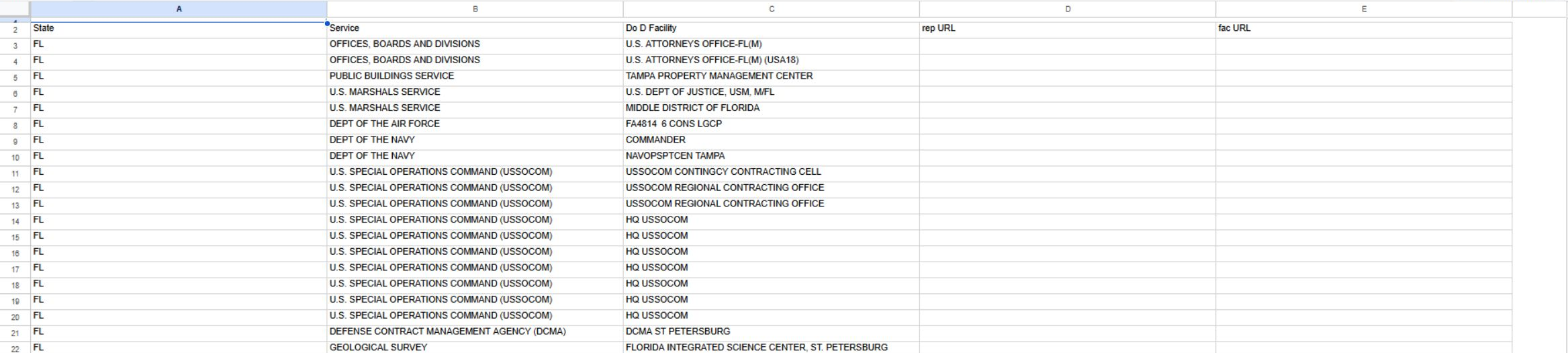
Open the Sheet2 view at full size.
Sheet3 — hospitals
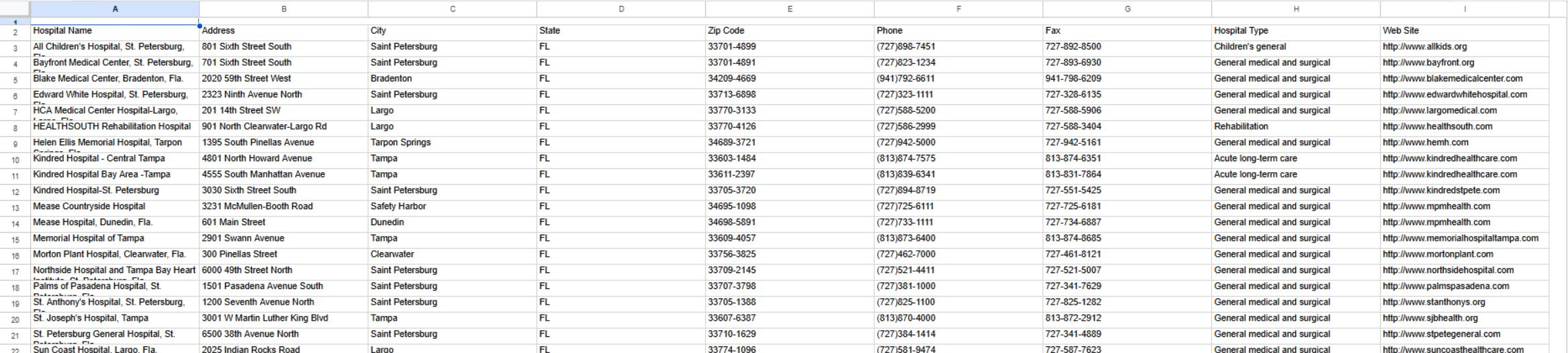
Open the Sheet3 view at full size.
| Heading | Use |
|---|---|
| Hospital Name | Name of the listed hospital. |
| Address, City, State, Zip Code | Hospital location fields. Keep the postal code as text. |
| Phone, Fax | Listed hospital telephone and fax numbers. |
| Hospital Type | Hospital category shown in the worksheet. |
| Web Site | Website address listed for the hospital. |
Sheet4 — nursing homes
Open the Sheet4 view at full size.
| Heading | Use |
|---|---|
| Nursing Home | Name of the listed nursing-home facility. |
| Address, City, State, Zip | Facility location fields. Keep the postal code as text. |
| Tel, Fax | Listed telephone and fax numbers. |
Sheet5 — universities
This tab's first sample entries are University of Tampa and Eckerd College. Its headings are State, Title, URL, and Zip Code. State and Zip Code give the listed location; Title names the university; URL is its website address.
Open the Sheet5 view at full size.
Sheet6 — state prisons
This tab contains a header row only in the saved example: one blank heading followed by State, Title, URL, and Zip Code. In populated rows, Title names the institution, State and Zip Code give its location, and URL gives its website address. The unnamed column is blank in this example.
Open the Sheet6 view at full size.
Download this article as Markdown