Find prospective teaming and subcontracting partners
Part of these button learning paths: Teaming/SubContractor Data · Agency Profiles/Forecasting
Video sections for this page
- 0:00 — Open Teaming/SubContractor Data
- 0:07 — Search by industry or award keyword
- 0:43 — Read the company matches
- 1:23 — Read all visible result fields
- 1:58 — Review the matching company profile
- 2:34 — Return to the matching results
- 2:56 — Review the partner-list worksheet
- 3:27 — Use the worksheet for follow-up research
Video sections for this page
Application path: Main Menu → Research → Teaming/SubContractor Data → enter NAICS Code or Keyword → Search Contractors.
From Main Menu → Research, choose Teaming/SubContractor Data. Enter a NAICS Code or Keyword, add any filters, then select Search Contractors to open the company results. Use a company link or row action to inspect its profile and recorded awards; Back returns to the search. Use these histories to choose whom to research for a possible team, not as proof that a company is currently seeking a partner.
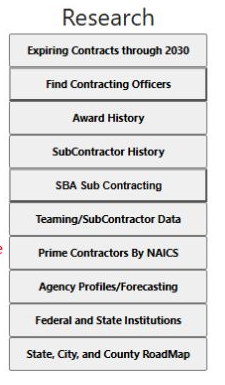
The actual Main Menu Research column shows Teaming/SubContractor Data and the other research choices.
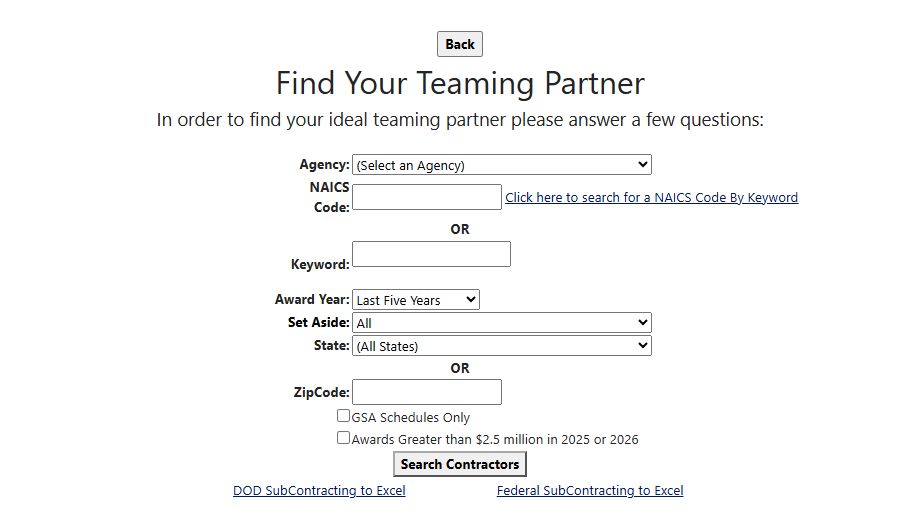
Find Your Teaming Partner form, October 11, 2026. Enter a NAICS code or keyword, then add any buyer, year, company or location filters you need before selecting Search Contractors.
Build a valid search
Enter a NAICS Code or Keyword; at least one is required. If both are blank, the page asks you to enter a NAICS Code. If you enter both, the search requires both conditions. The NAICS code is an exact industry-code match; Keyword looks for words in recorded award requirement descriptions; use simple terms rather than punctuation. A broad term may return unrelated companies, while a very specific pair may return none.
| Field or control | Meaning and useful choice |
|---|---|
| Agency | Optional exact awarding-agency identifier. Choose it when a teaming plan targets a particular government buyer. |
| NAICS Code | Exact industry code for the award-side match. Use the code associated with the capability, not merely the company's marketing description. |
| Click here to search for a NAICS Code By Keyword | Opens a helper list. Enter a term, choose Find NAICS, then select a row to copy its code into the main search. The helper shows naics (code) and name (industry description); Go Back To Find Your Teaming Partner returns to the form. |
| Keyword | Phrase in the recorded contract-requirement description. Check the actual awards before assuming the company performed the exact work you need. |
| Award Year | Defaults to Last Five Years. This may include six named calendar years: the current year and the five previous years. Explicit years in the menu currently stop at 2024, so a current-year search requires the default rather than a year-specific selection. |
| Set Aside | Filters a stored company business-type code, not the set-aside designation on each matched award. Values include 8(a), HUBZone, ownership and veteran categories. Verify present certification separately before pursuing a set-aside teaming strategy. |
| State | Exact company-address state filter. It locates the company record, not necessarily contract performance. |
| ZipCode | Company postal-code prefix. The visible “or” separator does not describe the combined search: State and ZipCode are both required when both are entered. It is not a radius search. |
| GSA Schedules Only | Requires a stored company flag that indicates a GSA schedule. Confirm current schedule status and scope from the official schedule record. |
| Awards Greater than $2.5 million in prior/current year | Narrows to companies marked with this award-volume flag. The screen does not calculate or display an individual dollar total for it. |
| Search Contractors | Runs the selected company/award search and opens its result page. |
| DOD SubContracting to Excel / Federal SubContracting to Excel | Opens separate reference workbooks, not this search's results. See how to read the subcontracting workbooks. |
| Back | Returns through browser history. |
Results include companies with matching recorded awards for the same CAGE. A company with no matching recorded award can be absent even if it is otherwise a capable supplier.
To review reported prime/subcontract pairs and the subcontract award fields, use SubContractor History and its result and export guide. The two searches answer different questions and do not share a single result set.
Read the company results
The visible grid pages 50 companies at a time and permits sorting. Its fields are:
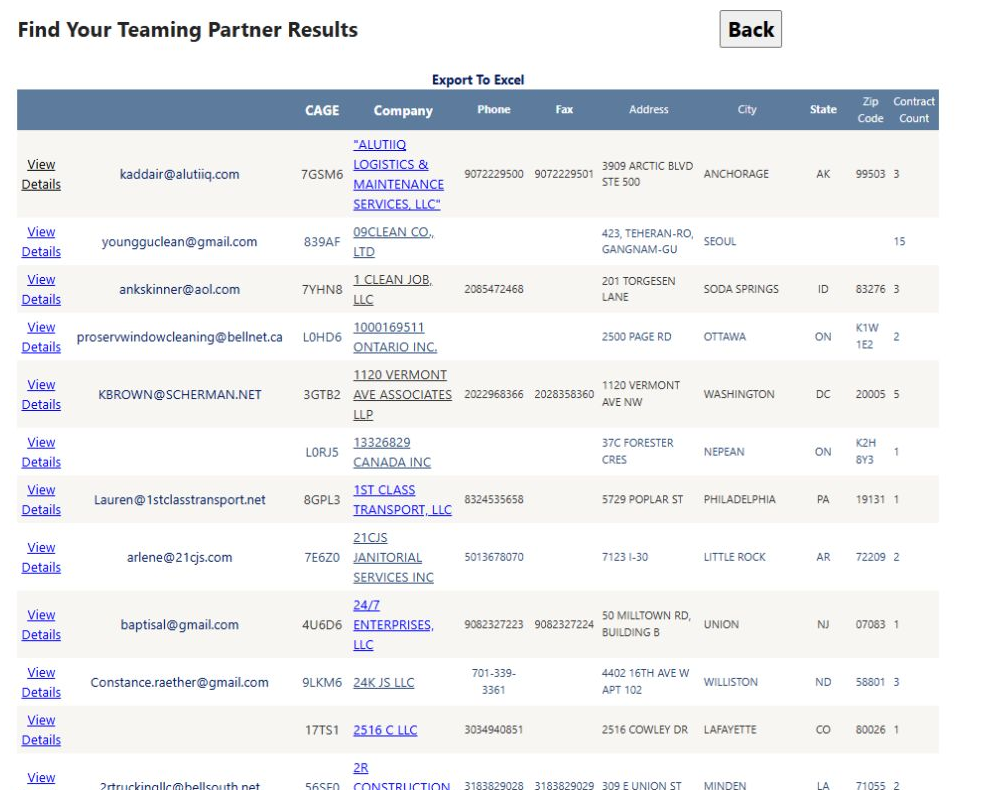
Actual October 14 results associated with NAICS 561720 and Last Five Years. The first row is CAGE 7GSM6, ALUTIIQ LOGISTICS & MAINTENANCE SERVICES, LLC, with Contract Count 3. The full visible grid includes View Details, email, CAGE, Company, Phone, Fax, Address, City, State, Zip Code and Contract Count.
| Field or action | Meaning and next step |
|---|---|
| View Details | Opens the company detail, normally by CAGE. Confirm the entity and current registration there; see the company result and profile guide. |
| Unlabeled email link | Shows the stored company contact email text and opens a draft when used. Verify the person and address before sending. |
| CAGE | Company identifier. Keep it as text and compare it with current official registration. |
| Company | Stored legal business name; distinguish it from trade names and from the contact person. It may link to the company's stored website. |
| Phone / Fax | Stored contact numbers. Validate before outreach. |
| Address / City / State / Zip Code | Stored company location, not necessarily its performance site or all operating locations. Preserve postal-code leading zeros. |
| Contract Count | Number of contract numbers represented among the matching awards. It is not an award-dollar total, current backlog or number of successful teaming projects. |
| Export To Excel | Downloads the matching company results for review in Excel. |
| Back | Browser history. |
Follow a matching company profile
The observed View Details destination for the first result, CAGE 7GSM6, identifies ALUTIIQ LOGISTICS & MAINTENANCE SERVICES, LLC. Its Vendor / CAGE Detail View lists address lines, city, state, ZIP code, country, phone, fax, contact, government contact, email address and web address. The screen has separate actions for award histories, MCRL parts, GSA, SAM details, Biz Plan, Opportunities and SubContractor Report. Browser Back returned to the same result list and the same first row.
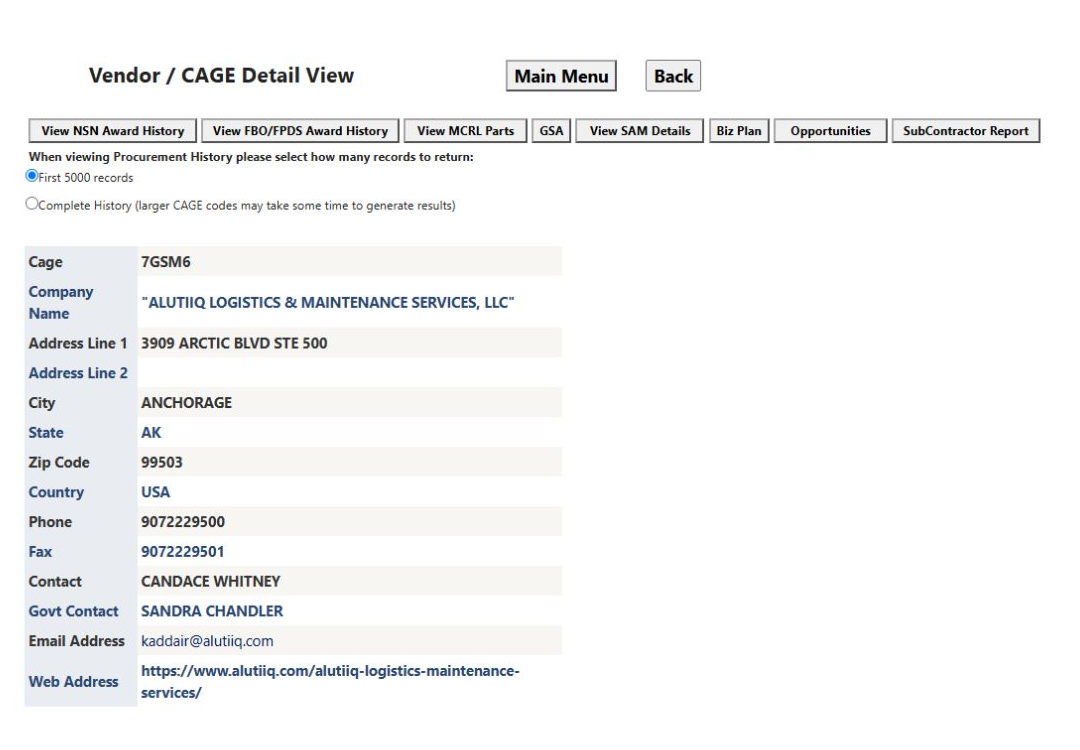
The profile for CAGE 7GSM6 associated with the View Details link in the October 14 result list.
The download can contain more rows than one 50-row results page. The table above explains the fields and actions shown on the page; check the downloaded file's own headings before sorting or sharing it.
Use the exported teaming results
Choose Export To Excel on the results page to download the matching company list. The observed NAICS 561720 example produced 3,534 data rows. This export has its own 11-column layout; it is separate from the 14-column All Government Contractors contacts export described in Company Results.
| Worksheet heading | What it tells you |
|---|---|
| Email address recorded for the contact. Confirm it before outreach. | |
| Contact | Name of the contact recorded for the company. |
| CAGE | Company identifier. Compare it with current registration before relying on a match. |
| Company | Business name recorded for the company. |
| Phone, Fax | Contact telephone and fax numbers, when present. |
| Address, City, State, Zip Code | Company address fields. Keep Zip Code as text so leading zeros are retained. |
| Contract Count | Number of contract numbers represented in the matching awards. It is not an award-dollar total or a measure of current backlog. |
The actual worksheet example below came from the NAICS 561720 search described above. The two views together show all 11 headings and the first 19 data rows.
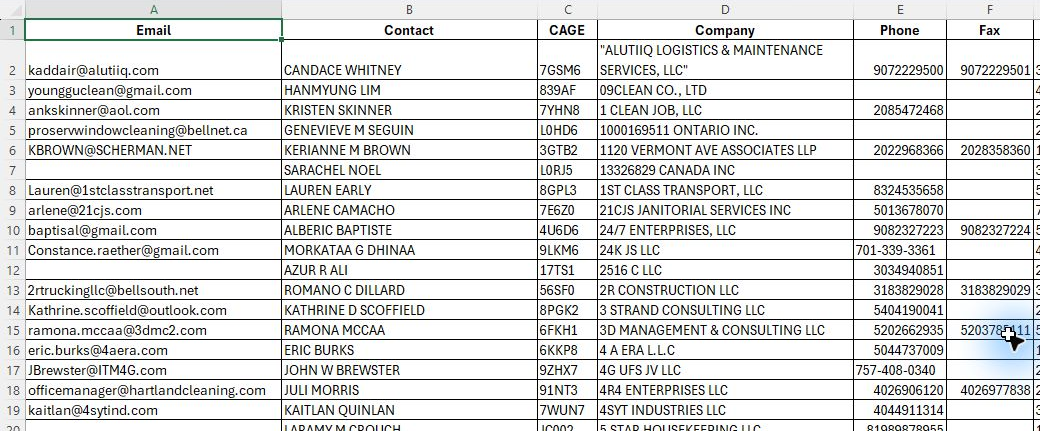
Open the Email-through-Fax worksheet view at full size.
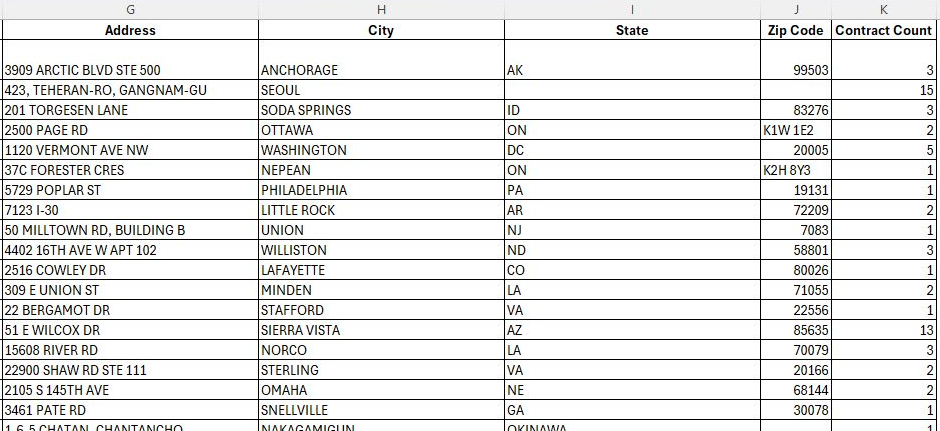
Open the Address-through-Contract-Count worksheet view at full size.
Read the subcontracting workbooks
The DOD SubContracting to Excel and Federal SubContracting to Excel links open separate workbooks. You can open either link from this page, or from Main Menu → Research → Agency Profiles/Forecasting. These files are not filtered by the company search above. Each workbook has one sheet with contract-level rows. Neither sheet shows an overall report date or reporting period, so use the dates on each row and confirm current status from the relevant official contract record.
In the DOD workbook, use NAICS and NAICS Description for the industry, and PSC for the product or service classification. Compare the contractor and office details with the contract dates and amounts. Ultimate Contract Value and Dollars Obligated are separate amounts; do not treat the obligated amount as the total contract value.
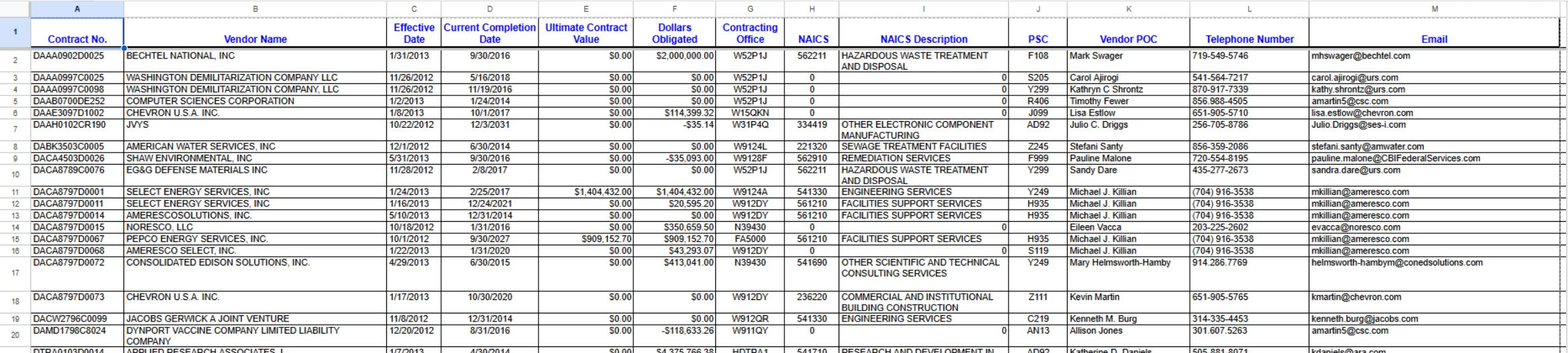
Open the DOD worksheet image at full size.
| DOD worksheet heading | What it identifies |
|---|---|
| Contract No. | Contract identifier. |
| Vendor Name | Contractor named on the contract. |
| Effective Date | Contract effective date. |
| Current Completion Date | Completion date shown for the contract. |
| Ultimate Contract Value | Contract value shown in the workbook. |
| Dollars Obligated | Amount shown as obligated under the contract. |
| Contracting Office | Contracting office identifier shown for the contract. |
| NAICS, NAICS Description | Industry code and its description. |
| PSC | Product or service code. |
| Vendor POC | Vendor point of contact. |
| Telephone Number, Email | Contact details listed for the vendor point of contact. |
The sample's final column has no heading and is blank.
In the Federal workbook, use NAICS Code and Product or Service Code to find work in an industry or product/service area. Compare the contractor's address with the Principal Place of Performance fields: the vendor's location and the work location can differ. Action Obligation is the amount obligated for the listed action, not the full contract value.
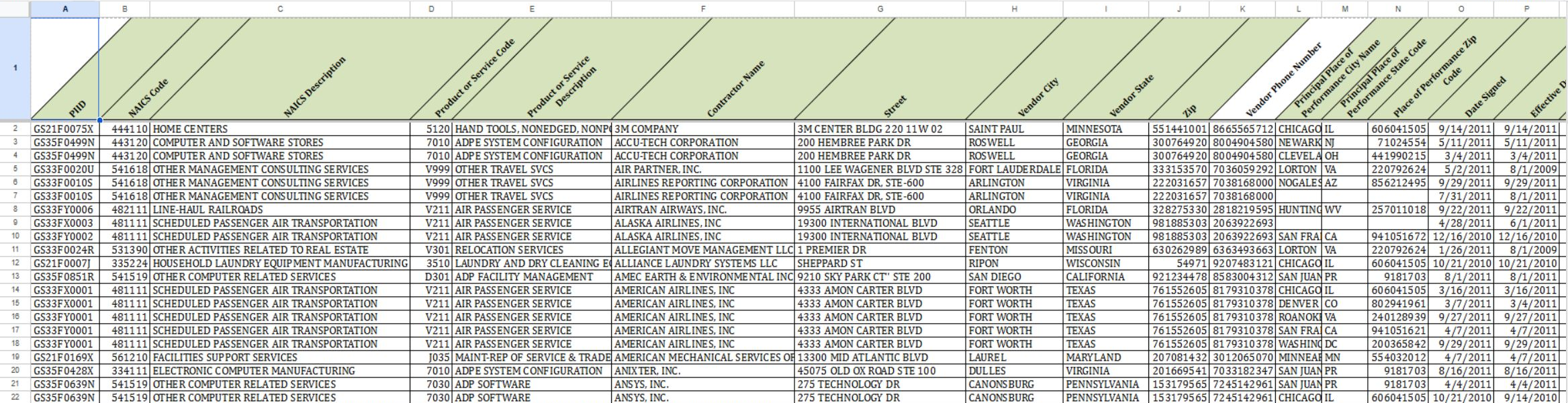
Open the first federal worksheet view at full size.
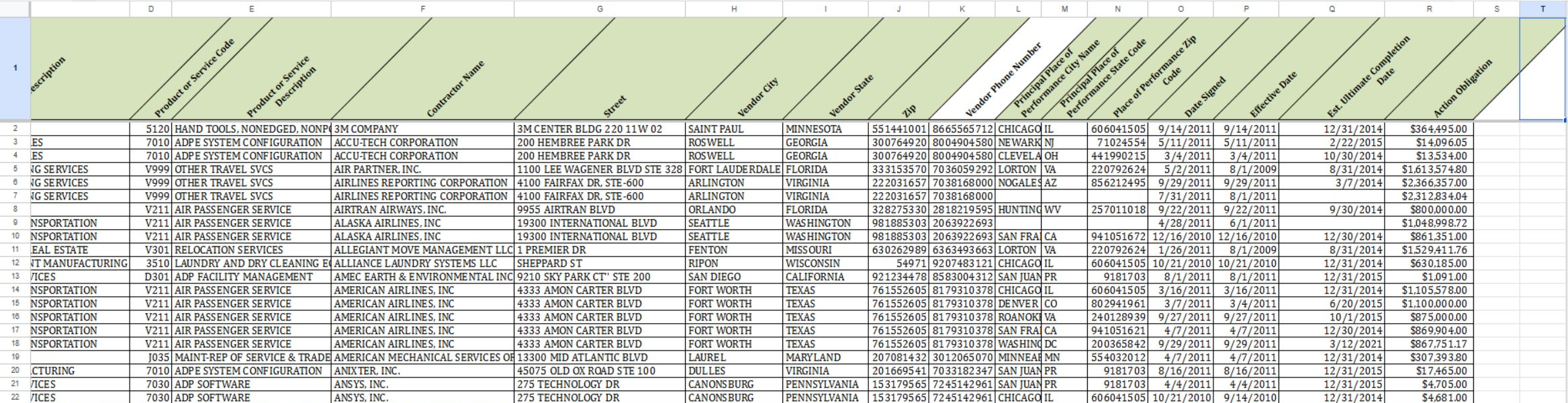
Open the second federal worksheet view at full size.
| Federal worksheet heading | What it identifies |
|---|---|
| PIID | Contract instrument identifier. |
| NAICS Code, NAICS Description | Industry code and its description. |
| Product or Service Code, Product or Service Description | Product or service classification and its description. |
| Contractor Name | Contractor named on the record. |
| Street, Vendor City, Vendor State, Zip | Contractor's mailing or business address. |
| Vendor Phone Number | Contractor telephone number. |
| Principal Place of Performance City Name, Principal Place of Performance State Code, Place of Performance Zip Code | Location where the contract work is performed. |
| Date Signed | Date the contract action was signed. |
| Effective Date | Date the contract action takes effect. |
| Est. Ultimate Completion Date | Estimated final completion date shown for the contract. |
| Action Obligation | Amount obligated for the listed action. |
The sample has two additional blank columns with no headings. Use browser Back to return to the page where you opened the workbook.
Example: locate a machining subcontractor
Planning recipe (not run for this guide): choose the relevant machining NAICS code, set Award Year to Last Five Years, and add a government agency only if the team needs past work with that agency. Search without a State/ZIP first to gauge the market; then narrow both together for a local partner. Compare Contract Count as context, open View Details, and review actual awards, capability, quality requirements and current registrations before suggesting a firm to a prime contractor. A company-business-type match is a screening clue, not certification evidence.
Download this article as Markdown