Read an NSN's award history
Part of these button learning paths: Research All Open Solicitations · Just My Opportunities · Machine Shops Opportunities · Unfulfilled NSN Opportunities · Search by NSN/NIIN · APL/AEL Historical · DLA Prime Contractors · Naics To FSC Cross · Commercial Part Number to NSN · Weapons System Designator Codes
Video sections for this page
Application path: Main Menu → NSN Opportunities → an NSN → the NSN in the solicitation results → Award History.
The item-level Award History lists purchases of the selected NSN. Use it to compare quantities, prices, dates and previous suppliers before deciding whether to research an opportunity further.
Example: compare purchases of a cap screw
Open NSN 5305007262550 through NSN Opportunities, select the NSN again in the solicitation results, then choose Award History on the item page.
On October 21, 2026, this screen displayed 80 items. The first row shows 150 units at $0.96 each, totaling $144.00, awarded February 11, 2026 to NOBLE SUPPLY & LOGISTICS, LLC. A separate row on the same date shows 87 units and $83.52. Read each row with its delivery order and line item rather than treating every repeated contract number as the same purchase.
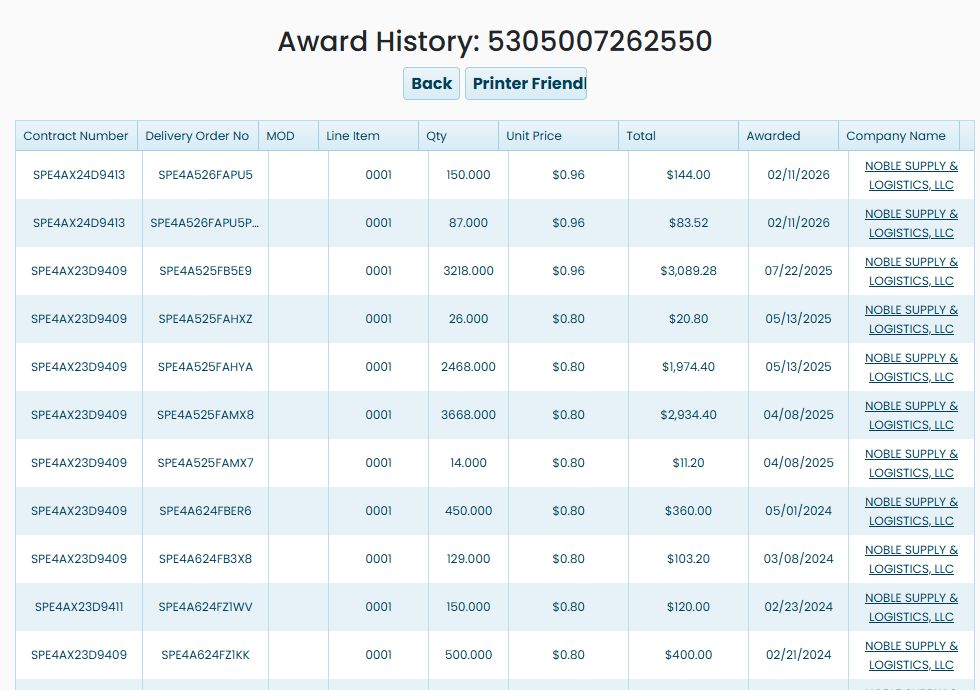
The screenshot shows the first part of the list. Continue down the grid to compare earlier purchases. For example, the July 22, 2025 row shows 3,218 units at $0.96, totaling $3,089.28. Quantities and dates provide context for a price comparison; a historical price is not a current supplier quotation.
What each column shows
| Column | Meaning and use |
|---|---|
| Contract Number | Identifies the contract associated with the purchase. It can appear on several rows. |
| Delivery Order No | Identifies an order under a contract when one is listed. Read it with the contract number. |
| MOD | The modification identifier, when supplied. |
| Line Item | Identifies the particular line of the purchase. |
| Qty | The quantity shown for that row. |
| Unit Price | The displayed price per unit. |
| Total | The displayed total value for that row. In the first example, 150 × $0.96 = $144.00. |
| Awarded | The award date shown for the row. |
| Company Name | The supplier recorded for the purchase. Read it with the contract and line item to identify the seller for that row. |
Award-line fields
| Column | Meaning and how to use it |
|---|---|
| Price | Unit price shown as currency. When Modified is Y, this value reflects a price adjustment; compare it with ReportedPrice below. |
Continue from this screen
Use Back to return to the item page and compare the purchase history with Tech. Characteristics or MCRL. Printer Friendly appears above the grid. Sort controls appear in the column headings, and the pager below the list shows the displayed range and total item count.