Review the next four months of expected completions
Video sections for this page
- 0:00 — Open Expiring Contracts 120 Days
- 0:17 — Read the Architectural row
- 0:54 — Open the Month1 action list
- 1:26 — Read the October 22 keyword overview
- 1:45 — Read the linked Award Details record
- 2:16 — Read the linked contracting-office record
- 2:40 — Choose among the six office-record links
- 3:05 — Review Contact Emails
- 3:17 — Review office presolicitations
- 3:39 — Open View Awards
- 4:03 — Open View Expiring Contracts
- 4:39 — Review OSDBU contacts
- 5:00 — Review FOIA contacts
- 5:29 — Follow the Month1 Vendor link to its company profile
- 5:48 — Open and read the Architectural agency report
- 6:14 — Open Bureau of the Census offices
- 6:37 — Inspect page 2 of the agency report
- 6:50 — Read the Architectural incumbent-company list
- 7:17 — Open the first incumbent company profile
Application path: Main Menu → Expiring Contracts 120 Days.
This report organizes opportunities and buying activity by keyword. Use it to choose a line of work and compare the counts and amounts. The examples below follow a month link and the agency and incumbent links for Architectural.
Read a keyword row
In the October 21, 2026 example, Architectural shows 84 awards, 24 agencies, 64 incumbents and 138 solicitations. The four expiration columns pair a contract count with a dollar amount. The first month shows 28 and $8,214,103.
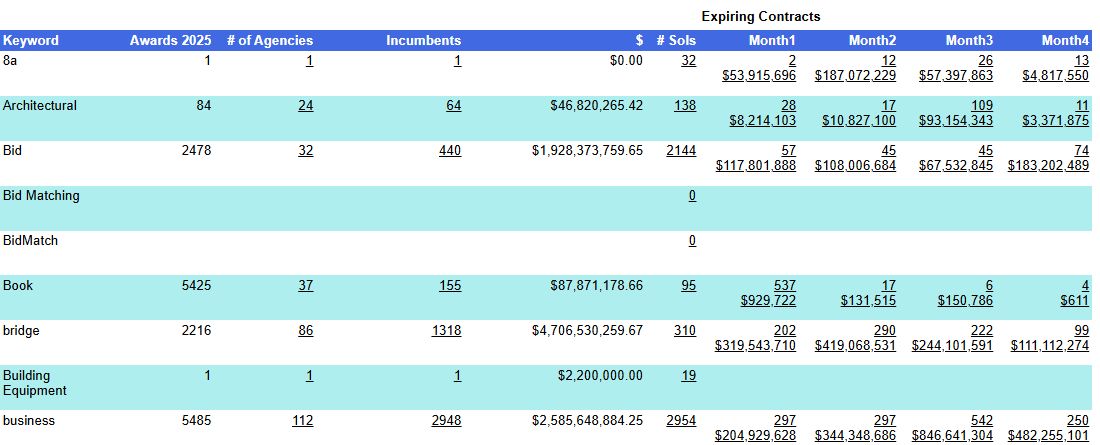
| Column | What it shows |
|---|---|
| Keyword | The word or phrase used for that row of research. |
| Awards 2025 | The award count for the year named in the heading. |
| # of Agencies | The number of agencies shown for the keyword; a linked count is displayed. |
| Incumbents | The count of companies shown for the keyword; a linked count is displayed. |
| $ | The displayed awarded-dollar total. |
| # Sols | The number of solicitation records; a linked count is displayed. |
| Month1–Month4 | Expected-expiration counts and dollar amounts for each of the four months. The example below shows a demonstrated Month1 drill-through. |
The illustrated month links cover October 2026 through January 2027. Use the dates in the opened contract results when reviewing a later report.
Open an expiration list
- Find Architectural in the Keyword column.
- Select 28 under Month1.
- Read the resulting Award History list. It shows the contract identifiers, descriptions, buying offices, suppliers, amounts and completion dates behind the selected research route.
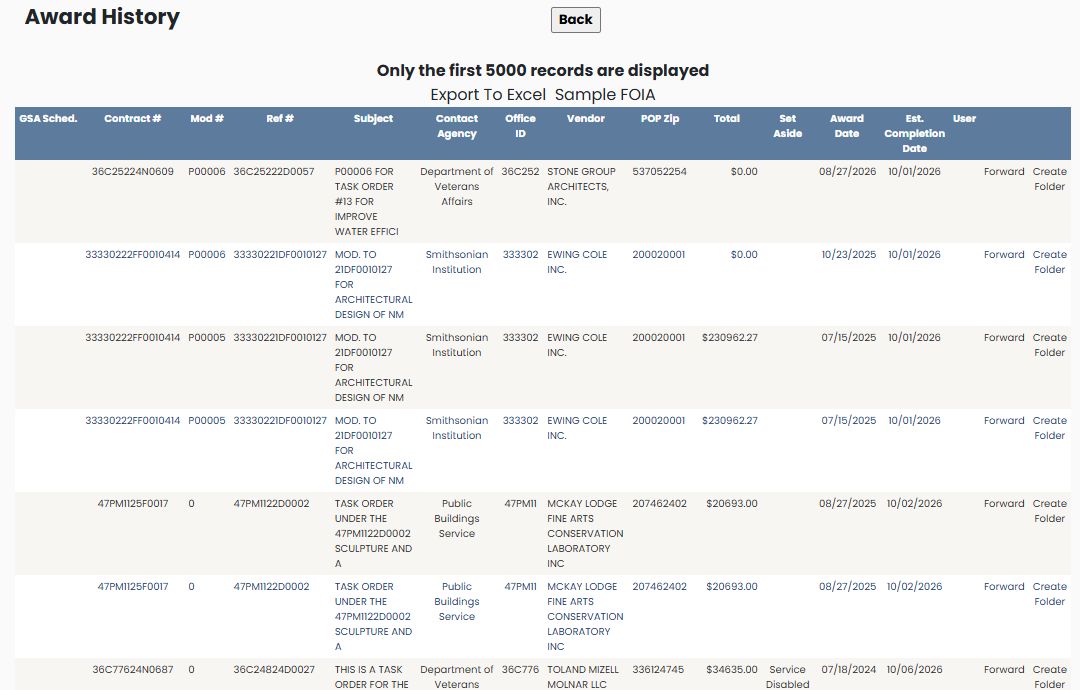
The first displayed contract is 36C25224N0609, modification P00006, with an estimated completion of October 1, 2026. Its row also displays Contract #, Office ID and Vendor links. Back returns to the preceding screen.
The report's summary count and the opened action rows serve different purposes. Read each action's contract and modification identifiers; several actions can refer to the same contract.
Follow a Month1 row to its details, office, or vendor
In a later visit on October 22, 2026, the Architectural Month1 cell displayed 30 and $8,382,798; the earlier October 21 example above displayed 28 and $8,214,103. These are dated observations, so use the values currently shown in the application.
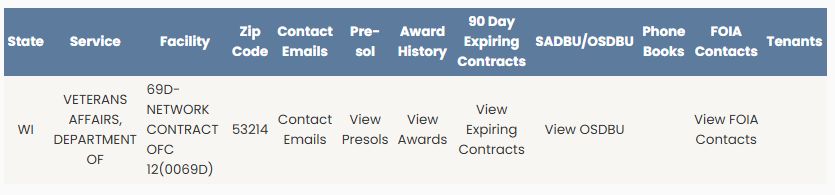
From the Month1 list, the first row's Contract # link 36C25224N0609 opened Award Details for modification P00006. The record shows agency 3600, date signed August 27, 2026, and ultimate completion October 1, 2026. Use Read Award Details for the section and field explanations. Back returned to the Month1 list.
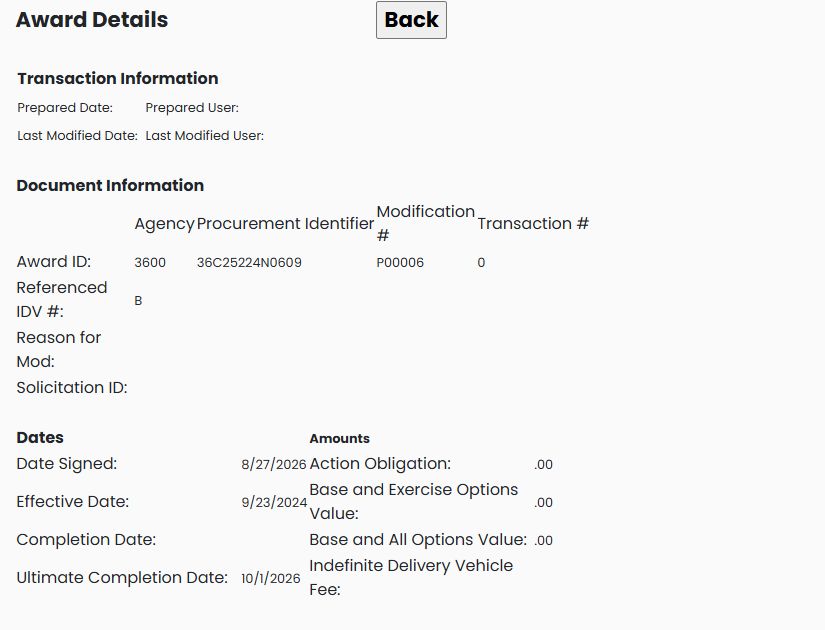
The same row's Office ID link 36C252 opened an office record with service VETERANS AFFAIRS, DEPARTMENT OF and facility 69D-NETWORK CONTRACT OFC 12(0069D), in WI, ZIP 53214. The office table also displays its available action links. This guide uses the office record to identify the buying office; the separate Expiring Contracts example demonstrates office-page fields and actions. Back returned to the Month1 list.
The row's Vendor link STONE GROUP ARCHITECTS, INC. opened its Vendor / CAGE Detail View, CAGE 714F5, in Sioux Falls, South Dakota. Use the company profile guide for the shared profile fields and research buttons. Back returned to the Month1 list.
Explore links from the office record
From the Month1 list, open Office ID 36C252 and choose one of the office record's links. In this observed example, Contact Emails opened a one-column Email Address list with 164 displayed entries. Read each address in its row and verify contact information before relying on it, since these are displayed records and may change. Back returned to the office record.
View Presols opened a list with Solicitation Number, Subject, Contact, PSC or FSG, NAICS, Set A-side, POP Zip, Open Date, and Date Closed. The observed list had 18 rows. Use the Award History example's office walkthrough for the same office-page path and presolicitation field names; Back returned to the 36C252 office record.
View Awards and View Expiring Contracts each opened the classic Award History action table. The first displayed award row was 36C25226F0080, INSPIRE MEDICAL IMPLANT FOR VETERANS MEDICAL NEEDS, with total $27,218.59. The first expiring row was 36C25226N0455, SURGICAL LIGHTS FOR DERM CLINIC, with total $31,657.86 and an estimated completion date of October 1, 2026. Both tables use the field and row-action explanations in Follow an award search into its related actions. Back from either list returned to the office record.
View OSDBU opened a six-row contact list with Office, Title, Contact, Address 1, Address2, City, State, Zip, Telephone, Fax, Email, and Web Site. The headings identify the displayed assignment, named contact, location and contact details; some cells are blank.

View FOIA Contacts opened a 25-row contact list. Its columns include Department, Branch, FOIA Contact, Title, Address, City, State, Zip, Telephone, Fax, Email, Additional Contacts, and Web Site. Two columns are displayed without headings: one beside Address and another beside Additional Contacts. Read their contents as part of the same row without assigning a label that the table does not show; some cells are blank.
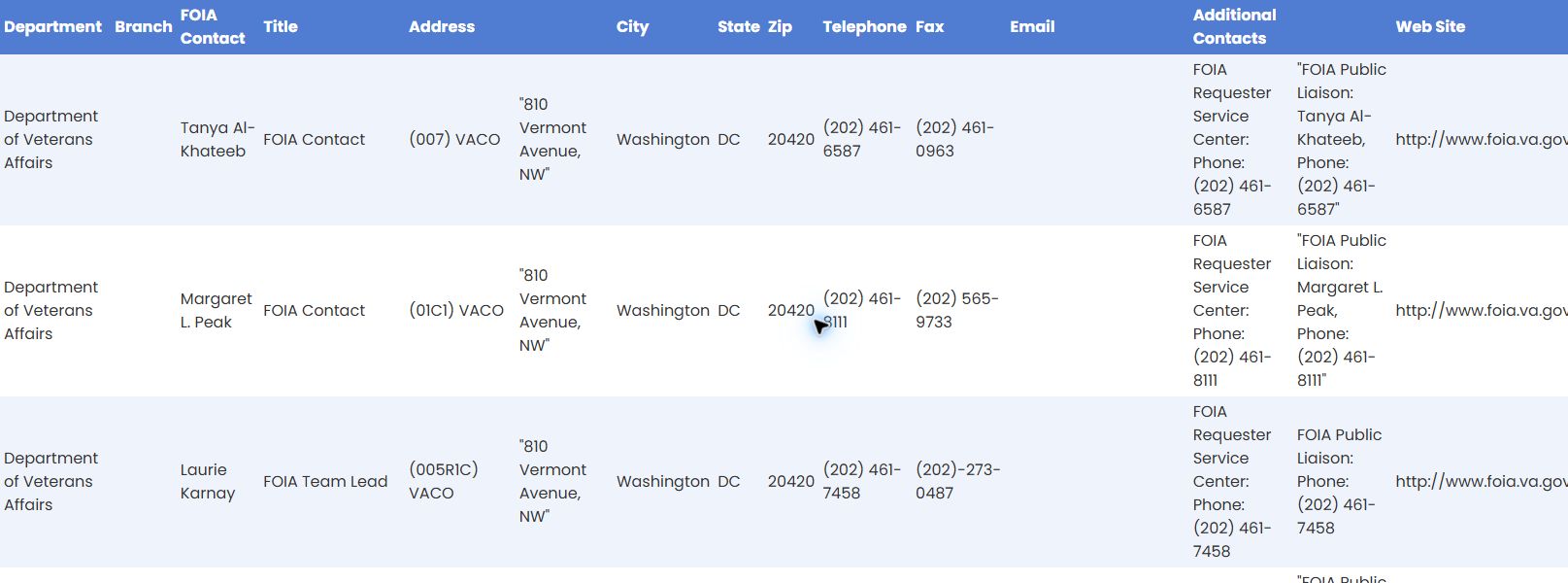
In this visit, View OSDBU and View FOIA Contacts opened separate tabs; close the tab to return to the office record. The other four lists opened in the current tab, and Back returned to the office record.
Review the agencies behind a keyword
Select Architectural's linked # of Agencies number to open its agency report. The observed report has ID, Department, Name and # of Contracts columns. Department is the broad organization; Name identifies the listed component or office, and its linked text offers a further research route. The first page includes Bureau of the Census under the Commerce Department and Navy under Defense.
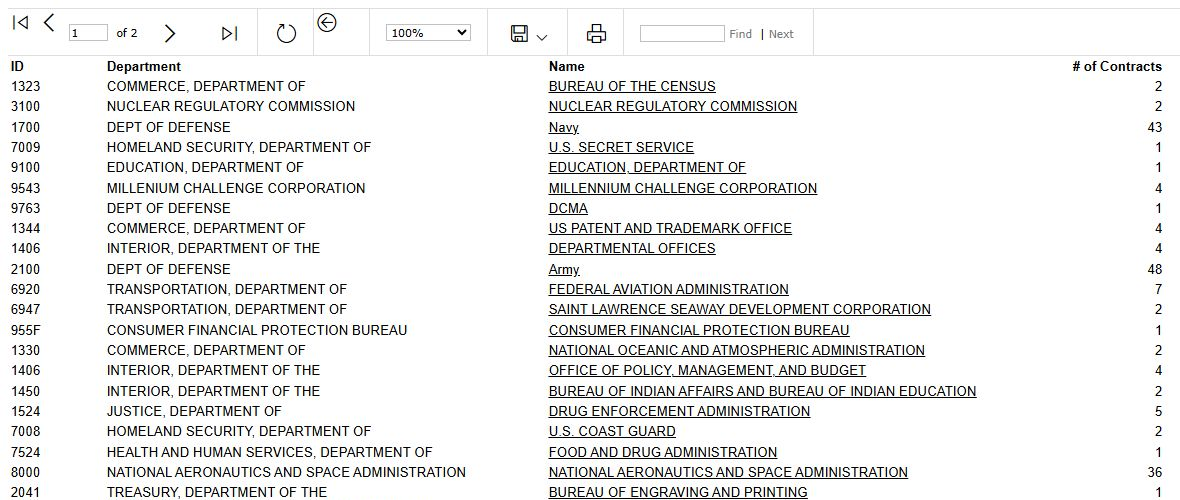
The report viewer shows 1 of 2 pages. Use its next-page arrow to see page 2; that page was reached in the observed example. Treat the displayed report rows as the detail to inspect rather than trying to infer a row count from the linked summary number.
Open an agency's office list
From the Architectural agency report, select Bureau of the Census under Name. The linked report lists office records on one page. CODE is the displayed office identifier; Name is its displayed name. Three ADDRESS text columns hold address lines, followed by CITY, STATE and ZIP CODE for the listed location. Some cells are blank. For example, the first row shows code 000AB and DEPT OF COMM/BUREAU OF THE CENSUS; read its displayed address as part of that row rather than assuming every entry is current.
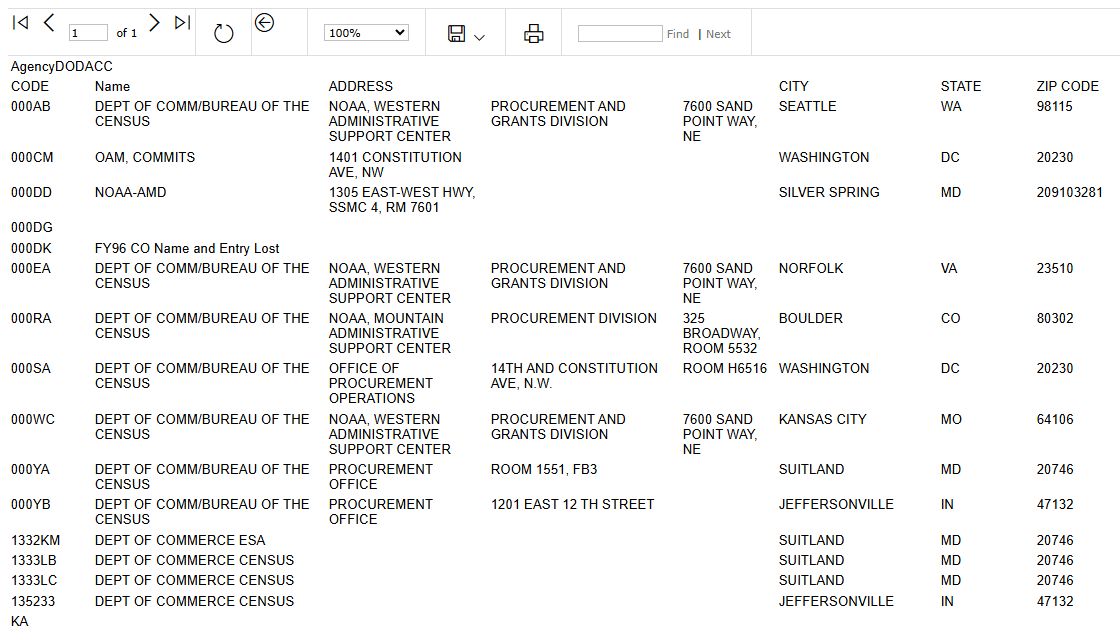
Back returns to the Architectural agency report, where you can continue with another listed agency or return to the keyword overview.
Review incumbent companies
Select Architectural's linked Incumbents number to open the company report. Its columns are Cage, Vendor Name, Award Total and # of Contracts. CAGE identifies the company record; the amount and contract count are the values shown for that row. The observed report has 25 company rows. The first is ROGERS, LOVELOCK & FRITZ, INC., CAGE 0CY15, with $370,050 and 1 contract.
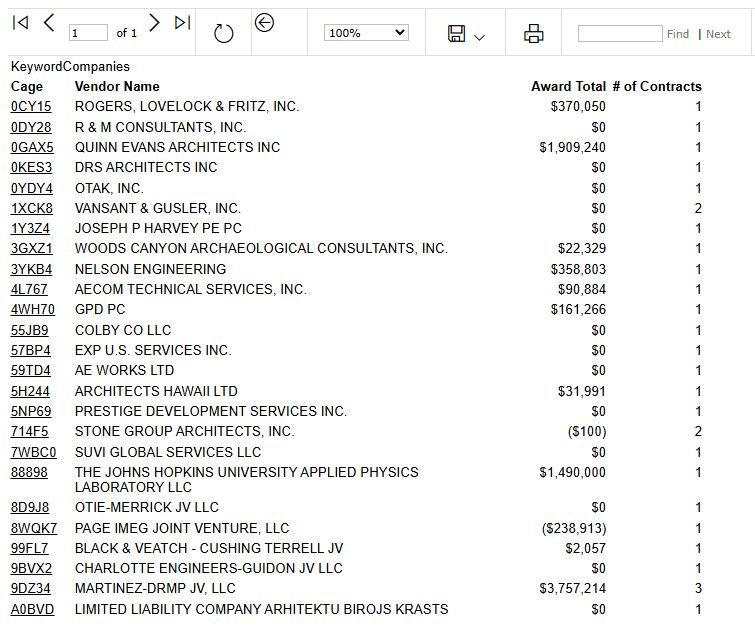
Selecting 0CY15 opened that company's Vendor / CAGE Detail View. The company profile guide explains the shared profile fields and research buttons. Browser Back returned to the company report, and Back again returned to the keyword report. Other company rows use the same displayed columns; their individual profiles were not opened in this example.