Follow an award search into its related actions
Video sections for this page
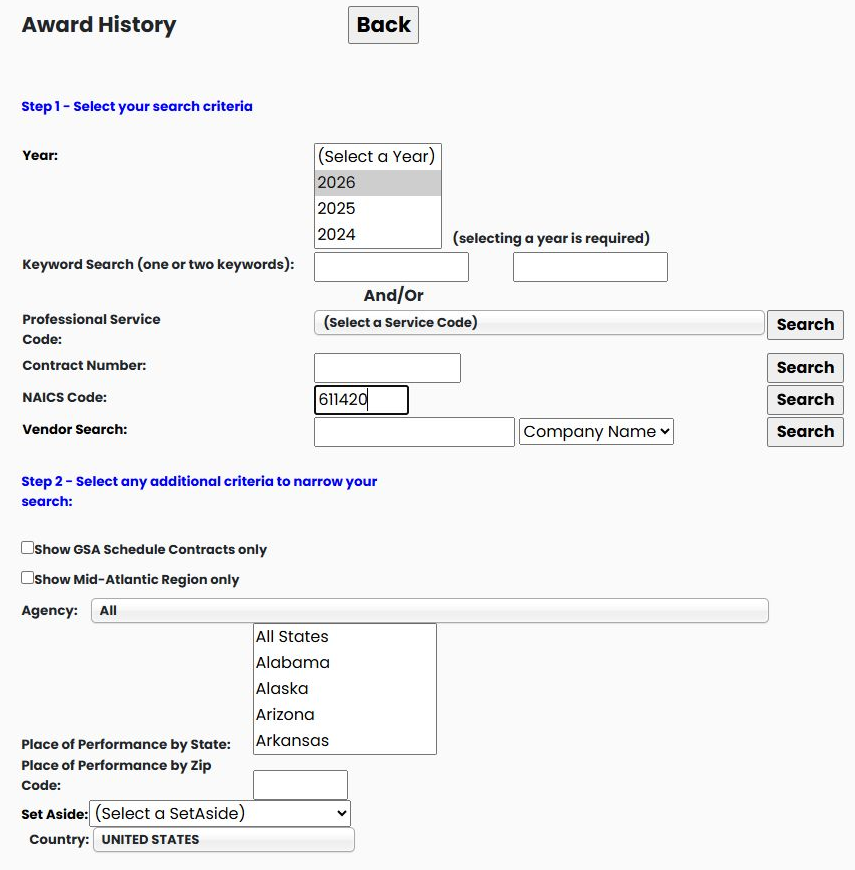
Application path: Main Menu → Award History → select Year → enter NAICS Code → Search beside NAICS.
Choose the search values
Select Year for the award actions you want to review. Enter the industry code in NAICS Code, then use the Search button beside that field. The demonstrated 2026 / 611420 search opens grouped results. Adding Virginia under Place of Performance by State opens a flat list of individual actions for that work location; the state describes where the work is performed, not the vendor's mailing state. The selected award-history year is separate from an action's Est Completion Date.
Example: computer-training awards in 2026
Select 2026, enter 611420 in NAICS Code, and click the Search beside it. Wait for the results to load. On October 21, 2026, the result list contained 314 items, with 100 on its first page.
The grid has a small triangle at the beginning of each row. Click it to expand the related records beneath that row. For example, expanding GS35F369CA — LEARNING TREE INTERNATIONAL USA INC displays the contract's related award actions. The expanded list contains 11 items, with its own page controls showing the first ten. Its page controls are separate from the outer list's page controls.
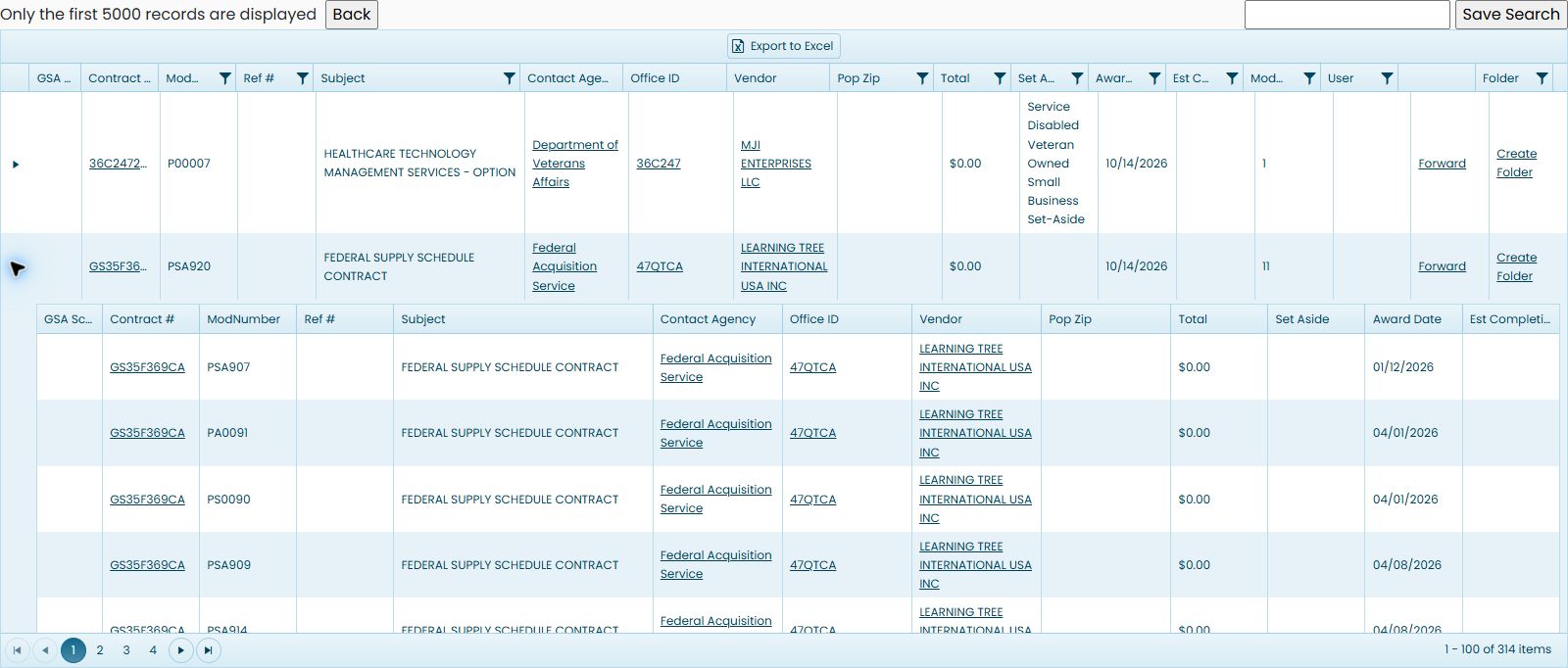
The contract number repeats because these are different actions associated with that contract. Read ModNumber and Award Date to distinguish the displayed actions. Do not treat repeated contract numbers as interchangeable records.
Read the award columns
| Field | Meaning and use |
|---|---|
| Contract # / ModNumber / Ref # | The contract, modification and referenced agreement identifiers. Use them together to select the intended action. |
| Subject | The short description of the purchased work. |
| Contact Agency / Office ID | The buying organization and office shown for the award; links are displayed with these fields. |
| Vendor | The company recorded on the award; its name is displayed as a link. |
| Pop Zip | The ZIP where the work is performed, separate from the vendor mailing address. |
| Total | The amount displayed for the row. Read a grouped contract row separately from an individual action row. |
| Set Aside | The recorded competition or business-eligibility category. |
| Award Date | The date associated with the award action. |
| Est Completion Date | The displayed expected completion date, which can be in a later year than the action. |
| ModNumberCount | The count displayed beside a grouped contract. This column is absent from the flat action example. |
The selected Year is the award-history search year. It is separate from the expected completion date in a result. Expand a grouped row to read its related actions; the inner table has its own page controls.
GSA Sched provides the displayed schedule reference or link for the row. A GSA Schedule is a government purchasing arrangement with approved suppliers. User is the user value shown with the row; it is separate from the buying agency and vendor.
Open the action you want to inspect
Click GS35F369CA on the expanded row whose modification is PSA907. Award Details opens for that action. Its Document Information shows the contract identifier, modification number and transaction number. Date Signed is January 12, 2026 in this example.
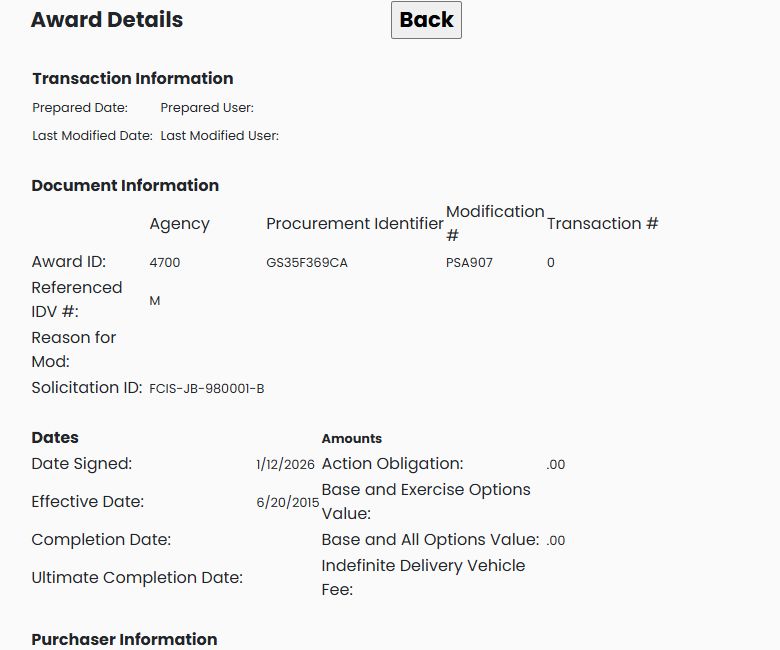
Continue with Read Award Details for the purchaser, contractor, contract, product/service and competition sections and their fields.
Read the purchaser, contractor, product/service and competition sections to understand the award. Use Back to return to your research. A blank field is not an additional fact about the award; it simply supplies no value on this display.
Follow the related agency, office and company links
From the same GS35F369CA grouped result, the Contact Agency link labeled Federal Acquisition Service opened Agency Contacts. This example displayed No Contact Information was found for the selected Activity; Back returned to the award results. Use the separate Office ID link when you want to inspect the buying office.
Select 47QTCA under Office ID to open its office page. The observed row lists DC, Federal Acquisition Service, GSA/FAS Center for IT Schedule Prog and ZIP 20405. It offers Contact Emails, View Presols and View Awards; the other cells shown in this example are blank.
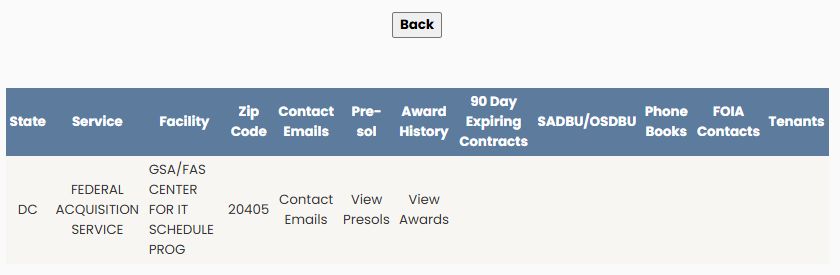
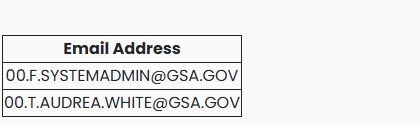
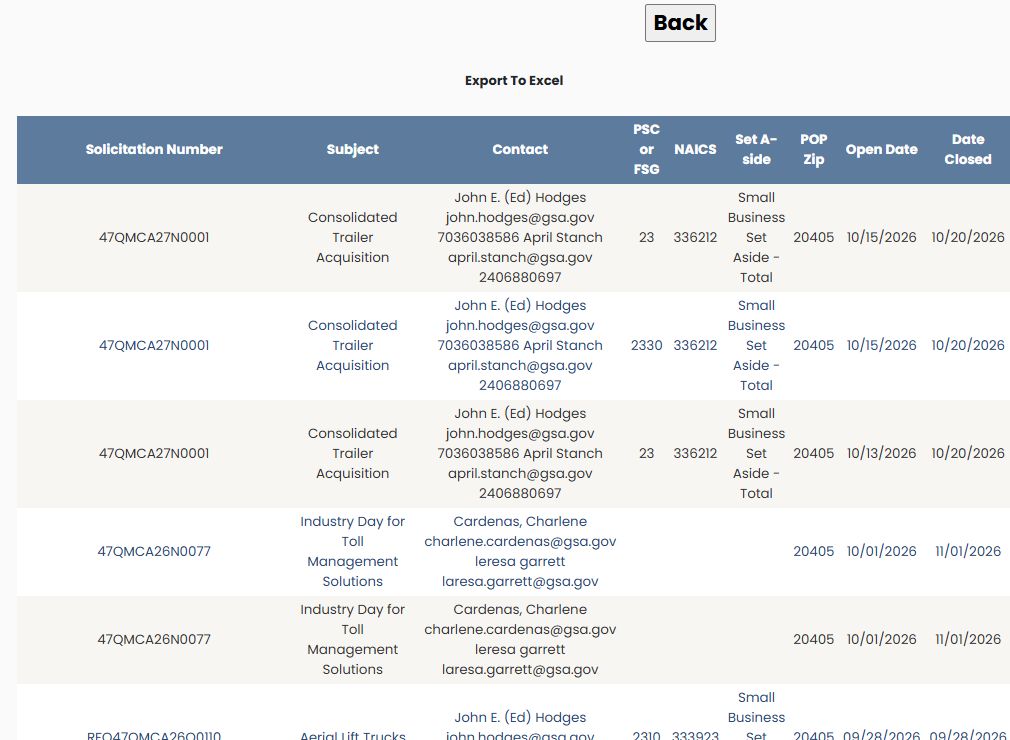
Contact Emails opens a two-row email-address list. View Presols opens a paged presolicitation list with Solicitation Number, Subject, Contact, PSC or FSG, NAICS, Set A-side, POP Zip, Open Date and Date Closed. The first displayed notice is 47QMCA27N0001, Consolidated Trailer Acquisition. These are notices associated with the office; follow a notice for its full requirements.
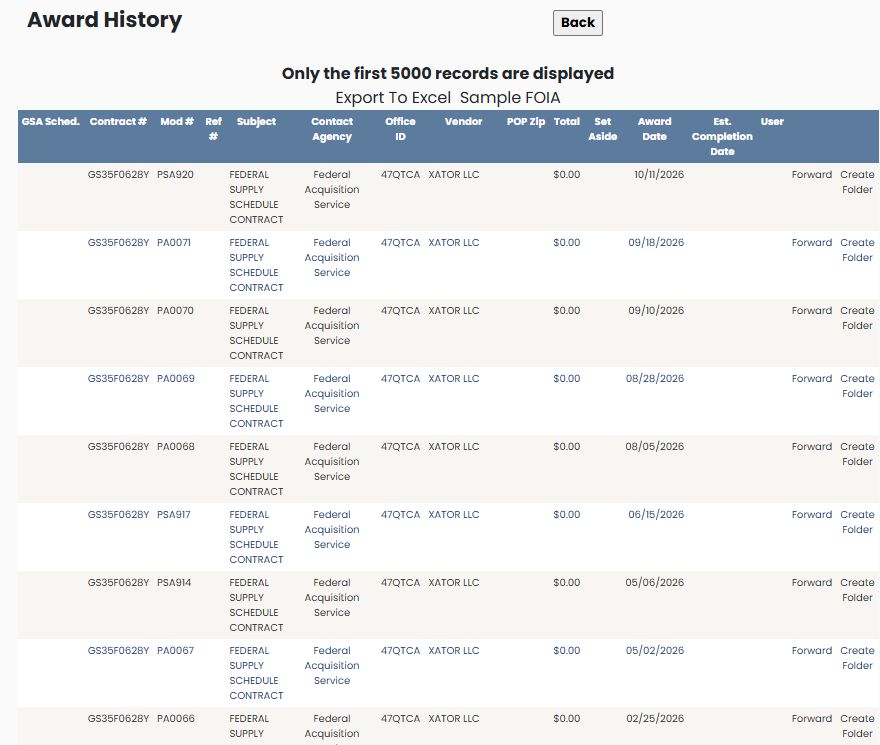
View Awards opens an Award History action list for the office. The first displayed row in this example is GS35F0628Y, modification PSA920, with vendor XATOR LLC. Read that list as its own set of office-related records; the first row need not be the Learning Tree award used to reach the office. Back returns from these office lists to the office page, and another Back returns to the grouped award results. The expiring-contract example explains the same office-page fields in another research route.
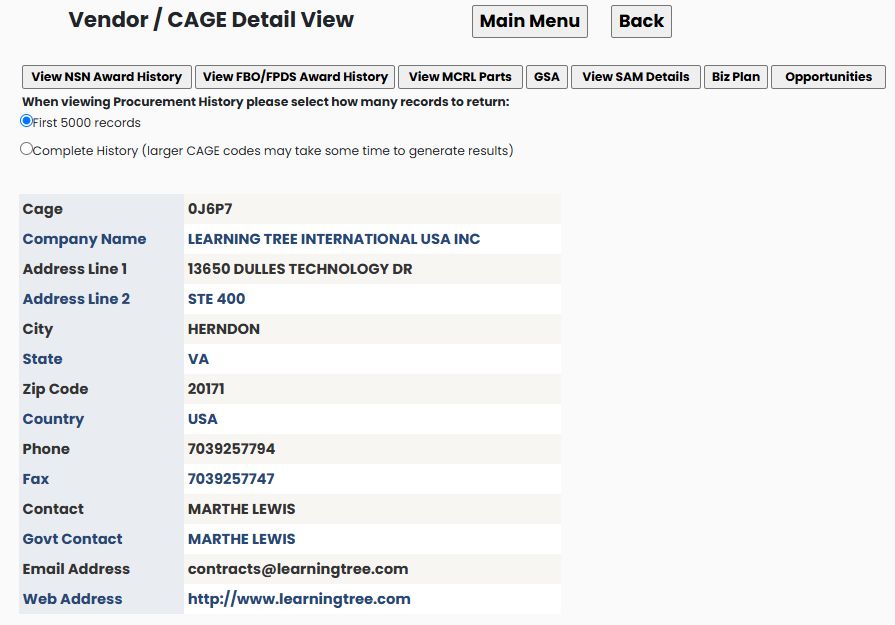
On the grouped result, selecting LEARNING TREE INTERNATIONAL USA INC under Vendor opens its Vendor / CAGE Detail View, CAGE 0J6P7. This profile has seven research buttons, including award history, MCRL parts, GSA and opportunities. The company profile guide explains these shared fields and buttons. Back returned to the grouped award results; this example did not open the seven research branches from the Learning Tree profile.
Save or share a result
For the complete named-search workflow, including the confirmation, Main Menu list and reopened results, see Save and reopen a search.
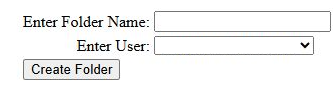
The grouped results include a Save Search text box and button for a named search. A row's Create Folder link opens a separate form with Enter Folder Name, an Enter User account selector and a Create Folder button. Review the selected award and account before using that button. The project-folder guide shows how to return to verified saved work.
The Forward link on the GS35F369CA row contains an email subject for FEDERAL SUPPLY SCHEDULE CONTRACT and message details including the contract number, modification PSA920, award date and a detail link.
- Identify the award row you want to share, then select Forward.
- Your configured email program handles the link. Review the draft's subject and contract details, and enter the intended recipient. If no email program is configured, the browser may ask you to choose one.
- Check the included detail link before sending: it currently points to another site, rather than the SalesHelp page you are viewing. Do not assume the recipient has access to that destination.
- Send only after reviewing the message in your email program, or close the draft to cancel. Selecting Forward does not itself send an email.
Example: show individual actions performed in Virginia
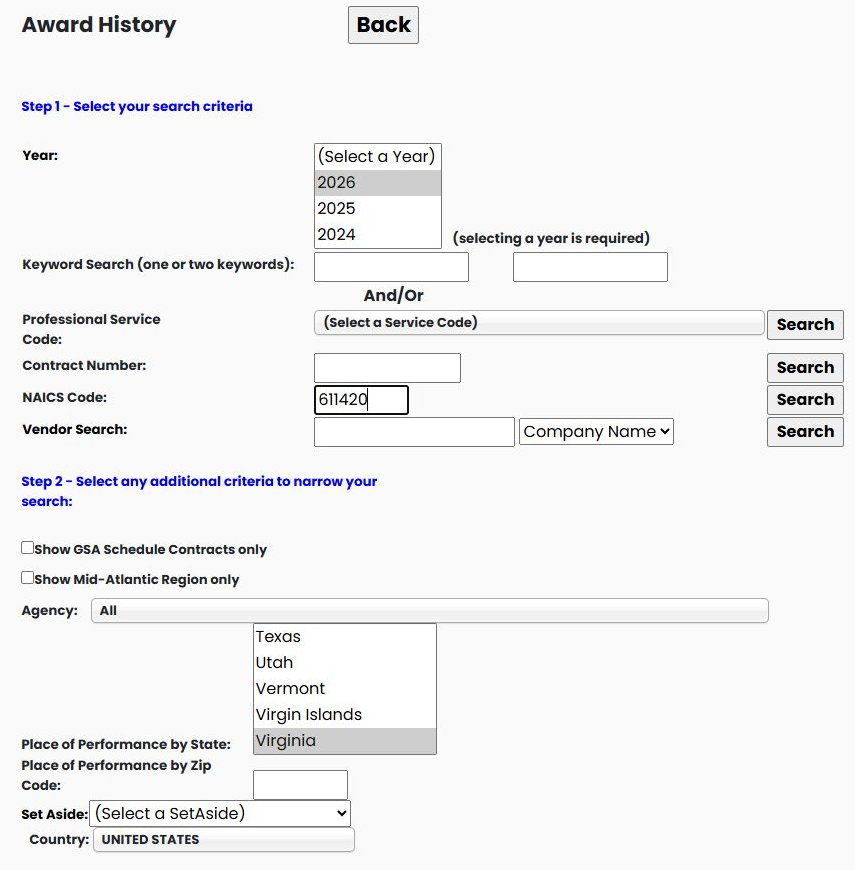
Return to Award History. Select 2026, enter NAICS 611420, and select Virginia under Place of Performance by State. Click Search beside NAICS.
The October 21 example returns 72 individual actions, with 20 on the first page. This layout has no expansion arrow: each row is already an action. It also has no ModNumberCount column. Use Contract # and ModNumber together when opening a particular action.
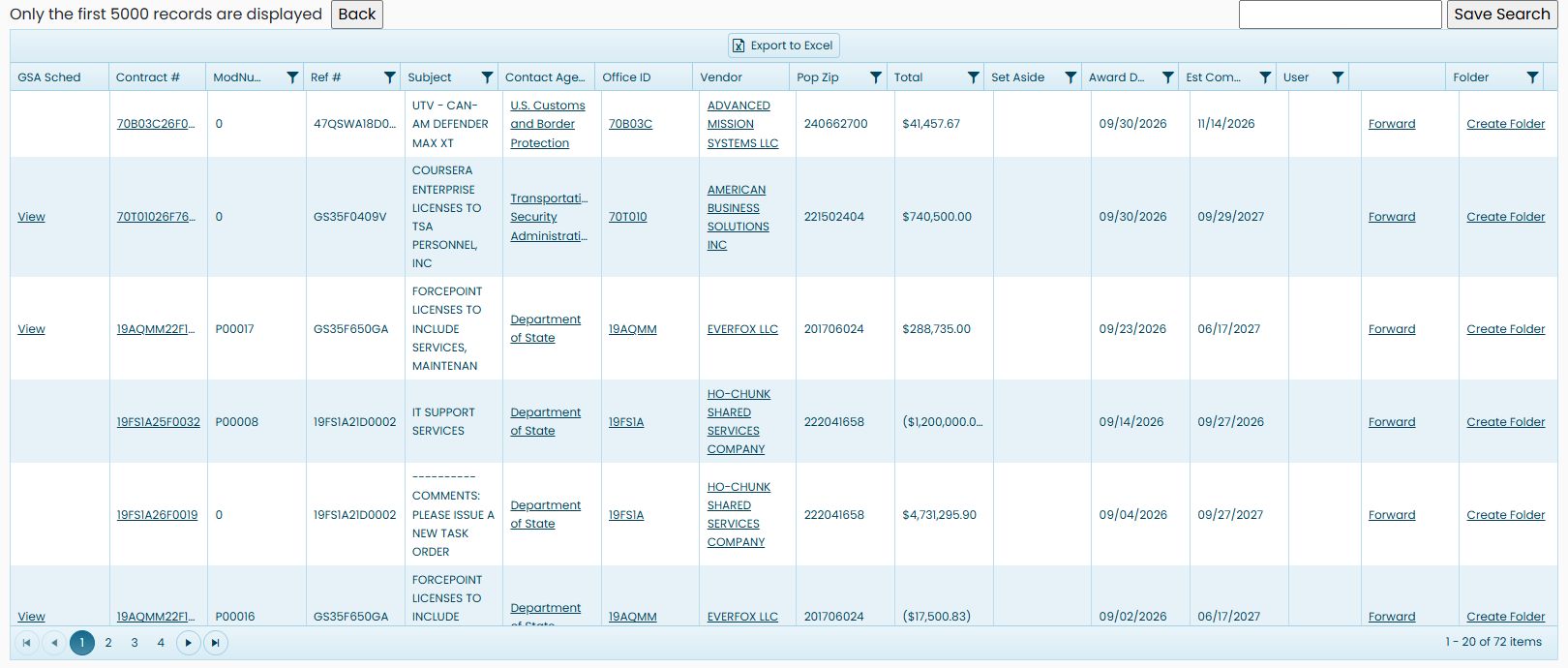
For example, 70T01026F7670N017, modification 0, describes Coursera enterprise licenses. It shows $740,500.00, Award Date September 30, 2026, and Est Completion Date September 29, 2027. The Pop Zip is 221502404. This is the place-of-performance location, not necessarily the company's mailing address.
The contrast is useful: start with the expandable view to research related actions together; add a state when you need a worksite-focused list. Always read the layout and row identifiers before comparing amounts.
Example: find awards for a known CAGE
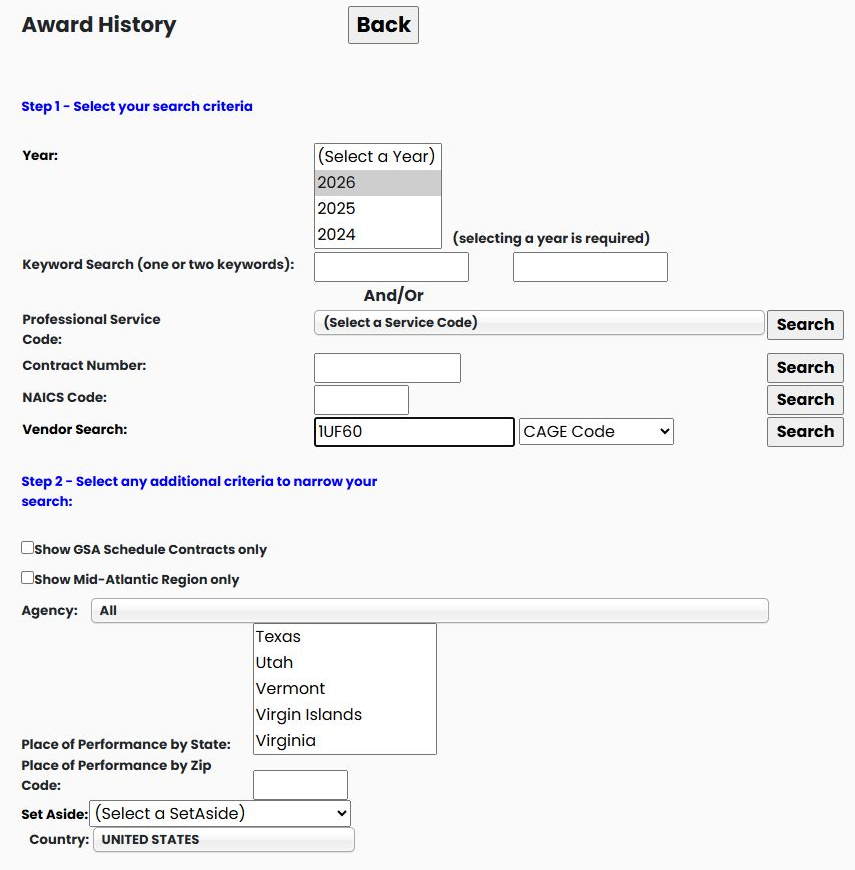
Use this route when you know the supplier's CAGE instead of an industry code. Open Award History, select 2026, clear the NAICS Code, and leave the location at All States. In Vendor Search, enter 1UF60, select CAGE Code, and click the Search beside Vendor Search.
The October 23, 2026 search returns 321 grouped items, with 100 on the first page, for U.S.A. SPARES INC. One displayed row is contract SPE4A626V9663, modification P00001, for THIMBLE,ROPE, with $19,770 displayed and ModNumberCount 2.
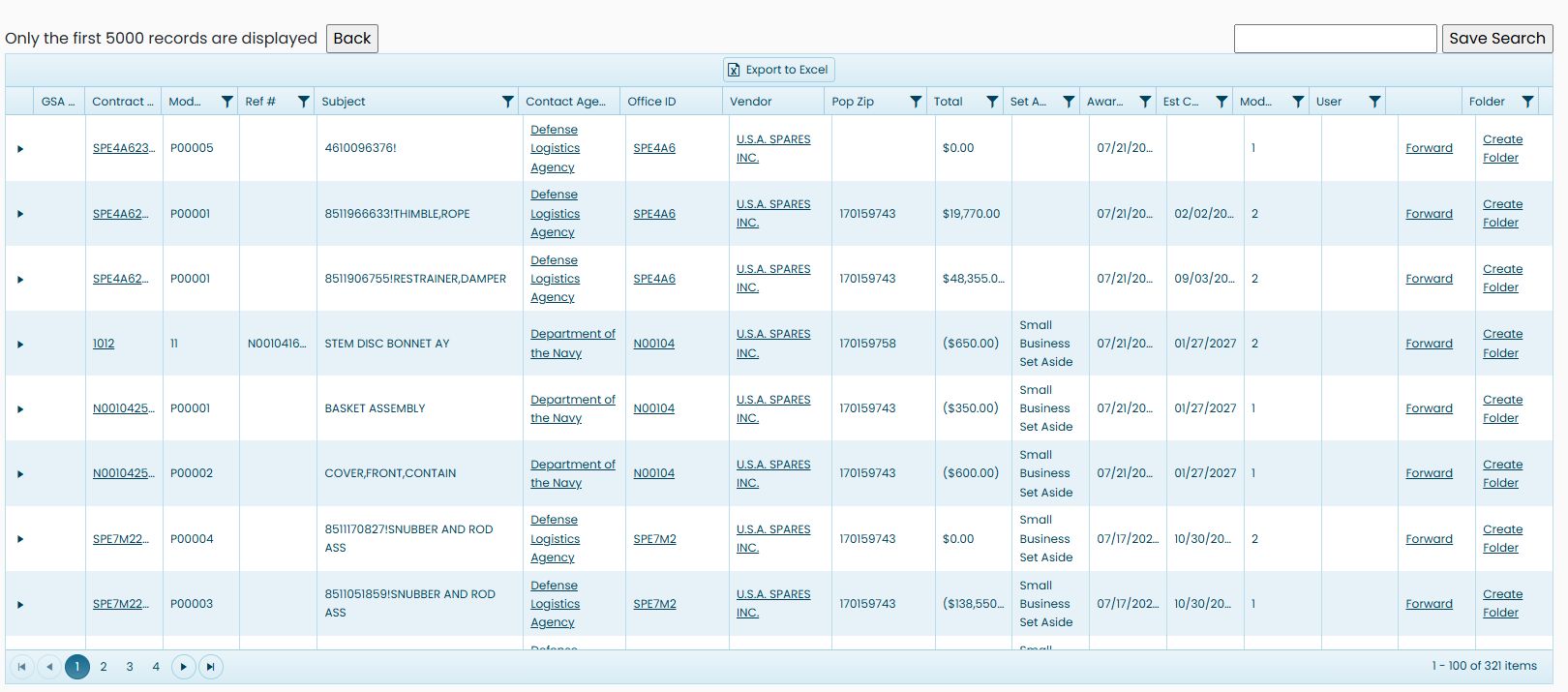
Use the row's expansion triangle to review its related actions, as in the computer-training example. Read the contract number and modification together before following a particular action. Continue with the award-result fields and expanded records, then use the office or vendor links for further research. This is another way to reach the same grouped-results layout; the existing export explanation applies to that layout.
Export the award actions to Excel
On the 2026 / NAICS 611420 grouped results page, click Export to Excel to download an Awards workbook. The October 21 example produced one worksheet with 1,052 action rows and 25 columns. The page showed 314 grouped results; its count is for the expandable outer list, while the workbook lists actions in separate rows. For example, GS35F369CA appears on 11 workbook rows, including modification PSA907. The workbook's row order differs from the visible results order.
The workbook begins with Contract #, Mod, Ref #, Subject, Contact Agency, Office ID, Cage, DunsNumber, Naics and Vendor. Later columns include contact details, vendor city/state/ZIP, PopZip, Total, Set Aside, Award Date, Est Completion Date and LongDescription. Use Contract # together with Mod when tracing an exported row back to an award action. The workbook may show empty cells; read the value in the row before using it in your research.
