Read solicitation search results
Video sections for this page
Video sections for this page
Video sections for this page
Application path: Main Menu → Research All Open Solicitations → enter criteria → Search.
The results list helps you decide which opportunities to investigate. Each row names the work, the buying agency and office, the dates supplied for that notice, and any listed set-aside. The solicitation search guide explains how to choose criteria. Use View Solicitation to read the notice itself. Create Folder is also shown for a result; see the saved-work guide for a verified example of a saved NSN opportunity.
Example: find computer-training opportunities
- Open Research All Open Solicitations from Main Menu.
- Enter 611420 in NAICS Code. Leave the other search fields blank for this example.
- Click Search beside the NAICS field.
- Review the results. On October 21, 2026, this search displayed four notices. The screenshot includes SAP S4 HANA VARIANT CONFIGURATION TRAINING AND SUP, with an opening date of October 21 and closing date of October 28.
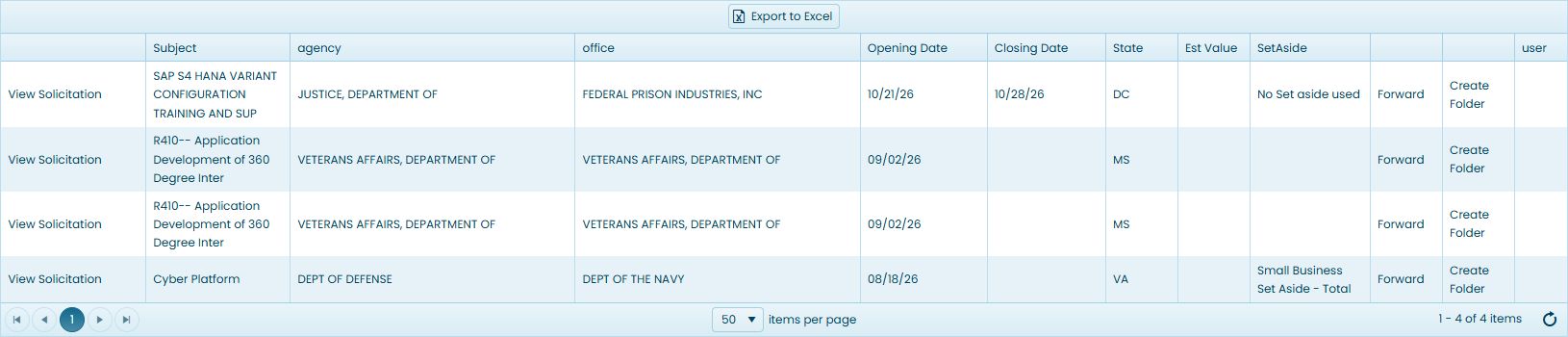
Counts and available notices change as the data is updated. Read the subject and full notice to decide whether the work is suitable for your business.
Example: narrow a cleaning search by location
Start a new Research All Open Solicitations search. Enter janitorial in the first keyword box, leave the second keyword box blank, and leave Search Keywords within Title selected. Leave the service-code selection blank and use the Search button beside that row. The October 21, 2026 example returns 194 results across four pages.
Return to the form, use the same keyword and choose Florida under Place of Performance by State. Run the search again. This produces six results, including Janitorial Services for Parks and Trails for Lake County, with opening date 10/15/26 and closing date 11/17/26. It also shows Citrus CHD Janitorial Services, closing 12/10/26.
This combination helps a cleaning business move from a broad list of relevant work to opportunities in its service area. Read the full notice for the site locations and requirements before deciding whether to respond. Similar subjects can have different dates; review each displayed notice separately.
Read the result columns
| Column or action | What it tells you or lets you do |
|---|---|
| View Solicitation | Opens the source notice linked for that result. Destinations vary: the observed Lake County janitorial result linked to the County's procurement page, while federal results linked to SAM.gov. Read the notice for current requirements and response instructions. |
| Subject | The notice title: a quick description of what the buyer needs. |
| agency | The government organization shown as the buyer. |
| office | The specific buying office shown beneath that organization. |
| Opening Date | The date the result lists as the start of the notice. |
| Closing Date | The date the result lists for closing. Read the notice for its exact response time and any amendments before responding. |
| State | The state displayed for the opportunity. |
| Est Value | An estimated value when one is supplied. A blank cell does not give you a value to budget against. |
| SetAside | The listed business eligibility category, if any. For example, a small-business set-aside identifies an opportunity reserved for qualifying small businesses; check the notice for its requirements. |
| user | The user who owns the assigned project folder for this notice, when one is present. A blank cell means no assigned-folder username is displayed. |
| Forward | Provides an email link with the opportunity details. Review the subject, message and recipients before sending. |
| Create Folder | A control shown for the opportunity. A verified saved NSN example is described in the saved-work guide. |
Sort and move through the list
Click Subject to sort alphabetically. In the October 22, 2026 NAICS 611420 example, the click showed an ascending arrow, put Cyber Platform first and SAP S4 HANA VARIANT CONFIGURATION TRAINING AND SUP last. This changes the displayed order without re-entering the criteria.
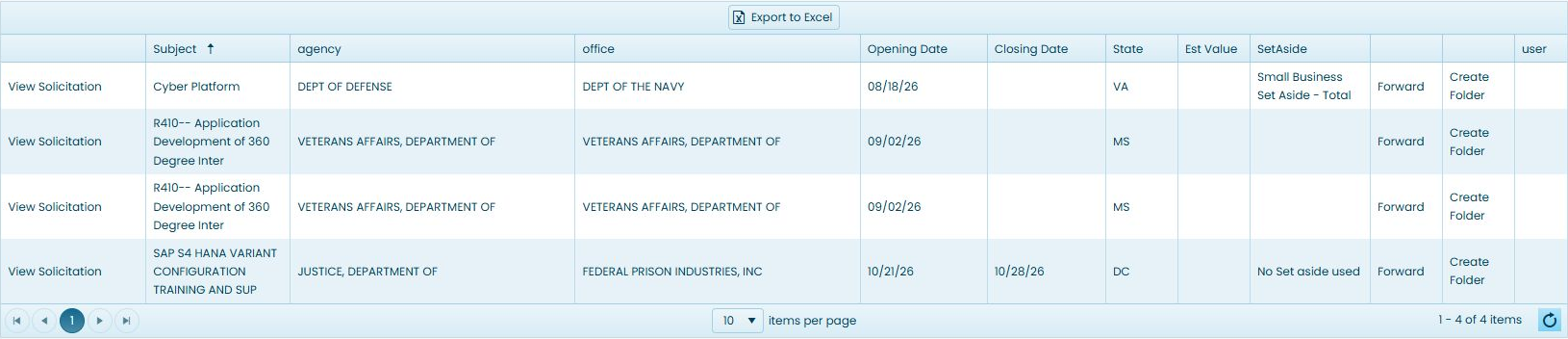
Use the page arrows beneath the grid to move through longer results. Items per page offers 10, 20, 50 and 100. In this example, changing from 50 to 10 left the range at 1–4 of 4 items, because all four matches still fit. Refresh reloaded the same four rows and retained the ascending Subject order and 10-row page size in the observed session.
In the observed Janitorial Services for Parks and Trails row, Forward provided an email link with the subject Current Bid Opportunity and a message body containing the notice title, solicitation number 27424 and Lake County source URL. Add recipients and review the message in your email application before sending it.
Continue your research
Read an interesting notice using View Solicitation, then return to compare it with the other results. For Janitorial Services for Parks and Trails, the Create Folder destination is a separate form with an account selector and an Add Folder button. Choose the account where you want to organize the opportunity, then use Add Folder. This form has no folder-name field.

The project-folder guide shows where saved work appears.
Export these results to Excel
Choose Export to Excel above the results grid to save the displayed result data for offline review. For the four-row NAICS 611420 example, the downloaded workbook has one sheet and four notice rows. Its columns are Subject, agency, office, Opening Date, Closing Date, State, Est Value, SetAside and user, in that order. The two similarly titled R410 notices remain separate rows.
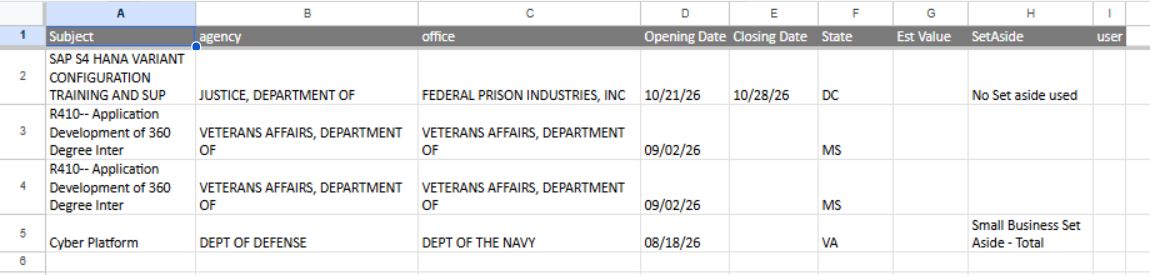
In this example, Est Value and user are blank for all four rows, and three notices have no Closing Date value in the workbook. A blank cell is not a zero or a deadline. The workbook contains result fields; it does not include the grid's View Solicitation, Forward or Create Folder actions. Return to the results and open the source notice to check current requirements, response dates and any amendments.
Export a direct-NSN result
For an NSN 5305007262550 search, use the first Export to Excel button above the populated NSN results. A separate Export button belongs to the lower solicitation table, which had no rows in this example. The October 22, 2026 top-grid workbook contains one notice, SPE4A627T5567, on Sheet1. Its columns are Description, Solicitation Number, Opening Date, Closing Date, Drawings, Qty, Est. Value, AMC and AMSC. The row describes SCREW, CAP, HEXAGON HEAD, shows dates 10-21-2026 and 10-28-2026, Y for Drawings, and 20998.08 for Est. Value. Qty, AMC and AMSC are blank in this file.

The NSN appears in the search results but is not a column in this workbook. Keep it with your export if you need to identify which stock number you searched. This result export has different fields from the NAICS workbook above and from the Part No./Company/CAGE export on an NSN item page.