Search government contractors
Part of these button learning paths: All Government Contractors
Application path: Main Menu → All Government Contractors → Find a Contractor.
Use this form to find a company by a known identifier or contact detail, or to look for contractors in a product or service area. Choose the type of information you have, enter it in the search box, then add any location or business filters you need.
Choose a search field
The product/service selector offers Company Name, CAGE, DUNS #, Email, Phone #, Fax #, Contact Name, NAICS, FSC, Keyword, PSC, SIN and All. Select one choice before entering search text. A NAICS choice also displays a keyword lookup to help you find a code. All requires a State or ZIP selection, as the form notes.
| Choice | Use it when you know |
|---|---|
| Company Name or Contact Name | A business name or a person's name. |
| CAGE or DUNS # | The company's displayed identifier. CAGE is its Commercial and Government Entity code; DUNS is a legacy business identifier. |
| Email, Phone # or Fax # | A contact detail associated with the company. |
| NAICS | The industry's classification code. Read its description before choosing it. |
| FSC | A four-digit Federal Supply Class for the product. |
| Keyword | A word describing the product, service or company you seek. |
| PSC or SIN | A Product Service Code or GSA Special Item Number, when you already know the relevant code. |
The form also offers a Set Aside list for business eligibility categories and State, ZIP or Country location choices; Country initially shows UNITED STATES. Select the location that fits your research. The optional checkboxes are GSA Schedule Holders Only, Show Vendors with Award History Only, Show Award History for 2025/2026, and Show CCR Archived Entries. Use Search Contractors to run the search and Back to return to the preceding screen.
Choose what to search
| Search choice | What to enter and what it finds |
|---|---|
| Company Name | All or part of the business name. A distinctive portion helps find names with different endings such as LLC or Inc. |
| CAGE | The full five-character company/facility code. Useful when you already have the code from an award or parts record. |
| DUNS # | The full older business identifier, useful when researching older company records. |
| Phone #, Fax # | A telephone or fax number. If a number does not find the company, try its name or CAGE instead; number formatting can affect matching. |
| Contact Name | All or part of the company's listed electronic-business contact name. |
| PSC | A Product or Service Code, or its beginning to search a broader code family. Separate alternative codes with commas. |
| SIN | A GSA Schedule category. This option can return broader GSA records, so check the company's schedule worksheet for the particular SIN you need. |
| All | Search across the available fields. The SalesHelp form requires a State or ZipCode for this search type. |
Narrow the company list
| Filter | What it does and why you might use it |
|---|---|
| Set Aside | Finds companies with selected business-type designations, such as small disadvantaged, women-owned, veteran-owned or HUBZone. Select multiple categories to include any of them. None selects companies outside the listed categories and takes precedence if combined with another choice. |
| State | Limits the company's registered address to the selected state. All States leaves this unrestricted. |
| Country | Limits the registered address when a non-default country is selected. The initial UNITED STATES option does not apply a country restriction. |
| GSA Schedule Holders Only | Limits results to companies identified as GSA Schedule holders. See GSA Schedule for the meaning of this purchasing arrangement. |
| Show Vendors with Award History Only | Limits results to companies marked as having award history. Open the company profile's award-history link to see the work they received. |
Location and award-history options
The contractor form also offers the following controls. Use them to narrow the company list before opening a profile.
| Control | Meaning and use |
|---|---|
| ZipCode | Enter the company-location ZIP you want to research. |
| Show Award History for 2025/2026 | The illustrated form offers this two-year award-history option. Use the years actually displayed on your current form. |
| Show CCR Archived Entries | Include archived registration entries when that older company information is relevant to your research. |
| Click here to search for a NAICS Code By Keyword | Find an industry code when you know the business description rather than the code. Return to the contractor form with the appropriate code and select NAICS as the search type. |
The form states that a State or ZipCode is required when the search type is All. Choose a more specific search type when you already have a company identifier or classification.
Find a NAICS code by keyword
On Find a Contractor, choose NAICS as the search type. The Click here to search for a NAICS Code By Keyword link then appears. Select it, enter electrical in the helper, and click Find NAICS.
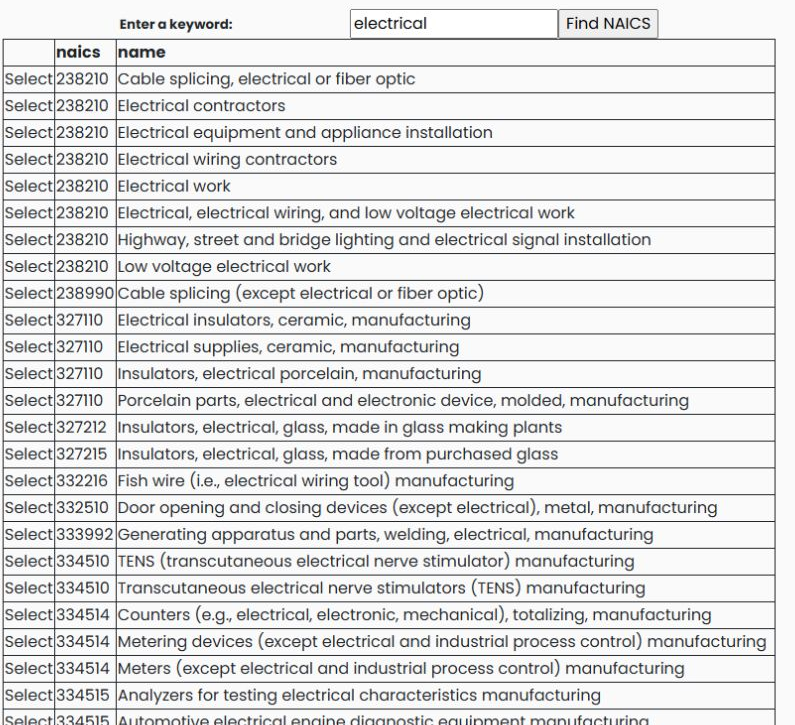
The result has Select, naics and name columns. The code identifies the industry; the name explains that industry's work. Choose Select on the 238210 — Electrical contractors row.
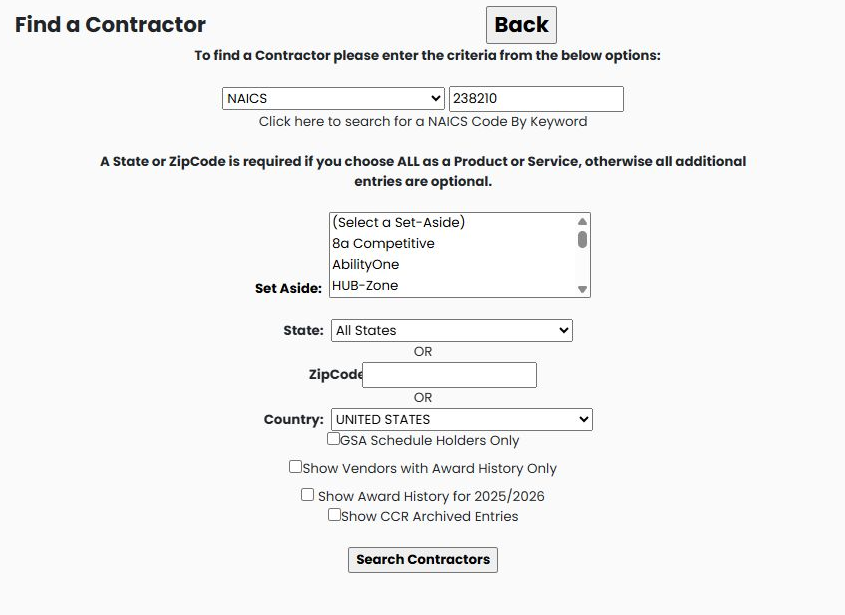
You return to Find a Contractor with search type NAICS and 238210 filled in. Add Florida or another relevant location and any desired company filters before choosing Search Contractors. The next example uses this same electrical-industry code with Florida and the GSA option. To leave the helper without choosing a code, use Go Back To Find a Subcontractor.
Example: find Florida companies with GSA information
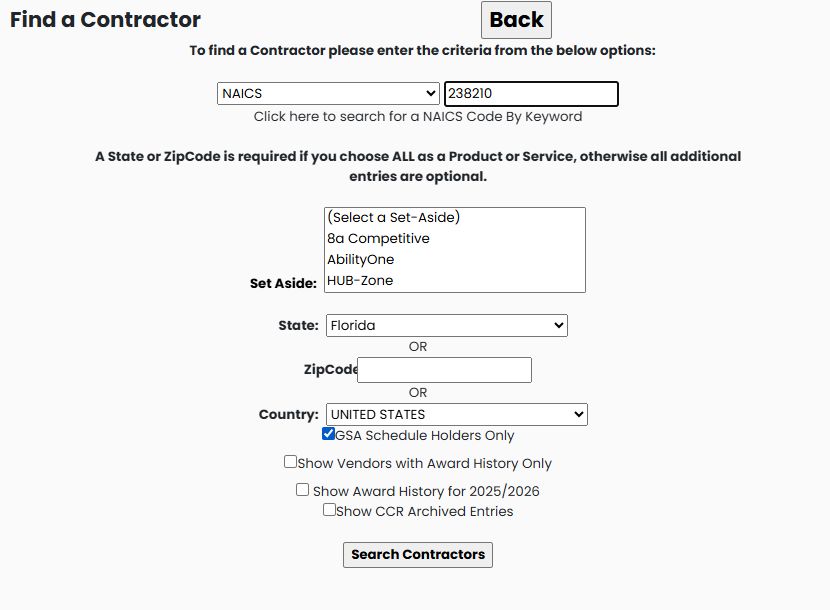
Choose NAICS, enter 238210, select Florida under State and check GSA Schedule Holders Only. Leave the other filters at their defaults and choose Search Contractors.
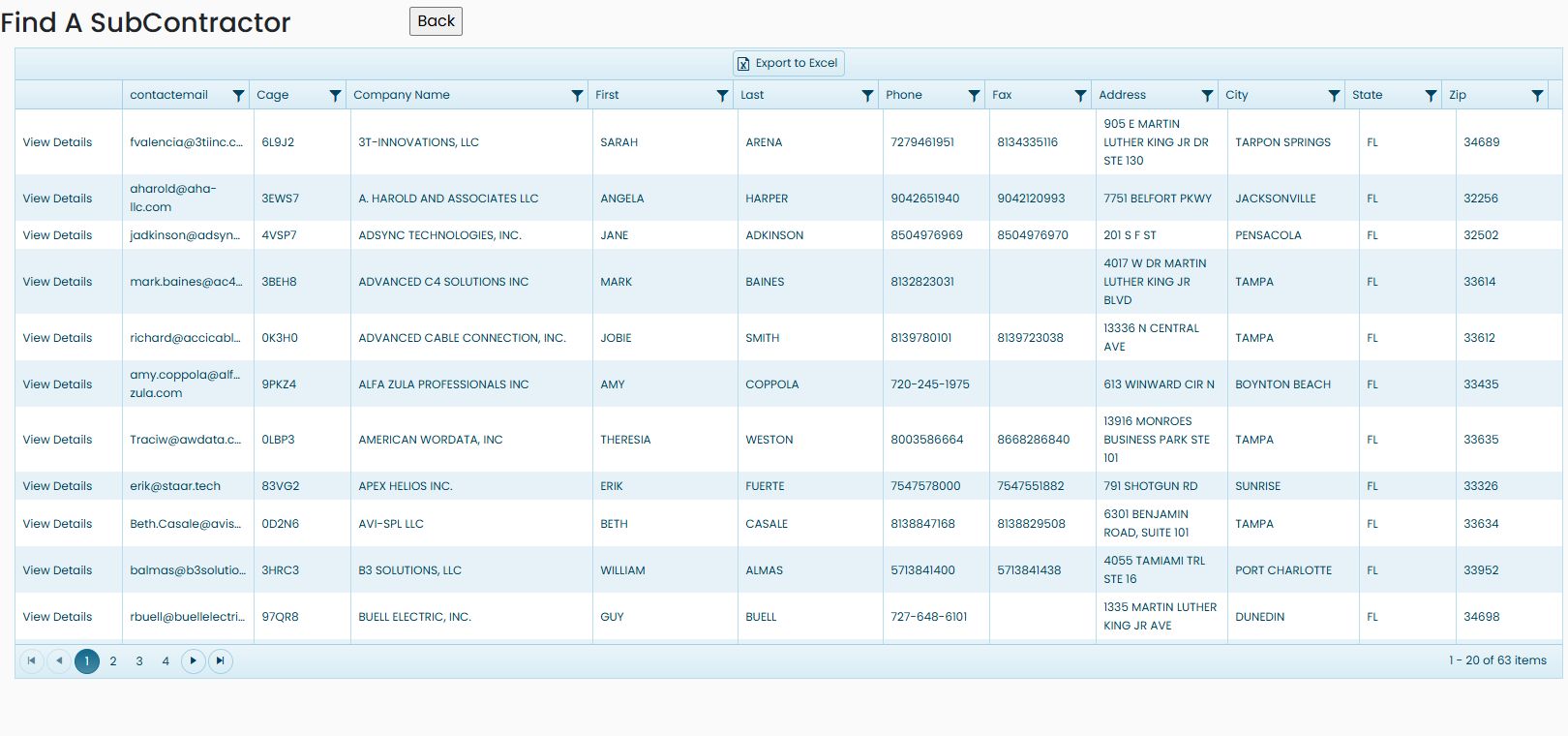
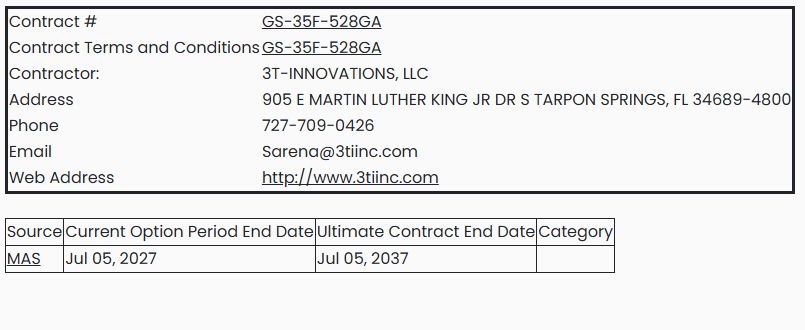
On October 21, 2026, this search returned 63 companies, with 20 on the first page. The result grid has page controls beneath it. The first row is 3T-INNOVATIONS, LLC, CAGE 6L9J2. Choose View Details on its row to inspect the company profile, then choose GSA to see its Schedule information. The observed record includes GS-35F-528GA, a current option date of July 5, 2027, and an ultimate date of July 5, 2037. Check the displayed contract record when researching a company; a search match alone does not establish that a particular product or service is covered.
Example: review a broader Florida keyword result
Choose Keyword, enter electrical, select Florida under State, check Show Vendors with Award History Only, leave the other filters at their defaults and choose Search Contractors. The October 22, 2026 observation returned 3,915 rows, with 20 on the first page. This is a search result to review, not proof that every listed company specializes in electrical work.
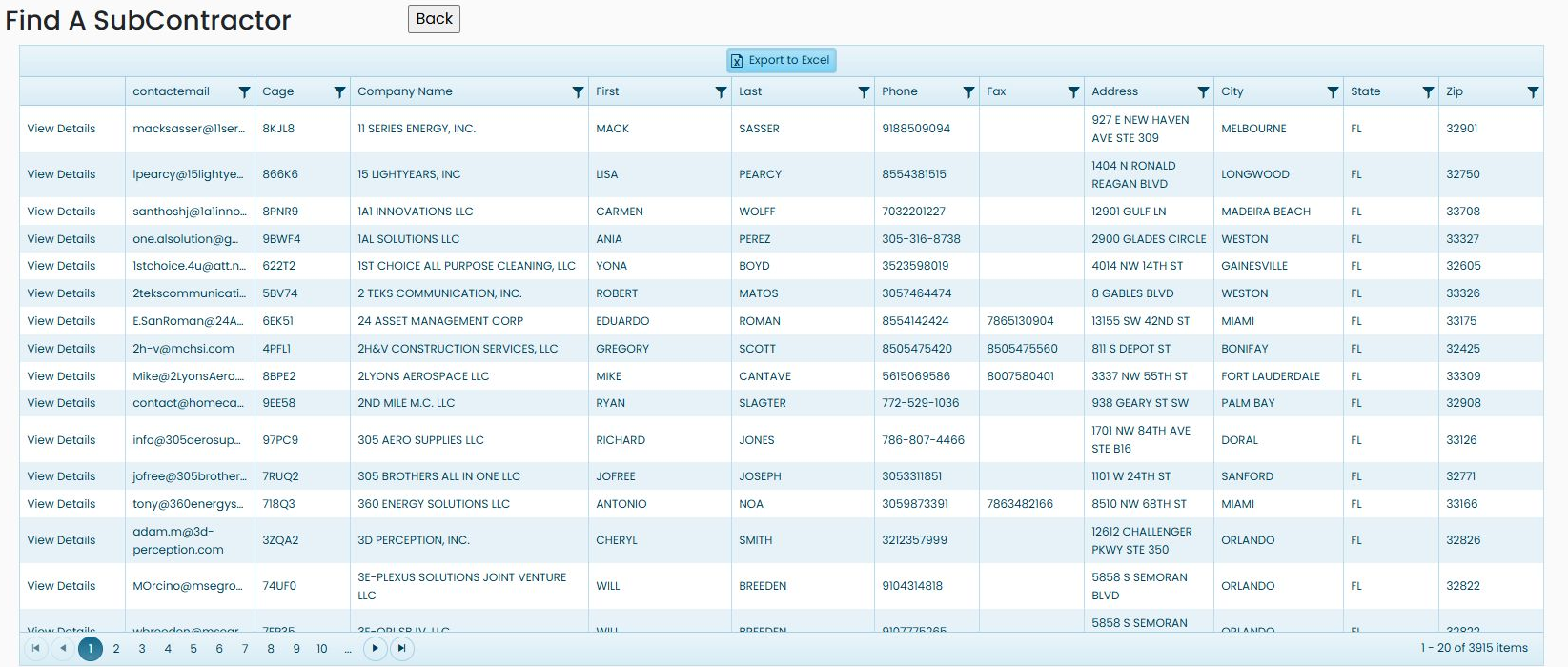
The result grid shows contactemail, Cage, Company Name, First, Last, Phone, Fax, Address, City, State and Zip. View Details opens a selected company record; the company profile guide explains that shared destination. Use the page controls below the grid to review more rows.
Choose Export to Excel above this result grid to download the observed Contractors (6).xlsx workbook. Its Sheet1 contains 3,915 data rows and these same eleven columns. contactemail is the displayed email address; Cage and Company Name identify the company; First and Last are the recorded contact-name fields; Phone and Fax hold available numbers; Address, City, State and Zip give the listed location. A blank value simply means that field is not supplied in that row.
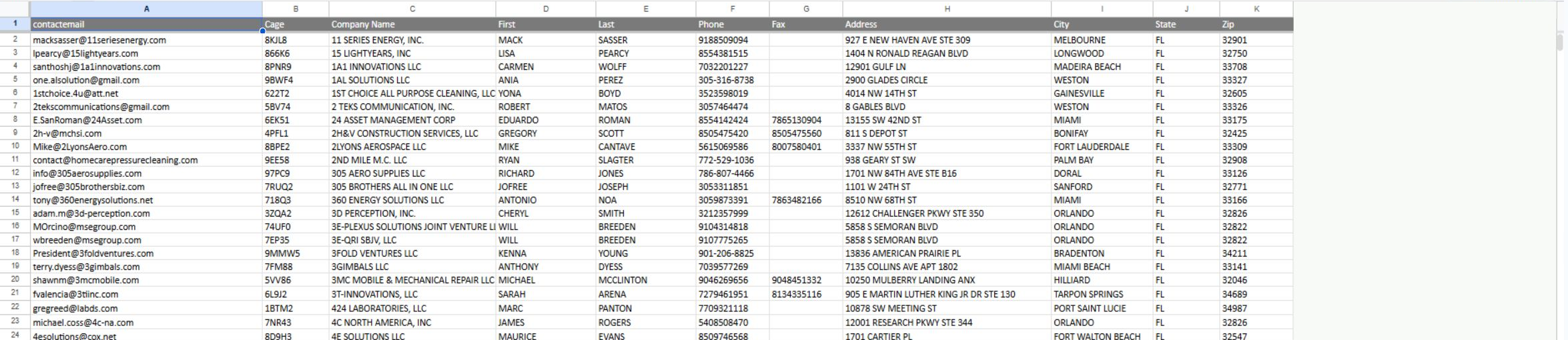
The workbook keeps the contact and location columns together for further review. Check a company's profile and current contact details before using the exported row for outreach.
For a search focused on recorded federal awards, follow the Florida electrical-contractor example. For the company research buttons and their destinations, use the company profile guide.