Read contractor results and profiles
Part of these button learning paths: Research All Open Solicitations · Just My Opportunities · All Government Contractors · Machine Shops Opportunities · Unfulfilled NSN Opportunities · Search by NSN/NIIN · NSN Market Analysis 3 years · DLA Prime Contractors · Naics To FSC Cross · Commercial Part Number to NSN · Weapons System Designator Codes · Construction Menu · Expiring Contracts through 2030 · Award History · Teaming/SubContractor Data · Prime Contractors By NAICS
Video sections for this page
Video sections for this page
Video sections for this page
Video sections for this page
Video sections for this page
Video sections for this page
Video sections for this page
Application path: Main Menu → All Government Contractors → Find a Contractor.
Use this search to identify companies working in an area you serve, then inspect their profiles and awards. This example uses electrical work in Florida so you can compare a meaningful list of businesses rather than search for one known record.
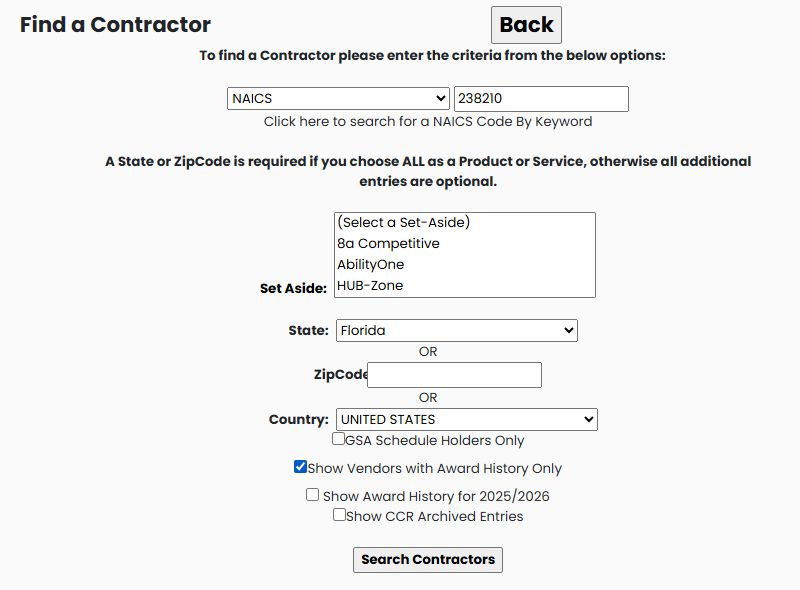
Enter the search
- Choose NAICS from the product/service search list.
- Enter 238210.
- Choose Florida under State.
- Check Show Vendors with Award History Only.
- Leave the other filters unchanged and click Search Contractors.
On October 21, 2026, this returned 712 items, with 20 on the first page. The result screen is titled Find A SubContractor. You reached it from All Government Contractors; the different heading does not require starting another search.
Read the company list
Each row gives a company name, CAGE identifier, contact email, contact's first and last names, phone, fax and mailing address. City, State and Zip help you locate the business. The grid shows 20 results per page and displays page controls beneath it. Column headings and filter icons appear above the rows. Set the criteria you need in the search form before running a search.
Choose View Details beside a company to research it. In this example, select 15 LIGHTYEARS, INC, CAGE 866K6. The profile identifies the company and its contact information. Its research buttons give you routes into awards, parts and other information about that company.
Read the company list
| Field or link | What it shows or opens |
|---|---|
| View Details | Opens the company profile with its address, contacts and available research links. |
See the company's federal awards
From the company profile, click View FBO/FPDS Award History. The example lists four award rows. The first is 80NSSC26P1093, described as REPLACE 5KW OFF-GRID SOLAR PHOTOVOLTAIC (PV) ARRAY, with $70,871.43 displayed.
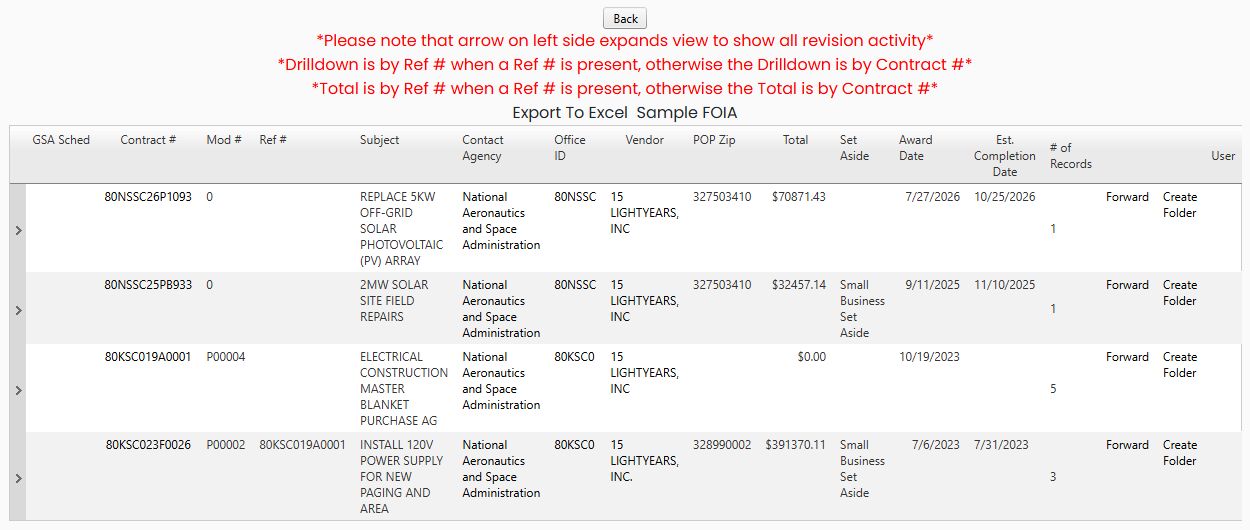
Click that contract number to open Award Details. For this record, the page shows July 27, 2026 as Date Signed and $70,871.43 as Action Obligation. This lets you move from finding a company to reading a concrete example of its work for a government buyer. See Read Award Details for the other visible fields on that screen.
The small arrow beside an award expands its revision activity. This result page explains that when a Ref # is present, its drilldown and Total use that reference; otherwise they use Contract #. Read those labels as you compare rows. Use Back to retrace the route.
For a related video, watch the All Government Contractors lesson sequence. It demonstrates the same search and company-profile controls with a different example: a Florida 238210 search limited to GSA schedule holders, followed by CAGE 6L9J2. The video does not depict this article's award-history-only 866K6 example.
Read the company information
| Field | Meaning and use |
|---|---|
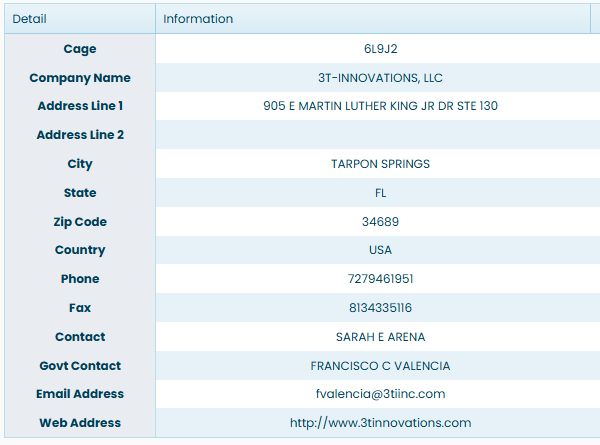
| Cage | The company's identifying CAGE code. Use it to distinguish similarly named businesses. |
| Company Name | The recorded business name. |
| Address Line 1 / Address Line 2 | The mailing or street-address information displayed for the company. A second line can hold additional address details. |
| City / State / Zip Code / Country | The location recorded for the company. This is separate from where an award's work is performed. |
| Phone / Fax | The listed business telephone and fax numbers. |
| Contact | The named contact recorded for the company. |
| Govt Contact | The contact listed for government business. |
| Email Address | The listed contact email. Its link opens your email application. |
| Web Address | The company's listed website address. |
For example, the Florida GSA-holder search described in Choose contractor search criteria leads to 3T-INNOVATIONS, LLC, CAGE 6L9J2, in Tarpon Springs, Florida.
Choose the next research screen
| Button or choice | What it is for |
|---|---|
| View NSN Award History | Research awards for stock items associated with the company. An NSN is a National Stock Number. |
| View FBO/FPDS Award History | Read the company's federal award records. The Florida contractor example follows this route into an award and its details. |
| View MCRL Parts | Research the company's recorded part-number references and their stock-item identifiers. |
| GSA | View the company's listed GSA contract information. See the populated example below. |
| View SAM Details | Read the extended registration fields. See company registration details. |
| Biz Plan | Open the company's business-plan report. |
| Opportunities | Build and open the company-related opportunity list. See the example below. |
| SubContractor Report | Open the subcontractor report associated with this profile. |
| First 5000 records / Complete History | Choose the amount of procurement history to request. The page notes that complete history can take longer for larger CAGE records. |
| Back / Main Menu | Return to the preceding screen or the application Main Menu. |
Example: read a GSA contract
From the 6L9J2 profile, select GSA. The example displays contract GS-35F-528GA for 3T-INNOVATIONS, LLC.
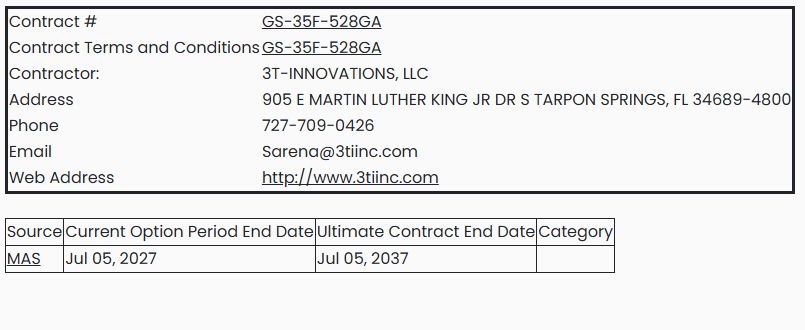
A GSA Schedule is a contract through which government buyers can purchase covered products or services. This page helps you identify the company's contract and follow its published details.
| Displayed field or link | Meaning and use |
|---|---|
| Contract # | The GSA contract identifier. Its link leads to that contract's GSA eLibrary entry. |
| Contract Terms and Conditions | The link to the contract's published terms and conditions. |
| Contractor / Address / Phone / Email / Web Address | The company and contact information shown with this contract. |
| Source | The source label shown with the contract. This example displays MAS; use the contract link for its published details. |
| Current Option Period End Date | The end date displayed for the current option period: July 5, 2027 in this example. |
| Ultimate Contract End Date | The displayed final contract end date: July 5, 2037 here. |
| Category | A category value when supplied; the example's cell is blank. |
Use the contract and terms links to check the scope relevant to your research. The presence of a GSA button on a profile does not by itself tell you what contract information will be returned.
Example: find opportunities related to a company
- Return to the 6L9J2 company profile and select Opportunities.
- Allow the opportunity list to finish preparing.
- Select Click here to see your results when it appears.
- Review the My Solicitations table.
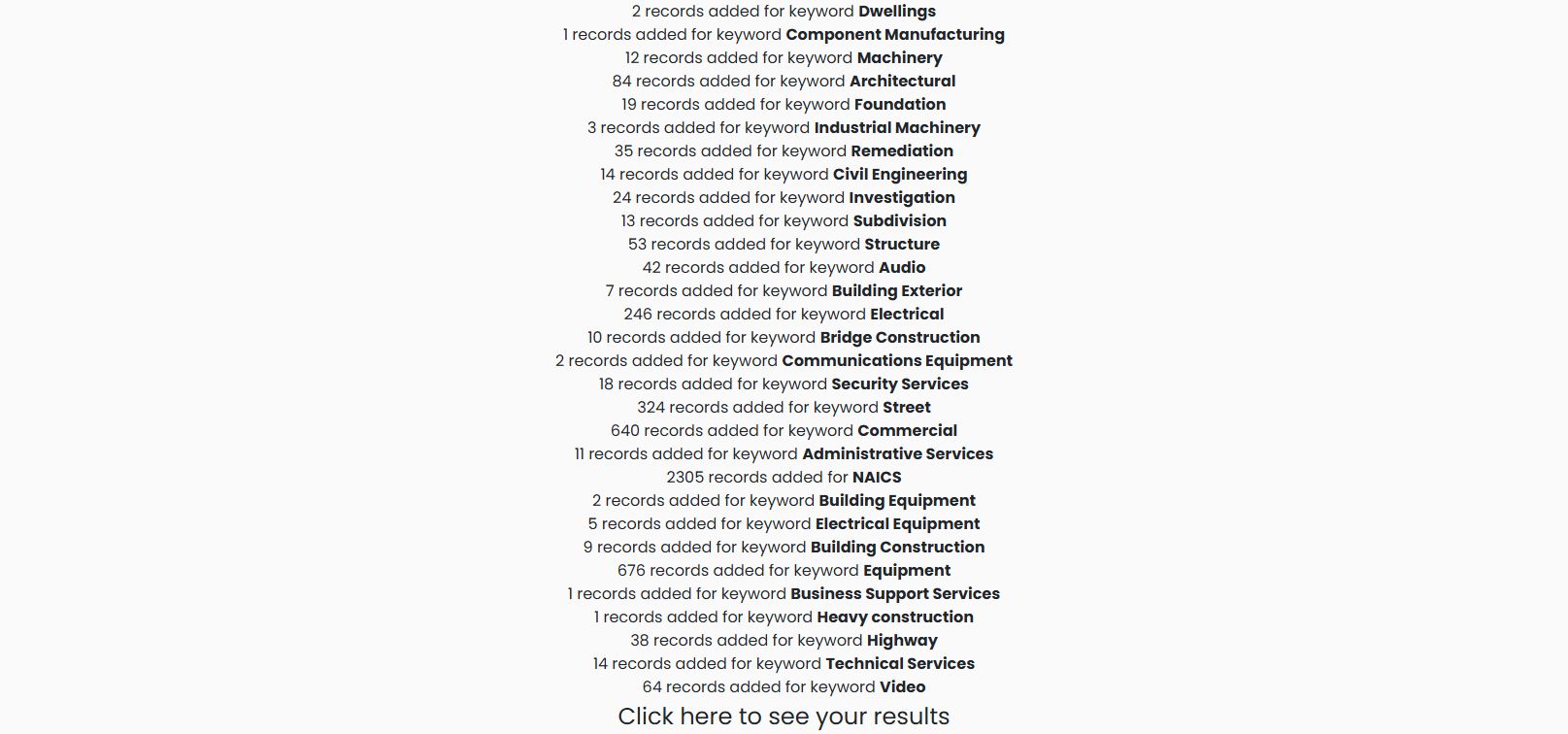
The preparation screen lists matching keywords and NAICS activity. Use the Click here to see your results link at the bottom to open the list; this intermediate screen is not the solicitation table.
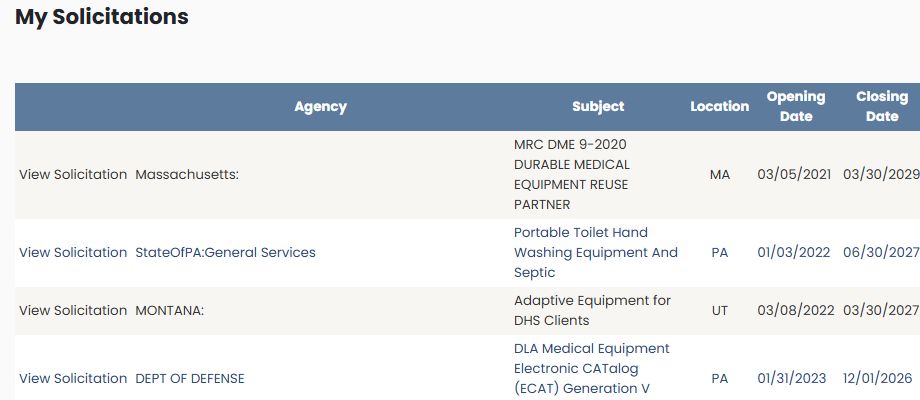
The page describes these as suggested opportunities based on the company's recorded industries and related keywords. Review the notices to decide which are relevant; appearing on the list does not establish that the company can or should bid.
The table shows Agency, Subject, Location, Opening Date and Closing Date. Use View Solicitation to read a particular notice. The October 21, 2026 example includes MRC DME 9-2020 DURABLE MEDICAL EQUIPMENT REUSE PARTNER, showing Massachusetts and a closing date of March 30, 2029. Read the dates supplied on each row rather than assuming every notice was recently opened.
The table displays numbered page links below it and column headings across the top. This example shows the first 100 rows. This company-specific list is reached through a company profile; the separate Just My Opportunities button opens your account's opportunity list.
Example: use the company's business-plan roadmap
Select Biz Plan from the same profile. The example opens 3T-INNOVATIONS, LLC Roadmap, identifying CAGE 6L9J2. The roadmap lays out industry rows so you can compare the size and activity of the markets shown for the company.
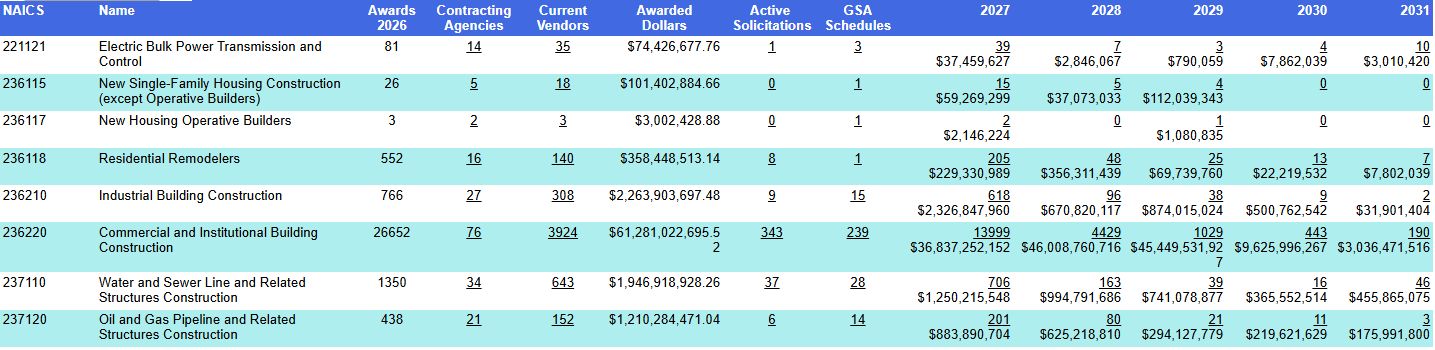
| Column | Meaning and use |
|---|---|
| NAICS / Name | The industry code and description for the row. |
| Awards 2026 | The displayed number of awards for that year. |
| Contracting Agencies | The number of buying agencies; its link opens the agency breakdown. |
| Current Vendors | The number of vendors; its link opens the company breakdown. |
| Awarded Dollars | The displayed award amount for the industry. |
| Active Solicitations | The displayed opportunity count and link to those notices. |
| GSA Schedules | The count and link for the industry's listed GSA contractors. |
| Expiring Contracts: 2027–2031 | Each year shows the count and amount of contracts expiring in that year. Select a count to continue to the corresponding expiration results. |
For example, 236220 — Commercial and Institutional Building Construction shows 26,652 awards, 76 contracting agencies, 3,924 vendors and 343 active solicitations in this captured report. These are industry-row figures, not a claim that the selected company won all those awards.
The government roadmap guide explains the related agency, vendor and expiring-contract drilldowns. Read the year headings on the report you have open as the displayed years change over time.
Open the subcontractor report
From the 6L9J2 profile, select SubContractor Report. It opens a separate PDF tab titled 6L9J2 Report. The observed document has 19 pages and begins 3T-INNOVATIONS, LLC Report, followed by an executive summary.
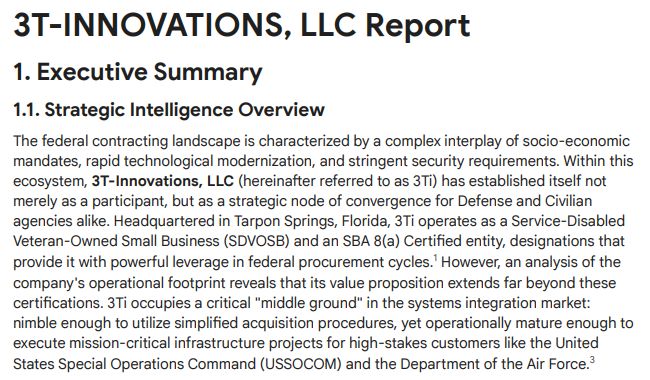
Use the report to review the company's business and potential teaming fit. The PDF viewer's page number and thumbnails let you move through its sections. Close the report tab to return to the company profile; it remains open in the original tab.