Find expected completions for one company
Part of these button learning paths: Expiring Contracts 120 Days · My Government RoadMap · All Government Contractors · Expiring Contracts through 2030
Video sections for this page
Carry the company identifier into the expiration search
- On Main Menu select All Government Contractors, find the company, and choose View Details in the results.
- Copy the company's CAGE from its profile.
- Return to Main Menu and select Expiring Contracts through 2030 under Research.
- Set Vendor Search to CAGE Code, paste the CAGE, select the expected-completion year and press the Search beside Vendor Search.
- In the resulting contract groups, expand a group to see its actions. Select Contract # to read the selected award or modification; use Back to return to the results.
Start with a company's contractor profile and copy its CAGE code. On the Main Menu, choose Expiring Contracts through 2030. In Vendor Search, select CAGE Code, enter the code, choose an expected-expiration year, and press the Search button on the Vendor row.
The results group recorded award actions by contract. Each group shows the buyer, vendor, work description, location, amount and estimated completion date. Open a group to compare its actions and modifications; the expiring-results guide explains every column and why a group's Total can differ from one action's obligation.
For example, use CAGE 1UF60 for U.S.A. SPARES INC. In Expiring Contracts through 2030, select 2027, choose CAGE Code in Vendor Search and enter 1UF60. Leave keywords and NAICS blank, then choose Search beside Vendor Search. The October 23, 2026 example returned 146 grouped items, with 100 on the first page. Contract SPE7M126P2366, modification P00001, describes RING,PISTON, with $95,450 and expected completion December 29, 2027. Expand a contract to inspect its actions; the expected-completion date is not the award-action date.
Use Back to change the CAGE or year. For other ways to search, including NAICS, PSC and worksite filters, see search contracts expected to expire.
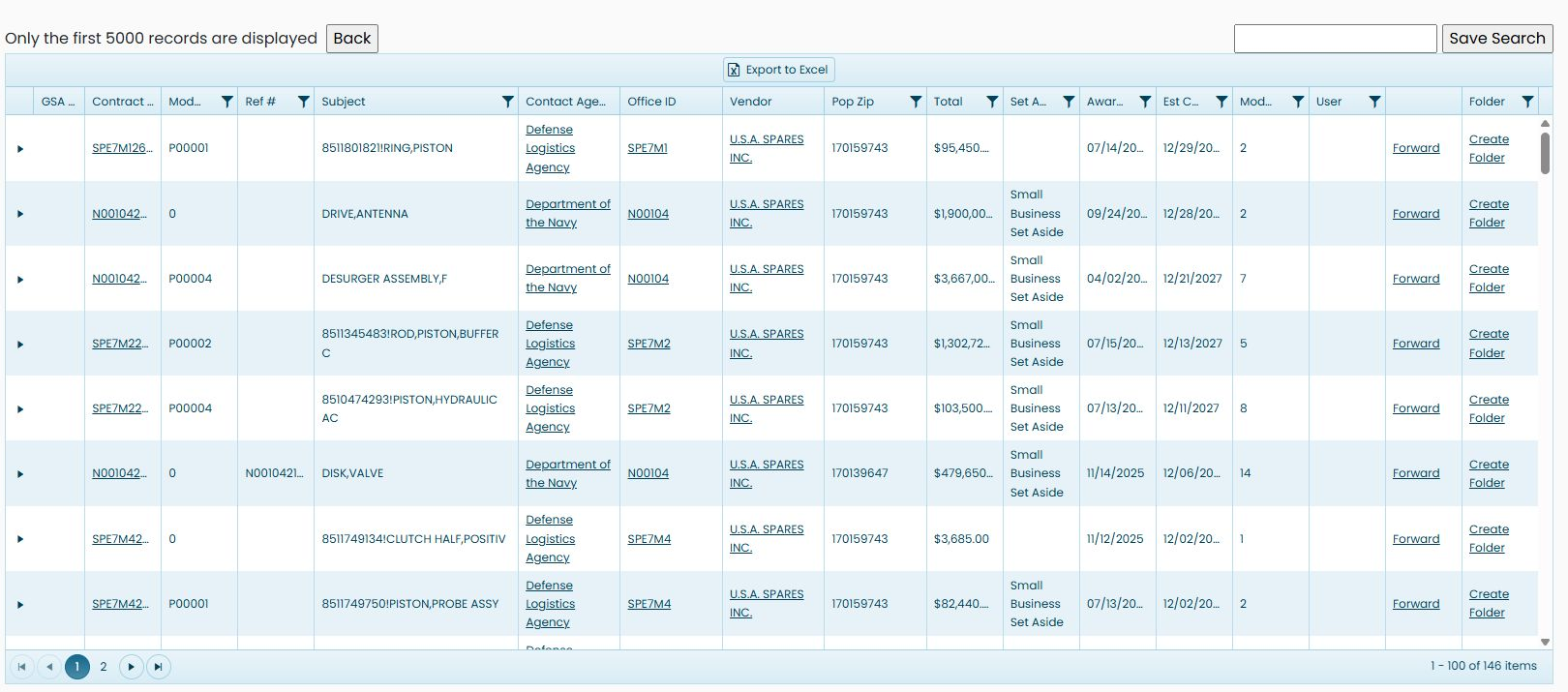
Example captured October 23, 2026. Counts and records may change.