Search drawings by stock number or drawing number
Part of these button learning paths: Search by NSN/NIIN · Drawings
Video sections for this page
Application path: Main Menu → Drawings.
Use this screen when you want the documents associated with a stock number, or already have a drawing reference. It has two separate searches. Enter a stock number in Search by NSN or NIIN and use its Search button, or enter a reference in Search by Drawing Number and use the button beside that field.
Example: find the documents for a cap screw
Enter 5305007262550 in the NSN/NIIN field and choose its Search button. The October 21, 2026 example shows seven rows: three sheets for QAP-EQ001, revision B, and four sheets for QAP-EQ002, revision A. All show CAGE 14153 and type QA.
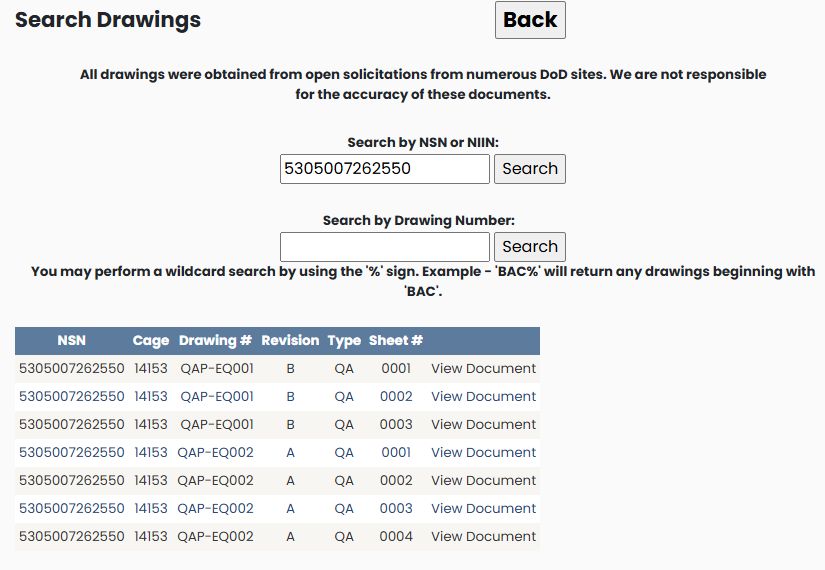
| Column | Meaning and use |
|---|---|
| NSN | Stock number associated with this document row. |
| Cage | Organization identifier recorded with the drawing. |
| Drawing # | The document or drawing reference. |
| Revision | The version designation recorded for that reference. |
| Type | The document-type code displayed with the reference. |
| Sheet # | The individual sheet number. A reference can occupy several rows because it has several sheets. |
| View Document | Opens the PDF for that row. Choose the sheet and revision you need. |
The page explains that these documents were obtained from open solicitations. Check the requirements and documents supplied with the current solicitation before using an older reference for a bid.
Choose one search mode
| Field or control | Meaning and action |
|---|---|
| Search by NSN or NIIN | Enter nine NIIN characters or 13 NSN characters, preserving leading zeroes. This form trims outer spaces but does not remove hyphens, unlike the ordinary NSN search. Use a continuous nine- or 13-character identifier. The lookup compares the last nine characters with stored drawing stock numbers. |
| Adjacent Search | Checks length 9 or 13, clears the drawing-number input, then requests matching drawing rows. It does not check that all characters are digits. Other lengths are intended to show the printed length-warning label; actual warning and result visibility remain untested. |
| Search by Drawing Number | Enter the drawing identifier. A % pattern is supported: the printed BAC% example searches numbers beginning with BAC. Without wildcards, the entered drawing number is matched as a whole. Outer spaces are trimmed. |
| Back | Returns to the previous page. |
Example: start with a drawing number
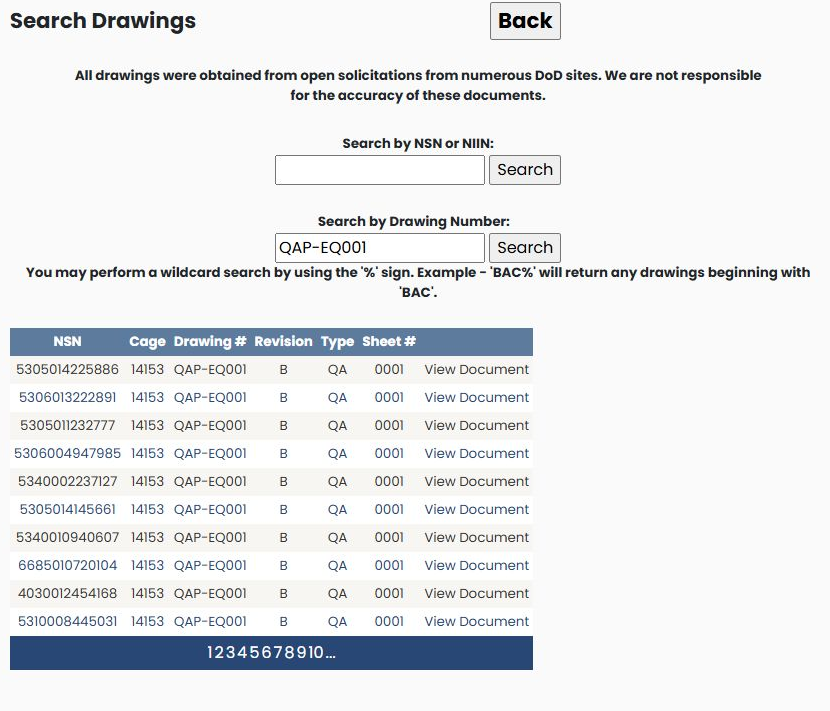
Clear the NSN/NIIN field, enter QAP-EQ001 in Search by Drawing Number, and choose the adjacent Search button. The first displayed page associates that same drawing reference with multiple NSNs, including 5305014225886 and 5306013222891. The rows shown have CAGE 14153, revision B, type QA and sheet 0001. Read the NSN along with the drawing reference; a document may apply to more than one item.
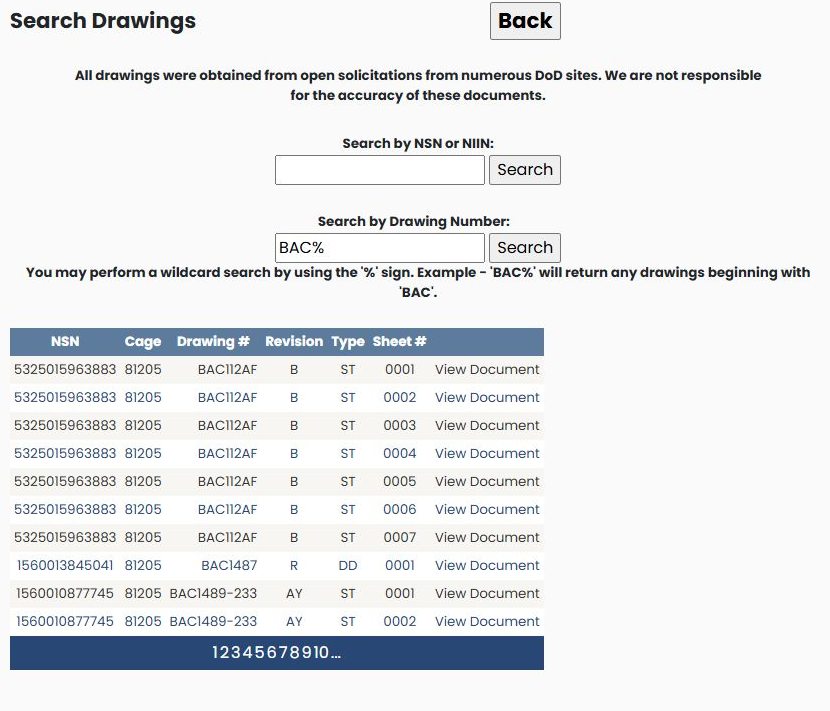
The form supports a % wildcard. Entering BAC% and choosing the drawing-number Search returned references beginning with BAC. The first page has ten rows, including seven sheets of BAC112AF, one BAC1487 row and two BAC1489-233 sheets. These are drawing-sheet rows, not ten distinct drawing numbers.
Use the numbered links beneath a multi-page result to continue. In this example, page 2 opened and included BAC1489-279. Use an exact reference when you have one, or a prefix when you are trying to locate a family of references. Choose the View Document link on the particular row and sheet you need.
Choose Back to return to the preceding page. You can also reach an item's drawing list from View Drawings on its NSN results screen.
Open a drawing from an NSN result
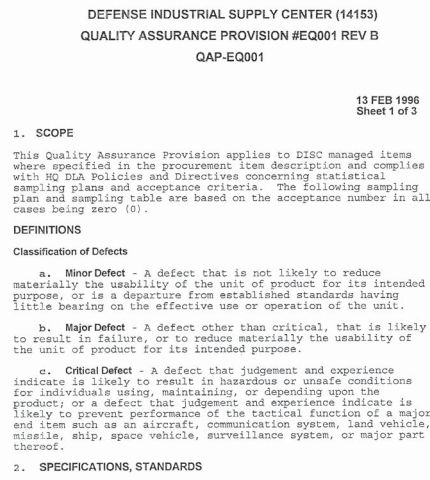
From the NSN item page, choose View Drawings. For 5305007262550, the seven-row list includes QAP-EQ001, sheet 0001, type QA, revision B. Choose View Document on that row to open its PDF in a separate browser tab. The three-page PDF is titled Defense Industrial Supply Center (14153), Quality Assurance Provision #EQ001 Rev B; the shown first page is dated 13 Feb 1996 and labeled Sheet 1 of 3.
Close the PDF tab to return to the drawing results. This example follows the link and confirms the PDF opens; check the current solicitation for the documents and revision that apply to your purchase.