Find state contractors and inspect their profiles
Video sections for this page
- 0:00 — State Contractor Search
- 0:18 — Find a company
- 0:24 — Choose the company location
- 0:33 — Read the results
- 0:43 — Contractor details
- 0:54 — Supporting information
- 1:06 — Search by business activity
- 1:15 — Add a NAICS code
- 1:25 — Recorded codes only
- 1:34 — Direct NAICS results
- 1:45 — Include code text evidence
- 1:54 — Expanded NAICS results
- 2:08 — Try NIGP in another state
- 2:16 — Direct NIGP results
- 2:27 — Expand the NIGP search
- 2:35 — Expanded NIGP results
- 2:45 — All and location filters
- 2:54 — Select a set-aside
- 3:04 — CCR and SAM options
- 3:16 — Review the filtered results
- 3:30 — Export the result set
- 3:43 — Understand the workbook
- 4:01 — Keep company and contact totals separate
- 4:12 — Help whenever you need it
Video sections for this page
Video sections for this page
- 0:00 — Open the State Contractors search
- 0:17 — Enter search text and location
- 0:41 — Read source and code filters
- 1:02 — Read designations and CCR/SAM options
- 1:32 — Review the four Clearwater results
- 1:58 — Compare source counts and links
- 2:21 — Choose a result action
- 2:43 — Open Sani-Chem's state profile
- 3:12 — Read contact and record counts
- 3:40 — Return and distinguish the CCR link
Application path: Main Menu → State Contractors → Find Contractors → View Details.
Use this search to find companies listed in state and local vendor sources, compare result rows, and inspect a consolidated contractor profile. Export Detail Workbook downloads the result set and its supporting source records. The field-by-field guidance below covers the search form, results, profile and workbook in one SalesHelp page. The State Contractors video sequence pairs a general search-and-results walkthrough and a ZIP-radius walkthrough with the separate Clearwater company-profile example.
The dated examples show what those searches returned when captured; check the current result heading and count when you repeat one.
Search fields
| Field | Meaning and use |
|---|---|
| Search type and text | Choose Company Name for a company or DBA, Contact Name for a person, Email, Phone #, Keyword / Description for business descriptions and capabilities, or All to search those areas together. Enter the term in the adjacent box. A type other than All needs text, and text needs a type. Phone search compares digits without formatting. |
| State | The state in the consolidated contractor address. Choose a state or leave (Any State). This can differ from the jurisdiction of a source record. |
| City | Matches the beginning of the consolidated city name. Pair it with State when city names repeat across states. |
| ZipCode | Matches the beginning of the consolidated five-digit ZIP. With Radius selected, this becomes the search origin. |
| Radius (miles) | Choose 25, 50, 100, 250, or 500 miles around a five-digit origin ZIP. Use it with ZipCode. The results describe approximate ZIP-to-ZIP proximity. |
| Source | Limits results to a selected vendor directory or state-source list, such as Florida City of Tampa Certified Vendor. This is the source record's registry, not the contractor's State field. A source jurisdiction and a company's address state can differ. |
| Code Type | Choose NAICS to search business industries, SIC for the older industry classification, PSC for federal products and services, NIGP for public purchasing categories, or UNSPSC for products and services. Any Code searches across code types. |
| Code Value | Enter a formal code or prefix. The match starts with the entered value. A specific Code Type must be selected when searching for a code value. |
| Also search code descriptions and source text | Adds matching descriptions and eligible source text to a code search. Select a specific Code Type and enter a Code Value first. This can find suppliers whose source descriptions mention related work even when the formal code differs. |
| Set Aside | Select one or more recorded designations, such as Small Business, Woman Owned, Minority Owned, or Service-Disabled Veteran Owned. (All Set Asides) leaves this filter open. When multiple designations are selected, a contractor can match any selected value. |
| Also search set-aside descriptions and source text | Adds eligible descriptive evidence to selected set-aside values. Choose at least one designation first. |
| CCR/SAM | Choose All Contractors, Only CCR/SAM Matches, or Exclude CCR/SAM Matches to include all results, limit to profiles with a linked record, or leave linked profiles out. This describes the match shown by this application. |
At least one criterion is required to search. When you combine criteria, the result must meet each selected filter; the optional text-evidence choices add their own eligible matches within the selected code or set-aside. Search Help & Examples opens the application help. The form has Find Contractors and Back controls. Leave a field at its shown default when it is not part of the example. Search results have their own Back and New Search controls; return behavior is described below.
Run a keyword search
On the form, choose Keyword / Description, enter electrical, and set State to FL. Leave City, ZipCode, Radius, Code Value, and the optional text boxes blank. Keep Source at (Any Source), Code Type at Any Code, Set Aside at (All Set Asides), both description checkboxes clear, and CCR/SAM at All Contractors. Select Find Contractors.
The October 13 result shows 844 contractor rows. The first company is AMERICAN WIRE GROUP, LLC. The table includes the company, contact, email, phone, address, city, state, ZIP, source count, and vendor-row count. In this row the State is FL, while street address, city, and ZIP are blank. Choose View Details for a consolidated profile or use the results section for the row actions and columns.
Search a formal NAICS code
Start a new search. Leave the text search type unselected and its text box blank. Set State to FL, choose NAICS for Code Type, and enter 561720 for Code Value. Leave Also search code descriptions and source text unchecked, keep the other filters at their defaults, and choose Find Contractors.
This direct-code search returned 18 contractor rows. The first results include CRAIG STATEN VENTURES INC. in Pensacola and Sterile Environment Technologies, Inc. in Orlando. A direct code search is a good way to start when the formal classification matters. Open View Details to see which codes and sources support an individual profile.
Expand a code search to descriptions and source text
Use the same FL, NAICS, and 561720 criteria, then check Also search code descriptions and source text. Keep all other criteria unchanged and select Find Contractors.
The result shows 234 contractor rows and explains that text evidence is included where the selected source fields are approved. This wider search can include records supported by business descriptions or source text, in addition to direct formal-code matches. It does not mean every result has a recorded NAICS 561720 code. In the profile or workbook, compare 06 Codes with 10 Search Matches to see whether a match came from a formal code or text evidence.
Search around a ZIP code
Start a new search. Choose Keyword / Description, enter janitorial, enter 34677 in ZipCode, and choose 25 for Radius (miles). Leave State at (Any State) and all other filters at their defaults. Select Find Contractors.
The October 13 result shows 106 contractor rows and the message Within 25 miles of ZIP 34677 (approximate ZIP-to-ZIP distance). The table lists the contractors' addresses and ZIP codes; it does not add a separate distance column. For example, MSG SERVICES LLC appears in Brandon, Florida, ZIP 33510. The row's Sources 1 / Rows 2 counts refer to source records, not miles.
Narrow by city
Start another search with Keyword / Description set to janitorial, State set to FL, and City set to Clearwater. Leave ZipCode and Radius blank and keep the remaining fields at their defaults. Select Find Contractors.
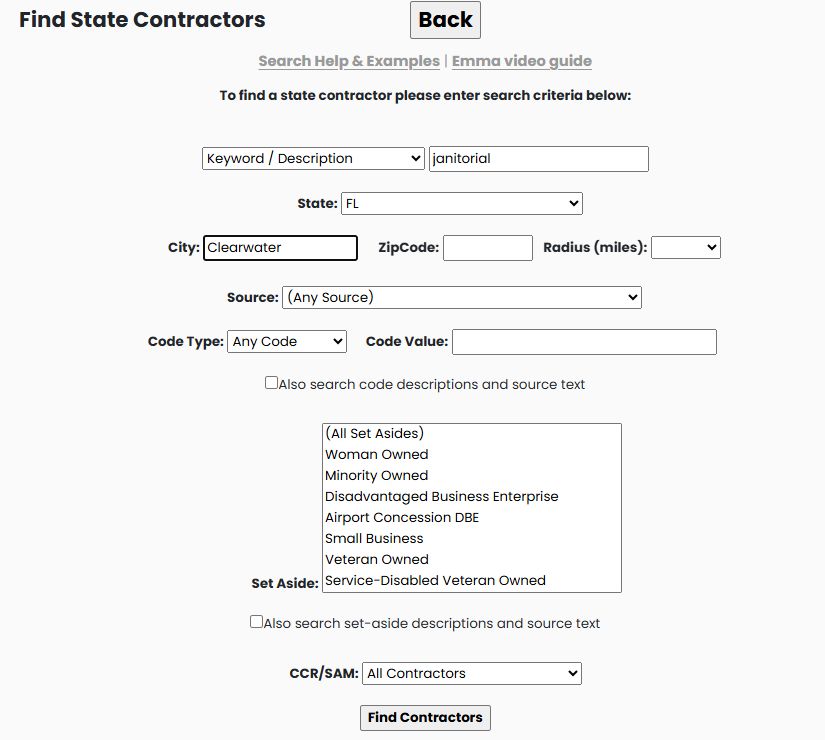
The result shows 4 contractor rows. One is Sani-Chem Janitorial Supplies, Inc. in Clearwater, ZIP 33765. Use View Details to open its consolidated profile. This company row is also a helpful starting point for the separate company-name search below.
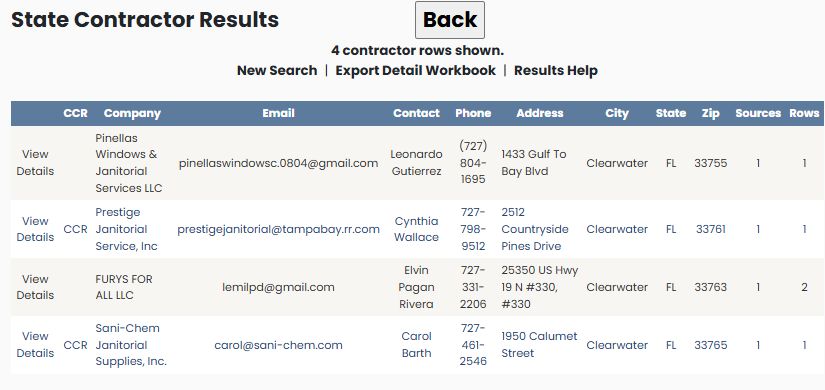
Follow the Clearwater result into a company profile
To inspect the state listing first, choose View Details beside Sani-Chem Janitorial Supplies, Inc. The summary shows its Clearwater address, main contact, and counts of sources, vendor records, contacts and locations. This example has one of each. County identifies Pinellas; Identifiers shows the linked CCR record identifier. Last Seen is the date displayed for the recorded source information.
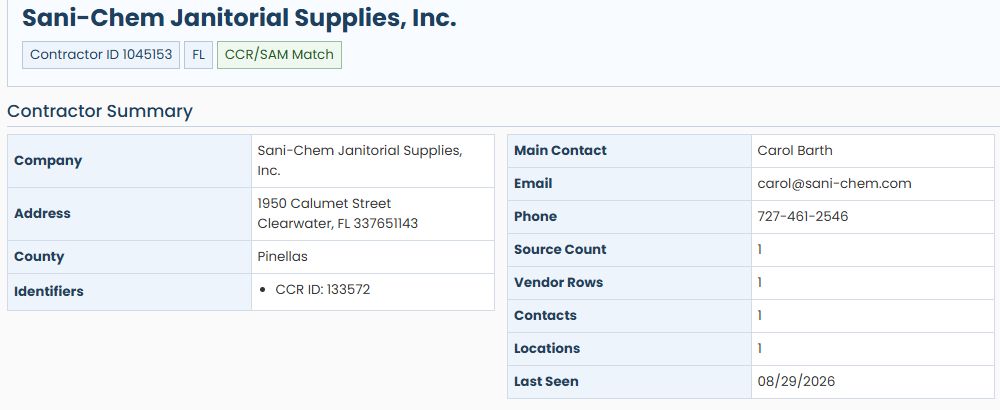
Below the summary, this company has no displayed business designations, description or classification codes. The Contacts section lists Carol Barth. Vendor Registrations and Sources identifies Florida MFMP, the listed location and contact, and links to that source. Use Back to return to the four-row list; use the separate CCR link when you want the federal company research tools.
For the Sani-Chem row, select its CCR link to open Vendor / CAGE Detail View for 5HLX5. That is the federal company research screen, with buttons for award history, parts, GSA, SAM details, a business plan and opportunities. It is a different view from View Details, which opens the consolidated state-contractor profile.
The state result and federal profile can show different contacts. Read the fields shown in the view you are using. See the company research guide for the award-history route, or registration details for the fields reached through View SAM Details.
Filter by source and CCR/SAM match
Start a new search. Choose Keyword / Description and enter janitorial; set State to FL and Source to Florida City of Tampa Certified Vendor. Choose Exclude CCR/SAM Matches. Keep City, ZipCode, Radius, and Code Value blank, with Code Type at Any Code; leave Set Aside at (All Set Asides) and the two description checkboxes clear. Select Find Contractors.
The form shows Florida City of Tampa Certified Vendor in Source and Exclude CCR/SAM Matches selected. The result shows 36 contractor rows. This combination looks for Florida-address profiles with a janitorial description and a contributing record from the selected Tampa vendor directory, while leaving profiles with a linked CCR/SAM match out of the list. State filters the contractor's consolidated address; Source selects the vendor registry that contributed evidence. Those two fields answer different questions.
Find a company by name
Start a new search. Choose Company Name, enter Sani-Chem, and set State to FL. Leave all other fields at their defaults and choose Find Contractors.
The result contains one contractor: Sani-Chem Janitorial Supplies, Inc., Clearwater, Florida, ZIP 33765, Contractor ID 1045153. Its CCR link opens the federal profile for CAGE 5HLX5. Choose View Details to inspect the consolidated profile and contributing source records; the CCR link opens its associated federal record.
Return to the form or start over
The form's Back button returns to the preceding application page. After a search, the results page's Back button returns to the form with the search criteria retained, so you can adjust an input. Choose Find Contractors again to run the changed criteria.
New Search opens a fresh form with cleared criteria. Use it when you want to set up a separate example, such as changing from a city search to the company-name search above. Check the result heading and count before opening a company.
If a search returns no rows
A search using VA, NAICS 238210, and Small Business returned no contractor rows in the October 13 check. If your search is empty, review the selected fields and remove or broaden one criterion at a time. For example, clear the set-aside selection or try the code-description and source-text option to see whether related descriptions are present. The changed search answers a different question, so compare its criteria with the original before using the expanded list.
Continue to results and company details
The State Contractor Results guide explains the table columns, source and CCR links, page navigation, Export Detail Workbook, and how to follow a result. Choose View Details on a company row to open its State Contractor Detail profile, where the consolidated summary, codes, designations, contacts, source records, and any CCR/SAM match are grouped together. Use Back from the profile to return to the results, or the results page's New Search to start over.
Read State Contractor Results and workbook
Use the results to build a supplier shortlist, open a consolidated company profile and inspect its source evidence. The count above the table refers to contractor rows in the result, not source records or just the rows visible on page one. The following searches were observed on October 13, 2026; later searches or data updates may return different counts.
Read an electrical-supplier search
On the form, choose Keyword / Description, enter electrical, select FL, then choose Find Contractors. Leave city, ZIP, radius, code and set-aside criteria blank; use Any Source and All Contractors for CCR/SAM. The result shows 844 contractor rows shown.
The first visible row is AMERICAN WIRE GROUP, LLC. It supplies an email, contact, phone and state FL, but street address, city and ZIP are blank. A state match does not supply the missing address. Keep those gaps visible when making a shortlist.
The row offers three different routes:
- View Details opens its consolidated State Contractor Detail, Contractor ID 97684, for company information and contributing records.
- CCR opens the separate federal contractor detail for CAGE 1VQG3. This link does not establish current SAM registration status.
- The AMERICAN WIRE GROUP, LLC company-name link points to an OregonBuys vendor profile. A Florida company can appear in another state's vendor source; this link is not necessarily the company's own website.
Start with View Details to understand the consolidated profile. Follow the source or CCR route for the particular evidence you need. Some recorded company links lead to a general directory or an unavailable destination; a displayed link alone does not establish a current individual source profile.
Open a linked CCR profile and return
For a direct company lookup, choose Company Name, enter Sani-Chem, select FL, and choose Find Contractors. The October 13 search returned one contractor row. Its CCR link opened Vendor / CAGE Detail View in the same tab, showing CAGE 5HLX5 and SANI-CHEM JANITORIAL SUPPLIES, INC. Choose Back to return to the original one-row State Contractor result.
This is the federal company research view, distinct from the consolidated State Contractor profile. Its research buttons are explained in Read contractor results and profiles. Read each view's displayed fields as its own record; do not assume different contact names have the same role or currency.
Compare direct-code and expanded results
Clear the keyword and location fields. Select FL, choose code type NAICS, enter 561720, and leave Also search code descriptions and source text unchecked. The result shows 18 contractor rows. Visible firms include CRAIG STATEN VENTURES INC. in Pensacola and Sterile Environment Technologies, Inc in Orlando. Open View Details to examine formal codes and sources rather than deciding from the company name alone.
Return through New Search and repeat the same state, code type and code value, this time checking Also search code descriptions and source text. The result shows 234 contractor rows, with a message that text evidence is included for the selected source fields.
The expanded list includes candidates supported by descriptions or source text as well as formal code entries. It does not mean that all 234 firms have a recorded six-digit NAICS 561720 entry. Compare the profile's formal codes with its business description and source records. In the workbook, 06 Codes and 10 Search Matches distinguish formal-code entries from text evidence.
Interpret a ZIP-radius result
Choose Keyword / Description, enter janitorial, enter ZIP 34677, and select a 25-mile radius. Leave state, city, code and set-aside criteria blank. The result shows 106 contractor rows, followed by Within 25 miles of ZIP 34677 (approximate ZIP-to-ZIP distance).
The table has Address, City, State and Zip columns; this view does not add a separate distance column. The message describes approximate ZIP-to-ZIP proximity, not driving distance or the exact distance to a company's premises.
For example, MSG SERVICES LLC is shown in Brandon, ZIP 33510, with Sources 1 / Rows 2. Those numbers describe the evidence behind its profile, not miles. Open View Details to inspect the retained location and source records before choosing a local supplier.
Read every result column
| Column/action | Meaning and use |
|---|---|
| View Details | Opens the consolidated company profile for that Contractor ID. Inspect contacts, designations, formal codes, classifications and original source evidence. |
| CCR | Opens an available linked CCR/SAM record. A blank cell means there is no displayed link for this row; it does not prove the firm has no federal registration. |
| Company | The consolidated name. A link opens its recorded source destination, which may be a profile or directory rather than the company's own website. |
| The retained main email; the link opens a mail draft. A populated address is not a delivery or mailing-eligibility check. | |
| Contact | The retained main person's name. Open the profile for additional contacts and missing context. |
| Phone | The retained main telephone number. Sources may retain different contacts or formatting. |
| Address | The consolidated street address. Keep a blank value as missing information. |
| City | The consolidated city. Compare it with ZIP and source evidence when location matters. |
| State | The consolidated state abbreviation used for the state filter; it may differ from the source system's jurisdiction. |
| Zip | The consolidated postal code. It is not a mileage value; read the separate radius message for proximity. |
| Sources | Number of distinct contributing source systems. |
| Rows | Number of source/vendor records consolidated into the profile, not distinct offices or current certifications. |
Sources and Rows can differ. The electrical result includes Sagat's Computers Inc with Sources 1 / Rows 568. One system can contribute many records; that number does not explain the match or make the firm a better supplier. Inspect its profile and source evidence.
Page through results and return to search
The electrical, expanded-code and radius examples show 50 contractor rows on page one. Use the numbered links below the table for other pages. The electrical result shows current page 1, links 2–10, and … for the next group. The radius result has pages 1, 2 and 3. The 18-row direct-code result fits on one page. The count above the table covers the result, not just the current page.
Read rows in their displayed order. The observed column headers do not provide sorting controls.
- New Search returns to the form. Set and check the next criteria before choosing Find Contractors.
- Results Help opens the application's results-and-export explanation.
- Back returns to the preceding page.
If the result is No state contractors found, review the combination on the form. Broaden one criterion at a time to see which change affects the result. A row is a candidate to investigate, not confirmation of procurement eligibility or a currently valid designation.
Export the detail workbook
Choose Export Detail Workbook above the results. The link carries the current criteria. For the radius example these include keyword janitorial, ZIP 34677 and radius 25; for the expanded-code example they include FL, NAICS 561720 and text expansion. Save the resulting workbook and retain its search context when comparing suppliers.
Start with Workbook Guide and 01 Prospects. Use Contractor Record to connect a company with its other worksheets. This is a record identifier, not an industry code or certification. One main prospect can have several contact, location, code or source rows.
Follow one firm through six worksheet excerpts
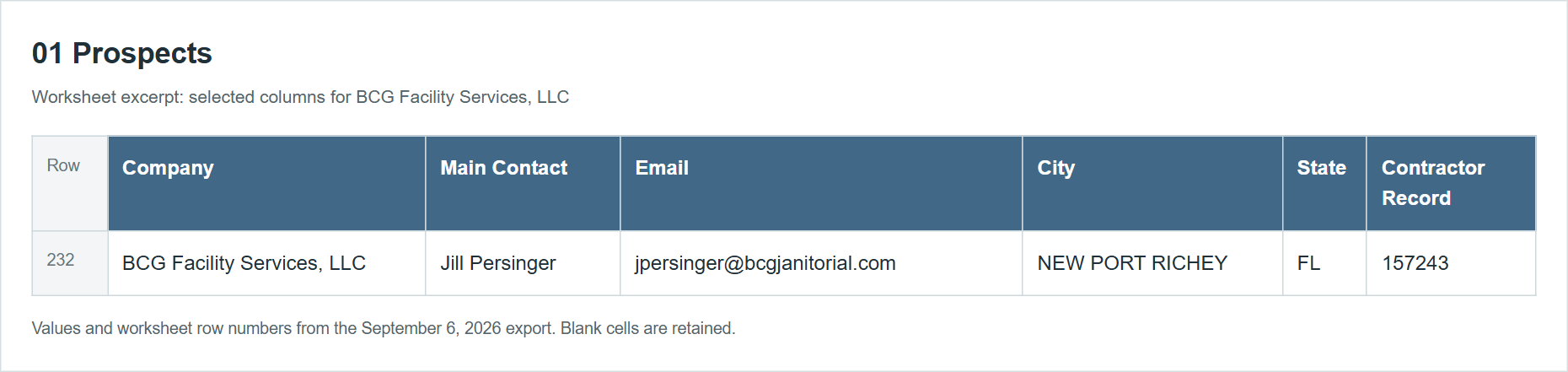
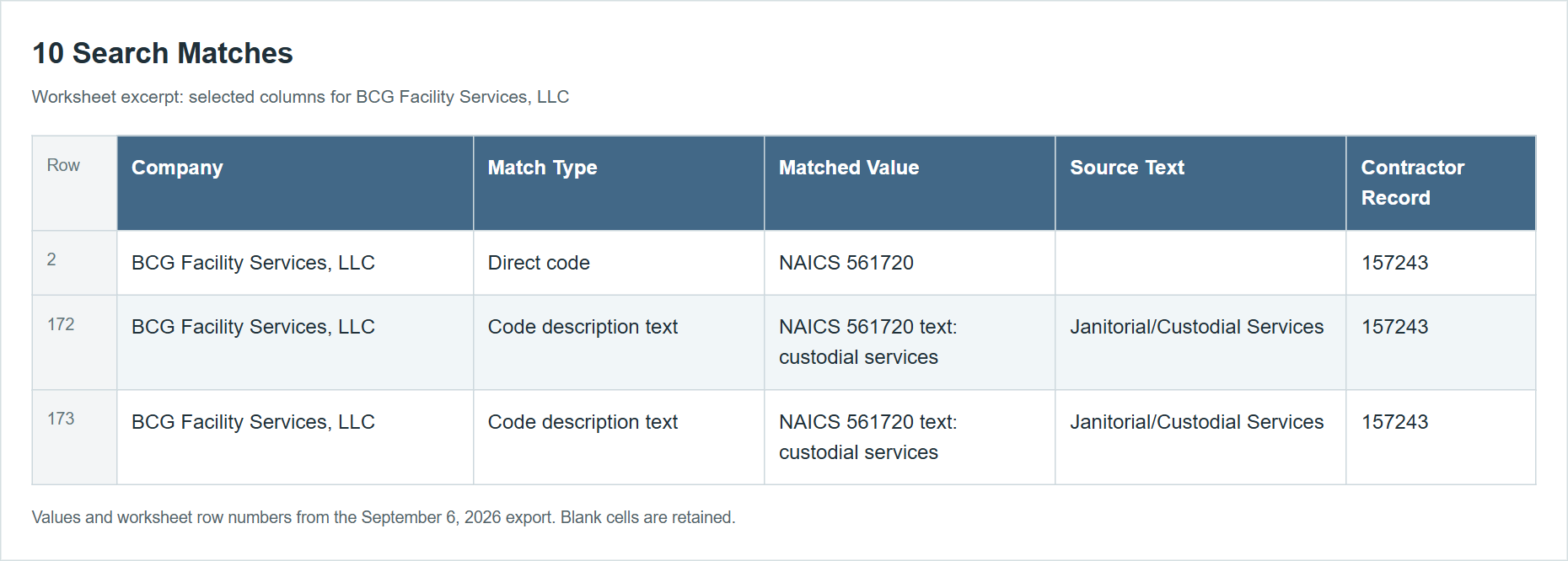
These worksheet excerpts show a September 6, 2026 Florida NAICS 561720 example with code/source-text expansion. Selected columns, row numbers and blanks illustrate how to follow one contractor through the workbook; the dated values do not establish current contact or certification status.
01 Prospects: the main company row
Row 232 identifies BCG Facility Services, LLC, main contact Jill Persinger, NEW PORT RICHEY, FL, and Contractor Record 157243. Begin with this main-list row, then use the record number to locate supporting details.
02 Contacts: retain blanks and repeated evidence
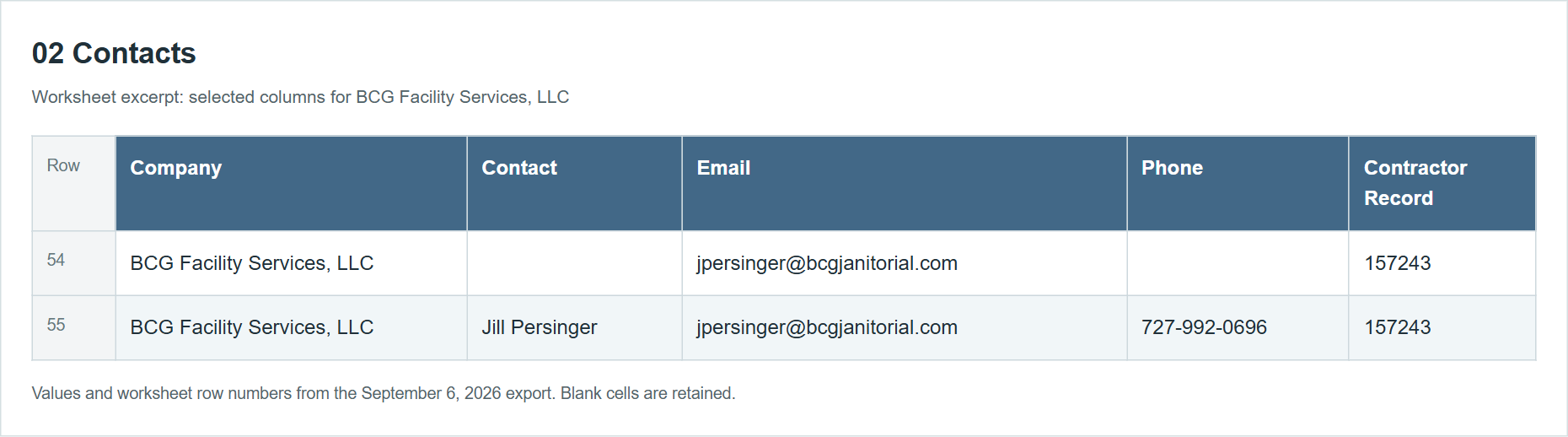
Rows 54–55 have the same company and email. One has a blank contact name and phone; the other names Jill Persinger and supplies a phone. Do not invent another named person for the blank row or count repeated email evidence as another contractor.
03 Locations: compare variants before counting offices
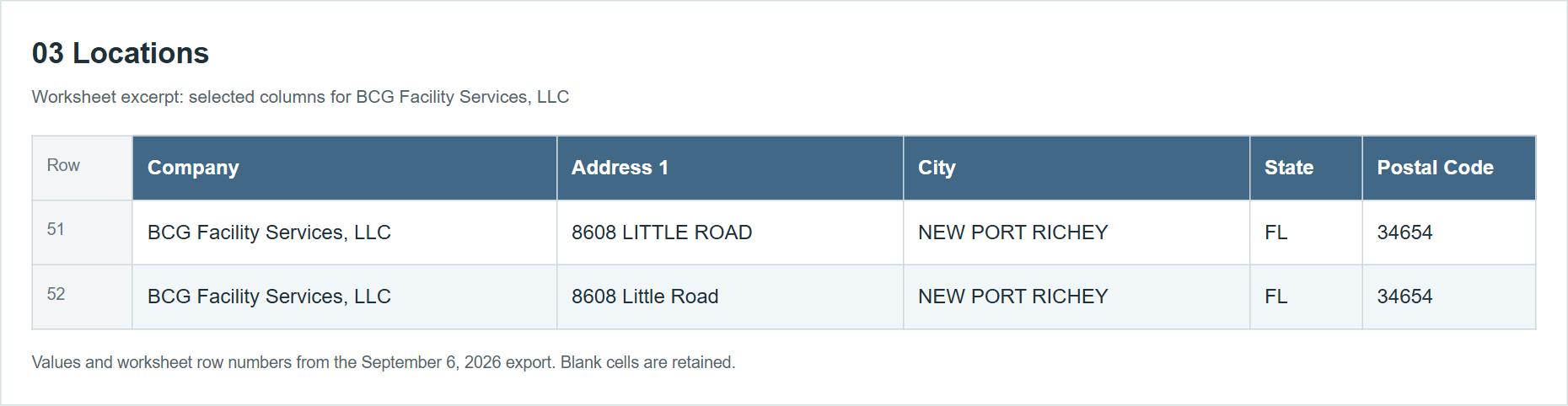
Rows 51–52 contain 8608 LITTLE ROAD and 8608 Little Road, both in NEW PORT RICHEY, FL 34654. The case differs, but these rows do not by themselves establish two separate offices.
06 Codes: distinguish prefixes from the complete code
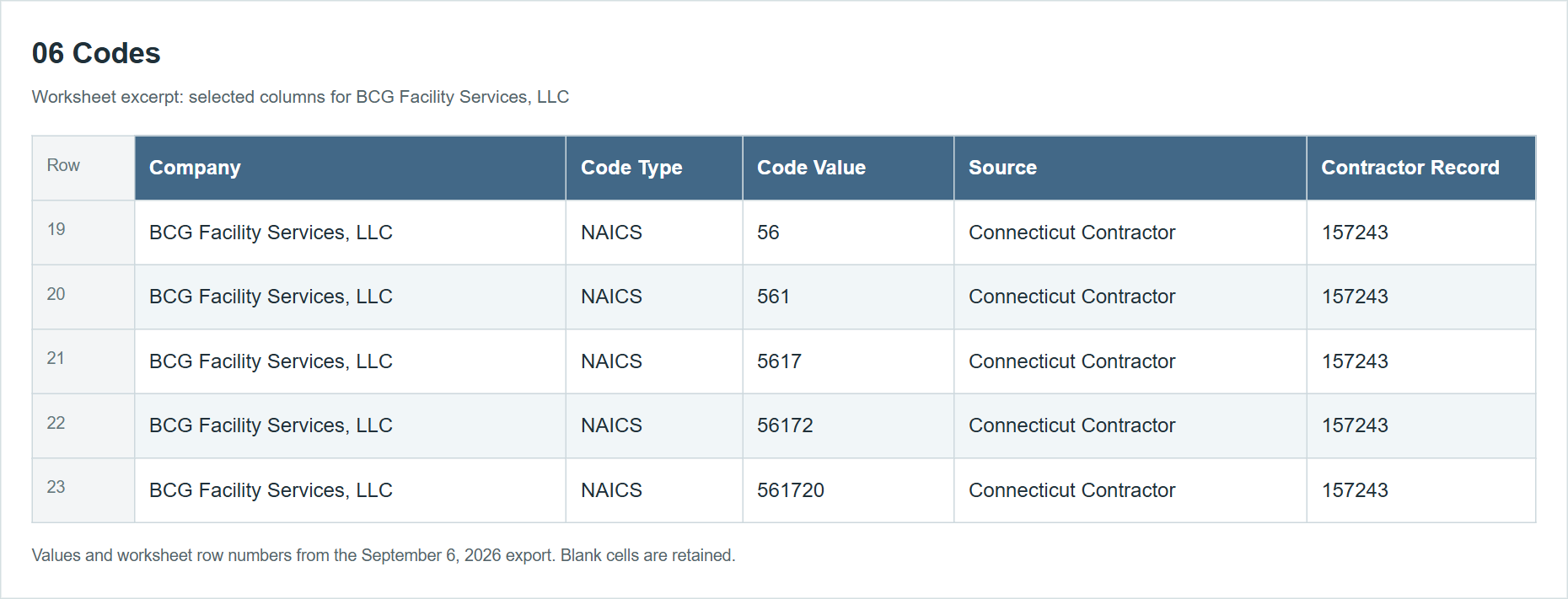
Rows 19–23 list NAICS 56, 561, 5617, 56172 and 561720, source Connecticut Contractor. The entries range from broad prefixes to the complete six-digit code. Keep Code Type, Code Value and Source together when comparing classifications.
08 Source Details: trace differences to their source
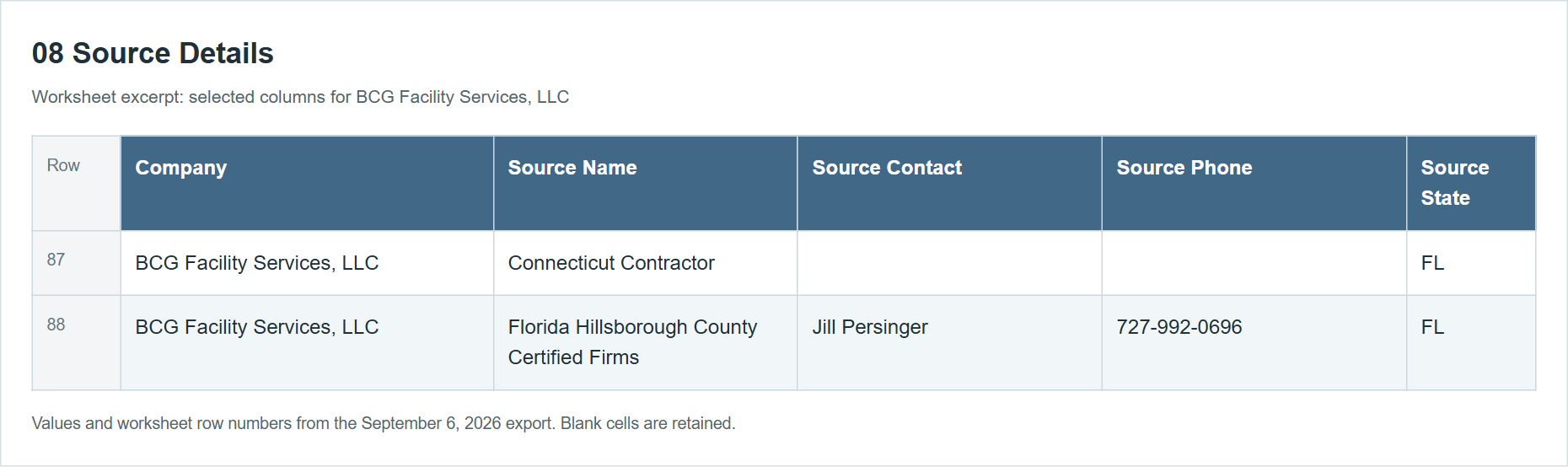
Rows 87–88 show Connecticut Contractor and Florida Hillsborough County Certified Firms, both with Source State FL. The first has a blank source contact and phone; the second supplies them. A Connecticut source system can contain a Florida company. Read its location fields rather than treating the source name as the supplier's location.
10 Search Matches: distinguish direct code from supporting text
Row 2 shows Direct code / NAICS 561720. Rows 172–173 show Code description text, with custodial services in the matched value and Janitorial/Custodial Services in source text. These are different pieces of matching evidence for Contractor Record 157243, not three contractors.
Workbook fields and meanings
The sheet names and headings below were checked against the retained public workbook. A blank means the export did not supply that value. Source designations and certifications require issuer/program/current-status verification before use in a bid decision.
| Sheet | Columns and purpose |
|---|---|
| Workbook Guide | Sheet, What it contains: describes each sheet before analysis. |
| 01 Prospects | Company, DBA (trading name), Main Contact, Contact Title, Email, Phone, Website, Address 1, Address 2, City, State, Postal Code, County: identity, contact and location. Business Description, Business Type, Status, Woman Owned, Veteran Owned, Service-Disabled Veteran Owned, Minority Owned, Small Business, Disadvantaged Business, Certification Summary, Category Summary, Capability Summary: business and designation details to verify. Detail Page, CCR Record, CAGE, Contractor Record: links and identifiers. One row per consolidated contractor. |
| 02 Contacts | Company, Contact, Title, Email, Phone, Times Seen, Contractor Record: retained people and their contact channels. Times Seen is evidence frequency, not a quality score. |
| 03 Locations | Company, Address 1, Address 2, City, State, Postal Code, County, Country, Times Seen, Contractor Record: additional locations and source frequency. |
| 04 Set Asides | Company, Set Aside, Source, Contractor Record: recorded set-aside label and its source, useful for verifying a filtered candidate. |
| 05 Certifications | Company, Certification, Source, Contractor Record: other reported certifications, separate from set-aside labels. |
| 06 Codes | Company, Code Type, Code Value, Source, Contractor Record: formal NAICS/SIC/PSC/NIGP/UNSPSC entries and prefixes. Keep the family, value and source together; a short prefix is broader than a complete code. Confirm codes with the relevant official source. |
| 07 Classifications | Company, Classification Type, Classification, Source, Contractor Record: other descriptive category and work labels. These should not be mistaken for formal codes. |
| 08 Source Details | Company, Source Name, Source Company, Source Contact, Source Email, Source Phone, Source Address, Source City, Source State (company location as reported by that source), Source Postal Code, Source Status, Business Description, Certification Summary, Category Summary, Capability Summary, Source Detail Page, Source URL, CCR Record, Contractor Record: each source’s original view of a supplier and where to verify it. |
| 09 CCR Links | Company, CCR Record, CAGE, Contractor Record: known matched federal supplier records. |
| 10 Search Matches | Company, Match Type, Matched Value, Source Field, Source Text, Contractor Record: Match Type distinguishes direct-code or text evidence; Matched Value records the matched code/value/term, Source Field identifies its field when supplied, and Source Text retains the supporting text. This is not a certification report or a complete explanation of every keyword match. |
| Export Summary | Generated records the creation time; Request Host identifies the site; Search Page retains the request and criteria; Contractors records the main contractor count; Workbook Format describes the format; Detail Sheets lists the included detail categories. Use it to distinguish searches and exports. |
For a supplier shortlist, begin with 01 Prospects, follow the same Contractor Record through 04 Set Asides and 06 Codes, then compare 08 Source Details and the detail profile. Source counts and Times Seen are evidence counts, not quality scores. A cell containing an email is not a mailing-verification result.
Return to Find State Contractors to adjust the search, or read State Contractor Detail to investigate one firm.
State contractor detail
At the top of the page, Detail Help opens the application’s detail-page help, Back returns to the prior page, and State Contractor Detail identifies the current view. The header then shows the company name, Contractor ID, state, and any status or match indicator. Use the Contractor ID to keep this profile distinct from similarly named businesses. A status such as Active or a CCR/SAM Match marker is what this page displays; verify eligibility or federal registration with the issuing source before relying on it.
Read the consolidated summary
The Contractor Summary panel brings together company, location, identity, and contact information. These fields appear when provided by the sources:
| Field | What it shows |
|---|---|
| Company / DBA | The company name and, when present, its “doing business as” name. |
| Contractor ID | The identifier for this consolidated contractor profile. |
| State / Active / CCR/SAM Match | The displayed state and status or federal-match indicators. They do not independently confirm current eligibility or registration. |
| Address / County / Country | The displayed business location. |
| Website | A website value, when present. A value such as http://n/a is not a working company website. |
| Status / Business Type | Source-provided status or business category, when available. |
| Identifiers | Other source-provided IDs, such as the CCR ID in the electrical example. |
| Main Contact / Email / Phone | The contact shown first for the profile. Email is a clickable mail link; phone is displayed for reference. |
| Source Count / Vendor Rows | Number of source systems and number of source/vendor records contributing to the profile. |
| Contacts / Locations | Counts of contact and location entries associated with the profile. |
| Last Seen | When the source information was last seen, when shown. It is not a certification expiration date. |
Not every profile has every field. A missing value means the page has no value to show for that field.
For example, a Florida search for the keyword electrical returned 844 results. Opening For the people electrical services LLC shows Contractor ID 466565, state FL, and a CCR/SAM Match marker. Its summary lists Branford, Suwannee County, Florida, CCR ID 3880017, one source, one vendor row, one contact, one location, and Last Seen 08/29/2026. The date tells you when the displayed source information was last seen; it does not establish that the contact details or registration remain current.
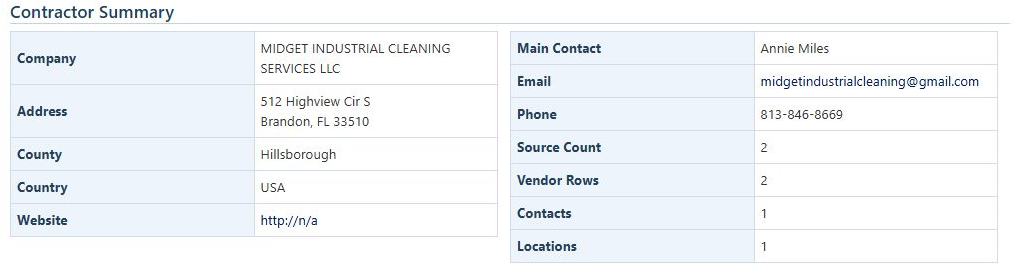 A second example began with janitorial, ZIP 34677, and a 25-mile radius, producing 106 results. The detail for MIDGET INDUSTRIAL CLEANING SERVICES LLC is Contractor ID 1580221, state FL, and marked Active. Its summary lists Brandon, Hillsborough County, USA, and counts of two sources, two vendor rows, one contact, and one location. The website field displays
http://n/a; this is the value shown by the page, not a working company website.
Designations, work descriptions, and codes
Business Designations lists labels and certifications supplied for the contractor:
| Column | What it shows |
|---|---|
| Designation | The kind of label or certification, such as Certification Type or Supplier Certification. |
| Value | The designation or source-provided certification text. It may include an issuer, program, industry, or expiration date. |
| Source | The directory or program that supplied the value. |
| Rows | How many source rows supplied it. |
Treat certification details as source-reported information and confirm them with the issuer when they matter to a decision. If the panel says no designations were found, that means none are displayed for this profile; it does not prove the business has no qualifications.
For MIDGET, the page displays Woman Owned, Minority Owned, and Small Business, plus source-reported SBE and SLBE certification details from Hillsborough County and the City of Tampa. The displayed details include expiration dates of 8/9/2029 and 8/2/2027, respectively. These are examples of values recorded on the captured page, not a statement that either certification is currently valid.
What They Do summarizes available descriptions or capabilities. On the MIDGET profile, the displayed capability is Janitorial Services-Commercial and Residential, Trash Removal. The Codes and Classifications section lists the available work labels or codes in columns for Type, Code / Classification, Source, and Rows. In this example, the capability appears under both county and city source names. Similar wording may appear more than once because the sources are shown separately. The Florida electrical example instead says no description, capability, commodity, classification text, codes, or classifications were found. An empty or unavailable section is a prompt to check other sources, not a conclusion about the contractor’s actual work.
Follow a direct NAICS match
From Main Menu > State Contractors, set State = FL, Code Type = NAICS, and Code Value = 561720, leaving code-text expansion off. The 18-row result includes CRAIG STATEN VENTURES INC. Choose its View Details link. Under Codes and Classifications, Formal Codes shows NAICS Code, 561720, Georgia GDOT UCP Directory, and Rows 1. The separate Business Classifications and Work Areas table shows a Category / Service entry. Read the table heading as well as the value: a formal code and a descriptive work classification are different fields. The company's Florida location and the Georgia source describe different things.
Use Back to return to the 18-row result and compare another contractor.
Contacts and supplier sources
The Contacts table lists Name, Title, Email, Phone, and Sources. Name identifies the contact; Title is their listed role, if provided; Email is clickable; Phone is displayed for reference; Sources counts contributing records that include the contact. A blank title means no title is shown.
Vendor Registrations and Sources lists the source records separately:
| Column | What it shows |
|---|---|
| Source | The contributing directory or program. |
| State | The source jurisdiction shown for the record. |
| Vendor / Location | The supplier name and location as recorded by that source. |
| Contact | Contact details supplied with that source record. |
| Source Details | Source-reported certifications, capabilities, row counts, or last-seen date, when available. |
| Links | source detail and source feed links to the supplier entry or directory, when provided. A link may be unavailable. |
MIDGET’s page shows two contributing sources: Florida Hillsborough County Certified Firms and Florida City of Tampa Certified Vendor. Both list the same Brandon location and contact, while their certification wording differs. Comparing these rows helps explain what each source contributed; use the linked source when you need to verify its current entry. The electrical example shows one Florida MFMP source row, with one source row and Last Seen 08/29/2026.
Federal match and evidence summary
When available, CCR/SAM Match lists these columns:
| Column | What it shows |
|---|---|
| CCR/SAM | The linked federal record identifier, when available. |
| CAGE | The associated CAGE code. |
| Company | The company name shown for the association. |
| Source | The source label for the displayed row. |
| Score | The application’s matching indicator, not a contractor rating, qualification score, or guarantee of current registration. |
| Strategy | A label describing the matching approach; it is not an independent rating. |
| Rows | The number of contributing rows shown for the association. |
A linked CCR/SAM value opens the associated federal-record view. The electrical example shows CCR/SAM ID 3880017, CAGE 15YK2, and score 0.9922. MIDGET’s page says No CCR/SAM match was found for this contractor. That message means no match is displayed here; it does not establish whether the company has a federal registration under another name.
The Source Evidence panel summarizes the source/vendor-row and source-system counts and, when present, First seen and Last seen dates. Its Show original staged rows used as evidence control expands the underlying source entries for tracing how the consolidated profile was assembled. Use the summary and source links for routine review; the expander is available when you need to inspect the contributing entries.
Use the detail page to understand what the search found, compare contributing sources, and follow the available links. Return to state contractor search and results to refine the search or compare other candidates. Treat displayed contact, capability, designation, and match information as source-based leads to verify when making a business decision.