Search for solicitations
Part of these button learning paths: Research All Open Solicitations
Video sections for this page
Video sections for this page
Video sections for this page
Application path: Main Menu → Research All Open Solicitations.
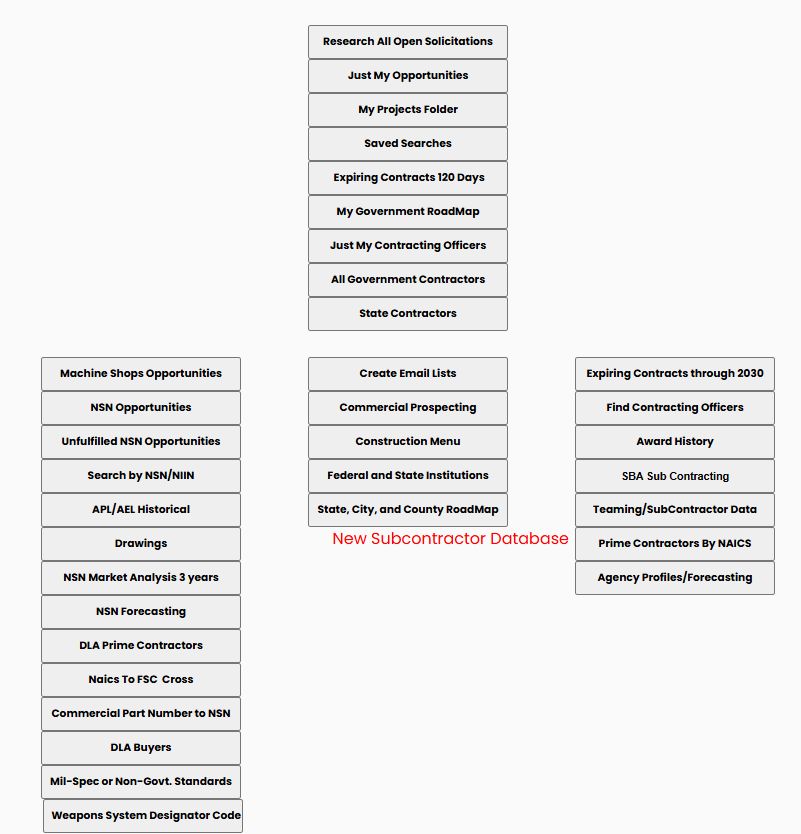
The form is titled Opportunities. Start with the information you know: words describing the work, a classification code, a solicitation number, or a stock number. Then add a location or other restriction if you need a narrower list. Each main search route has its own Search button.
Choose the starting point
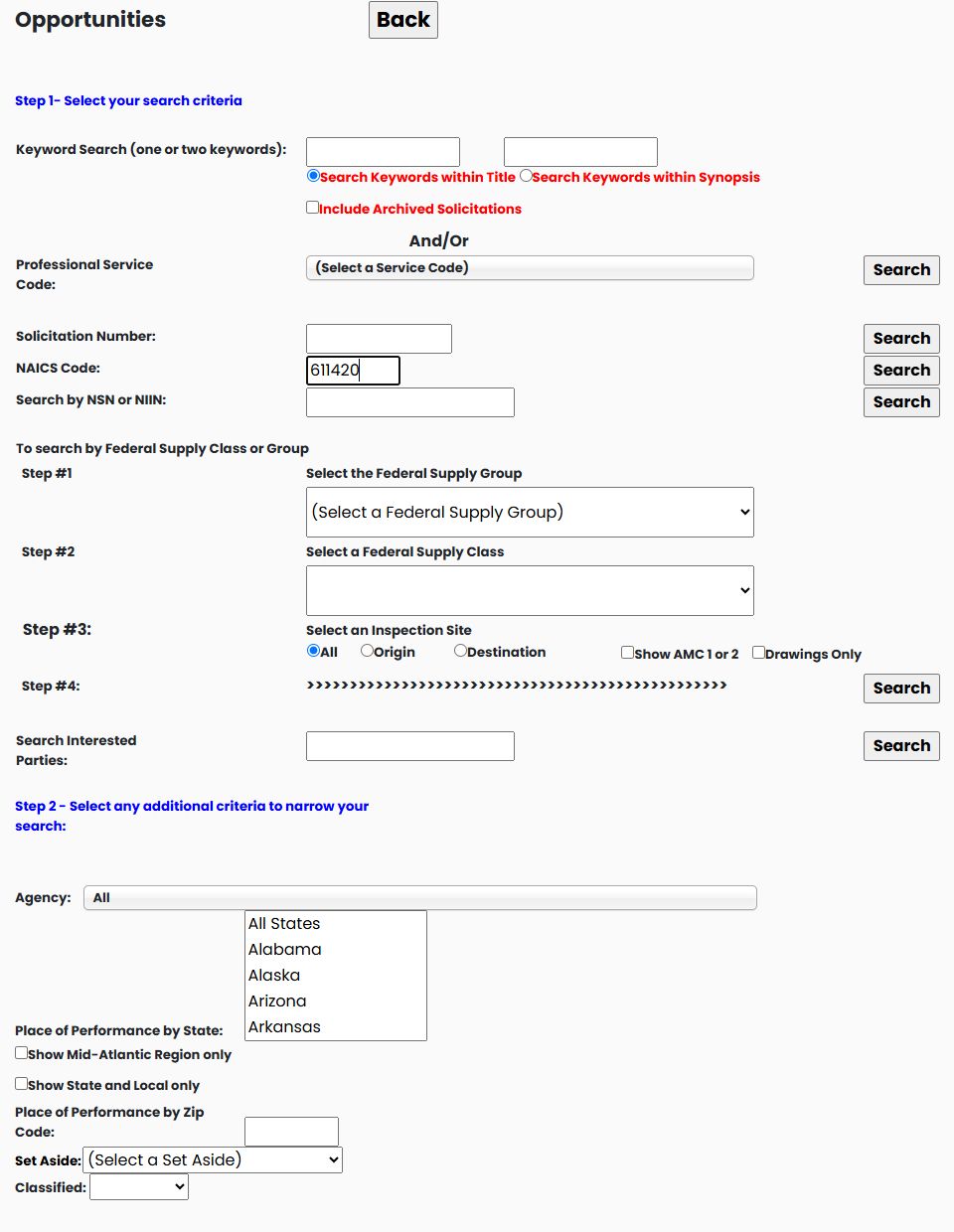
| Field or option | Meaning and reason to use it |
|---|---|
| Keyword Search | Words describing the work or product. This is useful when you do not have a classification code or when notices use descriptions rather than codes. Enter a word in the first box to run a keyword search; the second box is optional. If you fill both boxes, a notice must match both entries. |
| Search Keywords within Title | Search the notice title. Use it for a focused search where the subject should name the work. |
| Search Keywords within Synopsis | Search the notice description and title rather than its title alone. This can help find work mentioned in the body of a notice. |
| Include Archived Solicitations | Include current and earlier notices from the past five years. With this unchecked, the search uses current closing dates, or recently opened notices when no closing date is supplied. Always check the notice before treating a result as open. |
| Professional Service Code | Select the service classification that describes the work. The Search button on this row is also used for the keyword example below. |
| Solicitation Number | A buyer's reference number for a particular request. Use this when you already have the notice identifier. |
| NAICS Code | The industry classification associated with the opportunity. For example, 611420 is computer training. |
| Search by NSN or NIIN | Find opportunities for a stock item. An NSN is the 13-digit National Stock Number; the NIIN is its last nine digits. |
| Federal Supply Group | A broad product group, such as 53 — Hardware and Abrasives. |
| Federal Supply Class | A more specific product class within the selected group, such as 5305 — Screws. |
| Search Interested Parties | Enter a word and use this field's own Search button to open a separate solicitation list. Where available, a result has an Interested Parties link. |
| Inspection Site: All / Origin / Destination | Choose whether to include both inspection locations or restrict the search to inspection at origin or destination. |
| Show AMC 1 or 2 | Limit the product search to the displayed acquisition-method codes 1 or 2. |
| Drawings Only | Restrict the product search to entries identified as having drawings. |
For a supply-class search, follow the numbered steps on the form: choose the group, choose the class, select any inspection/drawing restrictions, then use Search at Step #4.
A comma is not an OR operator in this SalesHelp search. To research alternatives such as janitorial or custodial, run each separately. Entering janitorial in the first box and custodial in the second narrows the search to notices matching both entries.
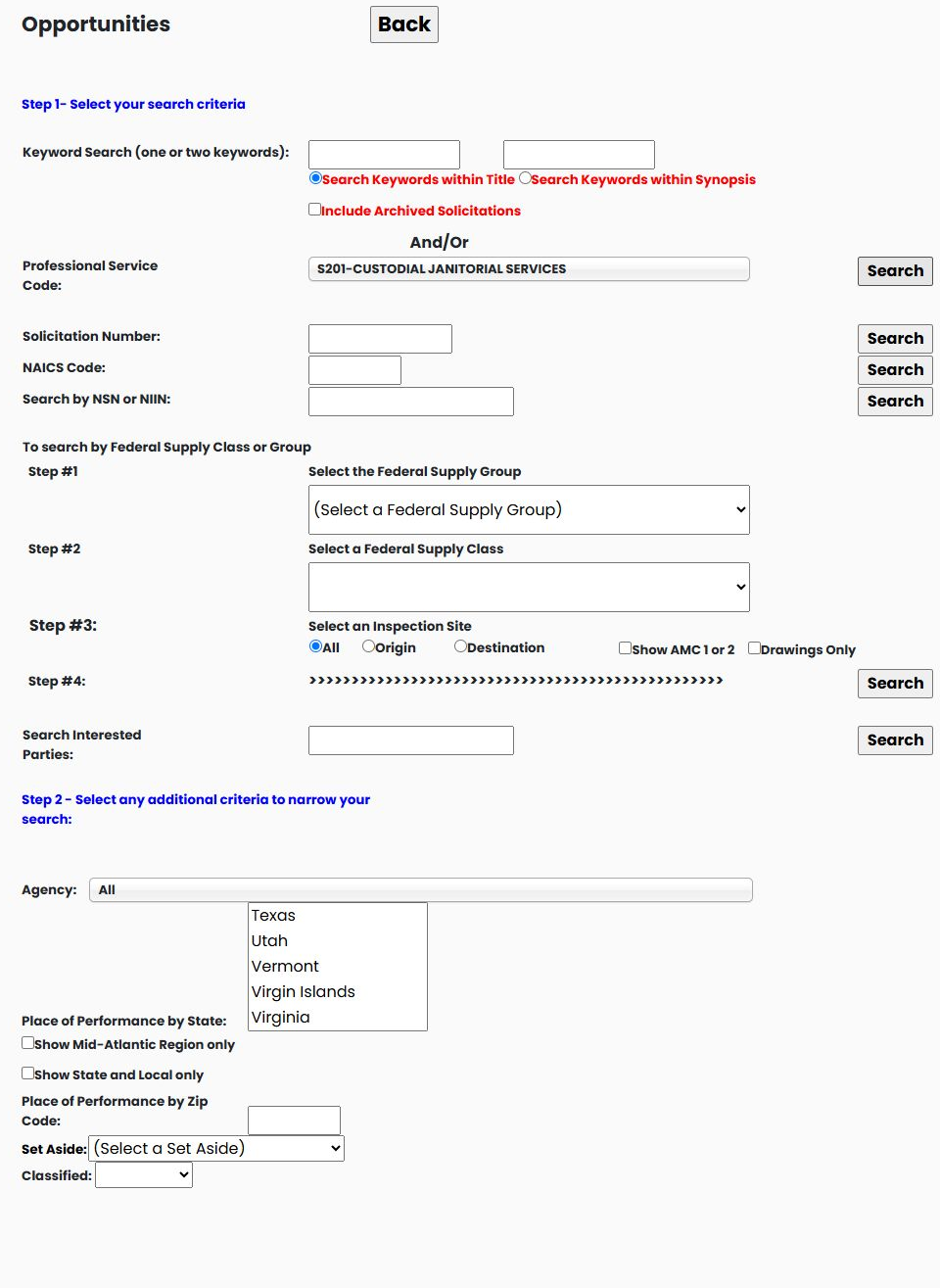
Example: require both cleaning terms
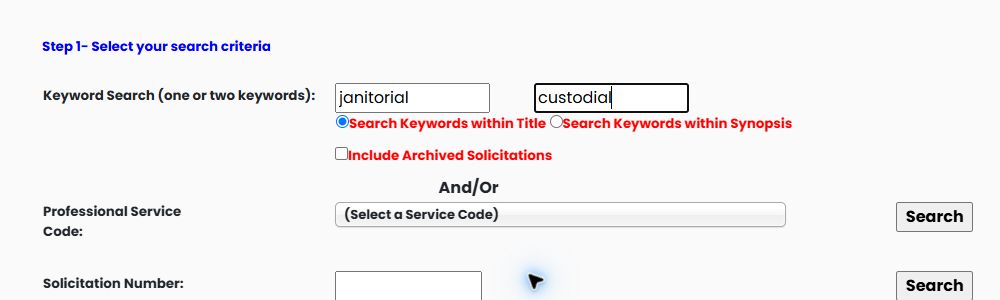
Enter janitorial in the first keyword box and custodial in the second. Leave Search Keywords within Title selected and use Search beside Professional Service Code. Both entries must match; do not enter a comma to request alternatives.
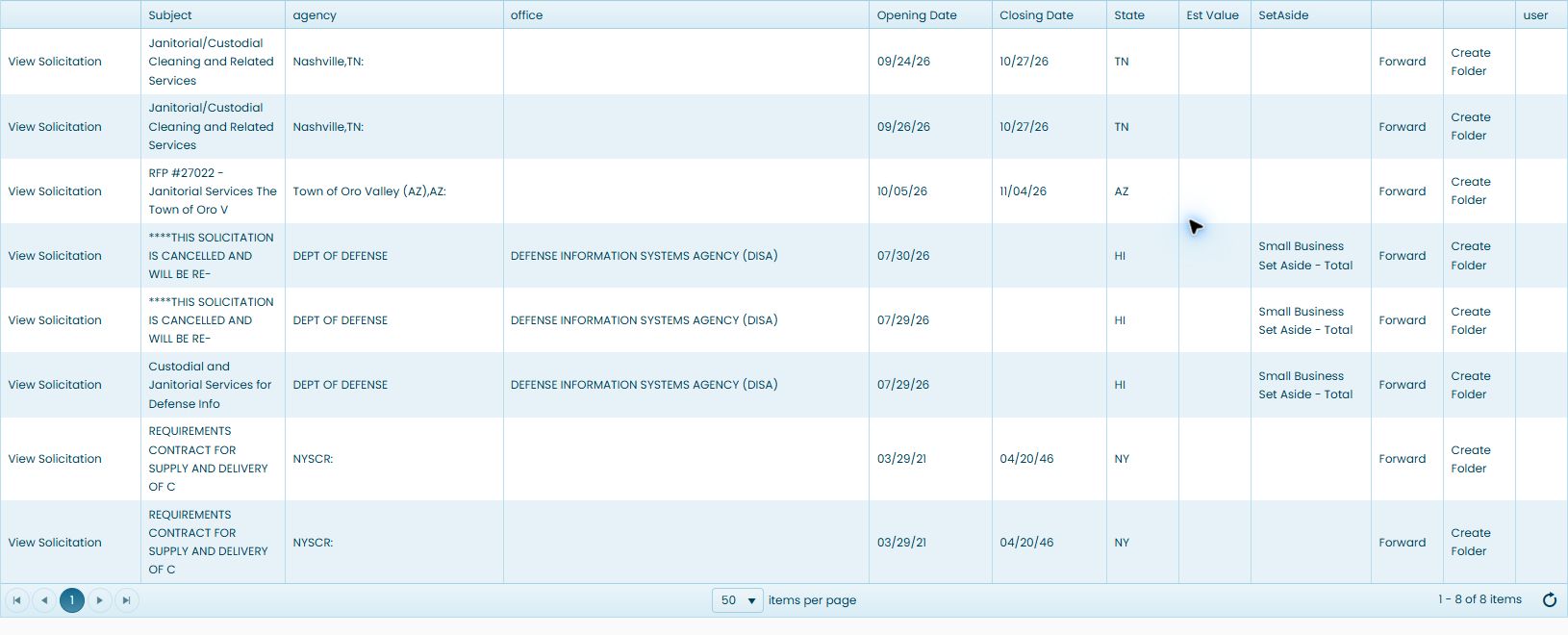
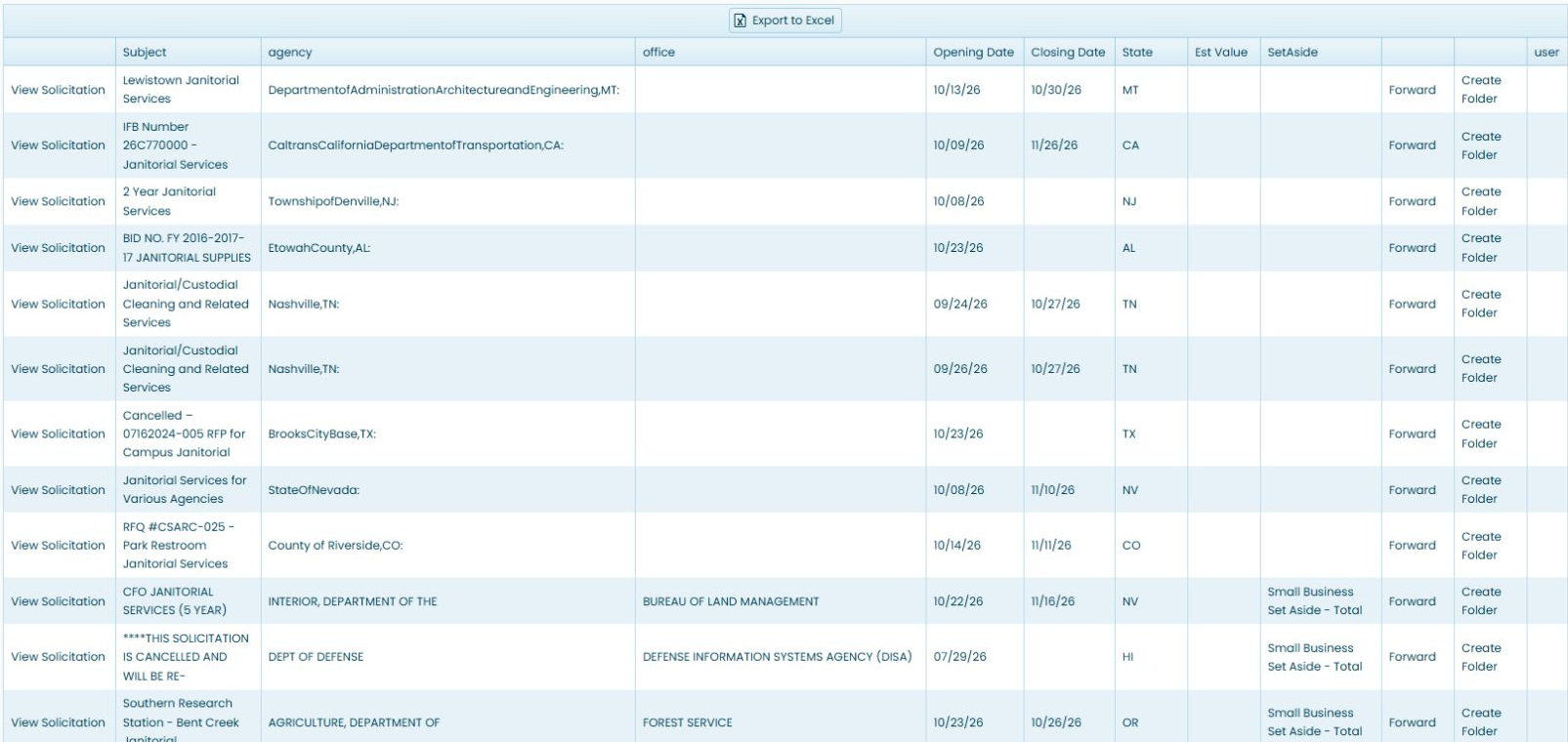
The October 24, 2026 example returned 8 items. The Nashville subjects display Janitorial/Custodial Cleaning and Related Services. Some subjects are shortened, and two rows explicitly say the solicitation is cancelled. A search match is not confirmation that the notice is actionable: check the dates and open View Solicitation to review the actual notice.
Add a restriction before running the search
| Field or option | Meaning and use |
|---|---|
| Agency | Restrict the search to the selected buying organization or office; All leaves that restriction off. |
| Place of Performance by State | Focus on the selected state using the notice’s recorded state and location information. Verify the actual work location in the notice. |
| Show Mid-Atlantic Region only | Focus on Virginia, Maryland, Washington, DC, and West Virginia. |
| Show State and Local only | Focus on state and local opportunities. |
| Place of Performance by Zip Code | Match the beginning of the recorded performance or notice ZIP. This is a ZIP search, not a distance-radius search. |
| Set Aside | Narrow by a recorded category such as Small Business, Hub Zone, or Service-Disabled Veteran-Owned. Read the notice to establish its eligibility requirements. |
| Classified | Screen for notices whose descriptions mention security clearance. This does not establish your eligibility or clearance level; review the actual notice requirements. |
These fields are in Step 2 below the main search routes. Set them before selecting the Search button for your chosen route. Begin broadly if you are unsure which restriction to use, then narrow a useful list.
Additional identifiers and restrictions
| Field or control | Meaning and use |
|---|---|
| Classified | Use the displayed option when searching for work associated with security-clearance requirements. Read the notice for the actual requirements. |
| NSN / NIIN | The NSN is the full stock number; the NIIN is its final nine digits. Keep leading zeros. |
| FSG / FSC | The Federal Supply Group is the broad product group; the Federal Supply Class narrows the group to a class of items. |
Example: cleaning work in Florida
- Enter janitorial in the first keyword box and leave the second blank.
- Retain Search Keywords within Title.
- Leave Professional Service Code unselected and click Search beside that row.
- The October 21, 2026 example returned 194 results.
- Return to the form and repeat with Florida under Place of Performance by State. This returned six results, including Lake County's Janitorial Services for Parks and Trails.
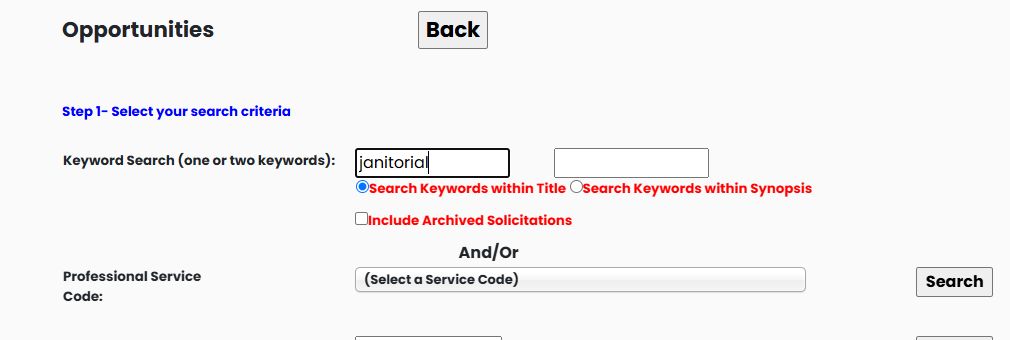


This is a useful way to compare a broad work description with the portion of that work in your service area. Continue with solicitation results to read the columns and use the notice and folder links.
Another title-search example
The October 24 prepared search uses janitorial in the first keyword box, the second box blank, and Search Keywords within Title selected. Use Search beside Professional Service Code for this keyword route.
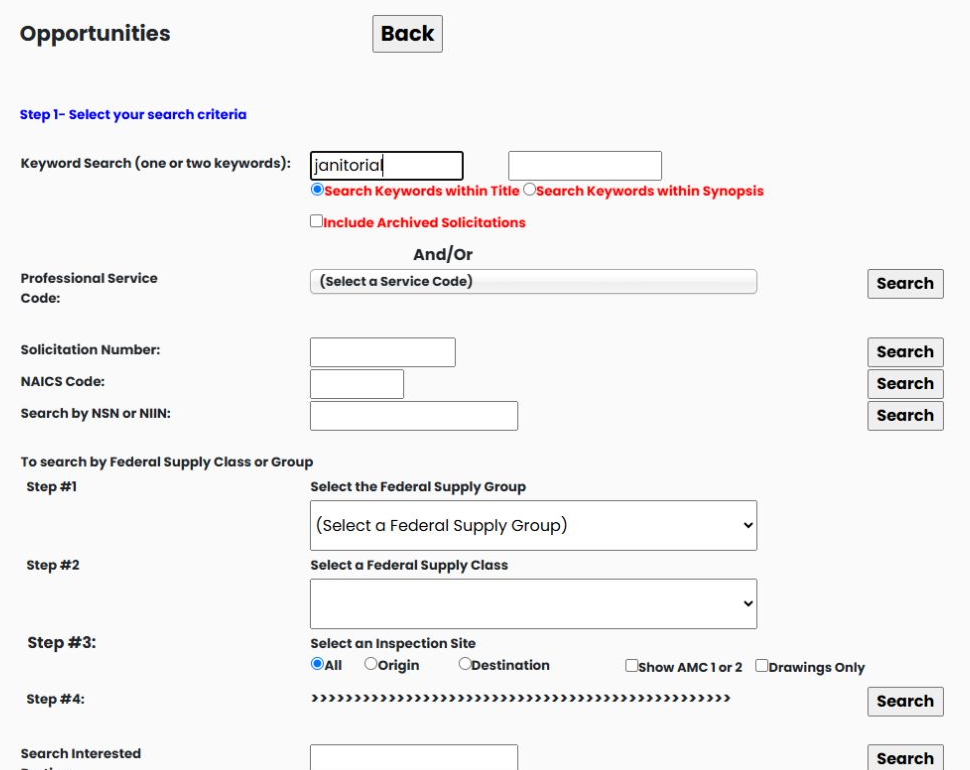
The matching result includes Lewistown Janitorial Services and other janitorial notices. Read the subject, buying agency, opening/closing dates and state before choosing View Solicitation. Similar titles can describe different locations or dates. This is the ordinary keyword search, not Search Interested Parties.
Search the synopsis instead of the title
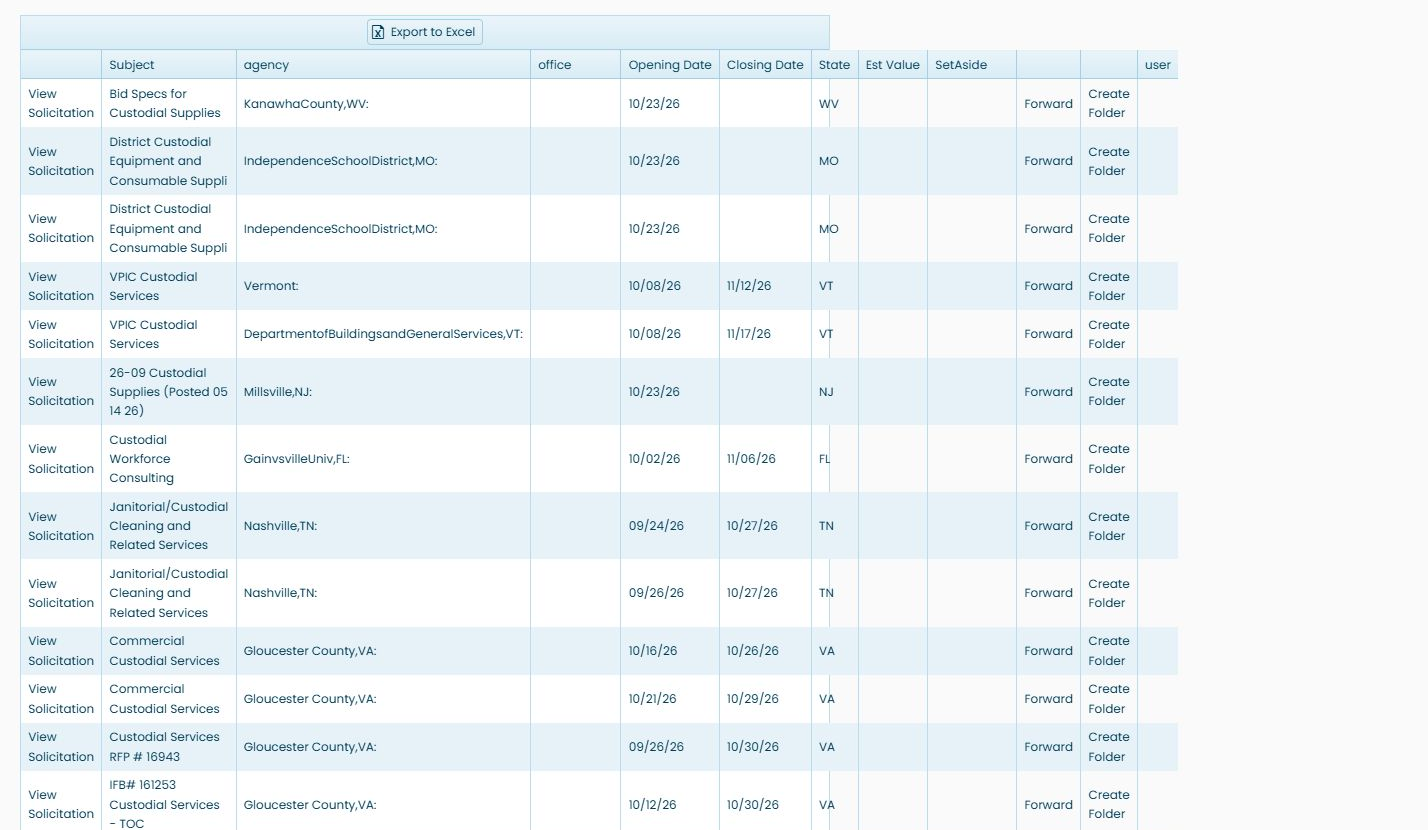
To search the notice synopsis, return to Research All Open Solicitations, enter custodial in the first keyword box, leave the second box blank, and select Search Keywords within Synopsis. Leave the other criteria at their defaults and choose Search beside Professional Service Code.
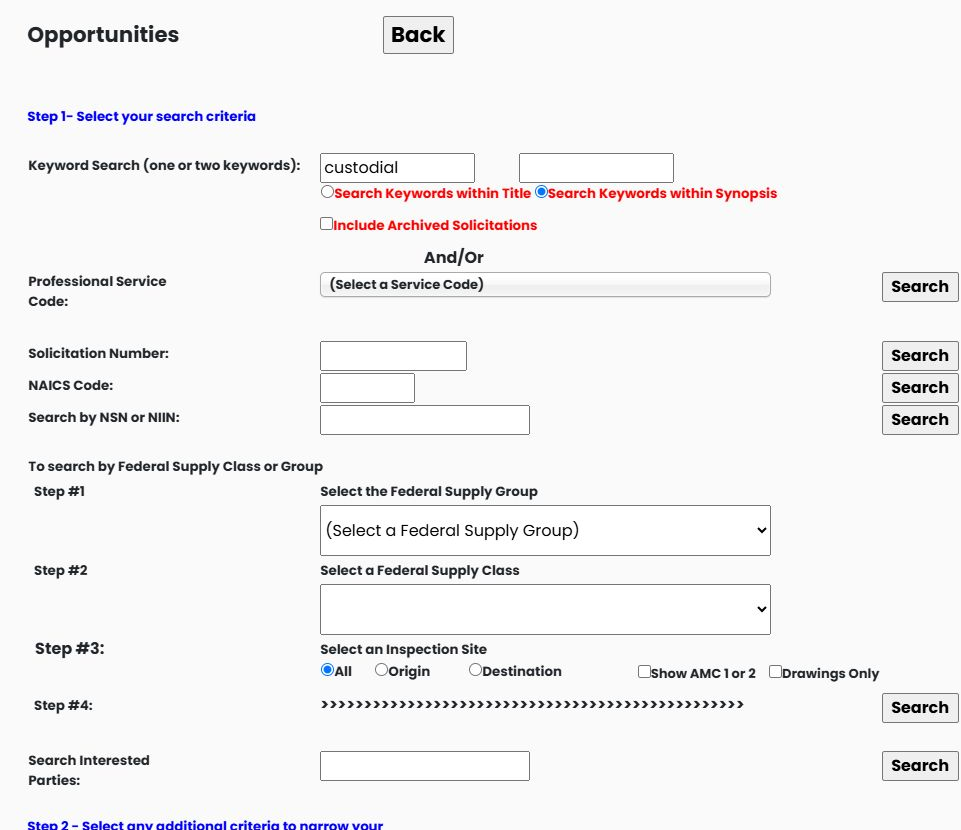
The October 23, 2026 search returned 131 rows. The first displayed notice is Bid Specs for Custodial Supplies, from KanawhaCounty,WV. Other rows include equipment, supplies and custodial services. Read Subject, the buyer, dates and location, then use View Solicitation to examine the requirement itself. A keyword match is a starting point for review, not proof that every result is the same kind of work.
Example: computer-training opportunities
Enter 611420 in NAICS Code and use the Search button on that row. Leave other criteria blank for this example. The observed result contained four notices. The computer-training example and screenshot shows the resulting list.
Example: opportunities for one stock item
Enter 5305007262550 in Search by NSN or NIIN, then use the Search button beside that field. The October 21 example returned four DLA rows for SCREW, CAP, HEXAGON HEAD. One was SPE4A627T5567, opening 10/21/2026 and closing 10/28/2026.

The product table includes the NSN, item description, solicitation number, dates, drawings indicator, quantity, estimated value, AMC and AMSC, plus notice and folder links. A separate general-notice table appears beneath it; that lower table had no rows in this example. Read each table separately.
Select the NSN in a product row to continue to the item summary and research buttons. Select View Solicitation to open that row's request. Create Folder saves work for an opportunity; an already saved example displays Go To Folder. The NSN opportunity guide explains the related route into these product results.
Example: search by custodial service code
From Main Menu → Research All Open Solicitations, open Professional Service Code, type S201 in its search box, and select S201 — CUSTODIAL JANITORIAL SERVICES. Leave keywords and the other criteria blank or at their defaults, select All States, then use the Search beside Professional Service Code.
The October 23, 2026 search returns 9 service opportunities. The first example is Fort Bliss Custodial Service Contract in Texas; another is the USDA Forest Service Ninemile Ranger District Janitorial requirement in Utah.
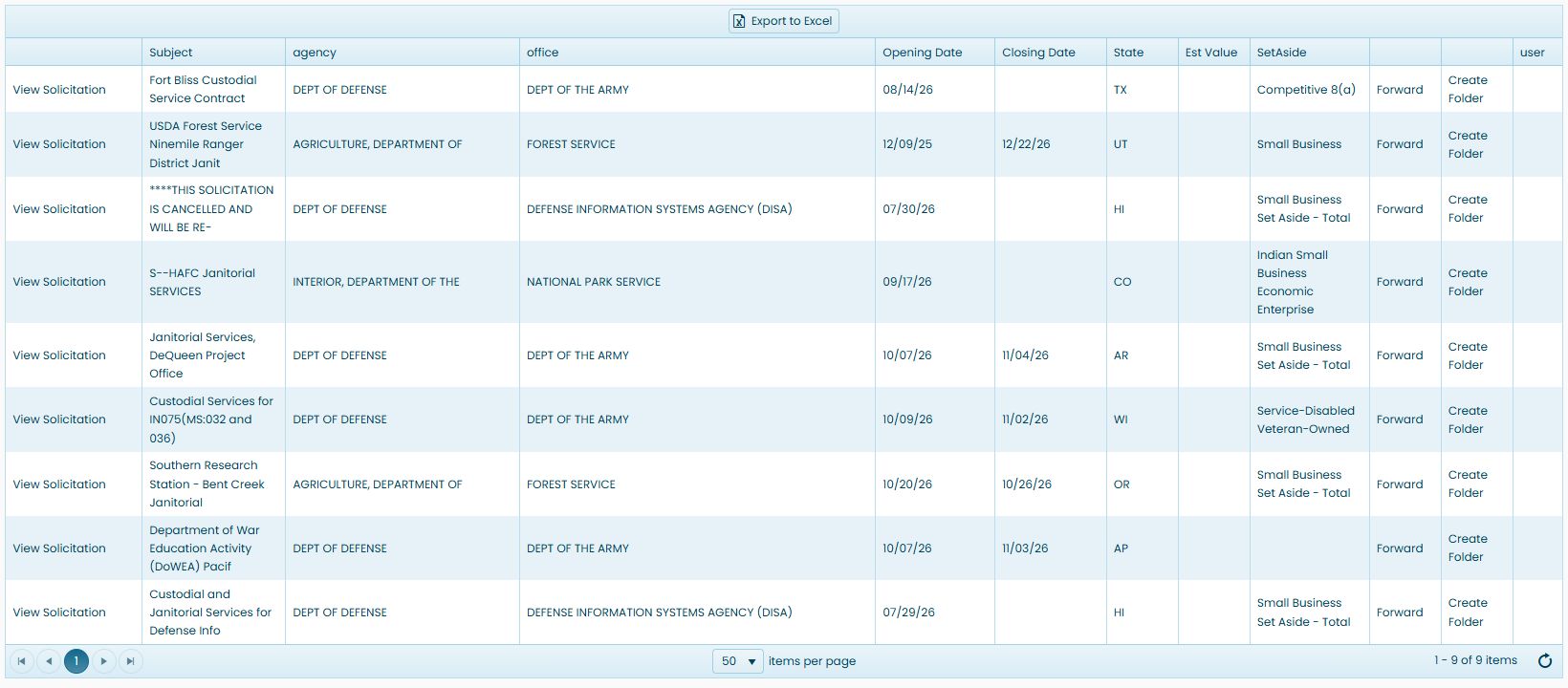
The same service-code search restricted to Virginia returned no items. Broadening the location to All States produced this list. When a combination is too narrow, change one restriction and compare the result. Use the service-result fields and links to read each opportunity, then open its notice for the current requirements.
Example: combine supply class, inspection and acquisition filters
Choose Federal Supply Group 40 — Rope, Cable, Chain and Fittings, then Federal Supply Class 4030 — Fittings for Rope, Cable and Chain. Select Destination for inspection and check Show AMC 1 or 2. Leave Drawings Only unchecked and the other criteria blank or at their defaults, including All States. Use the Step 4 Search for the supply-group/class route.
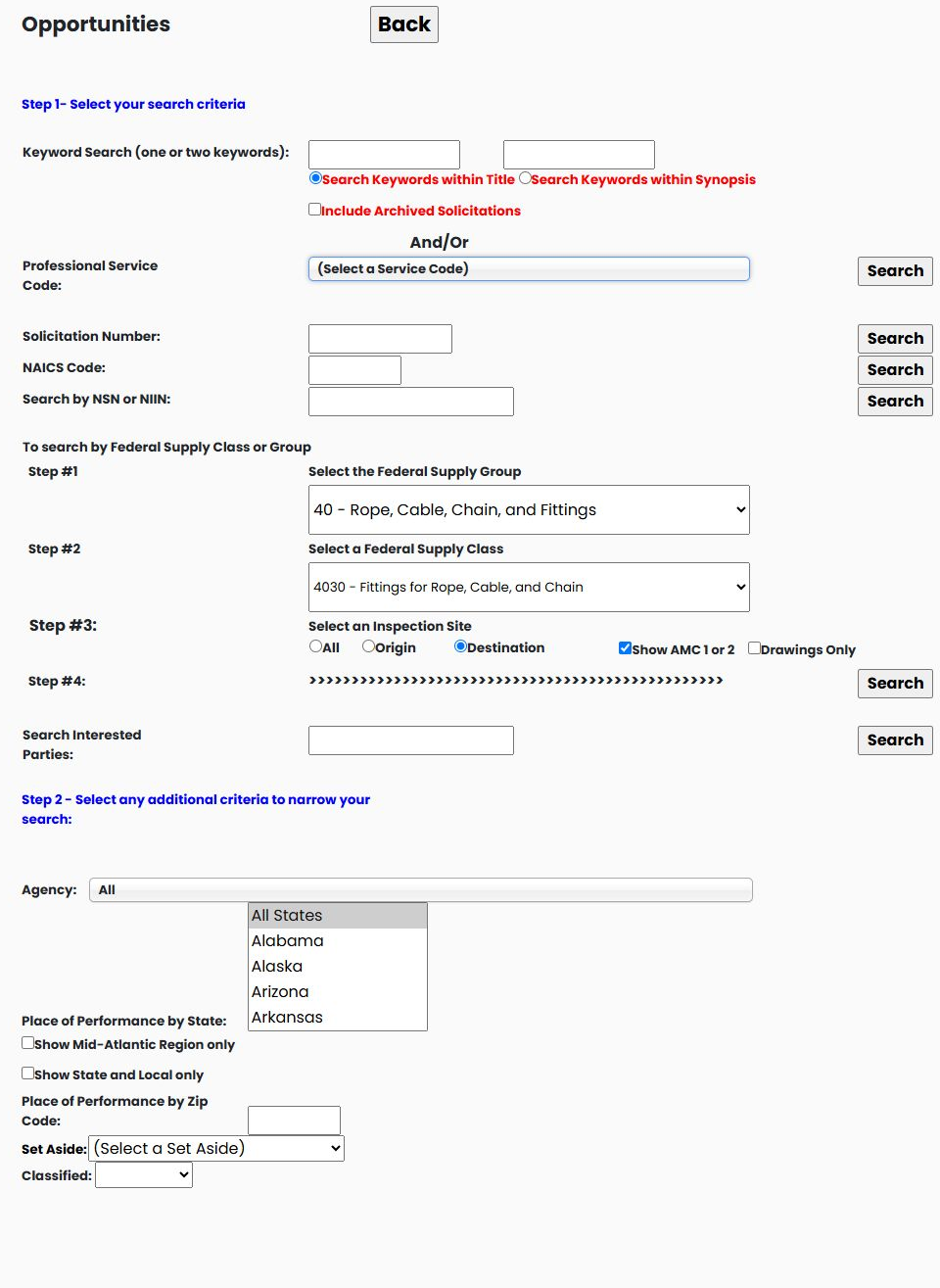
The October 23, 2026 search shows 3 DLA rows in the upper grid and 3 service rows in the lower grid. The two grids have different fields; read each using its own column headings. One DLA row is 4030003693909 — SHACKLE, solicitation SPE4A527T1461, opening October 20, 2026 and closing October 27, 2026. It displays Drawings Y, estimated value 702, AMC 1 and AMSC G. Other returned DLA items include HOOK,CARGO and TERMINAL,ROPE.
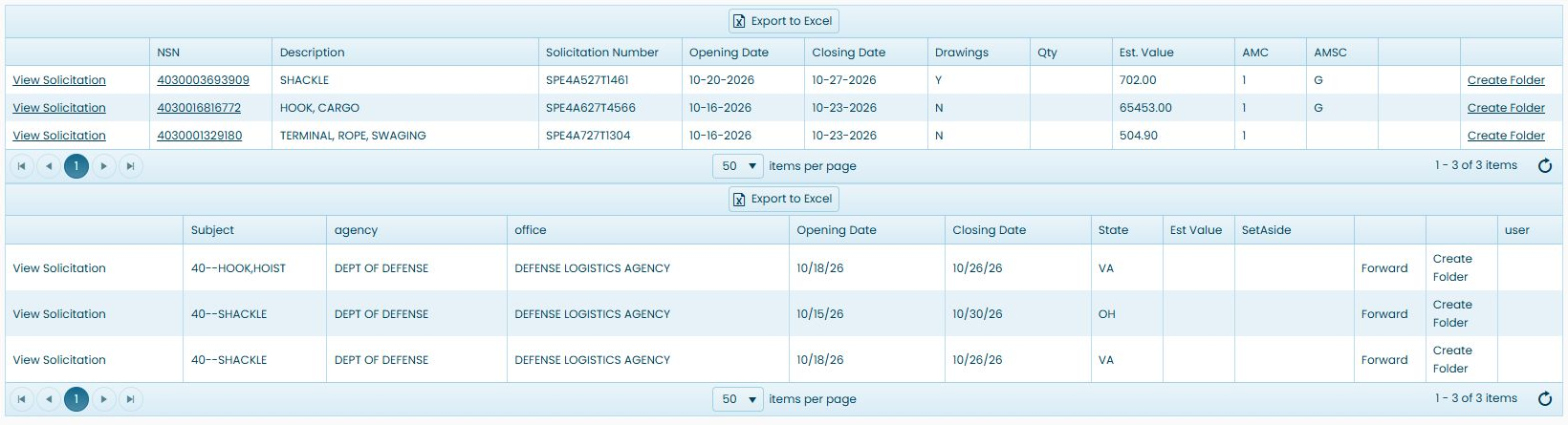
This combination starts with a product class and narrows by two purchasing-related options. It does not require knowing a particular NSN. Follow an NSN when you want to research that stock item, or note the solicitation number to retrieve the individual notice using the next example. The result guide explains the separate grid fields and research links.
Example: retrieve a known solicitation number
Return to the search form and enter SPE4A527T1461 in Solicitation Number. Clear the supply-group/class selections from the preceding search, choose the default All inspection option, clear Show AMC 1 or 2, and leave the other criteria blank or at their defaults. Click the Search beside Solicitation Number.
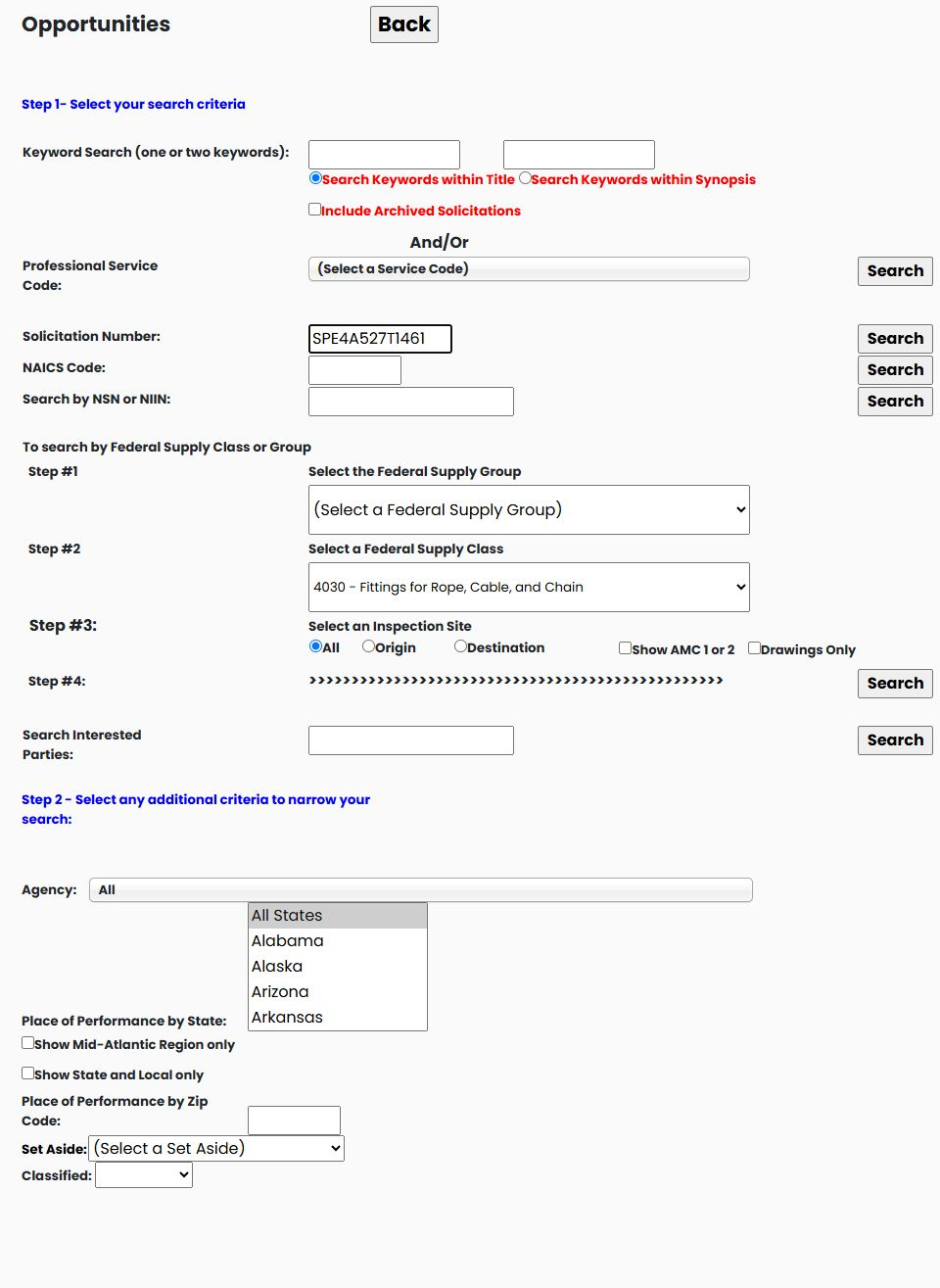
The October 23, 2026 result contains one DLA row: 4030003693909 — SHACKLE, the same notice found in the supply-class example. The separate service grid shows No items. A populated DLA grid and an empty service grid are different sections of the same result page; read the section that contains your notice.

Use this route when a colleague gives you a notice number or when you want to return to a notice found through a broader search. Continue with the notice link for the purchasing requirement or the NSN link for the item's technical and procurement research.