Follow an NSN opportunity through item research
Video sections for this page
Application path: Main Menu → NSN Opportunities → select an NSN → select the NSN in the solicitation table → item research.
Use this list to review stock-number opportunities associated with your account. Start with the item, quantity and closing date, then inspect the solicitation and research the item before deciding whether to bid.
The Unfulfilled NSN Opportunities text above the grid is a link to the separate unfulfilled-opportunities list. Use it when you want notices whose closing dates have passed but which DLA still wants fulfilled.
Switch between all, FSC and NSN matches
Open the category selector above the grid. The October 24 example demonstrates these choices:
| Choice | Observed result |
|---|---|
| All matching solicitations (12) | 13 grid rows; one solicitation repeats with different quantities. |
| FSC 2 bids | Two rows: 5130015929648 — HOSE CUT-OFF MACHINE and 5130015929781 — DIE RING. |
| NSN 10 bids | 11 grid rows, including two SPE2DS27T0876 glove rows with quantities 1 and 5. |
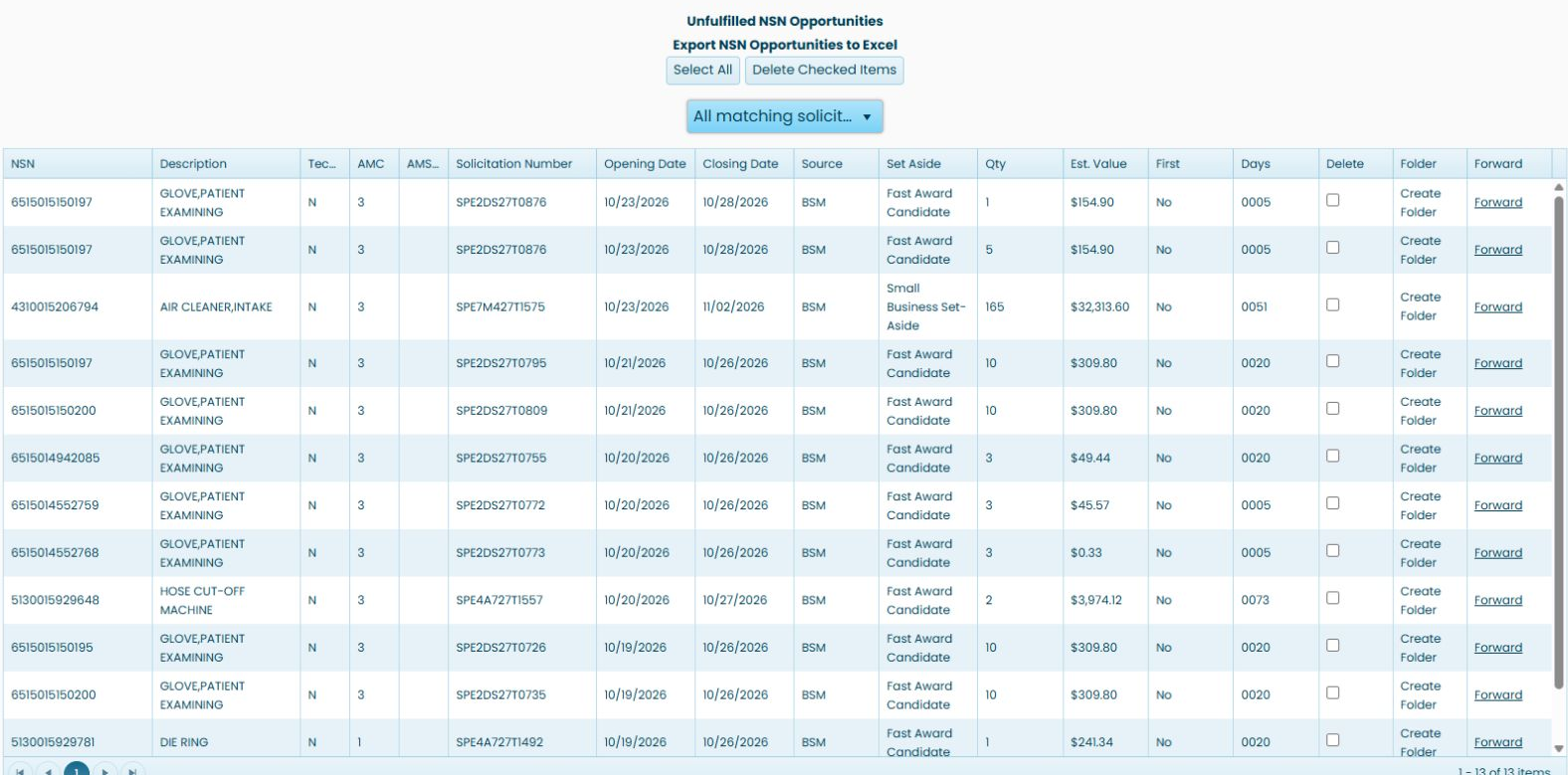
Choose FSC 2 bids to narrow the grid to its FSC matches. The first displayed row has quantity 2, estimated value $3,974.12, and closing date 10/27/2026.
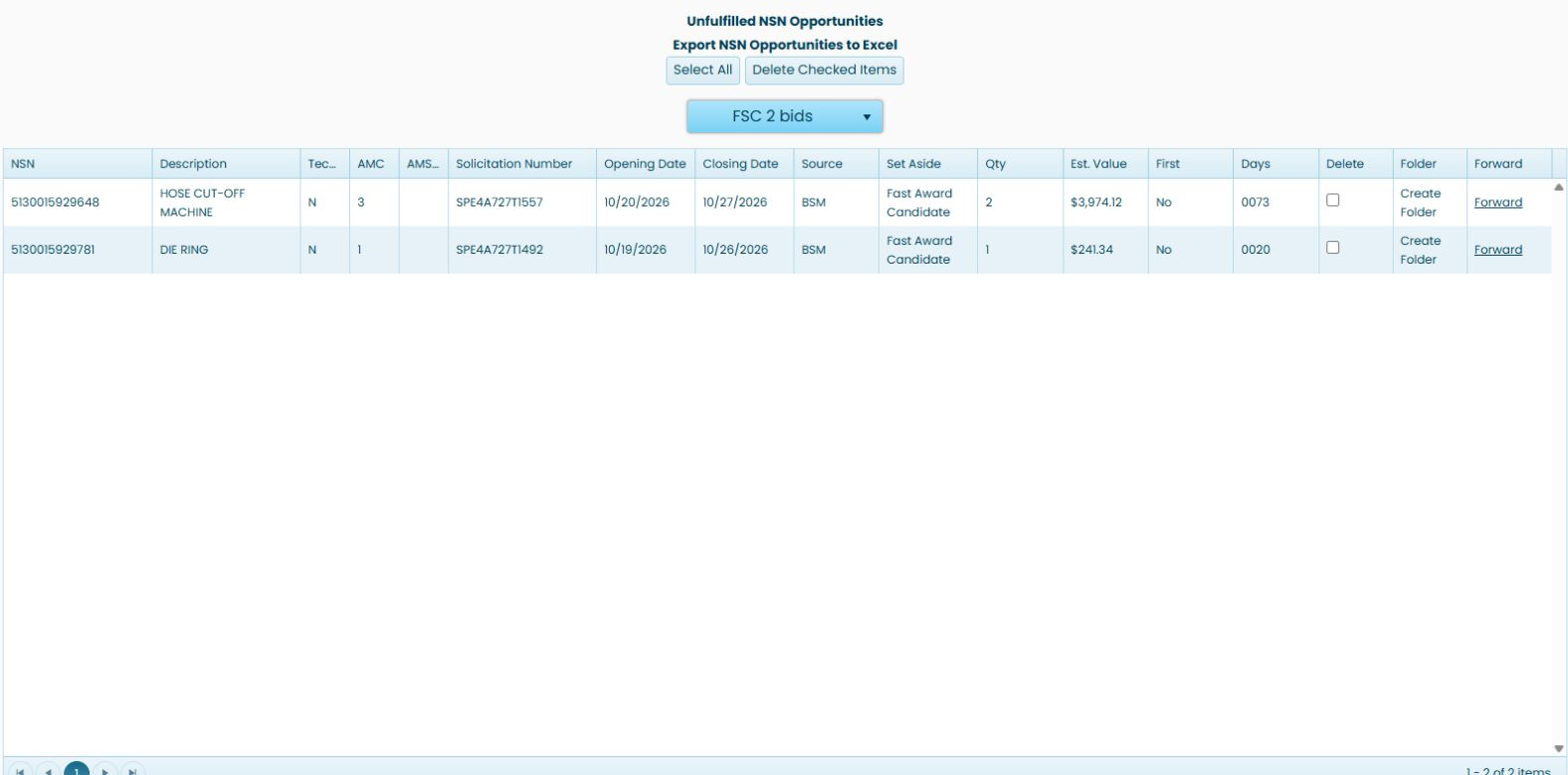
Choose NSN 10 bids for the NSN-matched list, then All matching solicitations to restore the combined list. Category labels and grid-row counts can differ; compare solicitation numbers and quantities instead of assuming each row represents a different notice. Counts change as opportunities change.
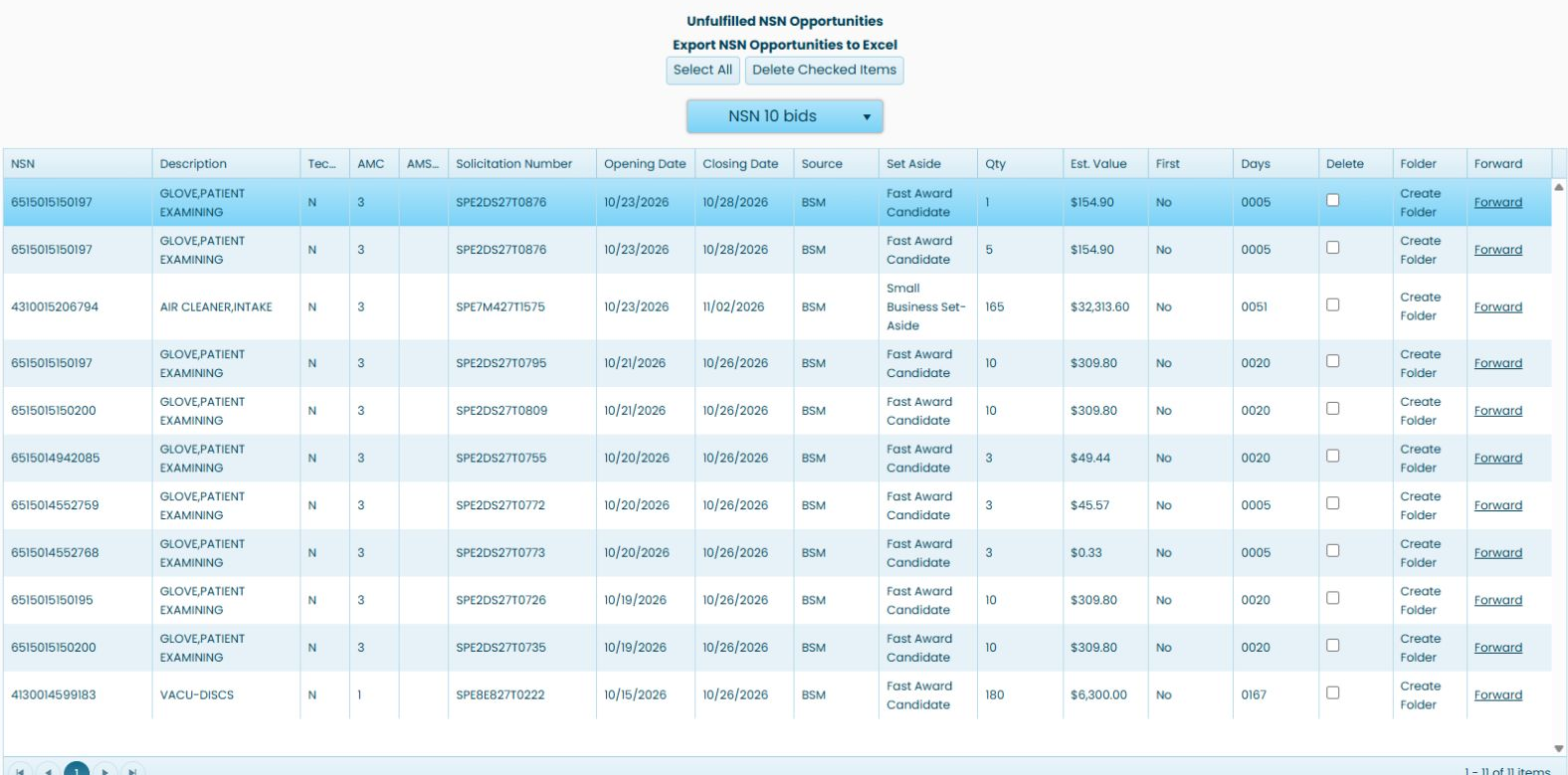
The remaining examples below use separate dated records to explain the same fields, export and item-research steps.
Read the opportunity list
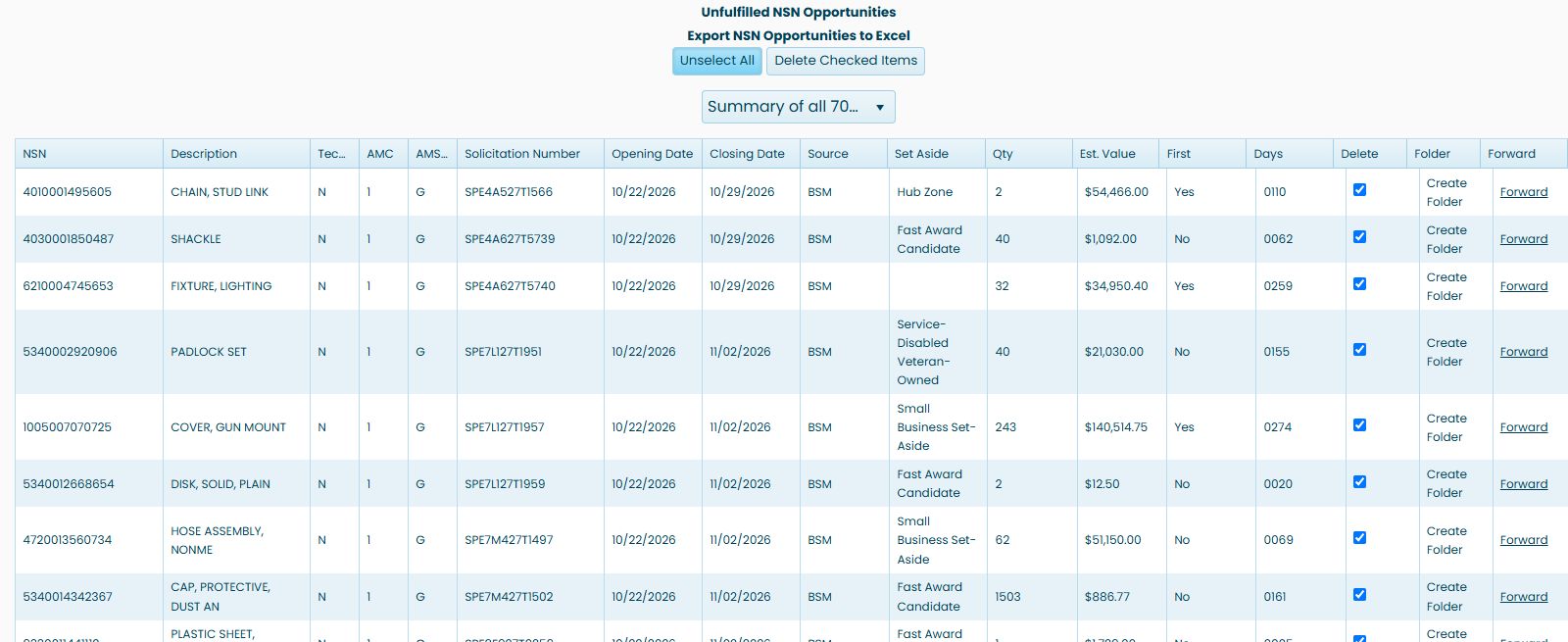
The example checked October 21, 2026 displays 389 opportunity rows, 50 per page. Its selector shows a separate Summary of all 708 of your NSNs label. These are different displayed counts: use the grid's count when paging through opportunity rows.
One displayed opportunity is 4010001495605 — CHAIN, STUD LINK, solicitation SPE4A527T1566, with dates 10/22/2026–10/29/2026, quantity 2, estimated value $54,466.00, and Hub Zone in Set Aside. Other rows include shackles, lighting fixtures and padlock sets.
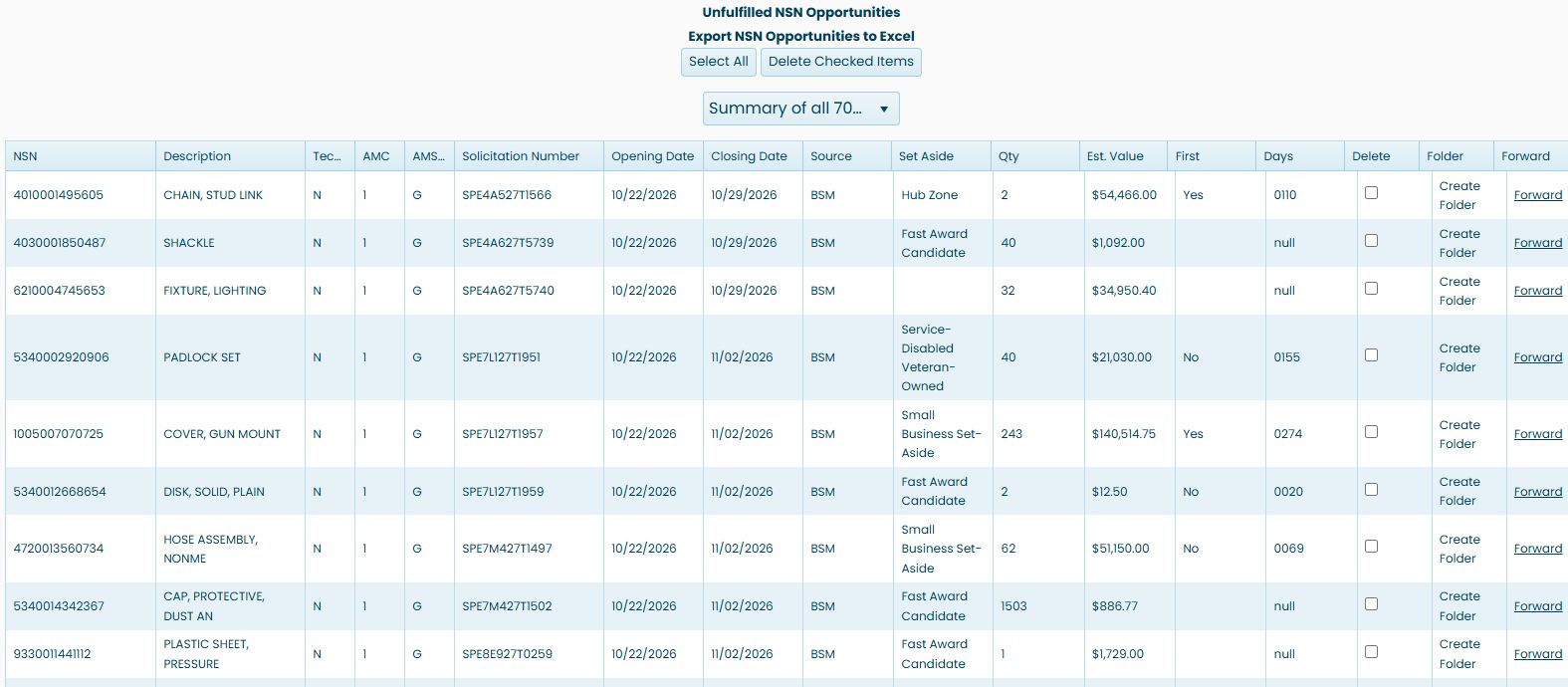
| Field or action | Meaning and use |
|---|---|
| NSN | The stock number. Select it to see its solicitation results. |
| Description | The item description. |
| Tech. Data | The technical-data indicator displayed for the opportunity. |
| AMC / AMSC | Acquisition Method Code and its suffix, describing acquisition information for the item. |
| Solicitation Number | The opportunity identifier; its link opens the solicitation document. |
| Opening Date / Closing Date | The dates displayed for that notice. |
| Source | The source designation shown on the row. |
| Set Aside | The procurement designation displayed for this notice. |
| Qty | The requested quantity shown for the opportunity. |
| Est. Value | The estimated value shown for the opportunity. |
| First | The displayed first-article value. Select it to open the linked solicitation report and review the actual requirement. |
| Days | The displayed delivery-days value. Select it to open the linked solicitation report and review the delivery requirement. |
| Delete | The row-selection checkbox used with the deletion controls. |
| Folder | The project-folder action. |
| Forward | An email handoff link with the notice information and its document link. Review its contents and recipient before sending. |
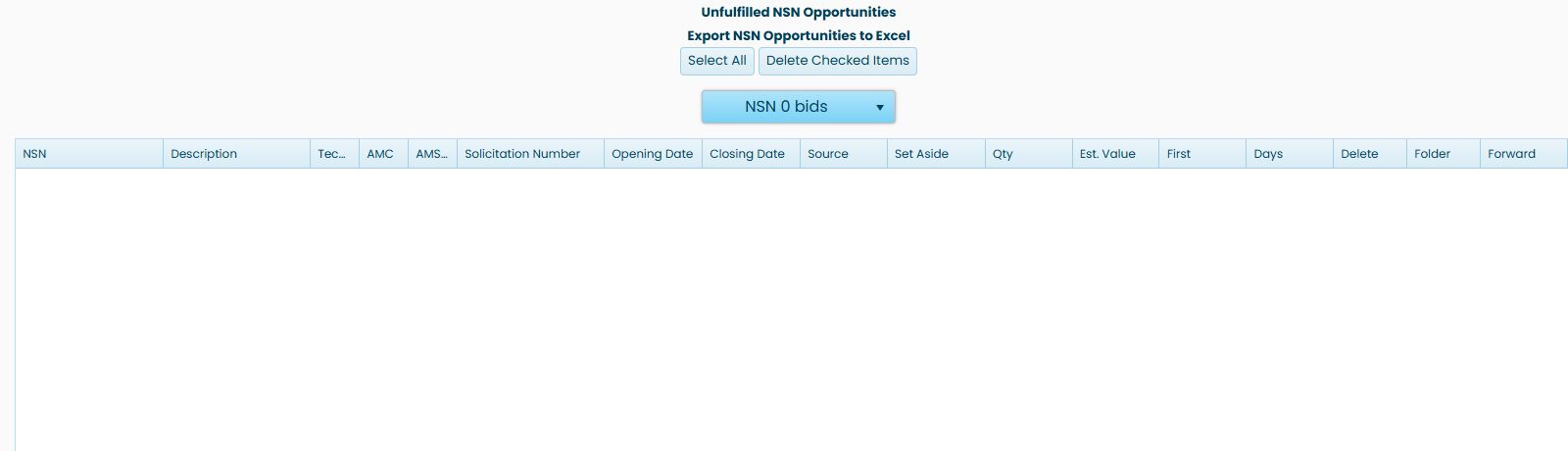
The selector above the grid lists the summary and available account categories. In the October 22 example, choosing NSN 0 bids displayed No items to display and no row checkboxes; choosing Summary of all 708 of your NSNs again restored the 389-row list after it loaded. Read the result count after each choice rather than assuming a category has matches.
Select All, Delete Checked Items and Export NSN Opportunities to Excel sit above the list. Page numbers and arrows below it move through the results. Use the separate Unfulfilled NSN Opportunities link for DLA opportunities whose closing dates have passed but remain unfulfilled.
Select rows on the displayed page
Check a row's Delete checkbox to select that row. To select the displayed page together, click Select All. In this example, the checked count changed from zero to one after selecting a row, then to 50 after Select All—the 50 rows on the displayed page. Do not assume that rows on other pages are selected.
After Select All, the control reads Unselect All. Choosing it in this example cleared all 50 checked rows, returning the checked count to 0. Selecting or clearing rows does not itself delete them; Delete Checked Items is a separate action.
For the displayed CHAIN, STUD LINK row, Forward is an email handoff with subject Current Bid Opportunity, solicitation SPE4A527T1566, the item description and a link to the solicitation PDF. Review the message and choose a recipient in your email program before sending it.
Delete checked opportunity entries
Check only the rows you intend to remove from your opportunity list, then choose Delete Checked Items. This button submits immediately; it does not ask for confirmation. To change your mind before submitting, clear the row checkboxes or choose Unselect All.
If no rows are checked, the page displays No items selected for deletion. After a successful request, it displays Selected items deleted successfully. and reloads the list. If the request fails, it displays An error occurred while deleting the items. Review the refreshed list before taking another action. This is the opportunity-list control, separate from deleting a saved entry in My Projects Folder.
Export the opportunity list
Click Export NSN Opportunities to Excel above the list to download a DLASolicitations workbook. In the October 21 example, its one worksheet contains 760 opportunity rows and 20 columns. The first two worksheet rows repeat the column headings, so begin reading opportunity records below them. NSNs in this workbook appear inside square brackets.
The columns include NSN, Description, Tech. Data, Solicitation Number, Opening Date, Closing Date, Source, Set Aside, Quantity, Est. Value, AMC, Part Number, Cage, Company, UI, AMSC, GSI Code, PRN, Exp and CMMC. Use the NSN and Solicitation Number together to identify a row. The first exported action is 4010001495605 / SPE4A527T1566, the chain opportunity shown on the page.

The workbook row count differs from the 389 rows displayed in the live list, and its records include at least one older opening date. Treat the export and current grid as separate views. The chain example also shows Y under exported Tech. Data while the list displayed N; consult the solicitation and its documents before relying on that flag.
Example: research a cap screw
Select 5305007262550, SCREW, CAP, HEXAGON HEAD. The next screen has a parts solicitation table containing four notices in the observed example. Its first row is SPE4A627T5567, opened 10/21/2026 and closing 10/28/2026. The older SPE4A627T1856 row has different dates. Check the particular solicitation rather than treating every row for an NSN as the same request.

The table shows NSN, Description, Solicitation Number, Opening Date, Closing Date, Drawings, Qty, Est. Value, AMC and AMSC. Drawings is the displayed drawing indicator. Quantity can be blank on this screen; read the solicitation for its requirements. View Solicitation opens the corresponding notice document.
Create Folder starts the saved-project route. Once the example SPE4A627T1856 project existed, its action read Go To Folder. The folder guide shows where the saved project appears.
Continue into the item
Select 5305007262550 again in the solicitation table. This opens NSN/NIIN Search Results, the item's catalog and research page. Follow these guides in the order that answers your questions:
- Confirm the item and part references.
- Check dimensions and technical characteristics.
- Review award history, quantities and prices.
- Read catalog and management information.
- Review inventory and backorders.
- Find the associated drawing sheets.
These are shared item screens, also reached from the direct NSN search. The entry route changes; the item you selected remains the focus of the research.
Continue through substitute references
From the selected NSN item screen, choose Substitutes and compare the listed replacement NIIN and relationship fields. Use the shared walkthrough below, followed by the item research guide, to read these screens. A listed relationship alone does not approve an alternative offer.
Watch: Read substitute references and continue item research