Review my opportunities
Part of these button learning paths: Just My Opportunities · Machine Shops Opportunities
Video sections for this page
Application path: Main Menu → Just My Opportunities.
This page brings together opportunities matched to your account's search criteria. Start with the subject and dates, use Criteria to understand the match, then open a promising notice or save it into a project folder.
Example: compare keyword and industry matches
The October 21, 2026 example contains 3,252 items, with 50 on the first page. Your own account can have different matches.
One row is 59--COIL,ELECTRICAL, from the Department of Defense / Defense Logistics Agency. It shows Ohio, opening date 10/21/26, closing date 11/02/26, and Electrical in Criteria. Another row, J065--FY27 (BASE 4) RaySearch America RayStation Treatment Planning System Service Contract, shows (naics)541519 in Criteria. The first illustrates a keyword match and the second an industry-code match.
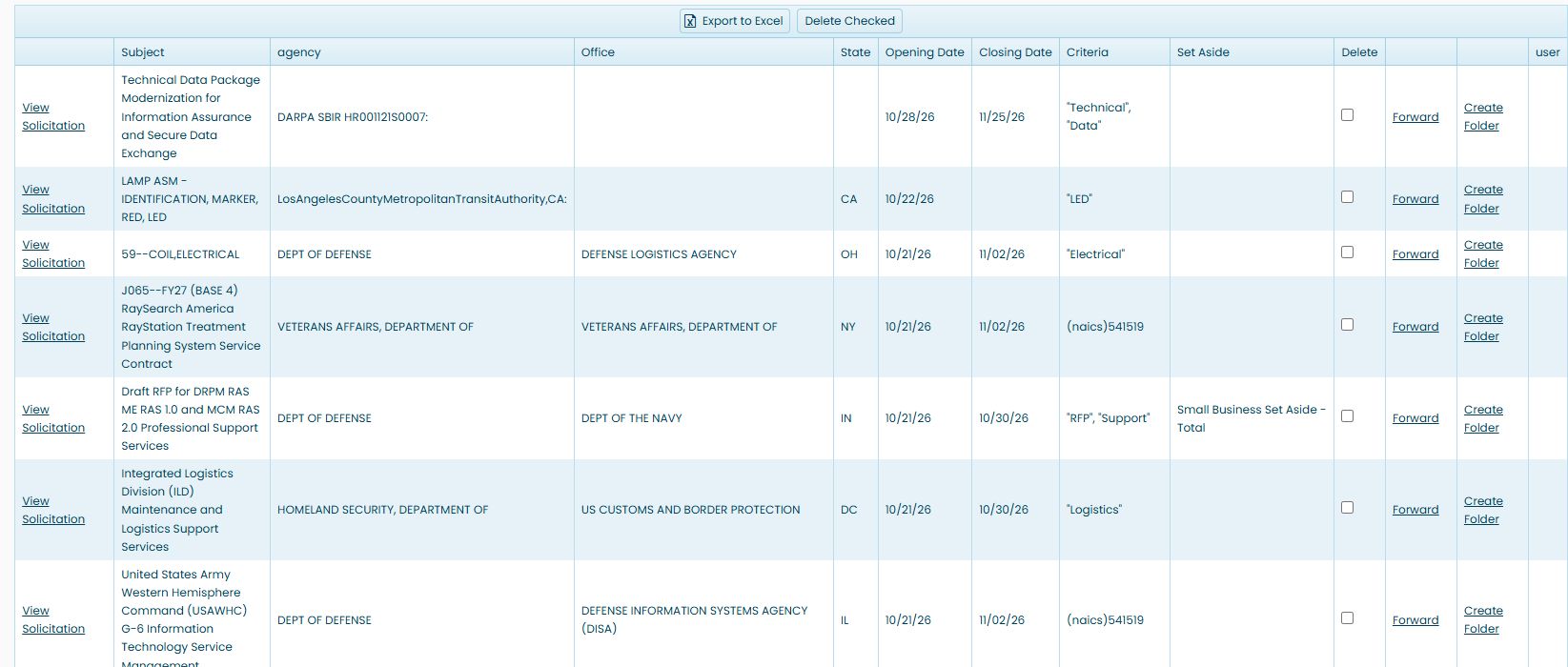
This screenshot shows the beginning of the list and the main row actions. The live list showed 3,257 items when captured later on October 21; counts can change. Scroll through the live grid to see additional matches.
Read a row
| Field or action | Meaning and use |
|---|---|
| View Solicitation | Opens the linked notice or source page for the opportunity. Read the full requirements and response instructions there. |
| Subject | The short description of the work or item requested. |
| agency | The buying organization recorded with the notice. |
| Office | The buying office, when supplied. |
| State | The state displayed for the opportunity. |
| Opening Date / Closing Date | The displayed dates for the notice. A blank does not supply a deadline; check the source notice. |
| Criteria | The keyword or classification match shown for this account. Use it to understand why an opportunity is in the list. |
| Set Aside | A business eligibility category, when supplied. |
| User | The username value shown for the row. A blank cell means no username is displayed. |
| Delete | The row checkbox used with Delete Checked. |
| Forward | Opens an email action containing the opportunity details and link. |
| Create Folder | Opens a separate window with an account selector and Add Folder button for this opportunity. |
Parts by NSN list
| Column or action | How to read it |
|---|---|
| NSN | National Stock Number for the part. Its link opens the site's NSN summary. Confirm the exact item and technical requirements there. |
| Description | Stored item text for the assigned NSN. Compare it with the current solicitation and technical requirements; a short description cannot establish fit or interchangeability. |
| Exp | Yes flags export-control wording such as RQ032 or RD032; it is not an expiration date. Read the notice's actual restrictions even when this cell says No. See DLA's RQ032 description. |
| Folder | Opens a project folder. The parts route can add the opportunity to the user's folder records and create project directories immediately on opening, before any separate Save button. See Project folders. |
SAM.gov opportunities list
| Column or action | How to read it |
|---|---|
| Search Criteria | The stored criterion associated with the assignment. This explains why a row may have appeared; it does not certify that the work fits the firm's capabilities. |
Sort and review additional matches
Click Subject to put the list into ascending subject order. The sorting indicator appears on the heading. Use the page numbers or Go to the next page below the grid to continue reviewing; the example changes from 1–50 to 51–100 of 3,252 items.
Items per page controls how many rows are displayed together. Refresh reloads the grid. Export to Excel is above the list.
Read the exported workbook
Choose Export to Excel above Just My Opportunities. The inspected example downloaded as Opportunities (2).xlsx. Its Sheet1 has 3,257 opportunity rows beneath a header row. The workbook contains these eleven columns:
| Workbook column | What it contains |
|---|---|
| Unlabeled first column | The notice URL for the row. Its header cell is blank. |
| Subject | The short opportunity description. |
| agency | The recorded buying organization. |
| Office | The listed buying office, when supplied. |
| State | The state shown for the opportunity. |
| Opening Date | The notice's displayed opening date. |
| Closing Date | The notice's displayed closing date. Check the source notice for the current deadline. |
| Criteria | The keyword or classification that matched the account's criteria. |
| Set Aside | The displayed business-eligibility category, when supplied. |
| Delete | A row identifier value in the workbook, not a Delete button. |
| user | The user associated with the opportunity. When the opportunity has an assigned project folder, this shows the folder owner; otherwise it shows the notice's associated user when available. A blank cell means no username is displayed. |
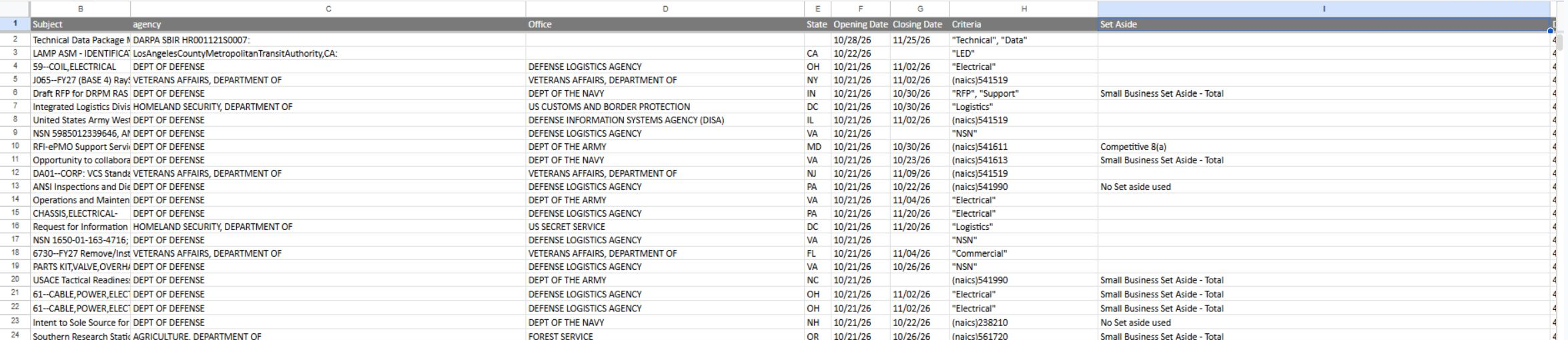
The reviewed image shows the middle columns, Subject through Set Aside. The unlabeled URL column and the Delete and user columns were inspected in the same workbook but are outside this crop. Use the page's controls for actions on an opportunity; the workbook's Delete values are data, not clickable deletion controls.
Continue researching or save the work
To share a notice, choose its Forward link. For 59--COIL,ELECTRICAL, the email subject is Current Bid Opportunity; the message includes the notice title, solicitation SPE7M427T1491, and its SAM.gov notice link. Add recipients and review the message before sending it.
Use View Solicitation to inspect the full opportunity before deciding whether to pursue it. For the observed 59--COIL,ELECTRICAL row, Create Folder opened a separate window showing an account selector and Add Folder. This example confirms the window and controls, but does not establish that a folder was added. The project-folder guide explains where verified saved projects appear and how to browse their file areas.
For additional searches beyond this matched list, use Research All Open Solicitations. For stock-number-specific opportunities and item research, follow the NSN guide.