Understand search exports
Application user guide
Choose the export for the screen you are using
| Start and download action | What the file contains | Read the screen and worksheet guide |
|---|---|---|
| Research All Open Solicitations → results → Export SAM.GOV to Excel | Service-style notices, eight columns; the list can include state/local sources. | Search, results, fields below. |
| The same search → DLA results → Export DLA to Excel | Parts notices, ten columns. The same DLA layout is available from a populated Unfulfilled Opportunities NSN result; that account list has a separate export below. | Search, results, fields below. |
| Award History → flat or grouped results → Export To Excel | Award actions: 27 columns in the flat list, 26 in the grouped-result download. The results are different views of award history; choose the one matching your search. | Search, results, fields below. |
| Expiring Contracts → matching results → Export To Excel | Expected-completion research, 25 columns. Rows and amounts can differ from the visible parent groups. | Search, results and export fields. |
| Just My Opportunities → parts or SAM.gov section → that section's Export … Opportunities to Excel | The assigned parts list has 20 columns; the assigned SAM/state/local list has 11. | Account lists, both worksheet layouts. |
| Unfulfilled Opportunities → Export NSN Opportunities to Excel | A separate 17-column account opportunity list. Its rows need not equal the NSN results reached from that page. | Account list and all 17 fields. |
| An NSN result → Award History → Export To Excel | Twelve-column DLA item award history; separate from the broad Award History action exports. | NSN award history, worksheet reference. |
| Search by NSN/NIIN → Create a Batch Report → choose sections → Create Report | One workbook with the selected catalog/reference or award-history tabs. Submitting a list replaces the account's saved batch list. | Prepare the list safely, read each worksheet. |
| All Government Contractors → search results → Export To Excel | Fourteen-column company Contacts list. This is separate from the 11-column teaming list. | Company search, result and export example. |
| A company's View Details → View NSN Award History → Export To Excel | Nine displayed DLA item-award columns for that company's selected history view; a different route and layout from the NSN item's 12-column award list. | Company profile, DLA history fields. |
| Commercial Prospecting → results → Export To Excel | Contractors and possible institution sections in separate sheets. Machine Shops/Construction company results can use this same result/export layout. | Commercial search, results and six-sheet example, construction route. |
| Prime Contractors By NAICS → matching company list → Export to Excel | Ten-column prime-company result list. | Prime search and worksheet. |
| Research → Teaming/SubContractor Data → Search Contractors → Export To Excel | Eleven-column partner list; different fields from the All Government Contractors Contacts export. | Teaming search, results and worksheet. |
| DLA Buyers → buyer results → Export to Excel | Five-column buyer list for the selected FSG/FSC or name search. | Buyer search and worksheet. |
| Find Contracting Officers → search results → Export To Excel | Fifteen-column solicitation-derived officer/contact list. | Officer search and worksheet. |
| Just My Contracting Officers → NAICS, Service Code or FSG section → that section's Export … to Excel | Separate account-matched section downloads. Read each file's headings; the NAICS, Service Code and FSG examples are explained together. | Account officer sections and workbooks. |
| Research → Federal and State Institutions → a federal office's View Presols → Export To Excel | Nine-column presolicitation list for the selected office. | Florida office example and fields. |
| B2B → Create Email Lists → Marketing Email Blast → choose market and area → Search | Eleven-column MarketingEmails.xls contact list. Search creates a file; it does not send an email. |
Inputs, download and fields. |
| Weapons System Designator Codes → search result → Export All to Excel | Nine item fields for the selected name or code search; the grouped on-screen count is not an export column. | Designator search and worksheet. |
| Agency Profiles/Forecasting → Agency Forecasts to Excel, DOD SubContracting to Excel, or Federal SubContracting to Excel | Three separate static resources: an agency forecast link list, a DoD subcontracting workbook and a federal subcontracting workbook. Their dates and fields differ from current search results. | Agency forecast link list, subcontracting workbook fields. |
| SubContractor History → search results → Export To Excel | Thirteen-column subcontract-award history. | Search, result and export fields. |
| State Contractors → results → Export Detail Workbook | Its own detailed workbook and export summary, described on that screen's guide. | State contractor results. |
| Expiring Contracts 120 Days → keyword RoadMap → viewer Export → Excel | Keyword report, with separate linked agency and company report worksheets. Use this report export for the report currently open. | Report and drilldowns, keyword worksheet below. |
Open the downloaded file in Excel or Google Sheets. The file is separate from the browser screen; return to the browser to change criteria. Keep the result layout and search criteria with the workbook so you know what its rows represent.
Different inputs can reach the same worksheet layout, while similarly named Export To Excel buttons can produce different columns. Start from the specific screen and use its linked guide to identify the row meaning. A spreadsheet is a dated working copy of its selected search or report, not a live notice or contract document. For more example rows, see the workbook reference and recorded lesson.
Keyword RoadMap report workbook
From Expiring Contracts 120 Days, choose Export → Excel in the report viewer. The October 10 example downloaded a BizPlanByKeywordCage sheet with 96 keyword rows and columns for Keyword, Awards 2025, # of Agencies, Incumbents, $, # Sols and Month1–Month4. The Business Development row shows 21 awards, 13 agencies, 19 incumbents, $9,091,388.18, 18 solicitations and Month2 1 / $57,824. See the report field guide for what these figures mean.
For calculations, $ is numeric currency, while Month1–Month4 combine a count and rounded dollars as text. Some # of Agencies and Incumbents cells display a web address instead of a count. Open those links; do not treat their text as zero or include it in a sum.
Links in this workbook open agency and incumbent reports, solicitation results and month-specific award lists. Read each destination's own heading and period.
The agency worksheet shows ID, Department, Name and # of Contracts. The company worksheet shows 19 companies and retains cents in its numeric award totals. Their images and field meanings are in the linked guide.
Before using a file
Record the search terms, year and filters, the download date, the result layout and the source of any row you plan to act on. Open the original solicitation or award detail for current instructions and context. Identifiers such as NSN, CAGE, NAICS, PSC, ZIP, contract number and reference number should be treated as text even when they contain only digits; spreadsheet conversion can drop leading zeroes or change long identifiers. Check each file's actual cell types before sorting, joining or calculating. Blank is not zero, and a displayed estimate is not an awarded amount.
The Export SAM.GOV to Excel and Export DLA to Excel controls appear on solicitation results when their respective grids have rows. Both rerun the search, so the file may contain more rows than the visible 100-row page or reflect a result that changed after you viewed it. Export To Excel on award results requires the appropriate signed-in state. The flat export selects up to 5,000 actions; grouped export limits depend on the search route, so check the resulting file's row count.
Service solicitation export: 8 columns
Row unit: one returned service-style notice. The site's SAM.GOV label does not guarantee that every row originated on SAM.gov; the search can include state/local sources. Check the actual file's sheet name and cell formats when working with a download.
| Exact header | Meaning and business use | Expected content / unit |
|---|---|---|
| Link | Source notice address. Open it to verify the publisher, current amendment and instructions. | URL text; check whether your downloaded file makes it clickable. |
| Agency | Buyer or agency text recorded with the notice. Use with Link to identify the issuing body. | Text. |
| Subject | Notice title. Use as a lead; a short title cannot establish the work scope. | Text. |
| Opening Date | Recorded publication/opening date. | Date or date-like text; check the downloaded cell format. |
| Closing Date | Recorded closing date. Verify the current governing deadline at Link. | Date, date-like text or blank. |
| State | State stored on the search row. Check the notice for actual performance locations. | State text/code. |
| Est Value | Stored estimated value, formatted as dollars with two decimals before export. | Estimated currency, not an award amount. Check the cell format before calculating. |
| SetAside | Recorded competition restriction. Check the notice and eligibility. | Category text. |
The worksheet contains the listed notice fields; the result page's Office, Possible History, Interested Parties, Forward and Folder choices remain available on the page itself.
DLA parts solicitation export: 10 columns
Row unit: one returned part solicitation. The file can contain more rows than the displayed 100-row grid page; check its actual rows and cell formats when working with a download.
| Exact header | Meaning and business use | Expected content / unit |
|---|---|---|
| Link | Source solicitation address for the part. | URL text; check whether your downloaded file makes it clickable. |
| NSN | National Stock Number. Match the exact item, including leading zeroes. | Identifier text. |
| Description | Recorded item name. Confirm the technical requirements at Link. | Text. |
| Solicitation Number | Part notice identifier. Use with NSN to reconcile the row. | Identifier text. |
| Opening Date | Recorded opening date. | Date or date-like text; check the downloaded cell format. |
| Closing Date | Recorded closing date; confirm amendments at the source. | Date, date-like text or blank. |
| Qty | Requested quantity. The header does not specify unit of measure; check the notice. | Quantity value; unit comes from the notice. |
| Est Value | Stored estimate, formatted as dollars with two decimals before export. | Estimated currency; check the cell format before calculating. |
| AMC | Acquisition Method Code carried with the part. Use as a research flag, not an eligibility decision by itself. | Code text. |
| AMSC | Acquisition Method Suffix Code carried with the part. Verify technical/source restrictions separately. | Code text. |
Use the result page's technical-characteristics, forecast, document, drawing and award-history links for those additional details. Forward and Folder are also page actions, not worksheet columns.
Award exports: shared columns and one flat-only field
Use an award list outside the application
From Main Menu → Research → Award History, choose a year, enter a NAICS Code, and select that row's Search button. Use the search examples to compare broader results with a location-specific search. On the results page, select Export To Excel and open the downloaded AwardHistory sheet.
The following three views show the same rows of an actual grouped-result workbook. Scroll sideways in your worksheet to see all 26 columns. Widen a column or select a cell to read text that does not fit.
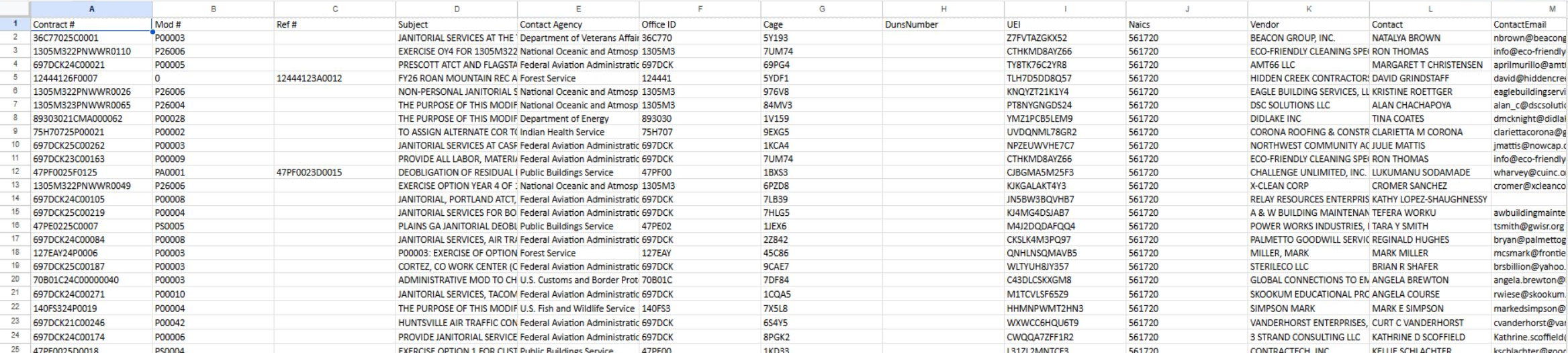
The first columns identify the award action and the company. Keep Contract #, Mod # and Ref # together when returning to an award in the application.
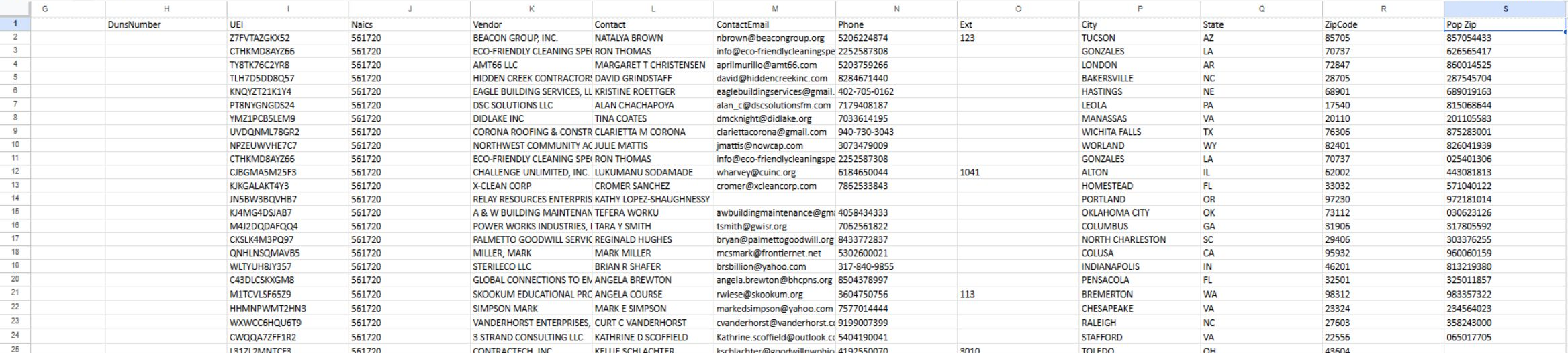
The middle columns help you organize a company follow-up list. City, State and ZipCode describe the vendor; Pop Zip describes the place of performance.
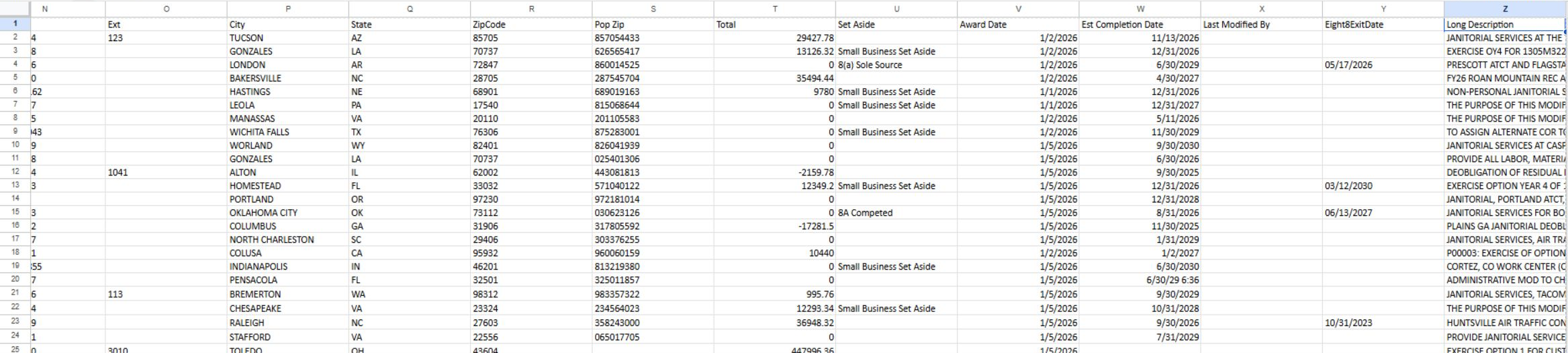
Open a larger view: identifiers · contacts and locations · amounts and dates.
The remaining columns show amounts, dates and descriptions. For example, filter the complete table by Contact Agency to focus on one buyer, or by Vendor to review one company's actions. Sort the complete table by Award Date to put recent activity first. Keep whole rows together when sorting. Return to Award History and use the contract number to open a record for closer review; use the original search page when you want a different list.
These worksheet views demonstrate the export layout. The field reference below applies to other searches using the same layout.
For example, selecting Year 2026 and Contract/Solicitation Number 140FS225P0147 returned four award actions. The downloaded AwardHistory worksheet had the same four contract/modification, amount and date combinations in 27 columns. Modifications P00005, P00004, P00003 and P00002 carried −$1,498, $0, $5,376 and $8,160. Their $12,038 sum is action obligations, not a new solicitation or contract ceiling. In this file, identifiers and # Offers were text, Total numeric, and populated award/completion dates were date cells.
Flat award row unit: one recorded award action or modification. Grouped award export row unit: an award action, not one grouped parent contract. The grouped page displays a contract-level Total in its parent rows, while its export lists each action's obligated amount. Do not compare a spreadsheet Total to a grouped parent Total or sum modifications as if they were a contract ceiling. A negative action amount may be a deobligation. The flat export has 27 columns; the grouped export omits # Offers and has 26.
| Exact header | Meaning and business use | Expected content / unit |
|---|---|---|
| Contract # | Contract/action identifier. Combine with Mod # and Ref # to distinguish records. | Identifier text. |
| Mod # | Modification number. An action may amend an earlier contract. | Identifier text; may be blank. |
| Ref # | Referenced parent or vehicle identifier. Check detail before grouping by it. | Identifier text; may be blank. |
| Subject | First 50 characters of the requirement description. | Text. |
| # Offers (flat only) | Recorded number of offers received for that action. Check the downloaded cell format before calculating. | Count-like field. |
| Contact Agency | Recorded awarding agency name. | Text. |
| Office ID | Contracting-office identifier. Useful for buyer research alongside agency. | Code text. |
| Cage | Awarded vendor's CAGE identifier, distinct from the account user's CAGE. | Identifier text. |
| DunsNumber | Legacy business identifier associated with the vendor. | Identifier text; may be blank. |
| UEI | Unique Entity ID associated with the vendor. Verify current legal entity before attribution. | Identifier text; may be blank. |
| Naics | Principal NAICS recorded on the action. A code alone does not prove the work fits that industry. | Classification code text. |
| Vendor | Award action's vendor name. Confirm entity identity against CAGE/UEI. | Text. |
| Contact | Business point-of-contact, not necessarily the contracting officer. | Name text; check current contact details before outreach. |
| ContactEmail | Email from that vendor profile. | Email text; check current contact details before outreach. |
| Phone | Vendor-profile phone. | Phone text; preserve formatting. |
| Ext | Vendor-profile phone extension. | Text; may be blank. |
| City | Vendor-profile city, not the work site. | Text. |
| State | Vendor-profile state, not necessarily place of performance. | State text/code. |
| ZipCode | Vendor-profile postal code. Do not substitute it for POP ZIP. | Postal identifier text. |
| Pop Zip | Recorded place-of-performance ZIP on the award action. | Postal identifier text; may include ZIP+4. |
| Total | Action-level obligated amount in these exports. It is neither a contract ceiling nor the grouped screen's parent total. | Currency amount; can be zero or negative. |
| Set Aside | Recorded set-aside category on the action. This does not establish current eligibility. | Category text. |
| Award Date | Date of the recorded award action. | Date-like value. |
| Est Completion Date | Recorded ultimate/estimated completion date. It is not a recompete announcement. | Date-like value or blank. |
| Last Modified By | Historical FPDS field identifying who last modified the record. | Text or blank. |
| Eight8ExitDate | Historical 8(a) program exit date from older SBA records. SBA no longer publishes this field; it does not establish current program status. | Date-like value or blank; check the downloaded cell format. |
| Long Description | Full recorded requirement description, beyond the short Subject. Read with contract detail for context. | Text. |